Spend Caps in AgentView
 View Spend Caps
Spend caps for a subscription A billing entity that incurs a charge. Examples include a network attached device whose usage you want to measure and charge for, or a monthly software subscription are displayed in the Subscription Summary screen in the Billing >Spend Caps lower panel under the following columns:
| Name | Description |
|---|---|
| Cap Code | The CMP code for the spend cap. |
| Description | The descriptive name for the spend cap. |
| Cap Enabled | If there is a checkmark in this column, the cap is currently enforced on the subscription. |
| Cap Activity Pending | Any actions that are pending on the spend cap. |
| Cap Amount | The monetary amount of the spend cap. |
| Cap Remaining | The monetary amount of the cap that remains unused. |

View spend cap A service for customers that applies a limit to how much usage a customer can consume outside of their allowances or bolt-on extras, preventing spending over a certain amount. details in Billing >Spend Caps in the Subscription Summary screen
View Spend Cap History
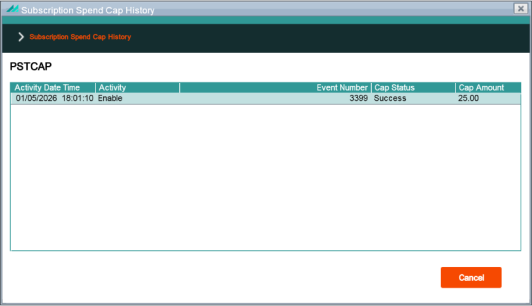
You can view the history for a spend cap A limit on a subscriber's service. in the Subscription Summary screen in the Billing >Spend Caps lower panel. Right-click a listed spend cap and select History in the shortcut menu to launch the Subscription Spend Cap History popup. The pop-up lists the activities for spend cap under the following columns:
| Name | Description |
|---|---|
| Activity Date Time | The date and time that the activity for the spend cap took place. |
| Activity | The activity that took place, for example Enable, Change. |
| Event Number | The ID number of the workflow event associated with the activity. |
| Cap Status | The status of the spend cap for that activity, for example Complete, Failure, Pending. |
| Cap Amount | The monetary amount of the spend cap at the time the activity took place (cap amounts can be changed). |
Add a Spend Cap
Spend caps are added at subscription level in the Subscription Summary screen in the Billing >Spend Caps lower panel. Right-click in the pane and select the Add shortcut menu option to launch the Change pop-up with the Maintain Subscription Spend Cap screen, where you can choose a spend cap and enter a monetary amount for it:
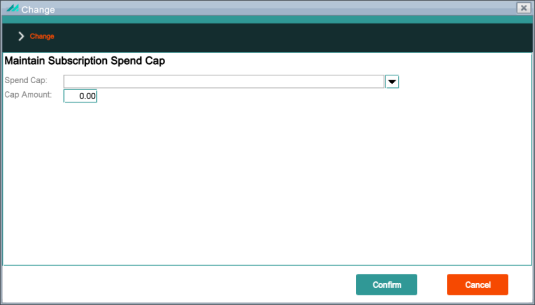
Add spend caps to a subscription in Maintain Subscription Spend Cap
Delete a Spend Cap
Spend caps are deleted at subscription level in the Subscription Summary screen in the Billing >Spend Caps lower panel. Right-click a listed spend cap and select Delete in the shortcut menu.
Change a Spend Cap
You can change the monetary amount of a spend cap in the Subscription Summary screen in the Billing >Spend Caps lower panel. Right-click a listed spend cap and select Change in the shortcut menu. This lunches the Change pop-up with the Maintain Subscription Spend Cap screen, in which you can adjust the amount of the cap.
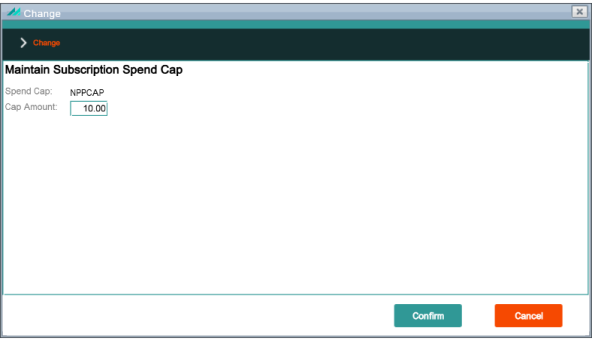
You can change the monetary amount of a spends cap in the Change > Maintain Subscription Spend Cap pop-up.