How To Publish Product Offerings from the Aurora Console
A Product Offering is the product a company makes available for customers to purchase through a specific sales channel or for a specific customer In the context of the Cloud Monetisation Platform, an individual or organisation who has signed an agreement to take goods and services from a service provider. A customer receives a bill associated with one or more subscriptions, and can be a single end user or a large company with many subscriptions assigned to one agreement. segment. This commercially available product includes their specifications, for example, mobile phones in different colours and storage capacities, as well as the pricing of both the product and related services, such as warranties.
In CMP Converged Monetisation Platform. The MDS Global product that supports customer care and billing for digital service providers., you add product offerings in bulk using the Aurora console.
Once defined, these product offerings are stored in the CMP Product Catalogue The CMP component that details the products and services available to subscribers., which is made available to external systems such as the WebShop.
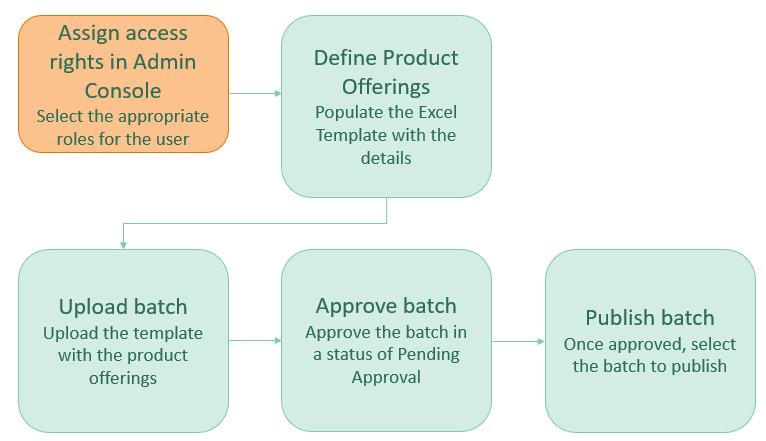
The Aurora Console allows you to upload product offerings in bulk, approve the offerings, and once approved, publish them to the specified external systems where customers can place their orders.
1. Assign access rights to Aurora Console
Permissions must first be applied to the relevant users before using Aurora. You assign the appropriate access rights in the System Administration module in the Admin Console.
The following steps describe how to assign user A person with the capability to log in to the CMP GUI software, such as a customer service advisor or agent. access rights to Aurora Console.
.
From the Admin Console, select System Administration > Users.
This opens the Users List screen.
Select the user to whom you want to assign access rights, and select Edit to open the Edit User dialog.
Tick the Aurora Console checkbox.
This enables the Aurora Console tab.
Select the Aurora Console tab.
Select the relevant group
In the Customer Manager Platform hierarchy, the highest level of the structure. The group level can be used to group corporates. Groups can hold financial information. on the left-hand side. The access associated with this group is shown on the right-hand side.
Return to the User Profile tab, and select Save to save your changes.
With the relevant permissions, you can now use Aurora Console to add product offerings to CMP.
2. Define the product offerings
Excel templates are provided in Aurora to capture the product offering details to upload into CMP and publish to an online store. You can download templates for the different product types, such as mobile phones and laptops.
The following steps describe how to download and populate the relevant product offering template.
From the Aurora Console, select Batch Template from the left-hand menu.
This opens the Batch Templates screen.
Click a template to download it.
The browser downloads the template.
Open the template, rename it as required, and populate the columns with the appropriate data, using the tooltips and data validation as a guide.
3. Upload the product offerings
With the product offerings added to the template, they can now be uploaded to Aurora.
The following steps describe how to upload the template.
From the Aurora Console, select Batches from the left-hand menu.
This opens the Batches screen.
Select Upload.
This opens the Upload dialog.
Enter the fields on this screen.
Select the category that the product offering belongs to from the Product Type drop-down list.
Use the date picker to select the date from when the product offering is available in the Effective Date field.
Select the pathway through which the customer purchased the given product from the Sales Channel drop-down list.
Select the Browse button, and choose the Excel Template you want to associate with this upload.
Select Submit.
If there are errors with any of the data entered into the template, you will see an Extract/Load Error. To view the batch record associated with the upload error, navigate to Admin Console > Daily Operations > Jobs > Product Catalogue and click on the hyperlink in the Last Batch column. This opens the Batch Audit screen from where you can identify the cause of the error.
The Product Upload job validates the data, and if valid, changes the status to Pending Approval.
4. Approve the product offerings
You have the option to approve or reject a batch of product offerings that have been previously uploaded in bulk. All previously uploaded product batches and their status are shown on the Batches screen.
The following steps describe how to approve a batch.
From the Aurora Console, select Batches from the left-hand menu.
This opens the Batches screen.
Tick the checkbox against the batch to be approved.
This enables the Approve button.
Select Approve.
The Approve batch dialog displays.
Select the Approve button to confirm the batch approval.
When the batch is approved, the product offerings within the batch are created in CMP.
5. Publish the product offerings
Once a batch has been approved, all the product offerings within the batch appear on the Product Offerings screen.
Before you begin:
Ensure that the batch is in a status of Active, meaning the product is ready to go live.
The following steps describe how to publish a batch of product offerings.
From the Aurora Console, select Product Offerings from the left-hand menu.
This opens the Product Offerings screen.
Tick the checkbox against the individual product offerings to be published.
The batch must be in a status of Active.
You can also click the Select All button to choose all the product offerings shown on screen.
Select Publish.
The products are published to the external system from where they are made available for customers to purchase.