Allowances in AgentView
 View Allowances
You can view the allowances for a subscription A billing entity that incurs a charge. Examples include a network attached device whose usage you want to measure and charge for, or a monthly software subscription in the Subscription Summary screen in two locations:
-
In the Profile > Summary lower panel, the Effective Allowances pane lists the effective allowances for the subscription under the following column headings:
Column Description Allowance The name of the allowance. Recurring If checked, the allowance is a recurring allowance and is renewed every month, for example. Inclusive The amount of the allowance - for example 100 Voice minutes, 500 texts, 1GB of data. Remaining How much of the allowance remains to be consumed. Expiry The expiry date of the allowance for this allocation. If this is a recurring allowance, this is the end of the recurring period. Is this is a one-off, it is the expiry date. 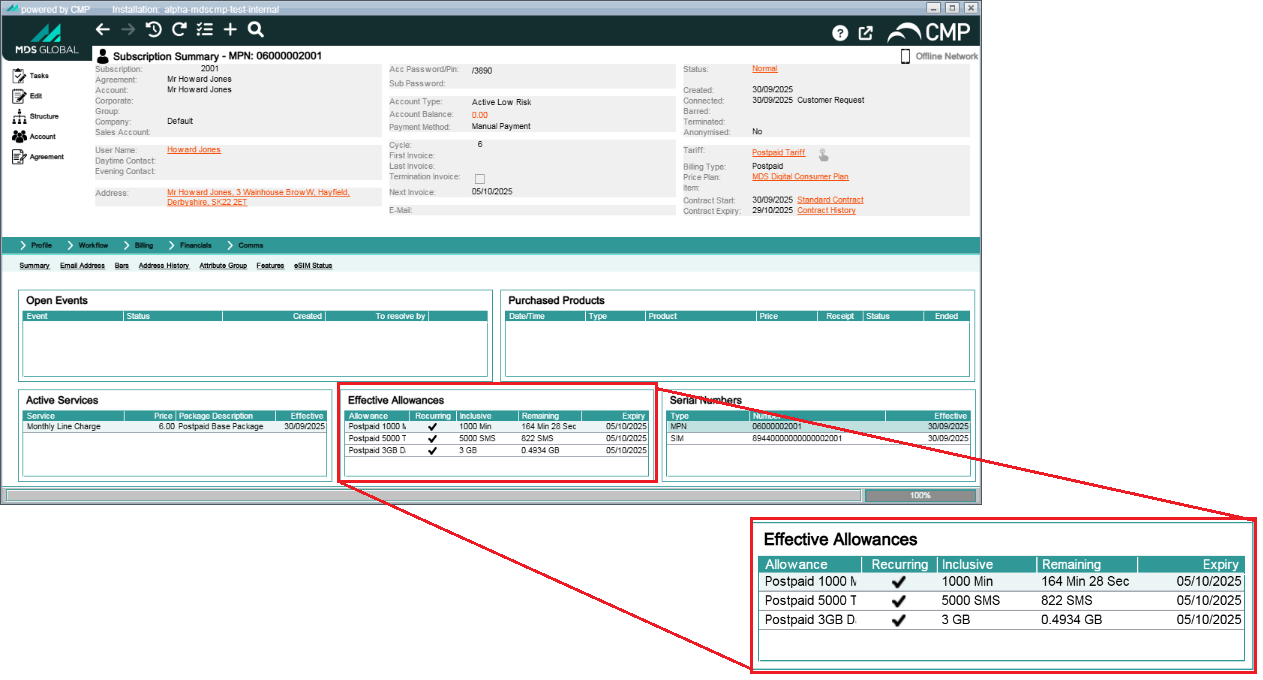
-
In the Billing > Allowances lower panel, you can choose to view All or Effective allowances using the drop-down on the top right. The allowances for the subscription are listed under the following column headings:
Column Description Description The name of the allowance. Type The type of the allowance - e.g. Voice, Text, Data or Cash. Inclusive The amount of the allowance - for example 100 Voice minutes, 500 texts, 1GB of data. Remaining How much of the allowance remains to be consumed. Rollover How much of the allowance was rolled over from the previous period(s). Recurring? If checked, the allowance is a recurring allowance and is renewed every month, for example. Shared? Whether the allowance is shared between subscriptions. Checked = shared. Effective The date on which the allowance became effective. Expiry The expiry date of the allowance. Ended If checked, the allowance is marked to be ended at the end of the billing period. 
View Transferred or Transformed Allowances
Both recurring and non-recurring allowances can be transferred from one subscription to another, if the subscriptions are both connected. This can take place via a selfcare app, for example, using RESTful web services Web services that are based on Representative State Transfer (REST) architecture principles, and are therefore designed to work best on the Internet, being lightweight, maintainable, and scalable. CMP provides RESTful web services to access much of CMP functionality.. The transferred allowances are visible for the donor and recipient in the Subscription Summary Billing > Adjustments screen in AgentView. There is no change to the expiry date of a transferred allowance.
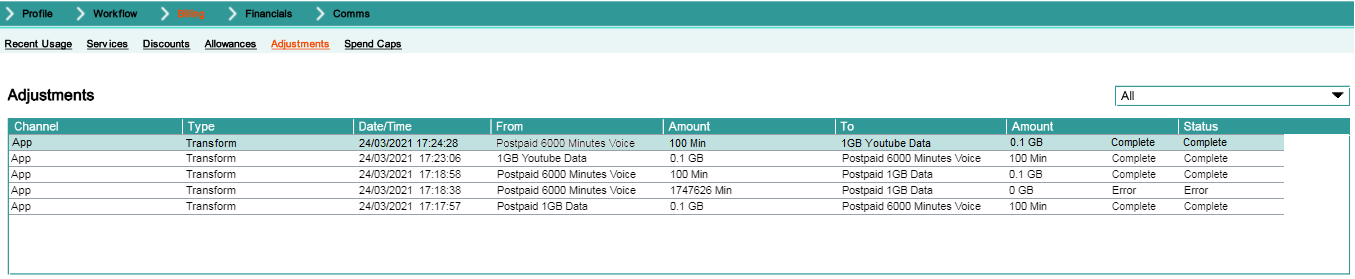
Available allowances can be converted to other types of allowance for the same subscription. For example voice can be converted to data.The conversion calculation handled by the calling application, for example a self-care app, which informs CMP Converged Monetisation Platform. The MDS Global product that supports customer care and billing for digital service providers.. CMP passes the information to the online charging system (OCS). The donor and recipient allowances are adjusted by RESTful web services. The transformed allowances are also displayed in AgentView in the Subscription Summary Billing > Adjustments screen.
View Allowance Caps
Spend caps on allowances can be set in the OCS (online charging system) and consumption and the remaining balance of allowances can be viewed in AgentView. You can view the details for allowance spend caps as follows:
-
Access the relevant Subscription Summary screen.
-
In the lower panel Effective Allowances mini-panel, right-click an allowance and select Caps in the shortcut menu.
The Allowance Caps window displays the caps information for that allowance:
Column Description Allowance The description of the allowance to which the cap applies. Allowance Cap he description of the allowance cap. Cap Amount The amount of the cap. Remaining The amount of the cap remaining (the balance).