Discounts in AgentView
 View Discounts
You can view discounts in the Discounts lower panel, accessed at in the Subscription A billing entity that incurs a charge. Examples include a network attached device whose usage you want to measure and charge for, or a monthly software subscription, Account In the Cloud Monetisation Platform, a billing entity that can be used to manage payments on one or more subscriptions or payments for services. An account can hold details such as payments or invoices., or Agreement In the Cloud Monetisation Platform, the entity that holds the instructions for generating the bills for one or more subscriptions. including the addresses and how often the bill is generated. Summary screen by selecting Billing > Discounts.
The panel shows the list of all discounts appropriate to the subscription, account, or agreement. You can filter the view using the drop-down in the upper right corner to show only those discounts that are currently effective.
Information for each discount is displayed under the following column headings:
|
Column |
Description |
|---|---|
|
Sequence |
Indicates the sequence in which discounts are used. The sequence number determines the order in which discounts are applied during invoice production. The lowest numbered sequence is effective first. |
|
Scheme |
The unique CMP code for the discount scheme. |
|
Description |
The descriptive name for the discount scheme. |
|
Package |
The packages associated with the discount. A package is a collection of services and discounts that are collated together and offered in combination to facilitate the application of services to a subscription. |
|
Effective |
The date from which the discount scheme is effective. |
|
Expiry |
The date on which the discount scheme expires. This can happen when one discount supersedes another. |
|
Stop? |
When the check box is selected, the next sequential discount after this one will not be used. If this check box is unselected, the next discount in the sequence following this one can be used. |
|
Type |
Details the discount type: (Normal). |

Billing > Discounts Panel
View Effective Discounts for an Account
You can also view the effective discounts for an account in the Account Summary screen. The Profile > Summary lower panel contains an Effective Discounts pane with the following columns:
|
Column |
Description |
|---|---|
|
Discount |
The descriptive name for the discount |
|
Type |
The type of discount, e.g. Normal |
|
Package Description |
The descriptive name of the package with which the discount is associated |
|
Effective |
The date from which the discount scheme is effective |
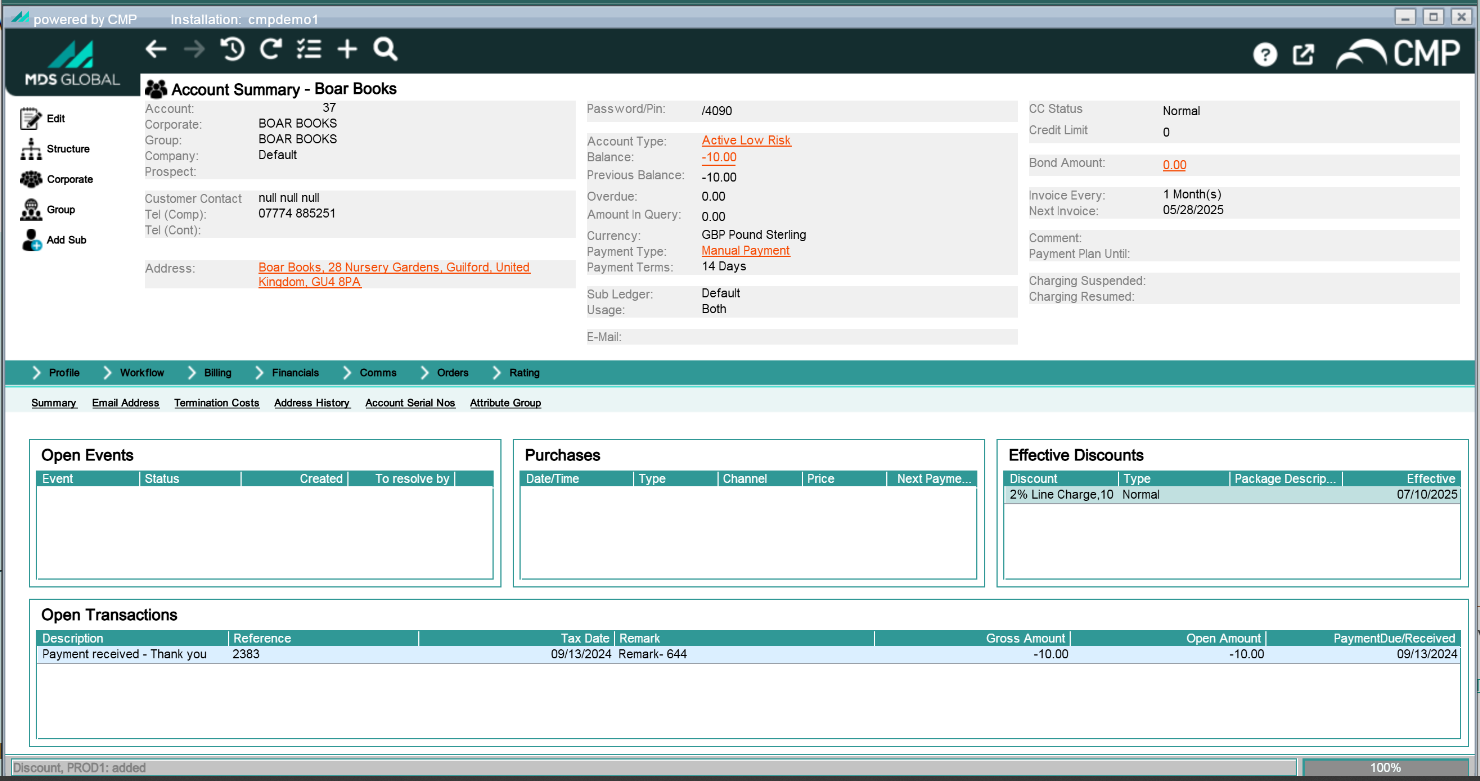
Account Summary Effective Discounts pane
Add a Discount
Discounts are added in the Add Discount pop-up, which can be accessed in both the Discounts lower panel or the Effective Discounts pane. In either location, select Add in the shortcut menu to launch the pop-up, which has the following fields:
|
Field |
Description |
|---|---|
|
Discount |
Select a discount scheme from the drop-down list. |
|
Effective |
Input the date from which the discount applies directly or click to display date-pickerfrom which the date can be selected. When done so it automatically populates the field display. It is not possible to apply the discount retrospectively and the date entered must be either today, or a future date. |
|
Stop? |
When discounts are applied at multiple hierarchy levels, select the checkbox to stop the next sequential discount being used. If unselected, the next discount in the sequence can be added on top of this discount when the invoice is calculated. |
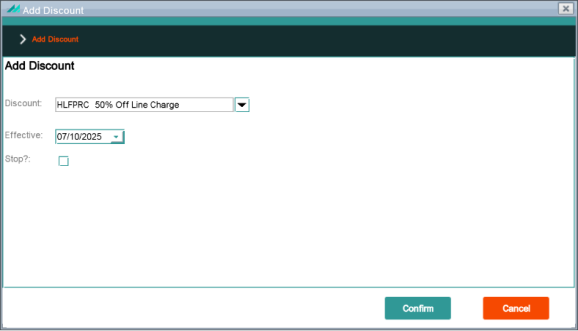
Add Discount pop-up
Change a Discount
Discounts are changed in the Change pop-up, which can be accessed in both the Discounts lower panel or the Effective Discounts pane. In either location, right-click the relevant discount and select Add in the shortcut menu to launch the pop-up, which has the following fields:
|
Field |
Description |
|---|---|
|
Allocation |
A unique reference number for the discount scheme created. |
|
Sequence |
Indicates the sequence in which the records are used. The lowest numbered sequence is effective first. The sequence number determines the order in which discounts are applied during invoice production. |
|
Package |
The package with which the discount scheme is associated. |
|
Scheme |
The descriptive name for the discount scheme. |
|
Type |
The discount type, e.g. Normal. |
|
Effective |
The effective date of the discount scheme. |
|
Expiry |
Details the date on which the discount scheme expires. This can happen when one discount supersedes another. |
|
Calculation Frequency |
The number of months over which a discount scheme is calculated. |
|
Calculation Type |
This details whether calculations are performed over individual call classes or over call class groups. |
|
Invoice Volume Service: |
Service attached to the invoice volume discount that has been added. Invoice Volume discounts are currently not supported. |
|
Invoice Volume Event Type: |
Specific type associated with the workflow event raised to indicate that an invoice volume discount has been added. Invoice Volume discounts are currently not supported. |
|
Invoice Volume Event Code: |
Unique code for the workflow event raised to indicate that an invoice volume discount has been added. Invoice Volume discounts are currently not supported. |
Expiry dates can be added or altered using this panel. All other content is read-only.
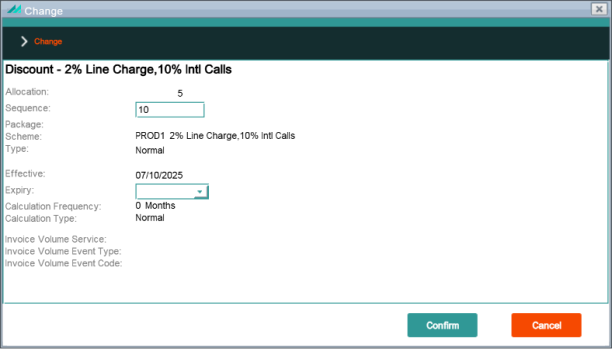
Change discount expiry dates in the Change pop-up
Delete a Discount
Discounts can be deleted in the Effective Discounts pane or the Discount lower panel via the Delete right-click menu option, provided that the discount is not part of a package.
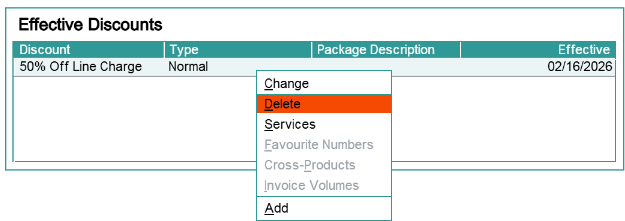
This discount is not associated with a package code, so the Delete option is active.
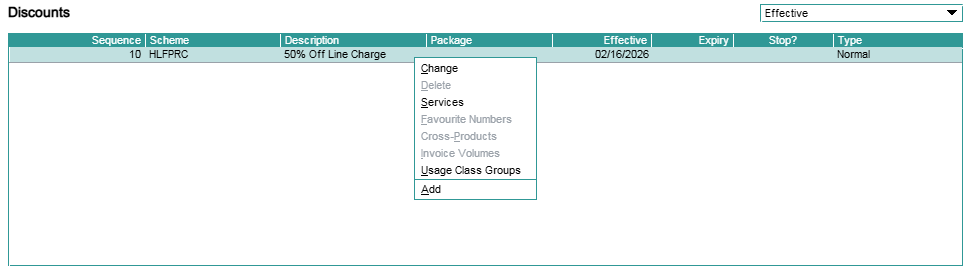
This discount is part of a package, so the Delete option is inactive.
View and Manage Discount Services
The Discount Services pop-up displays details of the discountable services in the discount scheme.
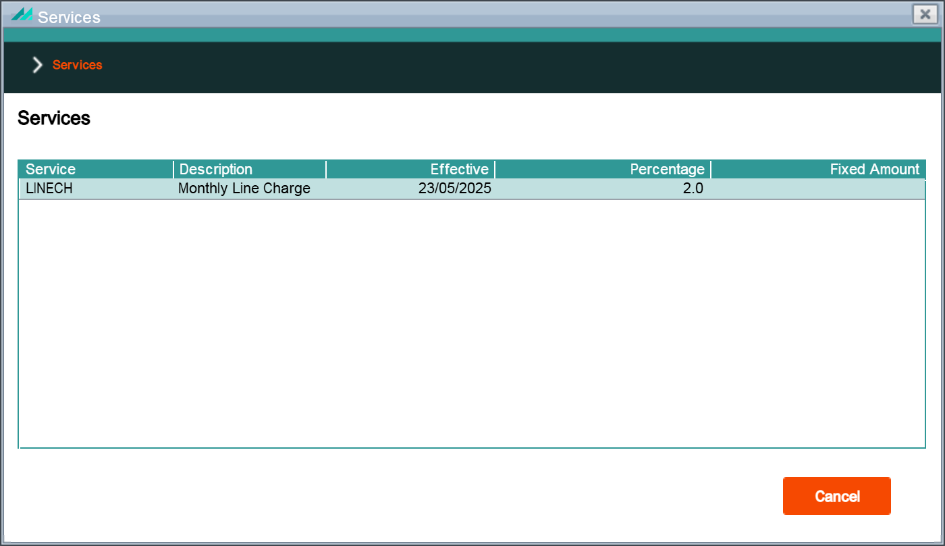
The Discount Services pop-up is accessed in the Subscription, Account, or Agreement Summary screen via the Billing > Discounts lower panel.
The pop-up displays information for each discountable service in the following:
|
Column |
Description |
|---|---|
|
Service |
The CMP code for the service. |
| Description | The descriptive name for the service. |
|
Effective |
The date from which the service becomes effective. |
|
Band Type |
When set to BandsCMP performs the discount calculations for each individual band; when set to Total, it performs the discount calculations across the total number of bands in the scheme. |
|
Based on Value |
The discount can be based on either the service provider's Retail Value or Billed Value. It can also be based on the Supplier Value. |
|
Based on Volume |
When this check box is selected, the discount is based on Volume rather than Value. |
Use the right-click menu options to Add, Change or Delete a discount service.