Example - Building a Price Plan
 Step 1: Identify the Components
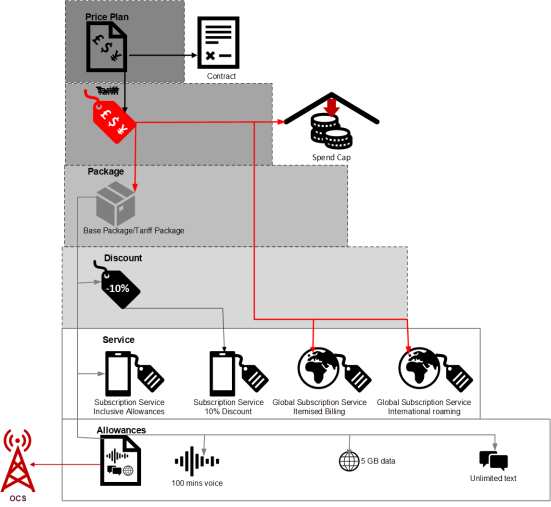
The first step is to identify the components you will need to build the price plan proposition. In the following diagram of the hierarchy of proposition components, the components needs for the price plan are indicated with a checkmark.
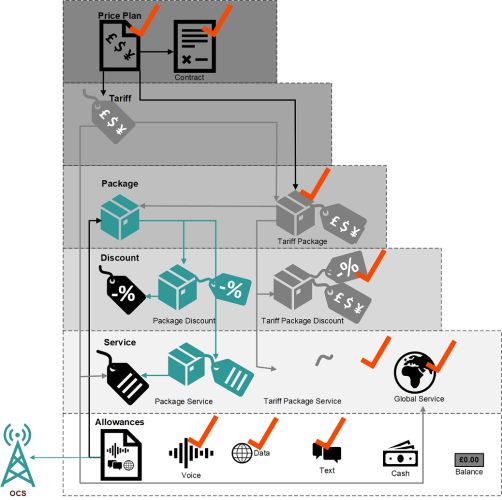
To create the new Family Fun price plan, you'll need the following:
-
Allowances - You need allowances to tell the network
In the context of CMP, the infrastructure on which usage of registered customers will be measured – this could be a mobile phone network, broadband network or other non-telecommunications network. what to provision the customer In the context of the Cloud Monetisation Platform, an individual or organisation who has signed an agreement to take goods and services from a service provider. A customer receives a bill associated with one or more subscriptions, and can be a single end user or a large company with many subscriptions assigned to one agreement. with. -
Services - Services are required to drive the allowances and provide non-usage
The consumption of services, for example a subscriber using call minutes. items. -
Discount - The discount offer is a flat rate of 10% if the price plan is purchased by a specific date.
-
A base package - You need to configure a monthly recurring base package.
-
A tariff
-
Price plan - once all the components are configured, you can configure the price plan. The price plan must be configured as a postpaid plan and you need to select the Family Tariff and the base package you configured for the price plan. You will also need to add a contract for 24 months.
Step 2: Configure Allowances
The first step is to ensure that allowances are available to meet the needs of the new propositions. In this case, allowances for the following are needed:
-
100 minutes voice
-
5 GB data
-
unlimited text:

Step 2: Ensure allowances are configured for the propositions
The price plan needs recurring allowances for voice, text and data in the amounts you require. The price plan is for postpaid customers, so the allowances must be postpaid or both postpaid and prepaid. Because the allowances are to be renewed every month, they must be configured as recurring allowances. They also need to be enabled to be rolled over to the next month if unused.
In the Business Configuration A module in the CMP Administation console that provides for viewing and modification of business and user applicable system configuration. console, you create the required allowances by linking to an equivalent allowance in the OCS that has the configuration you require. Once you have selected the OCS allowance, the configuration settings are devolved to the CMP Converged Monetisation Platform. The MDS Global product that supports customer care and billing for digital service providers. allowance and they cannot be changed.
Configuration of the voice allowance should be as follows:
| Setting | Value |
|---|---|
| Allowance Code | This is auto-generated and cannot be altered. |
| Allowance Description | Postpaid 100 Minutes Voice |
| Type |
Voice |
| OCS Allowance Name |
The allowance name in the OCS that is associated with this allowance, in this case it is HOME_VOICE_POSTPAID_100. |
| Billing Type | Postpaid |
| Allowance |
In this case, the allowance is for 100 MINS. |
| Unlimited | This allowance has a limit, so this setting is not selected. |
| Recurring |
This setting is selected. |
| Recurring Frequency | This is a monthly recurrence, so 1 is set as the frequency and Months is the time period. |
| Proratable | Not selected. |
| Rollover | This setting is selected and 1 is entered as the number of times the rollover is permitted. |
| Shared | Not selected. |
In the Business Configuration console, the configuration looks like this:
For step-by-step instructions to configure allowances in the console, see the Business Configuration online help.
The data allowance configuration settings are as follows:
| Setting | Value |
|---|---|
| Allowance Code | This is auto-generated and cannot be altered. |
| Allowance Description | Postpaid 5GB Data |
| Type |
DATA |
| OCS Allowance Name |
The allowance name in the OCS that is associated with this allowance, in this case it is 5GBDomesticDataDemo. |
| Billing Type | Postpaid |
| Allowance |
In this case, the allowance is for 5 GB |
| Unlimited | This allowance has a limit, so this setting is not selected. |
| Recurring |
This setting is selected. |
| Recurring Frequency | This is a monthly recurrence, so 1 is set as the frequency and Months is the time period. |
| Proratable | Not selected |
| Rollover | This setting is selected and 1 is entered as the number of times the rollover is permitted. |
| Shared | Not selected. |
The unlimited text allowance is configured as follows:
| Setting | Value |
|---|---|
| Allowance Code | This is auto-generated and cannot be altered. |
| Allowance Description | Postpaid Unlimited Texts |
| Type |
TEXT |
| OCS Allowance Name |
The allowance name in the OCS that is associated with this allowance, in this case it is SMSUnlimited. |
| Billing Type | Postpaid |
| Allowance |
In this case, no value is entered because the allowance is unlimited. |
| Unlimited | Selected |
| Recurring |
This setting is selected. |
| Recurring Frequency | This is a monthly recurrence, so 1 is set as the frequency and Months is the time period. |
| Proratable | Not selected |
| Rollover | This setting is selected and 1 is entered as the number of times the rollover is permitted. |
| Shared | Not selected. |
Step 3: Configure Services
To add the charges for non-usage items to the proposition, services must be configured.
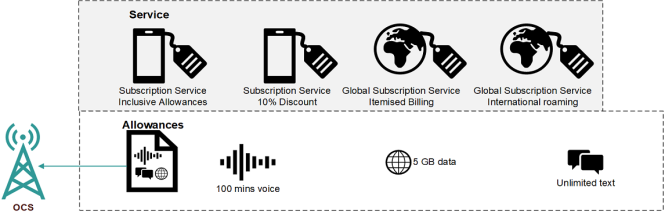
For the Family Fun price plan, you need:
-
A service for the regular monthly charge that will provision the set of inclusive allowances. This will be a subscription
A billing entity that incurs a charge. Examples include a network attached device whose usage you want to measure and charge for, or a monthly software subscription service. Services are used to add charges to a product, so this is the service that will be priced at £15 to cover the monthly charge of the price plan. -
A discount service for the 10% discount. The service must be configured with the regular monthly charge service as the parent service to allow the discount to be applied to the charge.
These two services must be linked to the base package.
-
A subscription service for the international roaming
Using services through a network other than the home network, commonly when using a mobile phone service while travelling abroad.. The company charges the same price for international roaming regardless of tariff, so this is a global service that is already configured. You'll need to locate it and add it to the price plan by linking it to the price plan's tariff as a tariff service. -
A subscription service for the itemised billing. This is a standard service provided by the company to all price plans, so the configuration that applies to the international roaming service applies here too. This is an existing global service that needs to be linked to the tariff.
Step 2: Configure services to accommodate charges for the non-usage items
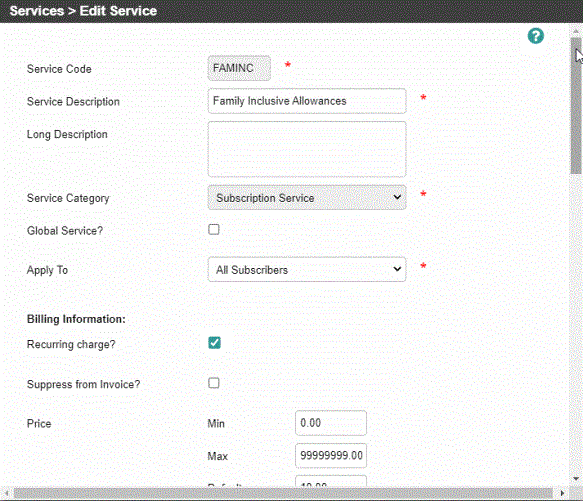
In the Business Configuration Console configuration for the recurring monthly charge service is as follows:
| Setting | Value |
|---|---|
| Main | |
| Service Code | An unique alphanumeric code for the service. |
| Service Description | A brief meaningful descriptive name for the service of up to 30 characters. This appears on the invoice next to relevant charges so ensure that spelling and grammar are correct. |
| Long Description | A longer description for the service that can be viewed by other CMP users, so it needs to be meaningful. It does not appear on invoices. |
| Service Category |
The type of service - In this case Subscription. |
| Global Service |
Unselected = No= The service is only relevant to a particular tariff and is not available to all subscribers. |
| Apply To | The service applies to All Subscribers and not to the principal subscriber only |
| Billing | |
| Recurring charge? |
Selected = Yes = the service will be charged on the frequency set in Period Covered |
| Suppress from Invoice |
Unselected = No = the service appears on the customer’s invoice |
| Price Min | The minimum price allowed for the service being created. This allows agents to override the default price. |
| Price Max | The maximum price allowed for the service being created. This allows agents to override the default price. |
| Price Default | The default price for the service. In this case the default is £10. You will override the default when you link the service to the base package. |
| Default Nominal Code |
A nominal Code is required so that each time a customer is charged for this service it can be accounted for in the ledger. The Nominal Ledger Code is made up of two parts. The first part is the cost centre of the service, and differs from tariff to tariff. The second part is the Object Code, and relates to the type of service being charged for. The nominal ledger code is always be displayed in the following format: • Character 1 – blank • Characters 2-13 - Business Unit • Character 14 - decimal point • Characters 15-20 - Object Account (Non-Key) • Character 21 - decimal point • Character 22-29 - Subsidiary |
| Period Covered |
For recurring charges, the frequency of occurrence. For example, if the charge (default) of £10 is a monthly charge then the number of months covered is 1. |
| Billing Offset | The number of billing periods the customer pays in advance to offset the service charges. No billing offset is required in this case. |
| Exclude until billed up to date | Whether active services on the subscription or account are to be excluded until the billed up to date. This means that services billed in advance are suppressed from future billing until the agreement's Old Next Expected Invoice Date (ONEID) reaches the date to which the service was previously billed. For example, this enables a service charge to cover a full 12 month period and no further charge is made until those 12 months are over. In this case the checkbox is unselected. |
| Credit on Termination? |
Unselected = No = the pro-rata calculation does not take place and the customer does not receive arrears for the amount paid in advance. |
| Itemised Bill? |
Selected = Yes = customer receives an itemised bill. |
| Prorate at Start? |
Often, a customer’s first or final invoice is not for a full calendar month. The Pro-rata fields indicate whether the first and last bills should charge for this service on a pro rata basis. Unselected = No = Charge the customer a full payment for the month for the service regardless of dates.
|
| Prorate at End? | |
| Bill Future on Termination? | Applies where the service has NOT been charged for in advance. In this case you want to send a final invoice to the customer, charging them for any days they have been connected to the service that have not yet been paid for. This is not required for services charged for in advance |
| Dates Required? |
The type of dates to appear on the customer’s invoice for the service:
|
| Dates on Next Line |
Where dates appear on an invoice in relation to the charge for the service. Dates can be displayed next to the charge or beneath the charge on the next line. Unselected = No = Dates appear on the same line, next to the charge. |
| Price Consolidation Service |
Applies to subscription services only. The price consolidation service code. This enables the chosen service to become part of one consolidated service, which is several subscription services grouped together to appear on the subscription invoice as one service with one price against it. In this case, no services are consolidated so this field is left blank. |
| Discount Consolidation Service |
Applies to subscription services only. The discount consolidation service code. This enables the chosen service to become part of one consolidated service, which is several discounted subscription services grouped together to appear on the subscription invoice as one service with one discount against it. This does not apply in this case, so the field is left blank. |
| Network Information | |
| Adding WorkFlow Event Type |
For subscription services only. The workflow event type and code to be automatically created at subscription level each time the service is added to a customer record. In this case, leave blank. |
| Deleting Workflow Event Type |
For subscription services only. The workflow event type and code to be automatically created at subscription level each time the service is deleted from a customer record. In this case, leave blank. |
| Service Code Sequence | CMP automatically assigns a sequence code to the service. This can be used for external reporting. |
| Service Group | Services can be grouped together on an invoice, for example NETWRK or DEFALT, rather than the invoice being a long list of services. In this case, the Subscriptions group is selected. |
| Connection Dependent |
Whether a subscription needs to be connected in order for the service to be chargeable, for example, a line charge. Selected = Yes = connection is required |
| Additional Details | |
| Text Code Effective Date | The date from which this service is taxable. If it is a date in the future, the service will not be taxable until that date. |
| Tax Code | The tax code that applies to the service. |
| Tax rate | The rate at which tax is charged for the service. This is derived from the selected tax code |
| Active? |
Indicates whether the service is active and available to new subscribers. You can de-activate a service in the future without affecting subscribers already connected to this service. Select Yes |
| Explanation | Explanatory text to help future CMP users understand the service. |
This is an example of the configuration in the console:
The discount service configuration settings are similar to the above with some exceptions, as follows:
| Setting | Value |
|---|---|
| Main | |
| Service Category |
The type of service - In this case Discount. |
| Parent Service |
This field is available only if Service Category = Discount Any prerequisite services that must be in use for this service to be activated . For example, to receive the international calls discount service, there must be some international calls being made. So should no international calls be made in a particular billing period, the discount won't be added. In this case, the parent service is Family Inclusive Allowances service. |
| Billing | |
| Settings are the same as for the monthly recurring charge service. | |
| Network Information | |
| Adding WorkFlow Event Type |
Not applicable in this case. |
| Deleting Workflow Event Type |
Not applicable in this case. |
| Service Group | Services can be grouped together on an invoice, for example NETWRK or DEFALT, rather than the invoice being a long list of services. In this case, the Other Charges and Credits group is selected. |
| Connection Dependent |
Whether a subscription needs to be connected in order for the service to be chargeable, for example, a line charge. Unselected = No = connection is not required |
| Additional Details | |
| Settings are the same as for the monthly recurring charge service. | |
The configuration settings for the international roaming service are similar to the monthly recurring charge setting, with the following exceptions:
| Setting | Value |
|---|---|
| Main | |
| Global Service |
Selected = Yes= The service is available to all subscribers regardless of tariff. |
| Billing | |
| Settings are the same as for the monthly recurring charge service. | |
| Network Information | |
| Connection Dependent |
Whether a subscription needs to be connected in order for the service to be chargeable, for example, a line charge. Unselected = No = no connection is required |
| Additional Details | |
| Settings are the same as for the monthly recurring charge service. | |
Step 4: Configure Discounts
The next step is to configure the discount scheme and the discount service. You will need a normal discount that is configured as a percentage with a single band for the price plan price. Because the discount has a time limit, you will need to configure an end date for the discount. The discount will also need to be linked to the base package. You can set an end date when you link the discount.
In this case, you need a 10% discount on the cost of the price plan (£15), which is the cost of the monthly recurring service. (All other services in the package are priced at £0.00).
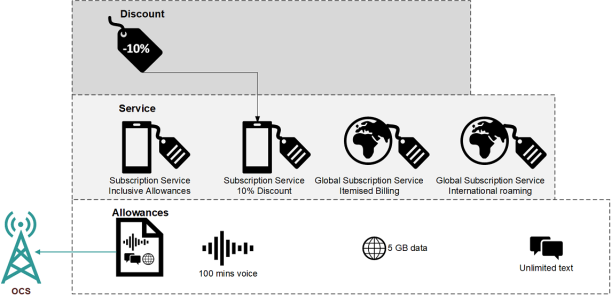
Step 4: Configure any required discounts
The configuration settings for the discount scheme are as follows:
| Setting | Value |
|---|---|
| Discount Scheme Code | 6-character unique alphanumeric code for the discount scheme |
| Discount Scheme Description | Family 5 discount |
| Effective Date |
The date from which the discount becomes effective |
| End Date |
The date on which the discount expires. Although you are offering a discount only until 1 December 2021, you leave this field blank. You can enter an end date when you link the discount to the base package, and this will allow you more flexibility in re-using the discount scheme more. |
| Active? |
Indicates whether the discount scheme is active and available to new subscribers. Select Yes |
| Explanation | Explanatory text to help future CMP users understand the discount scheme |
| Services Linked to this Discount Scheme | |
| Service | The Family Inclusive Allowances (FAMINC) service |
| Values Bands for the Discount Scheme Service | |
| From Value | The value from which the discount applies. In the case, the cost of the price plan, which is £15.00 |
| Percentage | You can add a fixed amount or a percentage for a discount. In this case you enter a 10% discount. |
In the Business Configuration console, the discount scheme settings look like this:

Step 5: Configure the Base Package
The allowances, services and discounts are all configured. Now you need to roll their charges up in a base package.
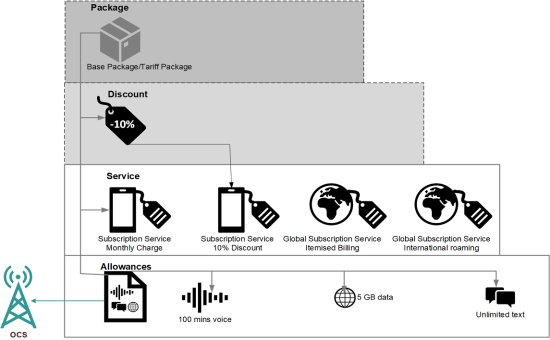
Base package components
You need to configure a monthly recurring base package that will have allowances, subscription services and discount linked to it. Because packages roll up charges and price plan prices are derived from the total charges of their linked packages, the base package is where you will need to take care to configure the prices the services so that they add up to the required price plan price, which is £15.00 in this case.
The configuration settings for the package are as follows:
| Setting | Value |
|---|---|
| Package Code | 6-character unique alphanumeric code for the package |
| Package Description | A description name for the package - Family Fun Base Package, in this case. |
| Long Description | A longer description for the service that can be viewed by other CMP users, so it needs to be meaningful. |
| Classification |
This package is a Base package |
| Billing Type | Postpaid |
| Recurring | Checkbox selected = Yes |
| Duration | The recurring time period, 1 month, in this case |
| Shared? | This checkbox is inactive - base packages cannot be shared |
| End Date |
The date on which the package expires. You can leave this field blank. |
| Active? |
Indicates whether the package is active and available to new subscribers. Select Yes |
| Explanation | Explanatory text to help future CMP 8.23 users understand the discount scheme |
In Business Configuration, the package settings appear as follows:
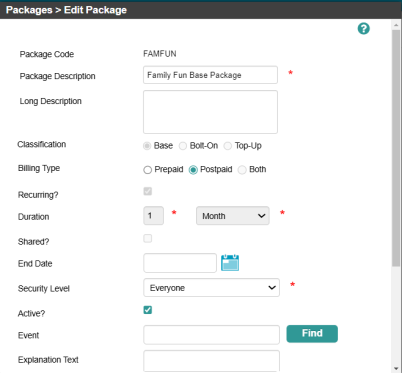
Once you have created the base package, you can configure the links:
-
To inform the OCS what to provide to the customer, you must link the allowances that you configured for the following:
-
Postpaid 100 minutes voice
-
Postpaid 5 GB data
-
Postpaid unlimited texts

-
-
The discount scheme must be linked with an end date of 2 December 2021, because the discount incentive is only for purchases made up to 1 December.

-
To add charges to the package (and eventually the price plan) the service with the charge for the allowances must be linked, the Family inclusive Allowances service. When this service is linked, you need to override the default price and make the price £15.00.

Step 6: Configure the Tariff
All price plans have a tariff. In this case, the same tariff as the other Family 5 products must be linked to the price plan. In this case, it's the Family Tariff. The tariff must also have the following linked to it:
-
The base package you configured - this now becomes a tariff package and the services and discount are known as tariff package services and tariff package discount.
-
The global service for international roaming - if it isn't configured already, you will need to link this global service to the tariff.
-
The global service for itemised billing - if it isn't configured already, you will need to link this global service to the tariff.
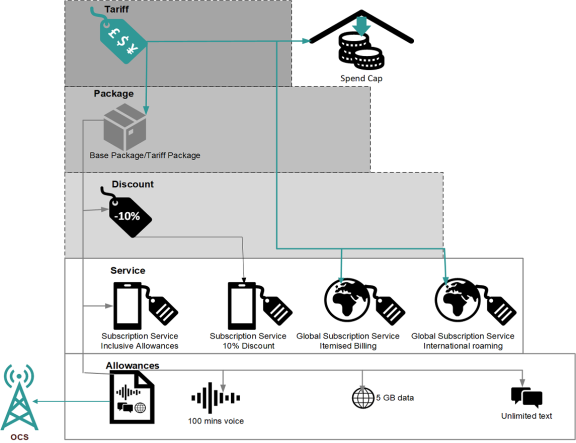
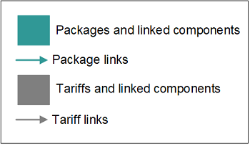
KEY:
Configure a tariff so that it links to the packages and services you want to provide in your price plan
The tariff for the price plan is an existing tariff used for all price plans in the Family 5 product group In the Customer Manager Platform hierarchy, the highest level of the structure. The group level can be used to group corporates. Groups can hold financial information. - the Family Tariff. Its configuration settings are as follows:
| Name | Description |
|---|---|
| Tariff Code | An unique alphanumeric code for the tariff. |
| Tariff Description |
A brief descriptive name for the tariff. |
| Network Type | The type of network with which the tariff is associated, for example standard network, pay as you go OCS, post paid OCS or hybrid. In this case, it is post paid OCS |
| Billing Type | The type of billing for the tariff - Postpaid |
| Spend Cap | For a tariff with a PostPaid billing type, you must select a full spend cap. |
| OCS Rating Plan | The network rating plan associated with the tariff. |
| Billing Options & Schedule | |
| Name | Description |
| Billing Media | This is the network billing type - i.e. the description and code of the default billing media type for the selected network, for example whether it is paper (hard copy) or digital. In this case the billing media is Online Billing (ONLINE). |
| Produce first bill _ days after connection | You can delay the period between a customer connecting to the service, and the first invoice going out. If a customer is connected within days of the billing cycle, you may not want to invoice the customer so soon. Setting a delay in this field - for example 5 days - ensures a ‘delayed’ period when an invoice will not be issued. Leaving this field blank denotes that the first invoice is produced on the bill cycle or next expected invoice date, whichever is sooner. |
| Produce final bill _ days after termination | Setting a delay on the termination invoice after a customer terminates their contract allows for all the calls to come in from the network, including roaming calls and any cyclical payments to be received by the customer. For example, if you enter 30 in this field, CMP does not send a final invoice until the customer has been disconnected for 30 days. The invoice is issued in the next billing cycle after the 30 day period. Leaving this field blank denotes that the subscriber's final invoice will be produced on bill cycle or next expected invoice date,whichever is sooner. |
| Ensure a minimum of _ days between initial bill and first regular bill | The number of days between the first and subsequent regular invoices. This prevents 2 invoices being sent out in close succession. |
| Ensure a minimum of _ days between last regular bill and final bill | A delay between the last regular invoice and the final invoice. This works the same as the first / normal invoice and ensures there is suitable delay between the two. |
| Ongoing Bill Frequency | The frequency at which invoices are issued. Enter a number in the text box and select a period (months or days) from the drop-down.To issue monthly invoices, enter 1 in the text box, and select Months in the drop-down. |
| Active? |
Indicates whether the tariff is active and available to new subscribers. You can de-activate a tariff in the future without affecting subscribers already connected to this tariff. Selected = Yes (active) . |
| Explanation Text | The explanation field is for information that might be needed for future reference by a user (it is not customer-facing info). |
| Usage Pricing | |
| Name | Description |
| Maximum Network Price | The maximum price for the whole call. This is a safeguard to prevent overcharging for calls, where the network price has been taken. The default wholesale network price might be unreasonably high. This protects the price that is charged to subscribers. If the price for the call is below the maximum network price, the network price is charged onto the subscriber. If the price for the call is above the maximum, the call goes into an unallocated call list for further investigation. |
| Public Holiday Pricing Day | Use this field for days where the pricing table may be different. For example different pricing structure for calls made on Xmas day. Leave this field blank unless told otherwise. |
| Daily Usage Limit | A daily usage limit assessed on each individual day’s calls, rather than all unbilled calls for whole month. Enter an amount in this field (in £). Exceeding this amount on any day triggers the creation of a subscription-level workflow event. If assessing daily usage limits is not required, leave this field blank. |
| Event if Daily Limit Exceeded |
The description and code for the workflow event that is created when the daily usage limit is exceeded. Note: You must have set up this event in Workflow Events. |
| Lower Usage Limit | Default usage limits per month (in £) for new subscriptions that connect using this tariff. Default usage limits can apply depending on the account type the customer is allocated, or a combination of account type and tariff. When none of these are set up, CMP uses the default limits set here. |
| Upper Usage Limit | |
You must ensure that the following links are configured for the tariff:
-
A link to the Family Fun base package that you configured to provide allowances, services and discounts:

-
Links to the global subscription services for itemised billing and international roaming:
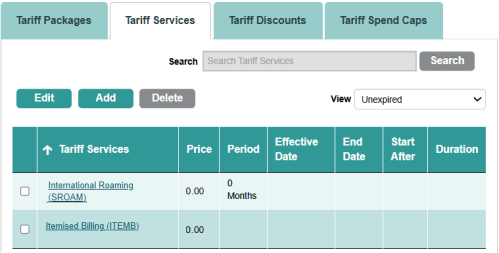
You should also check that a suitable spend cap A service for customers that applies a limit to how much usage a customer can consume outside of their allowances or bolt-on extras, preventing spending over a certain amount. is linked to the tariff because all base packages require a full overage cap A limit on a subscriber's service. to prevent bill shock The negative reaction a subscriber can experience if their phone bill has unexpected charges. for customers:

Step 7: Configure the Price Plan
Now that all the components are configured, you can create the new Family Fun price plan.
KEY:
Family Fun price plan component hierarchy
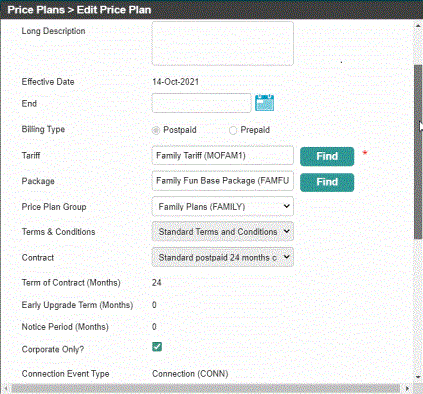
The Family Fun price plan needs to be a postpaid price plan with the Family Tariff and the Family Fun base package. It also should belong to the Family price plan group and be linked to the standard 24-month contract for the company and the standard set of terms and conditions.
The configuration settings for the price plan are as follows:
| Name | Description |
|---|---|
| Price Plan Code | An alphanumeric code for the price plan. |
| Price Plan Description | A brief descriptive name for the price plan, Family Fun price plan, in this case. |
| Long Description | A longer description/explanation of the price plan |
| Effective Date | The date from which the price plan becomes available for provisioning to subscribers. |
| End Date | The date the price plan expires. In this case, the end date has been left blank. |
| Billing Type |
The billing type for the price plan = Postpaid |
| Tariff | The description and code for the tariff - Family Tariff, in this case. |
| Package | The description and code for a tariff package. This is the Family Fun base package that you configured. |
| Price Plan Group | The description and code of the group to which the price plan belongs - Family in this case. |
| Terms & Conditions | The description and code for the group of terms and conditions that applies to the price plan. This price plan used the standard terms and conditions. |
| TCG Effective Date | The date from which the terms and conditions are effective. This field is auto-populated and the information comes the selected terms and conditions. |
| Contract | The contract to associate with the price plan. This price plan uses the standard 24-month contract configured for the company. |
| Term on Contract (Months) | The length of the contract in months. This is auto-populated when you select a contract. |
| Early Upgrade Term (Months) | The time period in months at the start of a contract during which the customer is not allowed to change price plan. This is auto-populated when you select a contract. |
| Notice Period (Months) | The period of notice in months that the customer must give before a change of price plan can take effect. This is auto-populated when you select a contract. |
| Corporate Only? |
Indicates whether a price plan is available only to subscriptions linked to a corporate hierarchy. This is left unselected for this price plan. |
| Connection Event Type The Connection Type (CONN) uses the workflow event code part of a Connection workflow event. This code is set up using standard Workflow Event configuration but you must then link it to the Network Type via Configuring Connection Workflow Events within Customer Management. You also need to ensure that you specify the Connection Event Type in Application Parameter Configuration within System Parameters |
This is auto-populated as the Connection (CONN) event type. |
| Connection Event Code |
The event description and event code to place on a subscription at connection. |
| Ranking | You can enter a numerical ranking for a price plan or leave it blank. |
| Active |
Whether the price plan is available to new subscribers. Selected = Yes. |
| Explanation | Any additional explanatory text required for the price plan. The explanation field is for information that might be needed for future reference by a user (it is not customer-facing info). |
| Tooltip Text | Tooltip text that is displayed when a CMP user hovers their mouse over the price plan name. |
In Business Configuration, the price plan settings appear as follows:
Step 8: Test the Price Plan
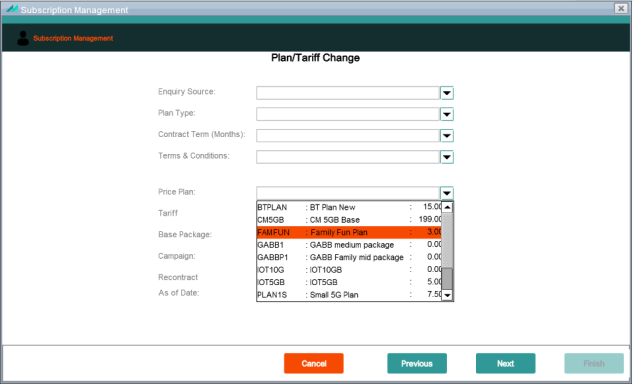
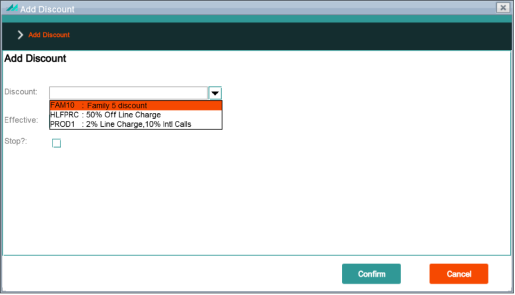
To check that the price plan has been configured correctly, in AgentView The graphical user interface of the CMP that is typically used by Customer Service Agents to access CMP customer and billing data. In versions prior to CMP 8.0, this was called the CMP GUI. test whether you can:
-
Add the price plan, for example:
-
Confirm that the correct effective allowances are available.
-
View the configured services .
-
Apply the discount, for example:
For more information on propositions in AgentView, see Propositions in AgentView.