Price Plans in AgentView
 Assign a Price Plan to a Subscription
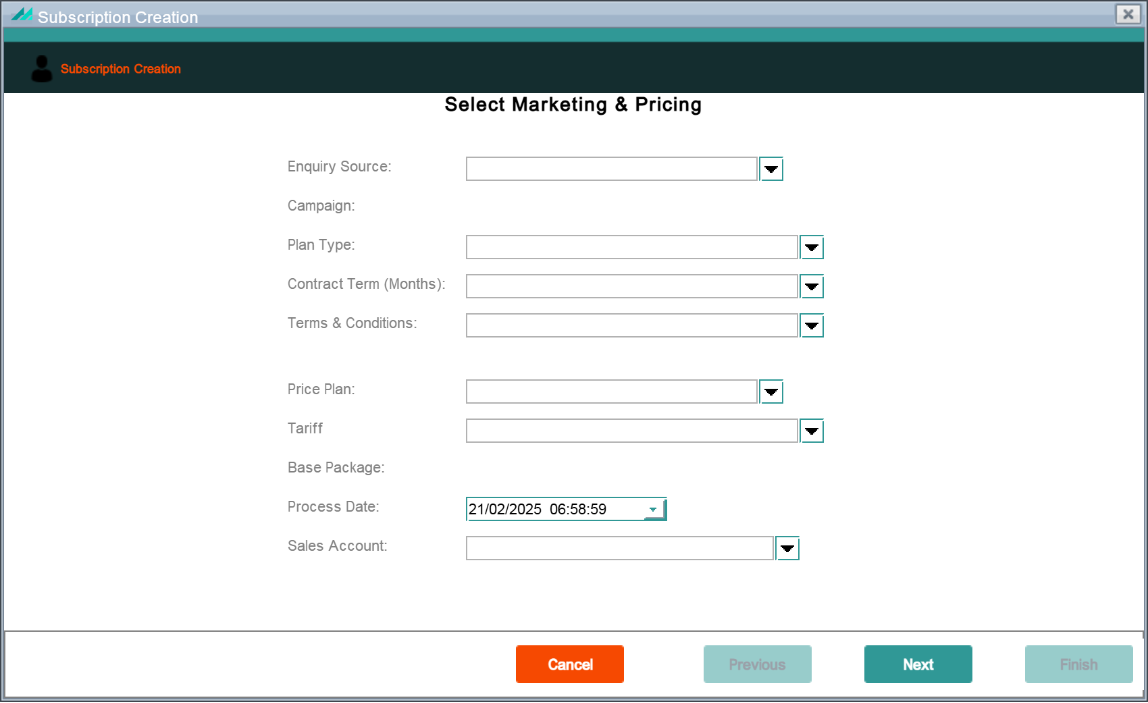
When you create a subscription A billing entity that incurs a charge. Examples include a network attached device whose usage you want to measure and charge for, or a monthly software subscription, you select a price plan for the subscription in the Subscription Creation wizard:
Add a Price Plan to an Agreement, Group or Corporate
A price plan can be applied directly to an agreement In the Cloud Monetisation Platform, the entity that holds the instructions for generating the bills for one or more subscriptions. including the addresses and how often the bill is generated.. Price plans can also be attached to a corporate or group In the Customer Manager Platform hierarchy, the highest level of the structure. The group level can be used to group corporates. Groups can hold financial information. entity, allowing the list of available price plans to be restricted for a given customer In the context of the Cloud Monetisation Platform, an individual or organisation who has signed an agreement to take goods and services from a service provider. A customer receives a bill associated with one or more subscriptions, and can be a single end user or a large company with many subscriptions assigned to one agreement. structure. Service providers can use price plans to offer customers specific discounts/offers when they connect to a particular tariff. Therefore, price plans are available to select against a particular corporate or group when either working with existing subscriptions, or adding new subscriptions in the corporate or group customer structure
When you add a price plan to an agreement, CMP Converged Monetisation Platform. The MDS Global product that supports customer care and billing for digital service providers. checks whether any future price plans are pending (these are price plans with a future effective date and no cancellation date). In this case, AgentView does not allow you to add another price plan. This also applies if the current price plan is active for the agreement and it is still in the early upgrade term of the contract.
You add a price plan to an agreement in the Agreement Summary screen. In the Profile >Summary lower panel, right-click in the Price Plans pane and click the Add shortcut menu option.
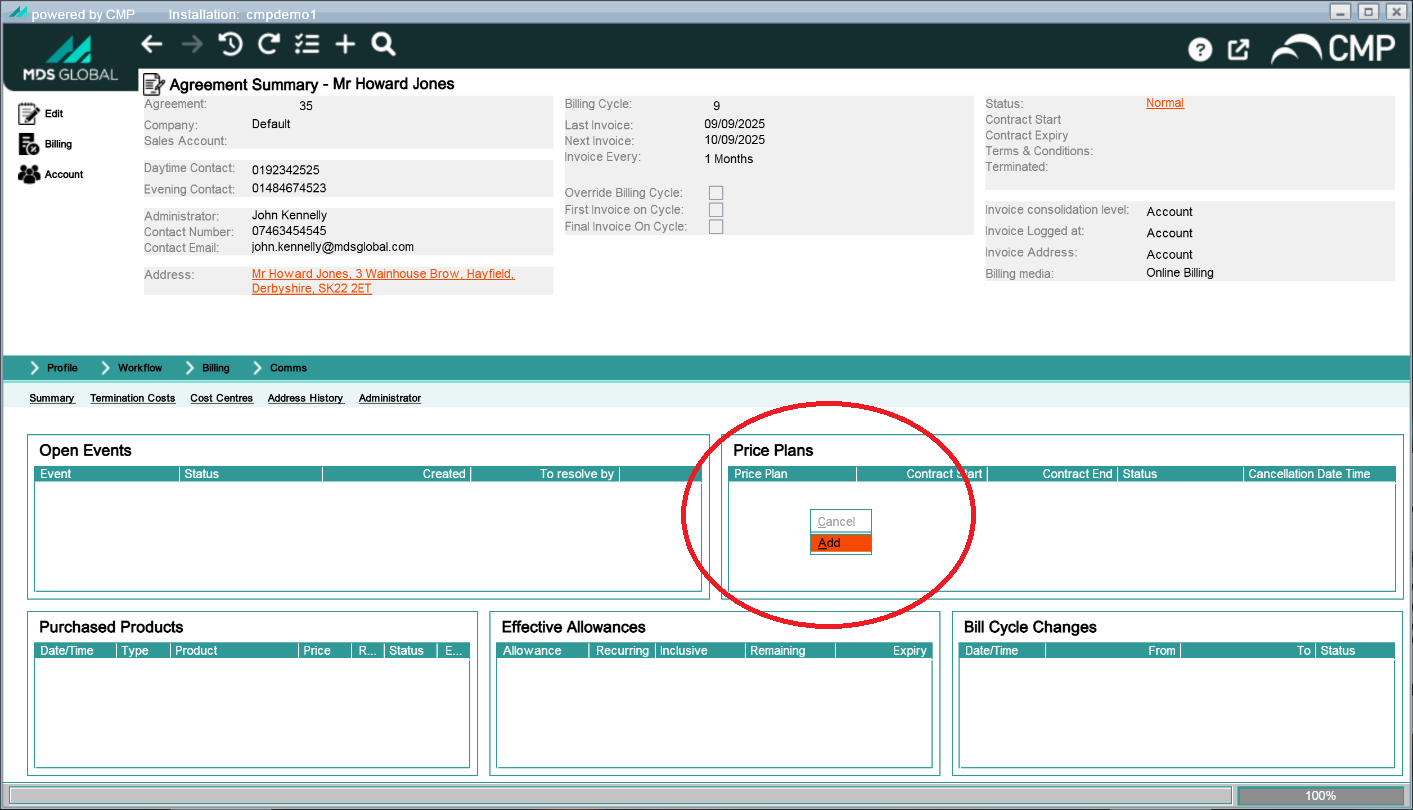
Use the Add shortcut menu option in the Price Plans pane to launch the Add Price Plan pop-up.
In the Add Price Plan popup, you can select a price plan to add to the agreement.
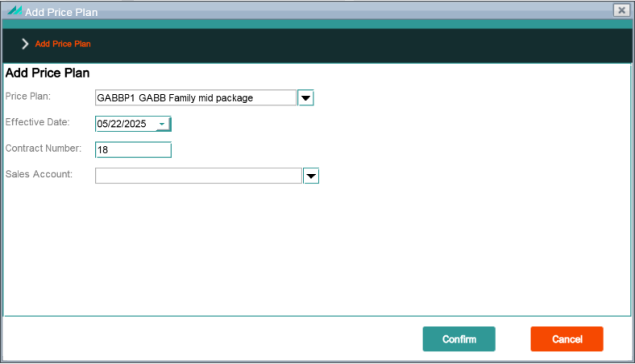
The Add Price Plan pop-up
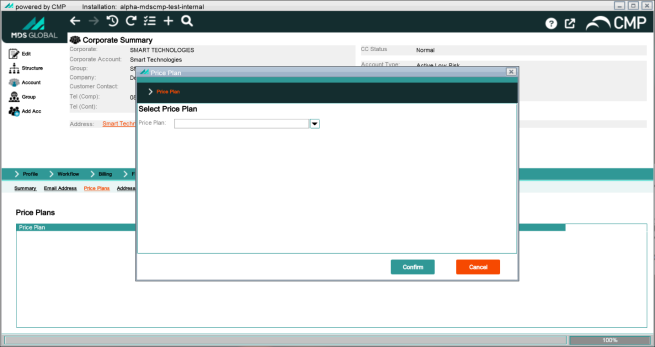
You assign a price plan to a group or corporate in the Profile > Price Plans lower panel in the Group or Corporate Summary screen. Right-click in the panel and select Add in the shortcut menu to launch the Price Plans pop-up.
View Price Plan History
To view a price plan history, click the price plan name link in the upper panel of the Subscription Summary screen. The Tariff/Price PlanHistory pop-up lists the current and previous price plans under the following columns:
| Name | Description |
|---|---|
| Tariff | The CMP code for the tariff. |
| Description | The descriptive name for the tariff. |
| Reverted | If there is a checkmark in this column, the price plan associated with the tariff has been reverted. |
| Price Plan | The CMP code for the price plan associated with this tariff. |
| Price Plan Description | The descriptive name for the price plan associated with this tariff. |
| Effective | The date from which the price plan/tariff is effective. |
| Recontract | If there is a checkmark in this column, the price plan has been recontracted. |
| CreatedChanged By | The CMP entity (agent or process) responsible for adding or changing the price plan/tariff. |
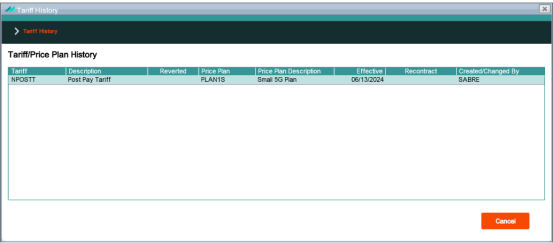
Access the price plan history via the Price Plan name link in the Subscription Summary screen
Change a Price Plan for a Subscription
You can change/upgrade a price plan for a subscriber The end user of a network. in the Subscription Creation/Upgrade wizard, which you launch via the status link in the upper panel of the Subscription Summary screen.
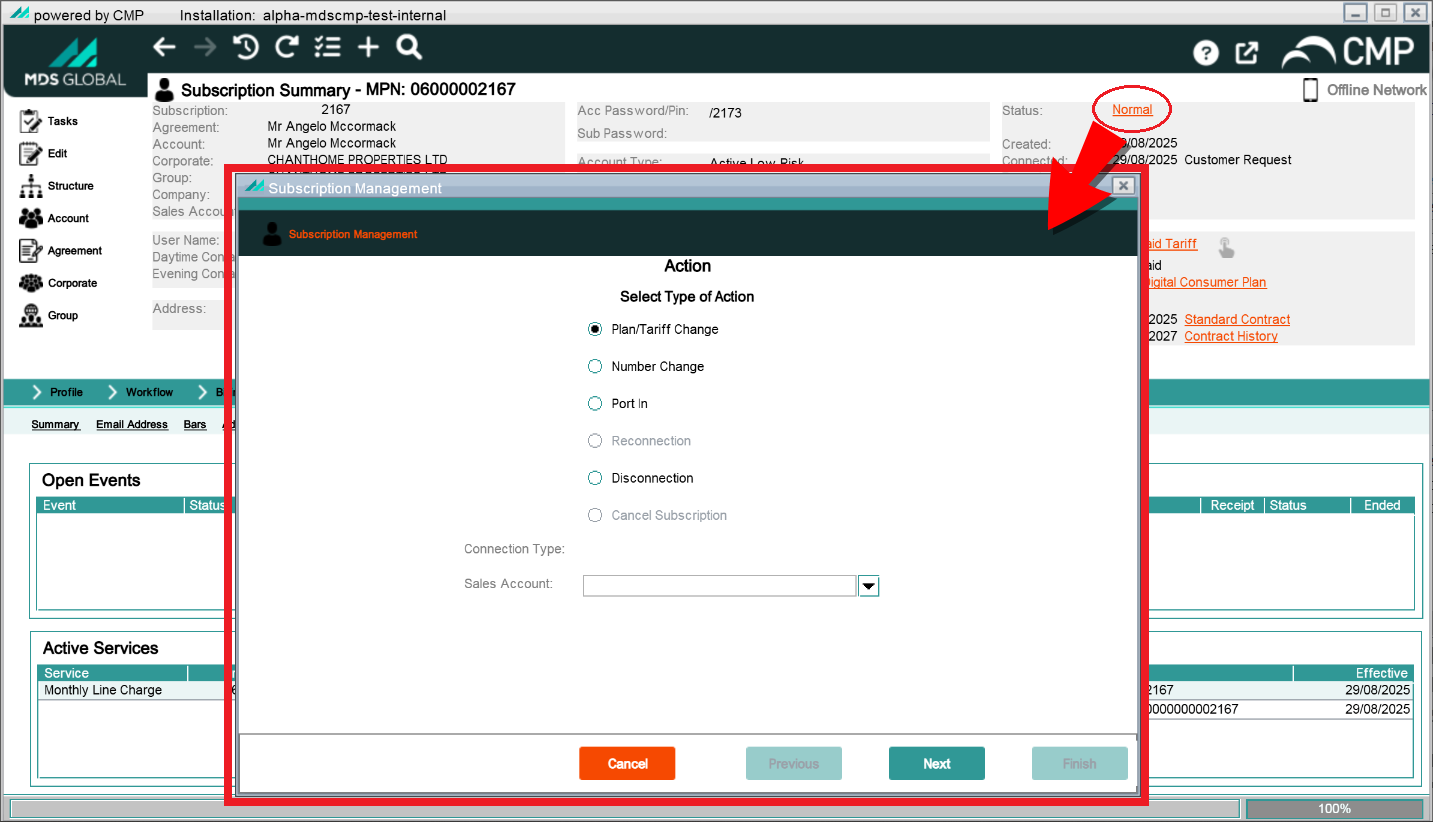
Revert a price plan change
You can revert price plan and/or tariff changes, for example when a customer changes their mind during a cooling-off period. This option is available via the Tariff History panel:
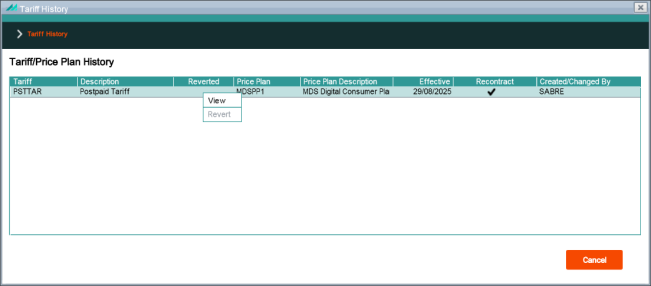
Right-click a price plan in Tariff/Price Plan History to access the Revert option
There is no limit to the number of times a customer can revert to their previous price plan. However you cannot revert a reversion. This means that if a customer changes their mind about an upgrade and reverts to their original price plan, then they change their mind again and decide that they do want the upgrade, you need to process the upgrade again as you would any upgrade. Changing to a new tariff means a new contract. If the customer reverts, they return to their original contract.
The revert functionality is not available in the following situations:
-
The subscription is not connected
-
The subscription is disconnected
-
The subscription is terminated
-
The subscription is prepaid
-
A tariff change already pending
-
The subscription is on an agreement price plan
Delete a Price Plan for a Group or Corporate
To delete a price plan for a group or corporate, access the relevant Summary screen. Go to the Profile > Price Plans lower panel, right-click the price plan to delete and select Delete in the shortcut menu.
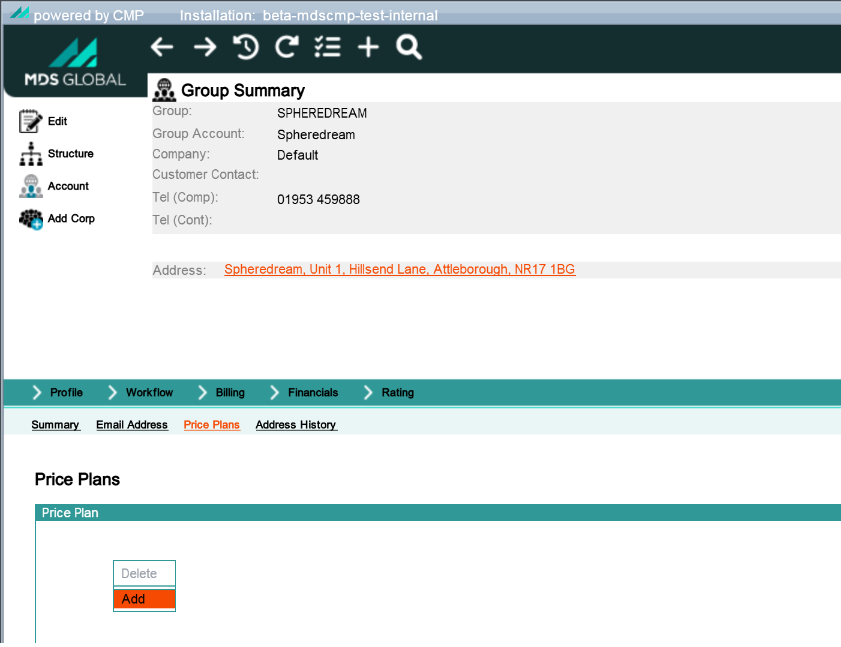
Delete price plans at group and corporate level in the Profile > Price Plans lower panel
Cancel a Price Plan for an Agreement
You cancel a price plan for an agreement in the Agreement Summary screen. In the Profile > Summary lower panel, right-click the agreement to cancel in the Price Plans pane and select Cancel in the shortcut menu:
