Services in AgentView
 View Active Services
You can view the active services for an account In the Cloud Monetisation Platform, a billing entity that can be used to manage payments on one or more subscriptions or payments for services. An account can hold details such as payments or invoices. or subscription A billing entity that incurs a charge. Examples include a network attached device whose usage you want to measure and charge for, or a monthly software subscription in the relevant Summary screen lower panel in the Active Services pane. Active services are listed under the following column headings:
| Column | Description |
|---|---|
| Service | The descriptive name of the service. |
| Price | The price of the service. |
| Package Description | The description name of the package to which the service is linked. |
| Effective | The date in which the service became effective. |
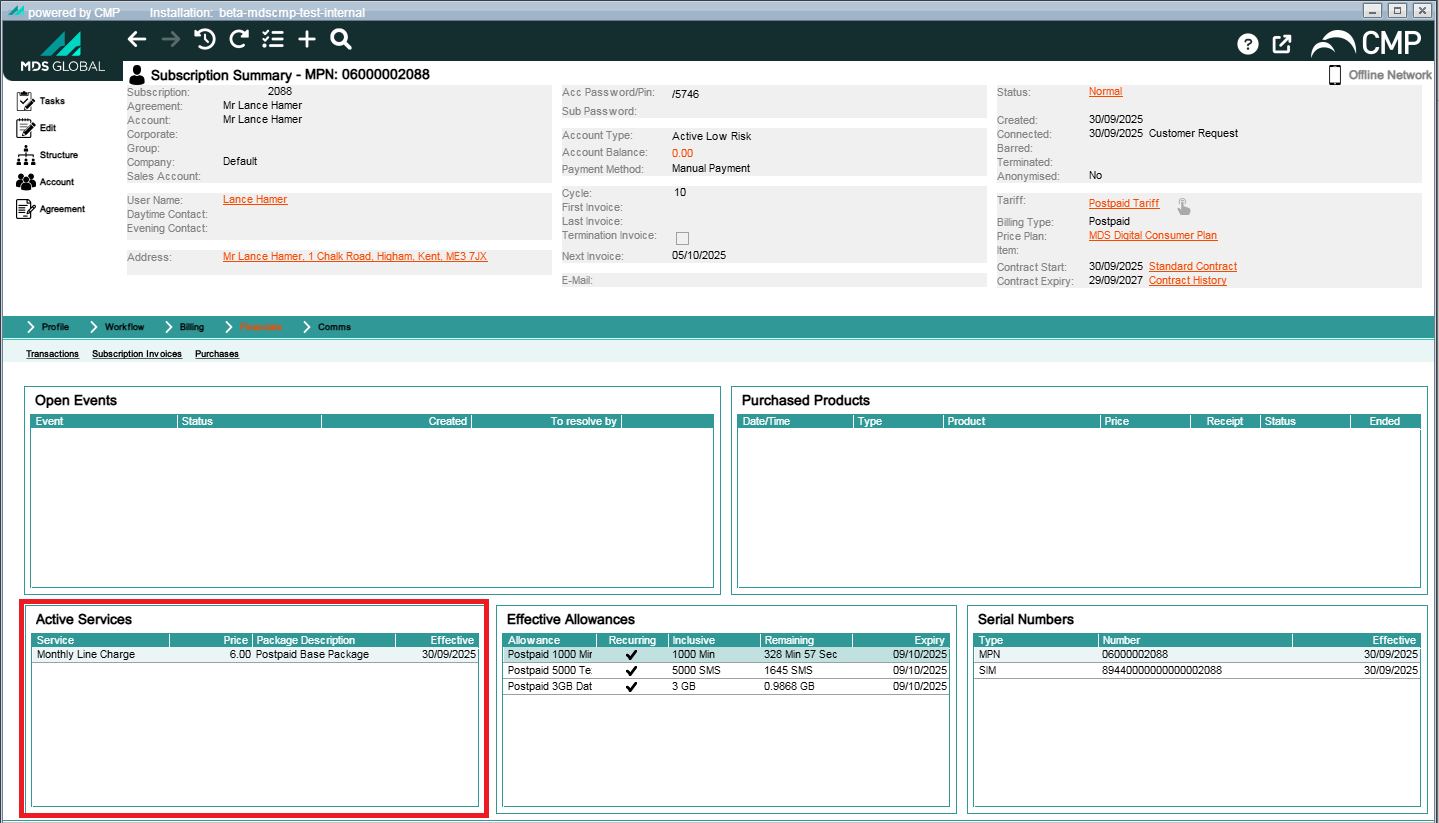
View active services in the Summary screen lower panel in the Active Services pane
View Services
In the Subscription Summary or Account Summary screens, you can also view services in the Billing > Services lower panel. Use the drop-down in the upper right corner to toggle between All and Active services.
The services are listed under the following column headings:
| Setting | Value |
|---|---|
| Service | The CMP code for the service. |
| Description | The descriptive name for the service. |
| Package |
The package to which the service is linked. |
| Effective |
The date from which the service became effective. |
| Expiry | The date on which the package expires, if applicable. |
| Billed Until | Many services are rolling services in that they have a start date but no finish date. If an end of service date is appropriate, it is displayed here. |
| Price | The monthly price of the service. |
| Nominal | Nominal code (a ledger code)for financial reporting. Grouped services usually retain separate nominal codes for financial analysis. |
| Grouped | A collection of services that have been collected together to appear on the invoice as one service, e.g. a Gold level service. Multiple Services (special offers, seasonal discounts etc.) have been grouped together to appear under one heading on the invoice rather than appearing as individual Services. |
|
Per Bill |
The number of payments to be charged at once. |
| Recurring | A checkmark indicates that the service is renewed or repeated rather than a one-off. |
| Bar | A checkmark indicates this service is barred. |
| Consolidated | This column appears in the Subscription Summary screen. Whether and the level at which the service is consolidated. |
| CPI | A checkmark indicates a consumer price increase has been applied to this service. |
| Quantity | This column appears in the Account Summary screen. If the service is quantifiable; the quantity of the service. |
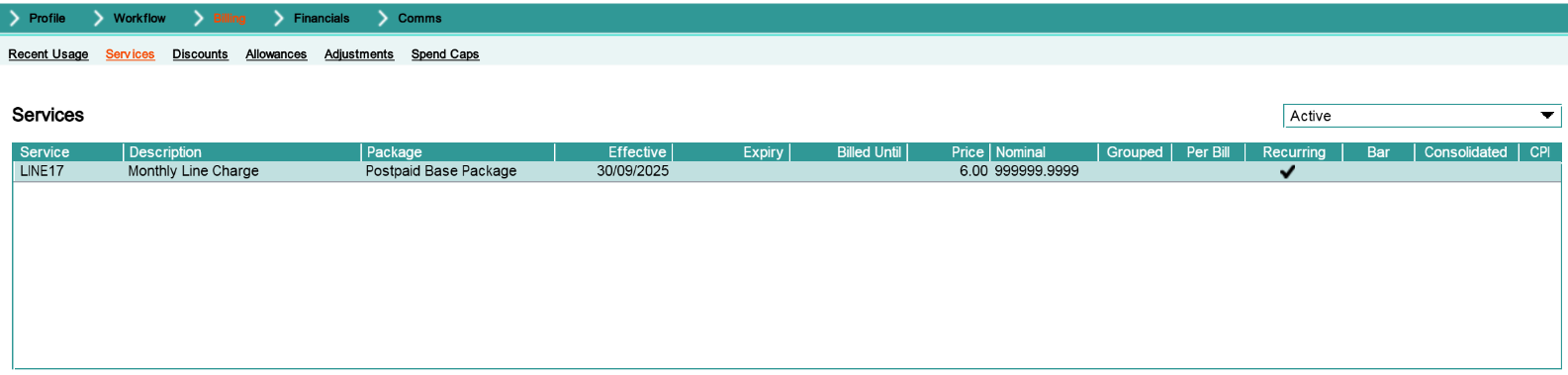
Billing > Services panel in the Subscription Summary screen
View Shared Services
You can purchase shared packages at account level. Shared services could be account services or services from shared packages. Shared services are listed in the Agreement In the Cloud Monetisation Platform, the entity that holds the instructions for generating the bills for one or more subscriptions. including the addresses and how often the bill is generated. Summary screen in the Billing > Shared services lower panel under the following column headings:
| Setting | Value |
|---|---|
| Service | The CMP code for the service. |
| Description | The descriptive name for the service. |
| Package |
The package to which the service is linked. |
| Effective |
The date from which the service became effective. |
| Expiry | The date on which the package expires, if applicable. |
| Billed Until | Many services are rolling services in that they have a start date but no finish date. If an end of service date is appropriate, it is displayed here. |
| Price | The monthly price of the service. |
| Nominal | Nominal code (a ledger code)for financial reporting. Grouped services usually retain separate nominal codes for financial analysis. |
| Recurring | A checkmark indicates that the service is renewed or repeated rather than a one-off. |
Add a Service to a Subscription
In the relevant Subscription Summary screen you can add a subscription service by accessing the Add Subscription Service wizard by either:
-
In the Summary > Profile lower panel, right-clicking in the Active Services pane and selecting Add.
-
In the Billing > Services lower pane, right-clicking and selecting Add.
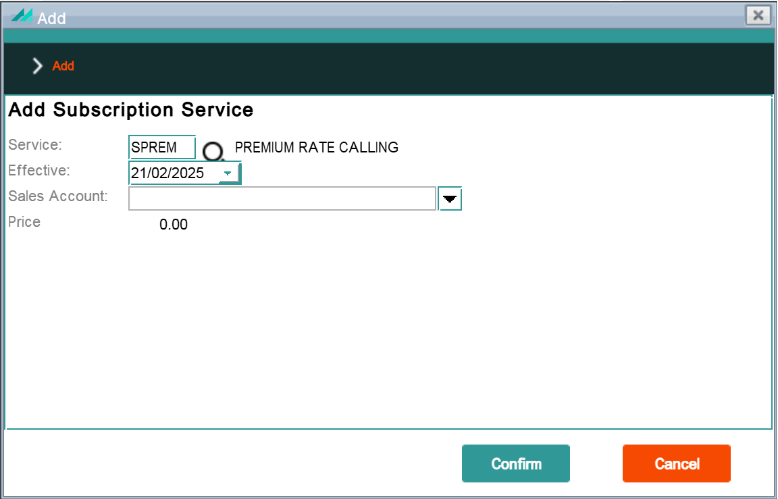
You choose a service, effective date and sales account in the Add page of the wizard and then confirm your selection. The Service drop-down displays only subscription services.
For detailed step-by step instructions, see the AgentView application help.
Add an Account Service
You access the Account Service Creation wizard in the Account Summary screen. In Billing > Services, right-click and select Add.
The wizard has the following elements:
| Element | Description |
|---|---|
| Service | Select a service from the drop-down list. Only account services are listed. |
| Effective |
In the date picker, select date from which the service became effective. |
| Quantity | This text box becomes active if the selected service is quantifiable; enter a quantity for the service. |
| Reference | The reference for the service. |
| Account Service Agreement Number | The agreement number associated with the account to which the service will be provisioned. |

Change a Service
Access a service record in the relevant Account or Subscription Summary screen in any of the following:
-
In the Summary > Profile lower panel in the Active Services pane.
-
In the Billing > Services lower panel.
Right-click the service record and select Change to launch the Service Details popup. You can edit service details here.
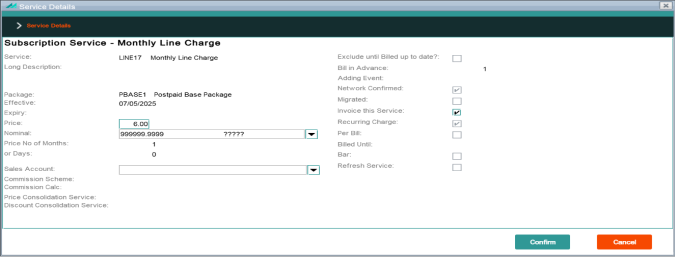
The popup has the following elements:
| Setting | Value |
|---|---|
|
Service |
The CMP code and descriptive name for the service. |
| Long Description | Explanatory descriptive text about the service. |
| Package |
The package to which the service is linked. |
| Effective |
The date from which the service became effective. |
| Expiry | The date on which the package expires, if applicable. |
| Price | The price of the service. |
| Nominal | Nominal code (a ledger code)for financial reporting. Grouped services usually retain separate nominal codes for financial analysis. |
| Price No of months | If applicable, how many months of service the service price covers. |
| Or Days | If applicable, how many days of service the service price covers. |
| Sales Account | The salesperson responsible for the service change. |
| Commission Scheme | This field is not used. |
| Commission Calculated | This field is not used. |
| Price Consolidation Service | If applicable, the code and description of the price consolidation service. |
| Discount Consolidation Service | If applicable, the code and description of the discount consolidation service. |
| Exclude until Billed up to date? | If this check box is selected, any services billed in advance are suppressed from further billing until the next applicable invoice date. |
| Bill in Advance | The number of payments to be charged at once. |
| Adding event | The workflow event that created the service. |
| Network confirmed | Select this box to indicate if the service is confirmed by the network. |
| Migrated | This field is no longer used. |
| Invoice this service | Select this check box to indicate that the service is invoiced. |
| Recurring Charge | A checkmark indicates that the service is renewed or repeated rather than a one-off. |
| Billed Until | Many services are rolling services in that they have a start date but no finish date. If an end of service date is appropriate, it is displayed here. |
| Bar | A checkmark indicates this service is barred. |
| Refresh Service | Select this checkbox to refresh the service. |
Expire a Service
You can expire a service by editing the service details. You can only do this for a service that was added to the account or subscription outside of a package. You need to expire the package to expire a package service.
Access the details for a service record following the instructions in Change a Service.
Delete a Service
Access a service record in the relevant Account or Subscription Summary screen in any of the following:
-
In the Summary > Profile lower panel in the Active Services pane.
-
In the Billing > Services lower panel.
Right-click a service record and select Delete, then confirm your choice.
If the service has been billed (a date is displayed under the Billed Until column) it is not possible to delete it and the service should instead be expired. You cannot delete a package service.