Manage a User's Role in CMP
To manage a user A person with the capability to log in to the CMP GUI software, such as a customer service advisor or agent. and their roles, follow these steps:
-
Log in to the Admin Console.
The console opens on the Home page.
- Select System Administration > Users from the left-hand menu.
The Users List page opens. - Select the user you would like to maintain, then click the Edit button.
The Edit User screen opens on the User Profile tab.
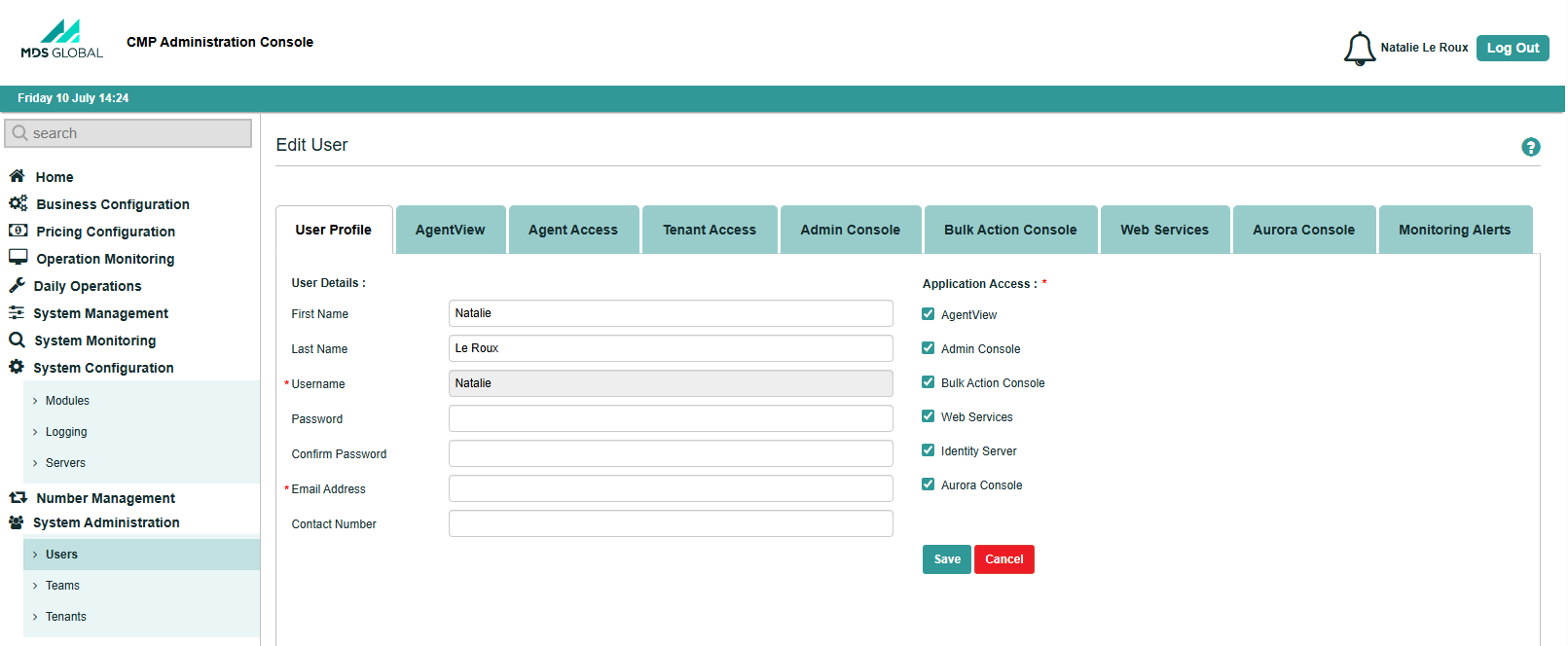
-
Manage a user and their roles as follows:
To change a password: - Click Change Password
 for that user.
 - In the Change Password screen, enter the Current Password.
- Enter the New Password and Confirm New Password.
- Click Change.
To assign roles: -
Click Assign Roles
 for that user.
- Select the roles to assign.
- Click Update to update the user and remain in the screen.
- Or, click Finish to update the user and return to the Users screen.
To view/unassign roles for the user: -
Click View Roles
 for that user.
The Role List of User <Name> screen displays all assigned roles.
- Deselect roles to unassign them.
- Click Update to update the user and remain in the screen.
- Or, click Finish to update the user and return to the Users screen.
To delete a user: - Click Delete
 for that user.
 - Click Yes in the Confirmation box.
- Click Change Password
Important: The Admin Console has many other menu options and screens. Only Administrators who understand the impact of their actions should access and use them.