How To Agreement Administrator Communications
In an enterprise solution, an agreement In the Cloud Monetisation Platform, the entity that holds the instructions for generating the bills for one or more subscriptions. including the addresses and how often the bill is generated. administrator is responsible for maintaining all subscriptions within a specific organisation or department. As such, they should receive all related communications about these subscriptions, including bills, payment confirmations, new subscriber The end user of a network. notifications, and changes to services.
You can configure the agreement administrator to receive in-service notifications for subscriptions under the agreement.
CMP Converged Monetisation Platform. The MDS Global product that supports customer care and billing for digital service providers. supports the pre configuration of an agreement administrator against multiple agreements within a corporate or group In the Customer Manager Platform hierarchy, the highest level of the structure. The group level can be used to group corporates. Groups can hold financial information. hierarchy.
Configuring Comms for an Agreement Administrator
The communication to be sent to an Agreement Administrator is configured in the Business Configuration A module in the CMP Administation console that provides for viewing and modification of business and user applicable system configuration. console, from where you can define the message to be sent, choose the recipient to receive the message, and select the communication method, for example, SMS Short Message Service.
A text messaging service component of most mobile telephone systems. SMS uses standardized communication protocols to enable mobile phone devices to exchange short text messages. or email.
The communication is triggered from either an internal source (by CMP as part of a workflow or by an agent) or an external source (from the OCS). You can define trigger sources and associated actions from the Business Configuration console.
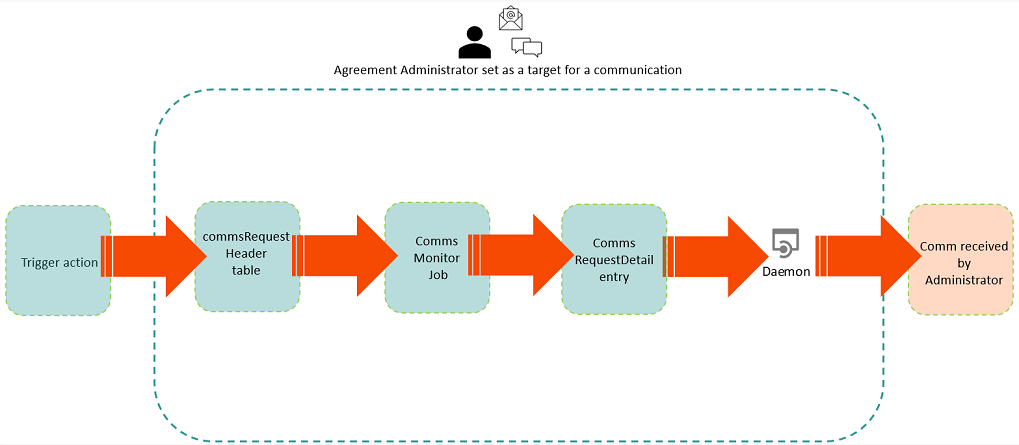
When the comms trigger is invoked, CMP creates an entry in the commsRequestHeader table, and the Comms Monitor Job is triggered to process the CommsRequestHeader and produce a commsRequestDetail entry.
This Comms Monitor job:
-
Works out the appropriate delivery method and target, for example a mobile number, or email address.
-
Derives the values of the default fields that are associated with the communication.
-
In the case of push notifications, online notifications and SMS delivery methods, the job also merges the data of the derived fields with the message template to produce the actual message.
After the Comms Monitor Job has completed, the Comms SMS To Handset daemon A computer program that runs as a background process, rather than being under the control of an interactive user. picks up the requests to distribute them to the destination.
1. Configure the communication
Before you begin, note that the environment must be in a B2B Business to business.
The exchange of products, services or information between businesses, rather than between businesses and consumers. mode to allow you to set an agreement administrator as the target of a communication. This is configured as part of the deployment.
The following steps describe how to define an SMS message for an agreement administrator to say when the Bill is ready.
-
From the Business Configuration module, select Communications > Communications.
This opens the Communications List screen.
-
Select Add to open the Add a Communication dialog.
-
Complete the fields on the Add a Communication dialog.
Note the following when completing the fields:
-
Select External at the Trigger Source field.
-
Tick the Agreement checkbox at the Available Levels field.
-
Select SMS from the Delivery Method options.
-
-
Click the Configure button that displays to the right of the SMS checkbox.
The Add an SMS Notification dialog displays.
-
Complete the fields on the Add an SMS Notification dialog.
-
Select Agreement Administrator, the recipient of the SMS notification, from the Target field drop-down list.
-
Select the sender of the SMS at the Sender field. This can be a phone number or an alias.
-
-
Click Next.
The Add SMS Message dialog displays.
-
Configure the message.
The Available Fields pane on the left-hand side contains the fields to be added to the Message pane on the right-hand side that can be used to personalise the message sent to the administrator.
-
Click the plus sign to expand the field lists in the Available Fields. The fields available here are defined in Communications > Default Fields.
-
Drag the selected fields to the desired location in the Message pane.
-
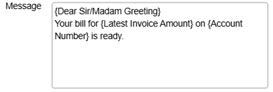
Compose the message using the available fields in the Message pane, for example:
-
-
Select Finish to return to the Add a Communication dialog.
-
Complete the remaining fields on the Add a Communication dialog.
-
Leave the Selectable? and Active? checkboxes ticked, to have the communication selectable in AgentView
The graphical user interface of the CMP that is typically used by Customer Service Agents to access CMP customer and billing data. In versions prior to CMP 8.0, this was called the CMP GUI..
-
-
Select Save to save your changes.
You are returned to the communications list, from where you can see the new communication.
2. Configure the trigger action
Trigger actions can be comms such as email, push notifications and letters, or they can be workflow events such as a notification of an account In the Cloud Monetisation Platform, a billing entity that can be used to manage payments on one or more subscriptions or payments for services. An account can hold details such as payments or invoices. movement.
If a communication is coming from an external source such as the OCS, and as defined in the Communication above, the trigger action needs to be configured.
The following steps describe how to create an external trigger from the bill print system so that when the bill is produced, it sends a message to CMP that generates a comm to the agreement administrator.
-
From the Business Configuration module, select Communications > Triggers.This opens the Trigger Channel List screen.
-
Tick the External CMP Trigger (OCS) checkbox to indicate the source of the trigger, and then click Trigger Actions.
-
Click Add to add an action.
The Add Trigger Action dialog is displayed.
-
Complete the fields on the Add Trigger Action dialog.
Note the following when completing the fields:
-
Select Agreement at the Trigger Level field.
-
Select the communication to be initiated by this trigger at the Comms field, for example, Bill Ready Notification. This will be sent as an SMS to the agreement administrator.
-
You can select a Workflow Event and Code at these fields if you want the trigger to initiate a workflow instead of a Comms.
-
-
Select Save.
You can see that the new action is added in the trigger actions list.
3. View the comms in AgentView
The agreement administrator can view the comm in AgentView.
-
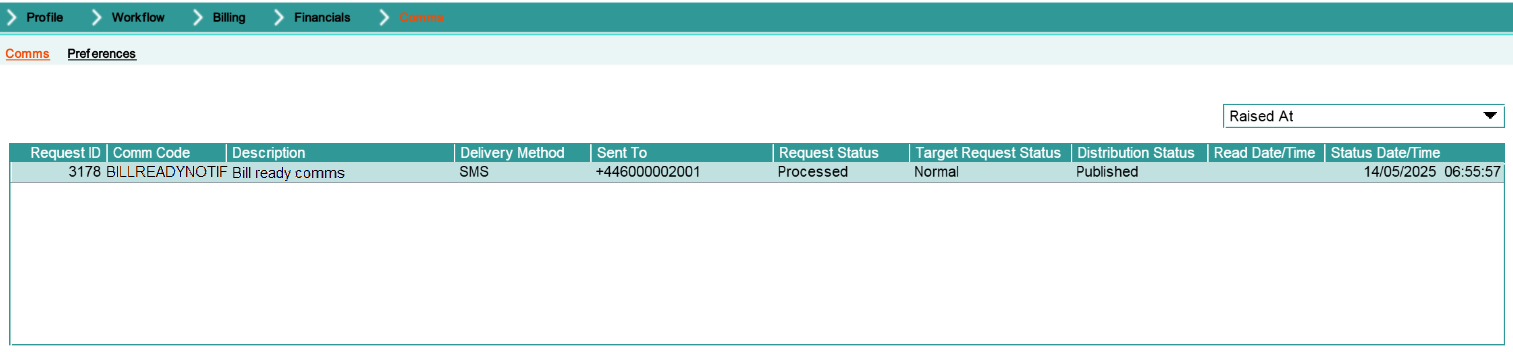
From the Agreement Summary Lower Panel, select Comms > Comms from the sub-menu bar.
-
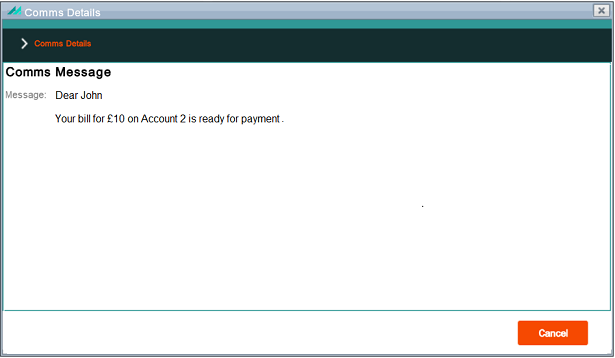
Right-click on the line to view the comm details.