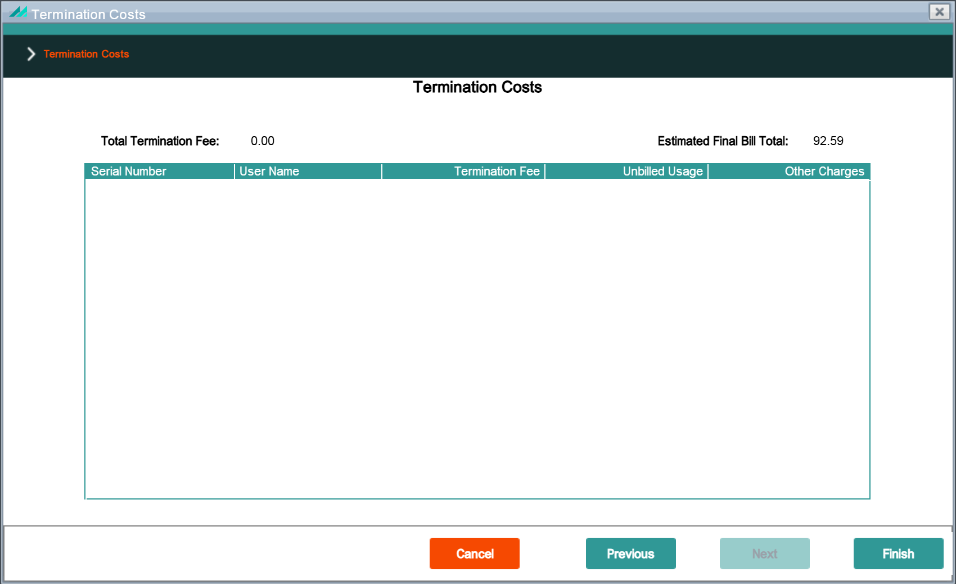
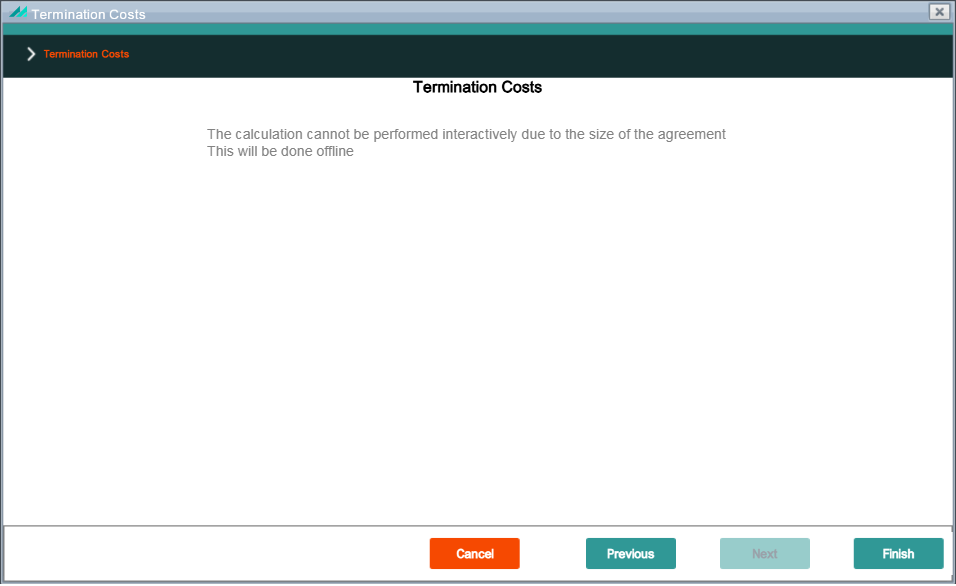
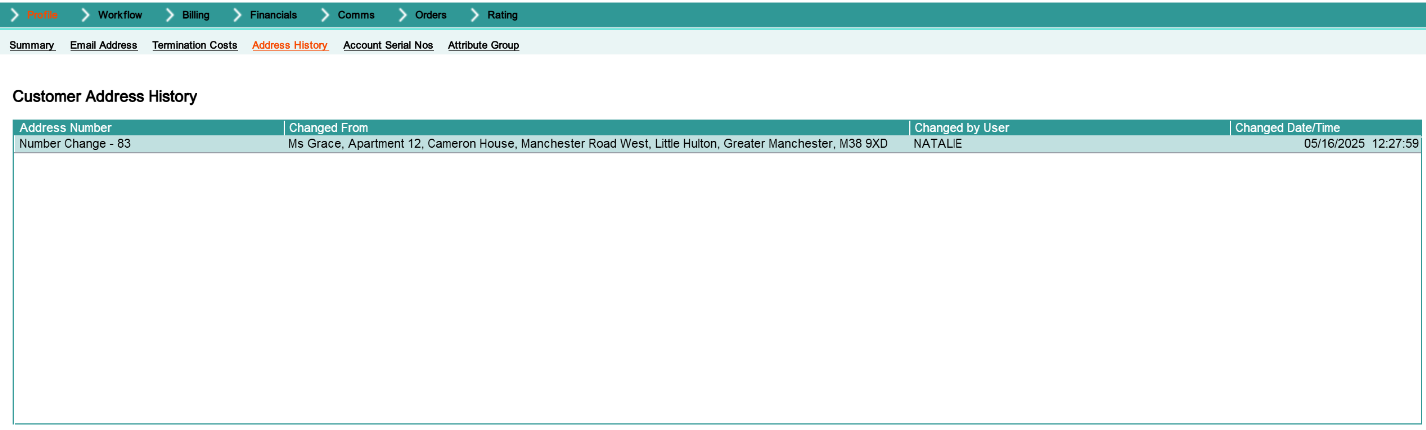
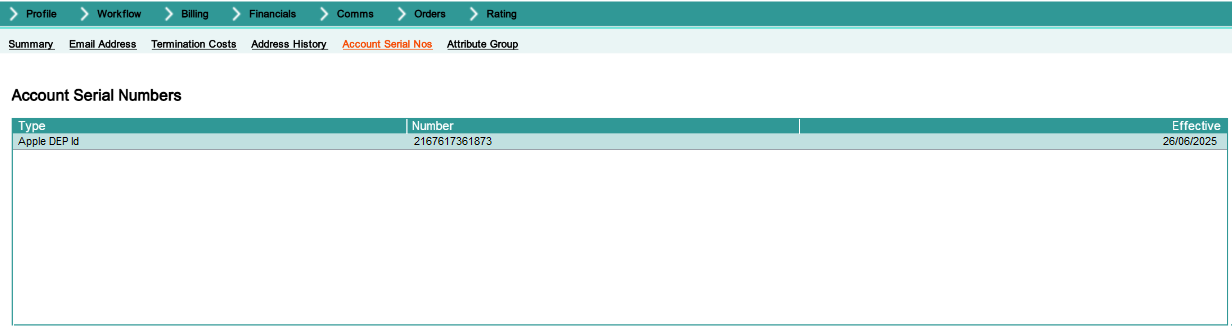
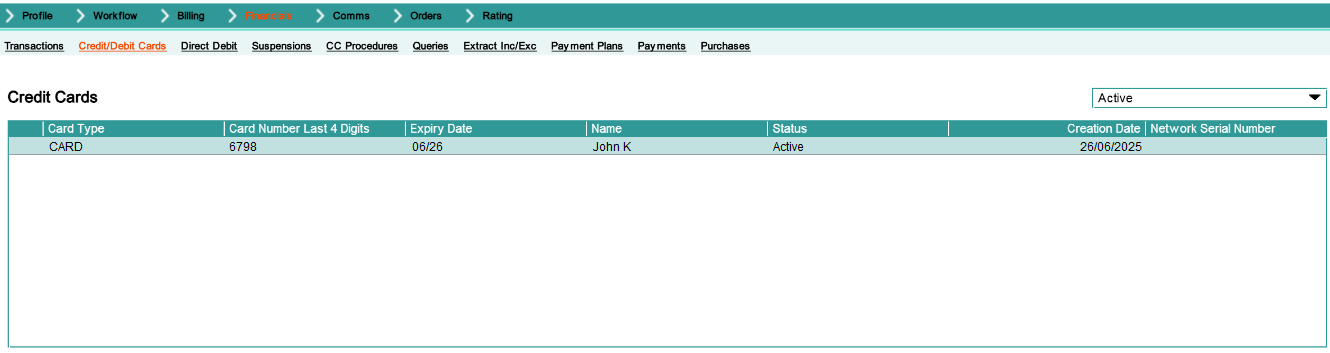
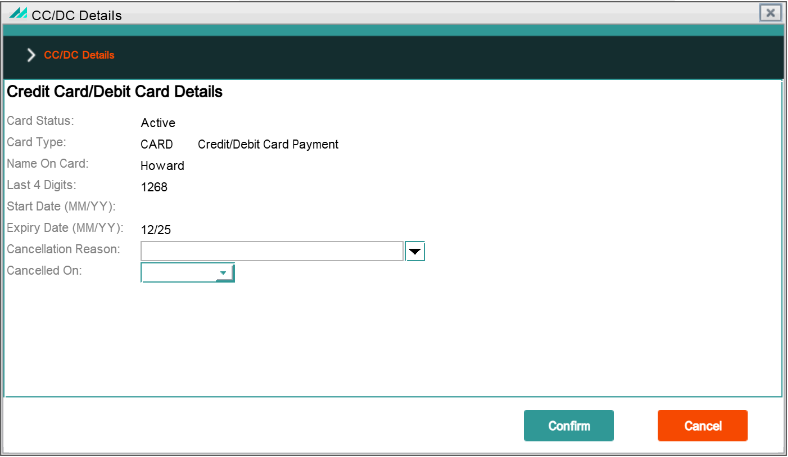
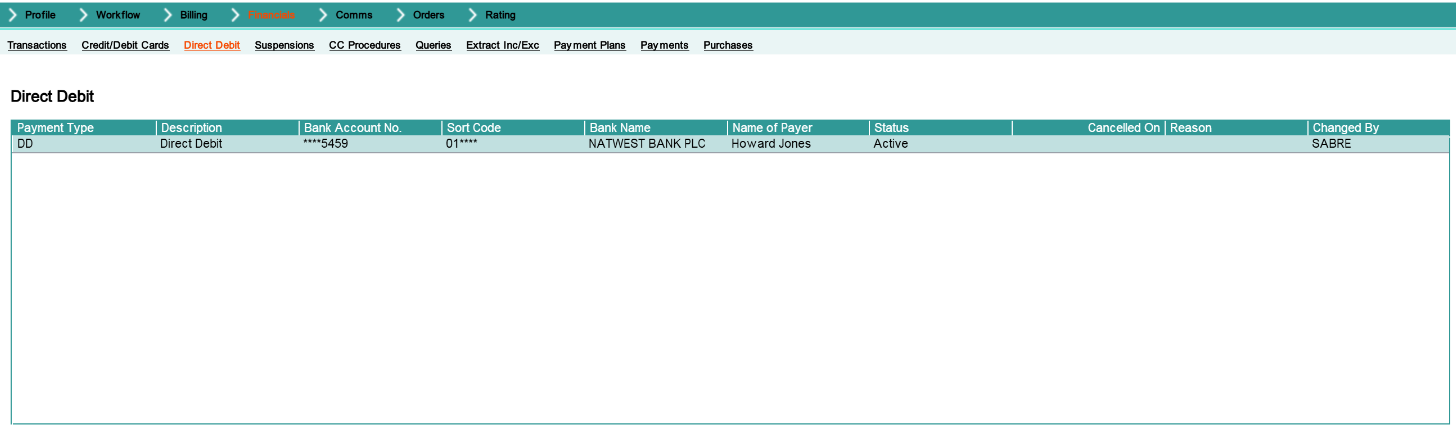
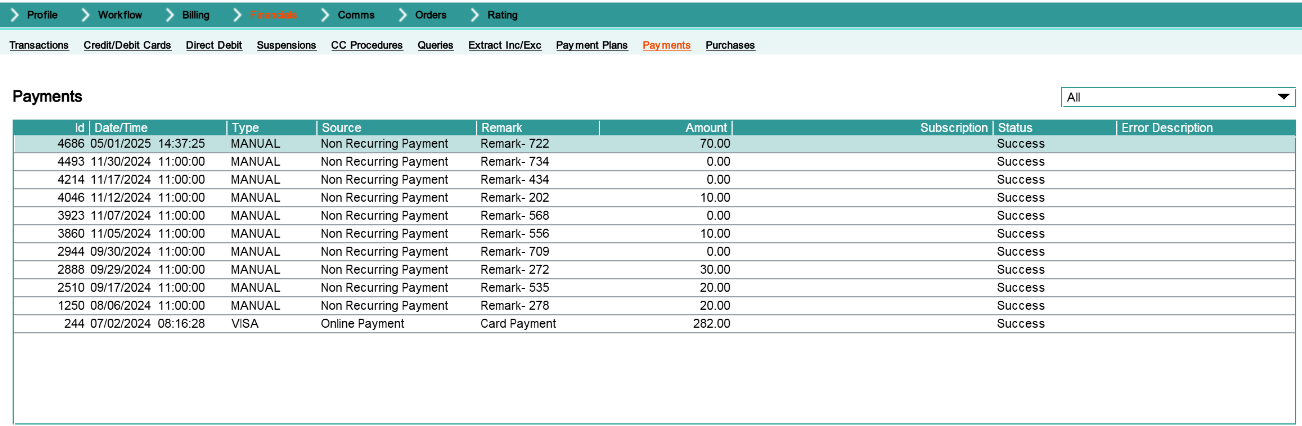
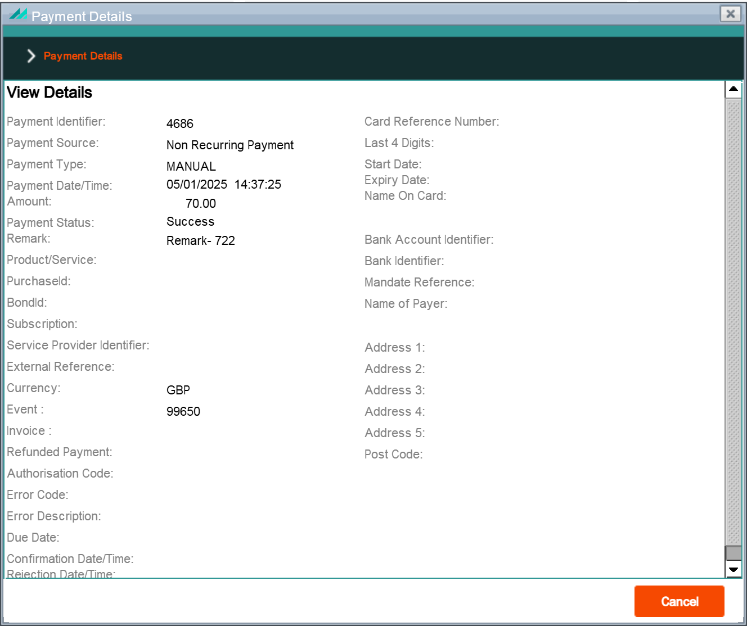
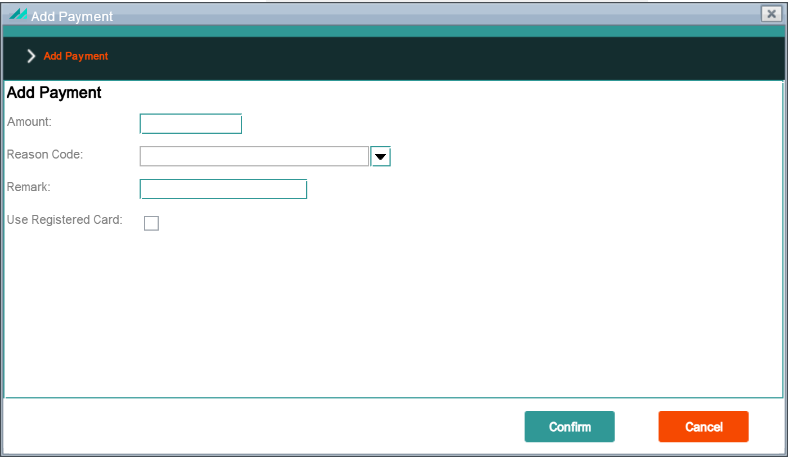
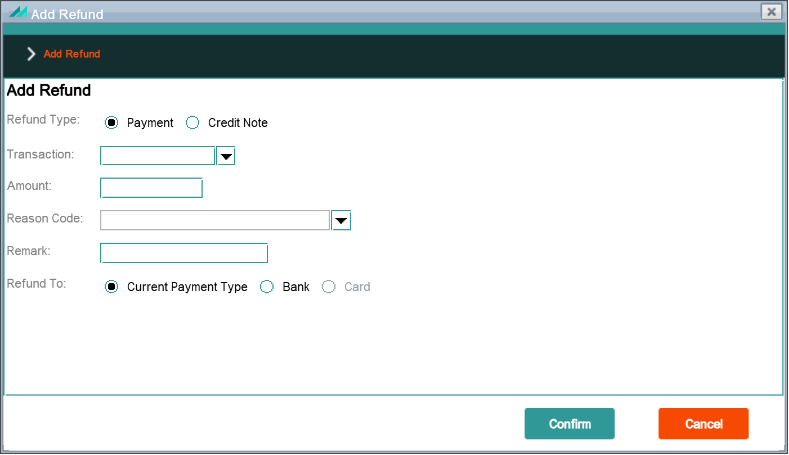
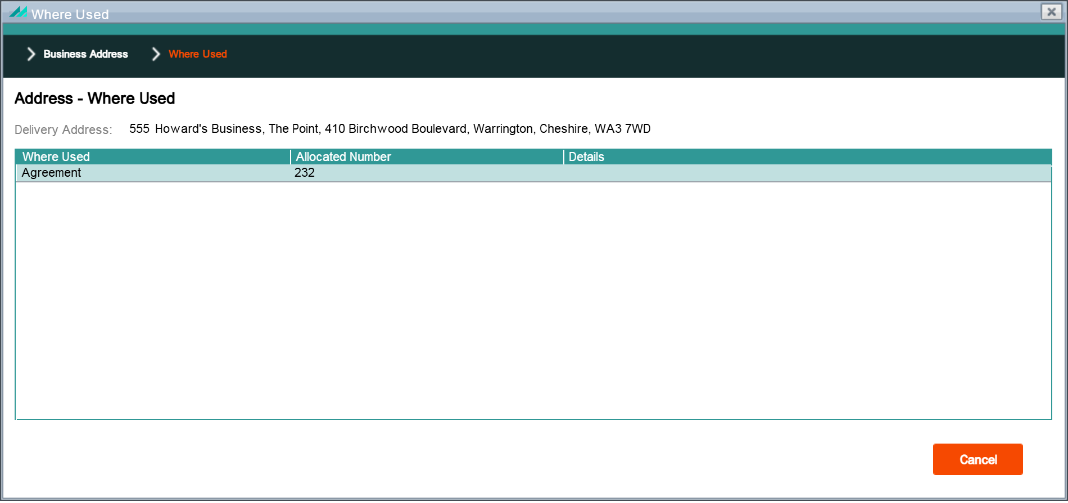
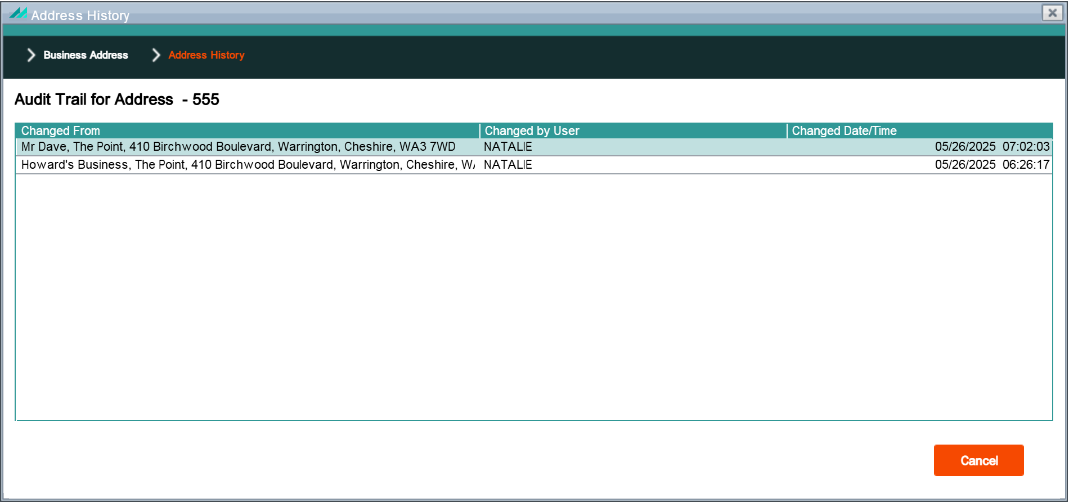
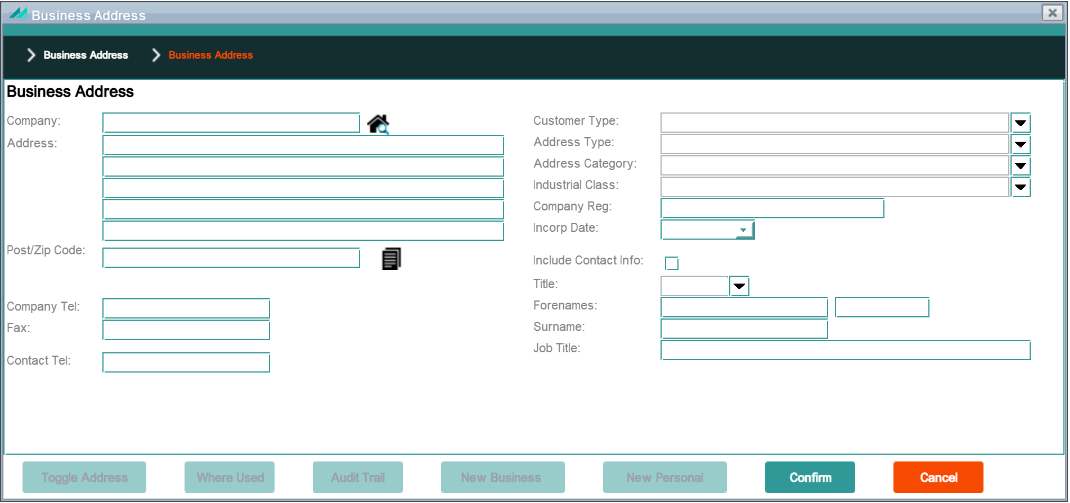
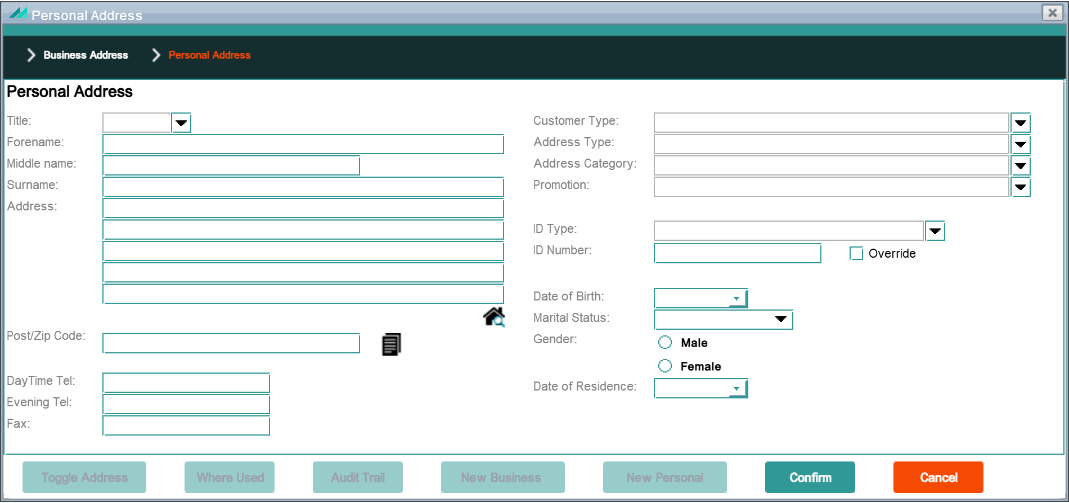
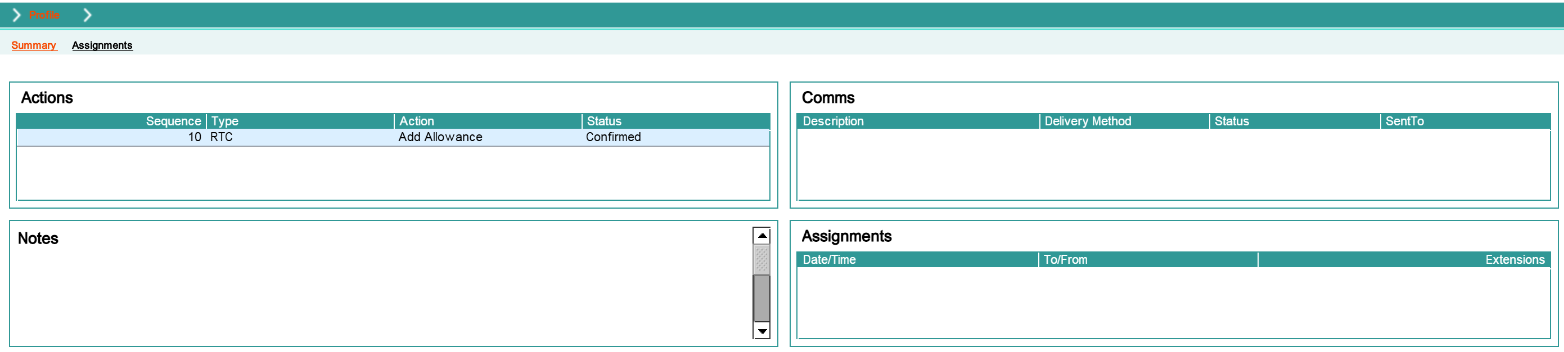
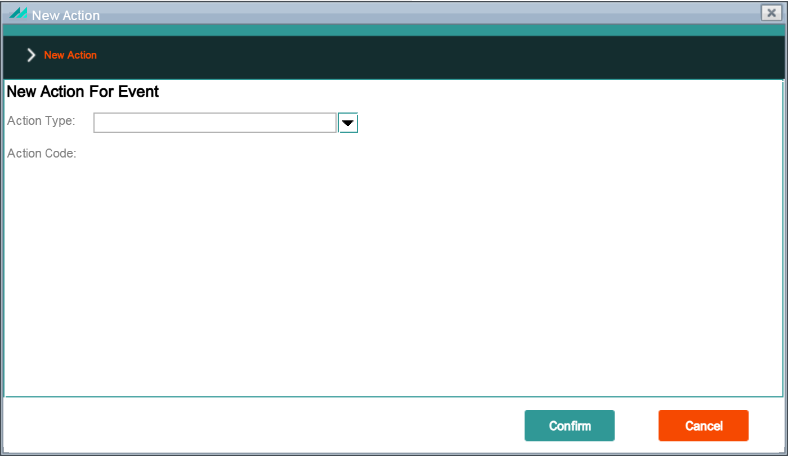
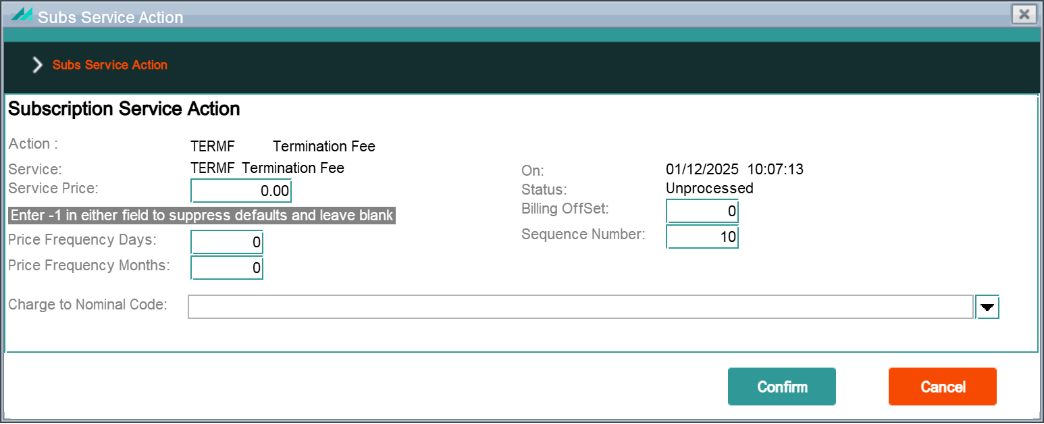
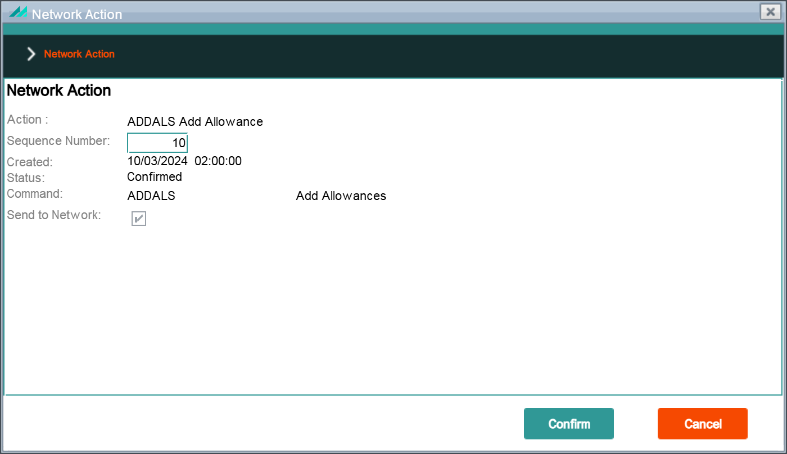
Application Security provides user access security at various levels by allowing enhancements to the users default CMP Security setting. These enhancements allow filters and overrides to be applied to information that is available to the user.
Application Security also allows users to have access, where necessary, to information that otherwise may be denied to them due to their default security setting and vice versa.
A user may have security filters (Include/Exclude filters) for specific companies, groups, corporate customers and dealers as well as overrides for specific functions and fields within the CMP System.
These Include/Exclude overrides have priority over a user's default security setting.
A user can be attached to group profiles, where their profile will incorporate the settings of the group and will mirror the function and field access rights, and override and filter specification.
Finally application security can be applied to workflow events, whereby security settings can be implemented to restrict the workflow events that can be accessed by the user.
This document contains descriptions and security information for key panels and fields within the CMP UI, including:
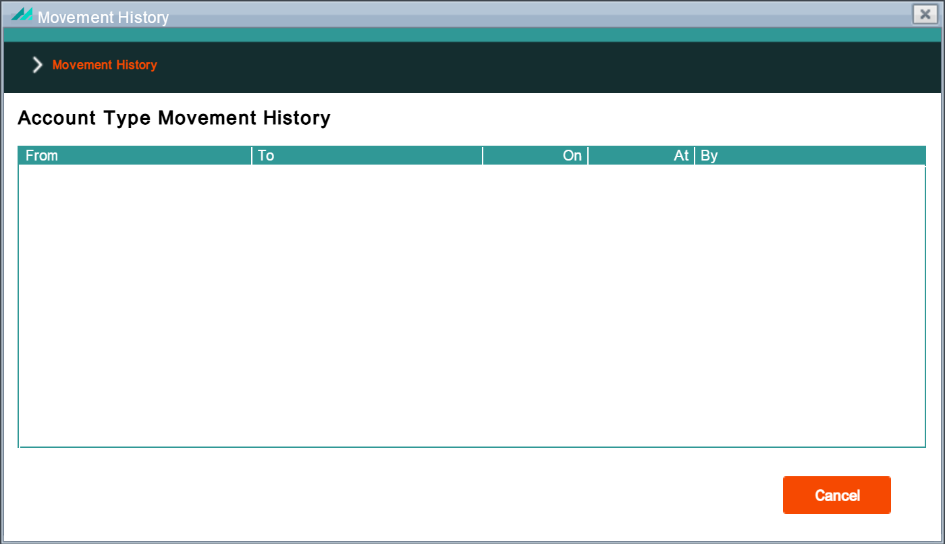
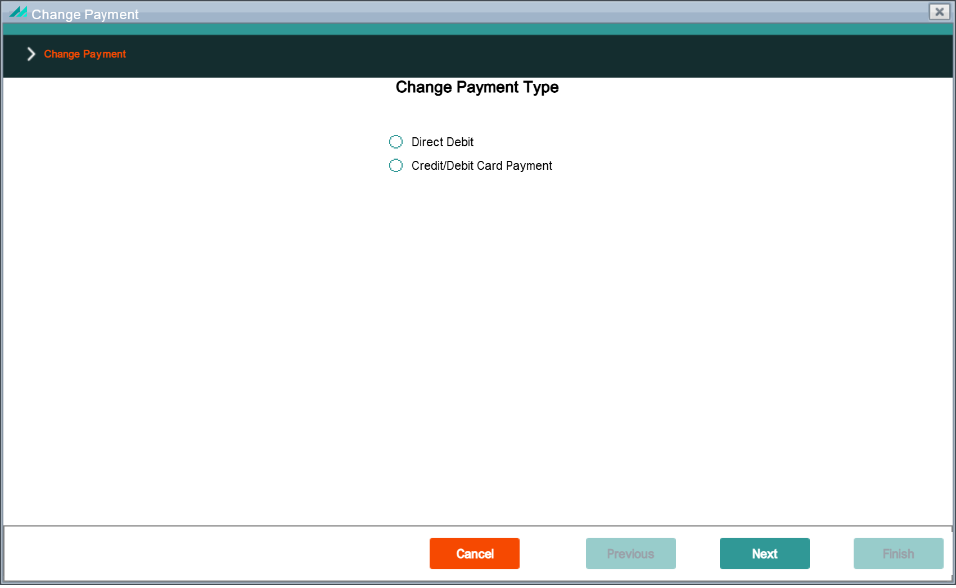
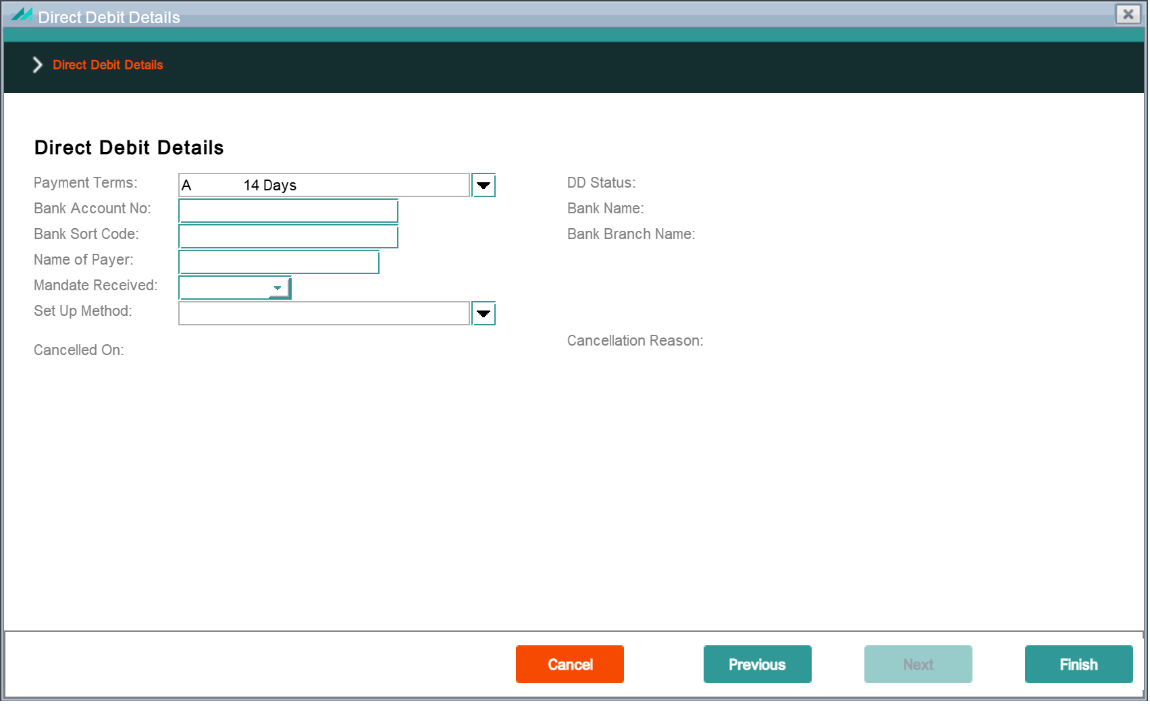
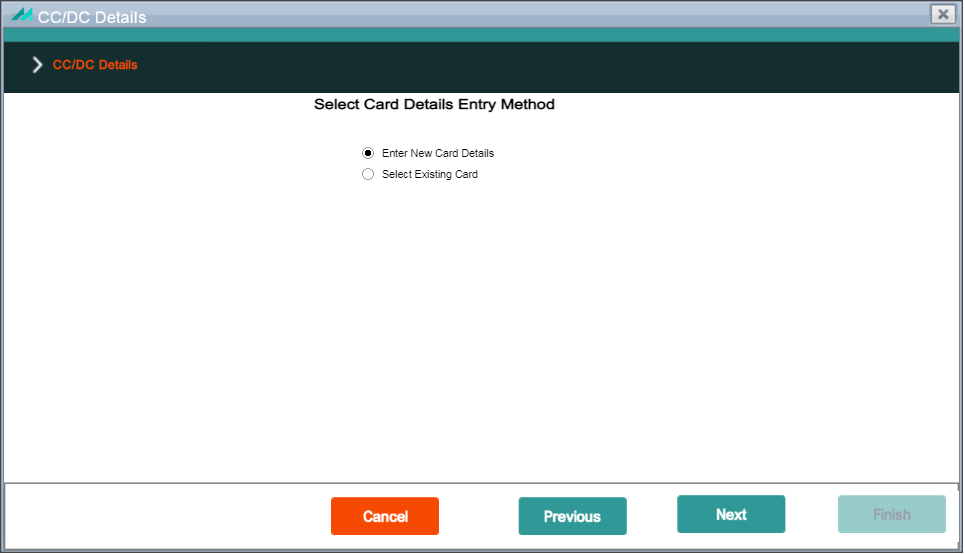
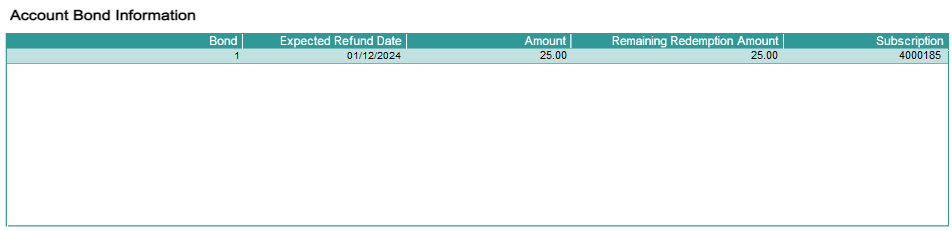
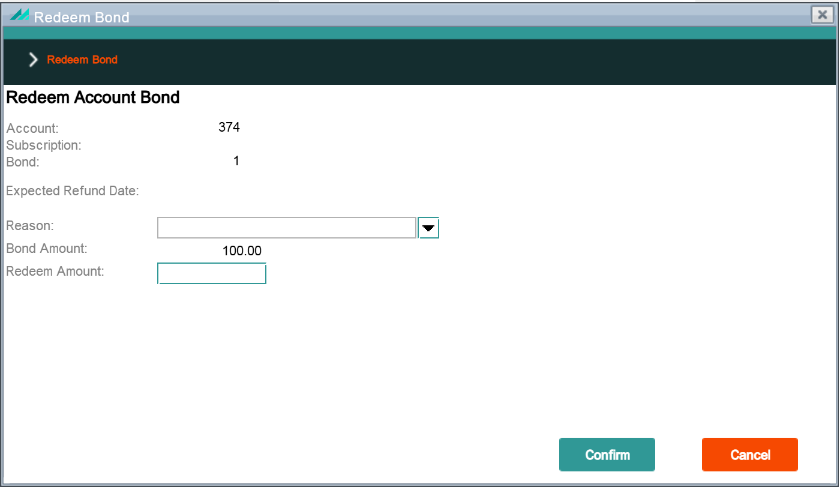
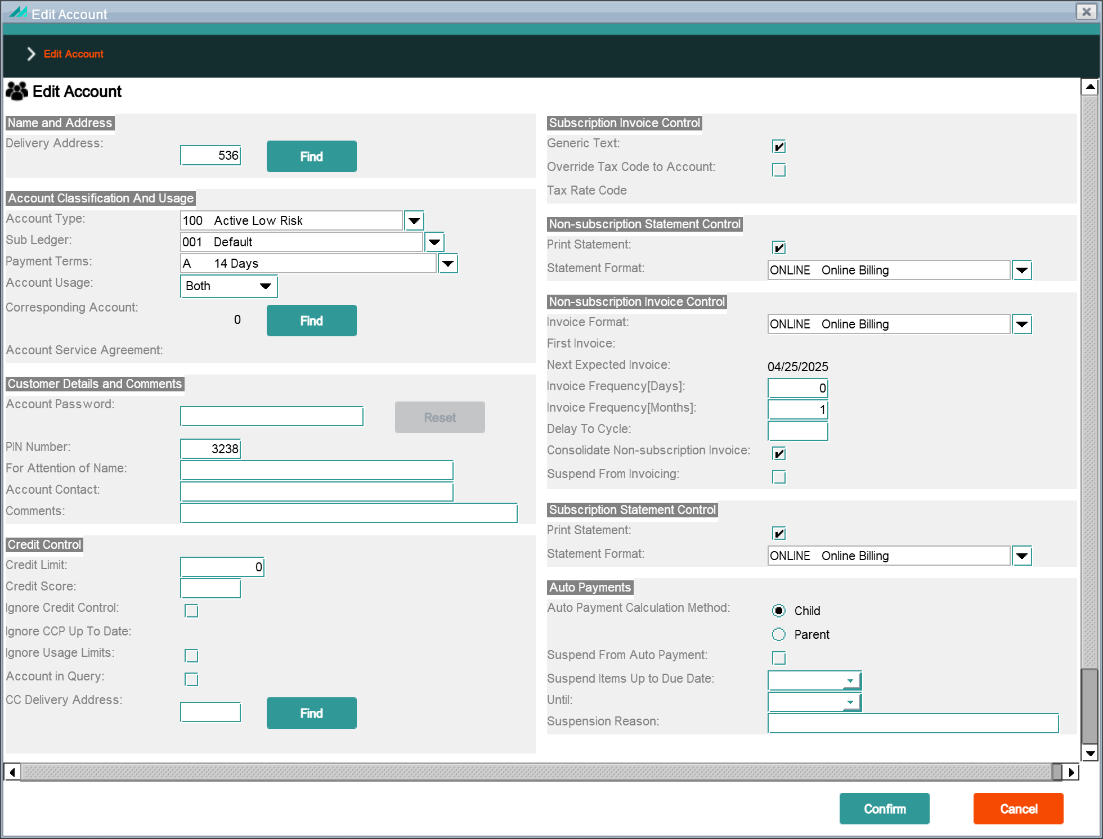
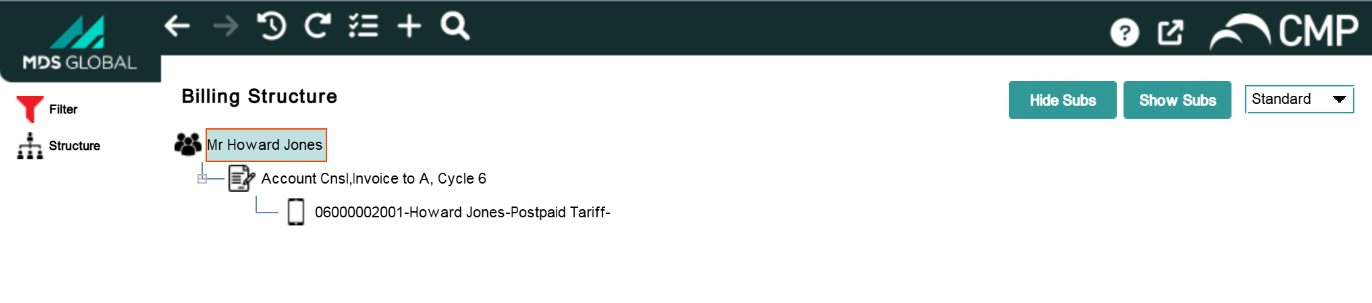
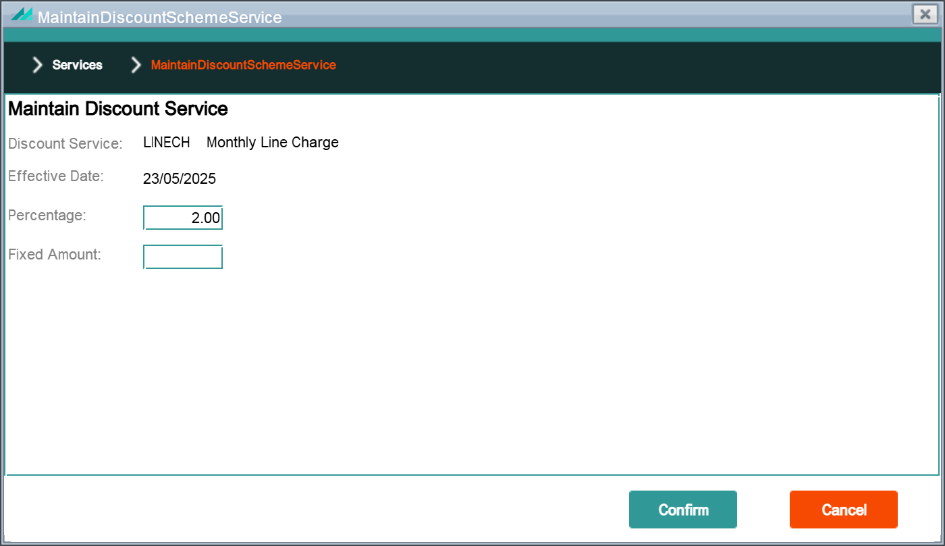
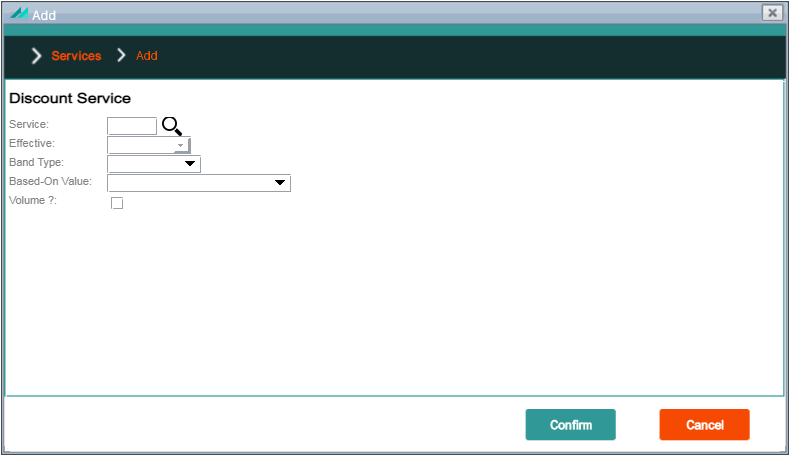
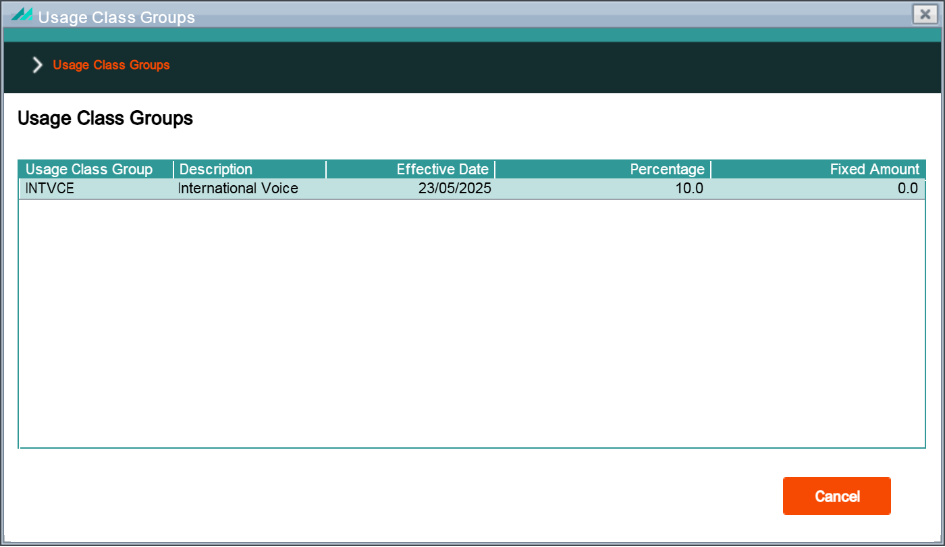
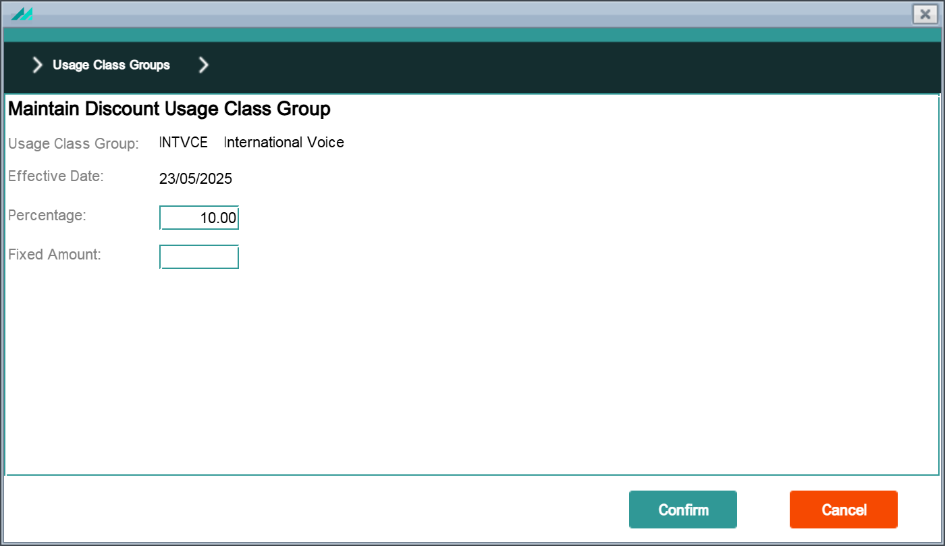
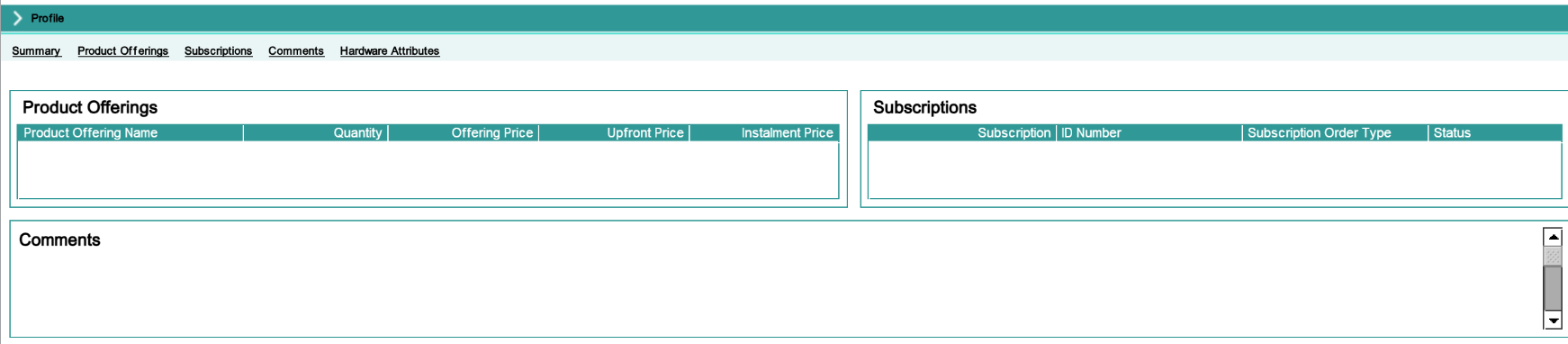
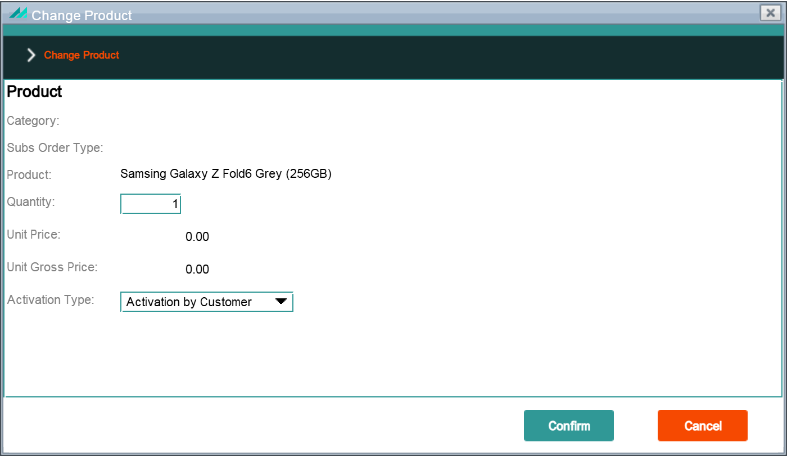
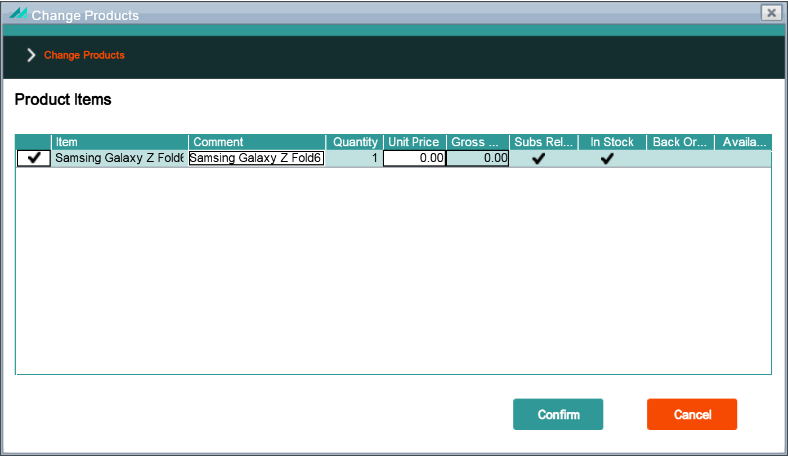
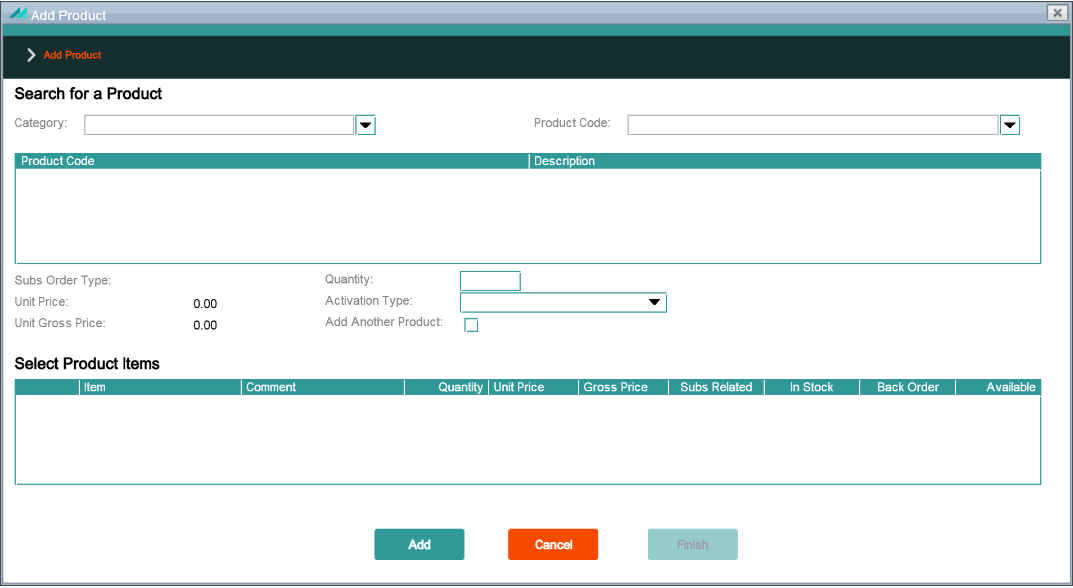
An image of the panel
A brief description of the panel
Panel name
Panel internal function name and the description of the function security
How the function security impacts access to the panel
The default CMP role that is required to allow access to the specific function/panel
Names and descriptions of fields within the panel where field security is employed
Field security level settings.
1.1 - Field and Function Security Definition
The two main types of security in CMP are Function security and Field security.
Function security applies to any high-level operations that a user wants to perform using the CMP UI, for example, editing account information, viewing workflow notes.
Without the required level of function security, the user is prevented from carrying out a particular operation and CMP displays information about the specific function security check that failed.
Function security behaviour can usually be identified by the function name, for example, on the Edit Account panel, two functions are restricted as follows:
Maintain Account Payment Details - restricts a user from editing data on the panel.
Display Account Payment Details - restricts viewing the panel at all.
This document describes in detail how this works on the sample panels, but similar standard behaviour should be seen on all panels.
Field security usually applies to individual fields that are involved in user edit operations. For example, the Account Type field is involved in editing account information and the Salesperson Number field is involved in editing an Agreement, Subscription or Subscription Service.
This works by restricting access already given by function security; it does not grant access that is already restricted. Instead, the CMP UI field is made 'read-only' so that a user who does not have clearance can view the contents, but not edit them. The operation (for example Edit Account information) can still be carried out and there is no specific prompt that any field security check failed; the field simply appears as 'read-only' when the panel is first displayed.
Security operates based on user roles. Group roles are a collection of lower-level roles and are assigned to users either through the Administration Console or directly in WSO2.
Each lower-level role is linked to one or more function and field security codes so that the Group Role ultimately defines the set of functions, and fields, that a user has access to.
Section 15 below details the default AgentView profiles that are pre-configured in CMP and their associated roles.
2 - AgentView Toolbar
The AgentView Toolbar is accessible from the top of every AgentView acreen and allows a user with appropriate function security to:
View their worklist of workflow events to be actioned
Create a new Account, Corporate or Group
Search for a customer
Review the online help
Access shortcut links to specific web pages.
AgentView Toolbar
2.1 - My Worklist
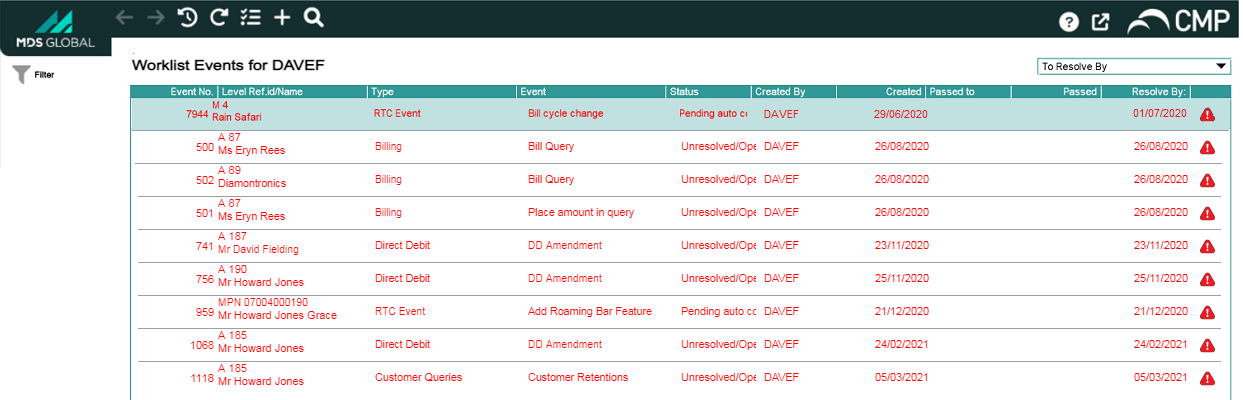
The Worklist Events screen shows all events assigned to the currently logged in user. Clicking on a specific event takes the user to the Event Summary screen at the level the event was raised at.
Worklist Events Panel
Function Security:
Panel Name
worklist.WorkListDisplayEventsPanel
Function Name
View Worklist Events (COOGDFR)
Enforcement
No data shown
Default Role
view-workflow-events
Worklist Filter
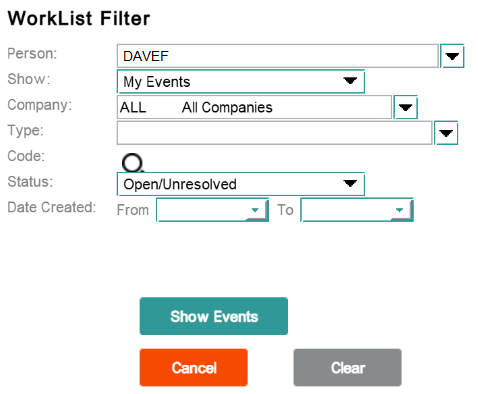
This screen allows the user to filter the display of events on the Event Summary screen. Using search criteria, the user can manipulate the display to show only those events which meet that criterion.
Worklist Filter Panel
Function Security:
Panel Name
worklist.WorkListFilterPanel
Function Name
N/A (None defined)
Enforcement
N/A
Default Role
N/A
Function Name
Select Dise User (CSLHSRP)
Enforcement
No data shown in 'Person' dropdown
Default Role
login
Function Name
Enter event type and code for diary event (CODTSRR)
Enforcement
No data shown in 'Type' dropdown
Default Role
raise-workflow-event
2.2 - New Customer
The new customer icon allows a user with appropriate function security to create new accounts, corporates or groups. Clicking the required hierarchy level launches the corresponding customer creation wizard.
The new customer functional security requirements are defined in section 3 below.
2.3 - Search
This section covers the functional security required to search for customers in CMP using the available selection criteria.
2.3.1 - Subscriptions
Subscription search by Subscription Number
Enables search for a subscription using the subscription number as the search criteria. If valid, the subscription number will be an exact match and the Subscription Summary panel will be displayed for the subscription number specified in the search.
Subscription Summary Panel
Function Security:
Panel Name
subscriptionconfiguration.SubscriptionWorkPanel
Function Name
Display Subscription (CSWMD2P)
Enforcement
No panel access
Default Role
view-customers
Subscription search by Account Number
Enables search for a subscription using the account number as the search criteria.
Subscription search by Account Number Panel
Function Security:
Panel Name
search.DspAllSubsForAccOrAgrPanel
Function Name
Prompt For Details (CPHLPVP)
Enforcement
No data shown
Default Role
maintain-customers
Function Name
View Subscriber By Account (CPHODFP)
Enforcement
No data shown
Default Role
view-customers
Subscription search by Landline number
Enables search for a subscription using the landline number as the search criteria.
Subscription search by Landline number Panel
Function Security:
Panel Name
search.LandlineSearchResultsPanel
Function Name
Get address by search fields (COXRUPR)
Enforcement
No data shown
Default Role
view-customers
Subscription search by Name/Address
Enables search for a subscription using part of the name or address as the search criteria.
Subscription search by Name/Address Panel
Function Security:
Panel Name
search.SearchForAddressPanel
Function Name
Get address by search fields (COXRUPR)
Enforcement
No data shown
Default Role
view-customers
Subscription search by Serial Numbers
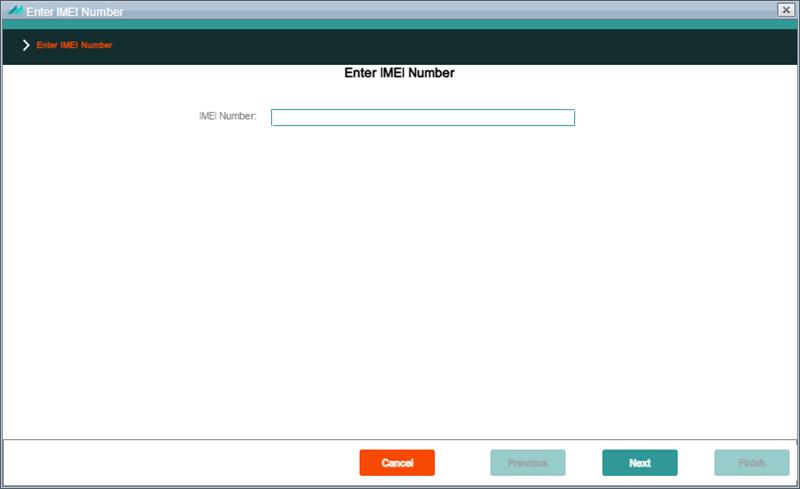
Enables search for a subscription using a serial number as the search criteria. The following serial number searches can be used:
All Subscription Serial Numbers
by Mobile Number
by SIM Serial Number
by IMEI
by Port In Mobile Number
Subscription search by Serial Numbers Panel
Function Security:
Panel Name
search.SelectBySerialNumPanel
Function Name
Display Subscription (CSWMD2P)
Enforcement
No data shown
Default Role
view-customers
Subscription search by e-Mail Address
Enables search for a subscription using the email address as the search criteria.
Subscription search by e-Mail Address Panel
Function Security:
Panel Name
search.DspAllSubsForEmailAddress
Function Name
N/A (None defined)
Enforcement
N/A
Default Role
N/A
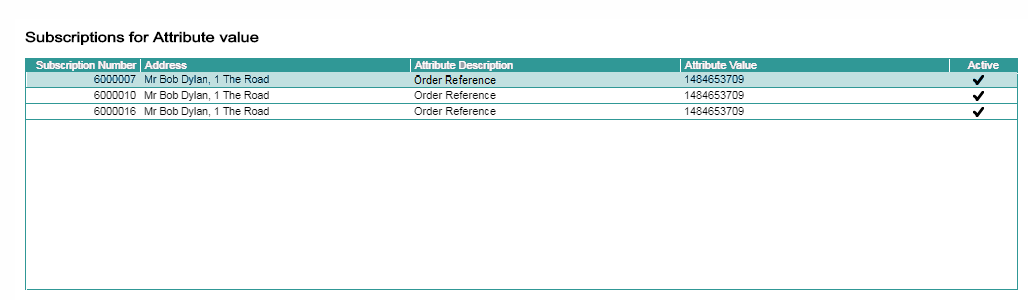
Subscription search by Attribute Value
Enables search for a subscription using the value of a subscription attribute as the search criteria.
Subscription search by Attribute Value Panel
Function Security:
Panel Name
search.DspAllSubsForAttributeValue
Function Name
Display Attribute Group (DISATGRP)
Enforcement
No data shown
Default Role
view-customers
2.3.2 - Accounts
Account search by Subscription Number
Enables search for an account using the subscription number as the search criteria. If valid, the subscription number will be an exact match against an account and the Account Summary panel will be displayed.
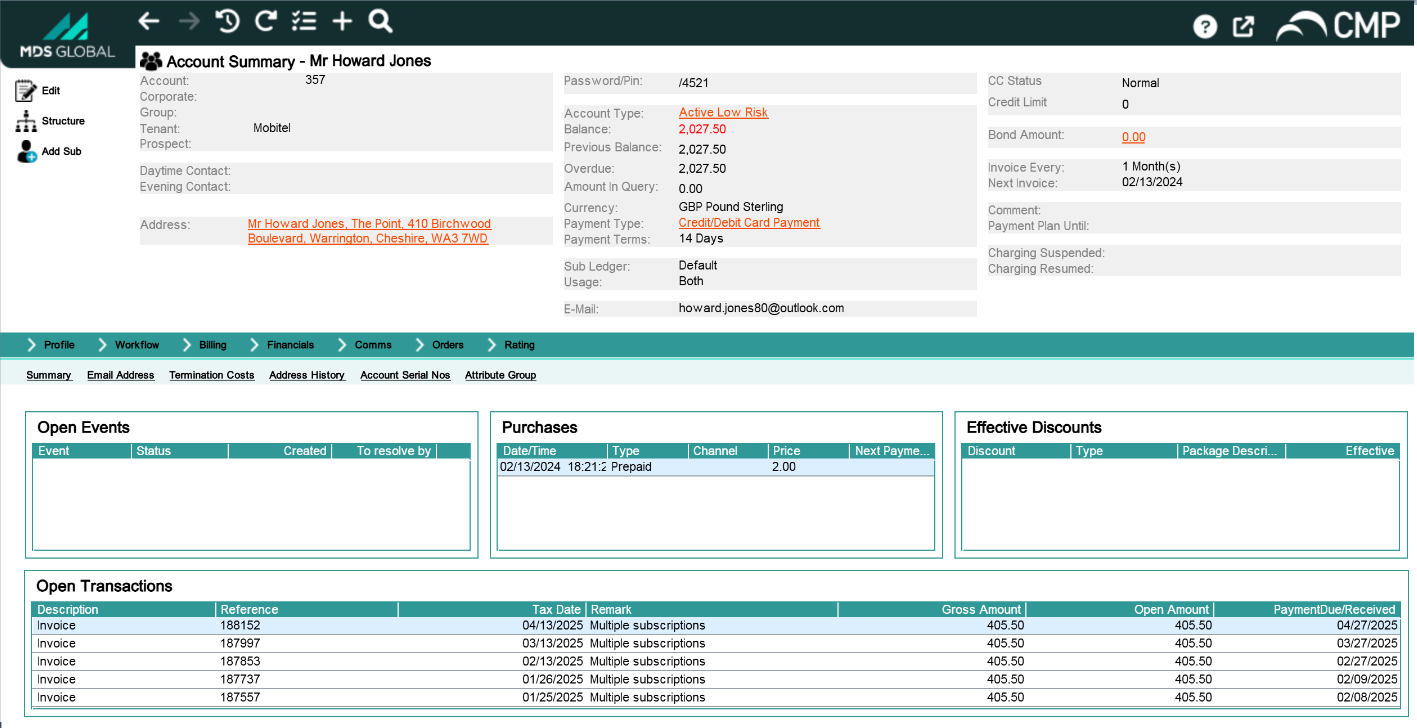
Account Summary Panel
Function Security:
Panel Name
accountconfiguration.AccountWorkPanel
Function Name
Prompt For Details (CPHLPVP)
Enforcement
No panel access
Default Role
maintain-customers
Account search by Account Number
Enables search for an account using the account number as the search criteria. If valid, the account number will be an exact match and the Account Summary panel will be displayed for the account number specified in the search.
Account Summary Panel
Function Security:
Panel Name
accountconfiguration.AccountWorkPanel
Function Name
Prompt For Details (CPHLPVP)
Enforcement
No panel access
Default Role
maintain-customers
Account search by Landline number
Enables search for an account using the landline number as the search criteria.
Account search by Landline number Panel
Function Security:
Panel Name
search.LandlineSearchResultsPanel
Function Name
Get address by search fields (COXRUPR)
Enforcement
No data shown
Default Role
view-customers
Account search by Name/Address
Enables search for an account using part of the name or address as the search criteria.
Account search by Name/Address Panel
Function Security:
Panel Name
search.SearchForAddressPanel
Function Name
Get address by search fields (COXRUPR)
Enforcement
No data shown
Default Role
view-customers
Account search by Serial Numbers
Enables search for an account using a serial number as the search criteria. The following serial number searches can be used:
All Subscription Serial Numbers
by Mobile Number
by SIM Serial Number
by IMEI
by Port In Mobile Number
Account search by Serial Number Panel
Function Security:
Panel Name
search.SelectBySerialNumPanel
Function Name
Display Subscription (CSWMD2P)
Enforcement
No data shown
Default Role
view-customers
Account search by Bank Account Number
Enables search for an account using the bank account number as the search criteria.
Account search by Bank Account Number Panel
Function Security:
Panel Name
search.AccountByBankDetailsPanel
Function Name
Prompt For Details (COM3DFR)
Enforcement
No data shown
Default Role
maintain-customers
Account search by Bank Sort Code
Enables search for an account using the bank sort code as the search criteria.
Account search by Bank Sort Code Panel
Function Security:
Panel Name
search.AccountByBankSortCodePanel
Function Name
Prompt For Details (COMVDFR)
Enforcement
No data shown
Default Role
maintain-customers
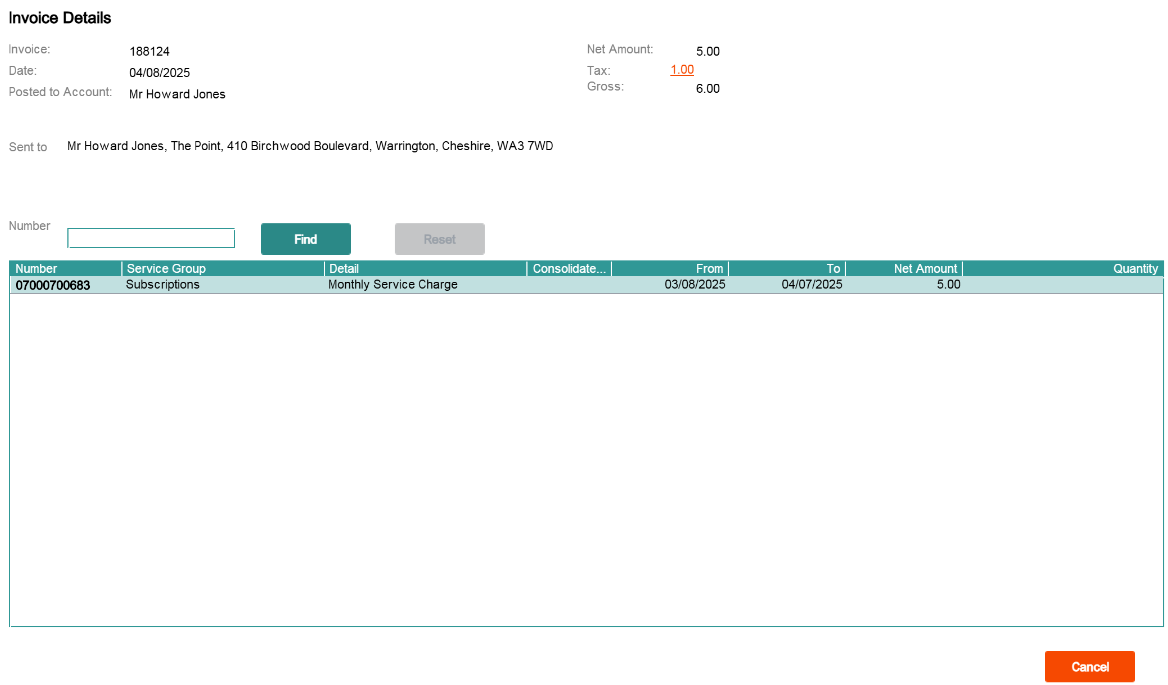
Account search by Invoice Number
Enables search for an account using the invoice number as the search criteria.
Account search by Invoice Number Panel
Function Security:
Panel Name
invoice.InvoiceDetailsPanel
Function Name
View Invoice Detail (COJPDFR)
Enforcement
No panel access
Default Role
view-customers
Account search by e-Mail Address
Enables search for an account using the email address as the search criteria.
Account search by e-Mail Address Panel
Function Security:
Panel Name
search.DspAllAccForEmailAddress
Function Name
N/A (None defined)
Enforcement
N/A
Default Role
N/A
Account search by Account Serial Number
Enables search for an account using an account serial number as the search criteria.
Account search by Account Serial Number Panel
Function Security:
Panel Name
search.DisplayAllAccountsForAccountSerialNumber
Function Name
N/A (None defined)
Enforcement
N/A
Default Role
N/A
Account search by Attribute Value
Enables search for an account using the value of an account attribute as the search criteria.
Account search by Attribute Value Panel
Function Security:
Panel Name
search.DspAllAccsForAttributeValue
Function Name
Display Attribute Group (DISATGRP)
Enforcement
No data shown
Default Role
view-customers
2.3.3 - Agreements
Agreement search by Agreement Number
Enables search for an agreement using the agreement number as the search criteria.
Agreement search by Agreement Number Panel
Function Security:
Panel Name
agreementconfiguration.AgreementWorkPanel
Function Name
View agreement (COZOD2R)
Enforcement
No panel access
Default Role
view-agreements
Agreement search by Name/Address
Enables search for an agreement using part of the name or address as the search criteria.
Agreement search by Name/Address Panel
Function Security:
Panel Name
search.SearchForAddressPanel
Function Name
Get address by search fields (COXRUPR)
Enforcement
No data shown
Default Role
view-customers
2.3.4 - Workflow Event
Event search by Event Number
Enables search for a workflow event based on the event number. The result of this type of search will take the user directly to the associated Event Summary screen.
Function Security:
Panel Name
workflowconfiguration.DiaryEventsWorkPanel
Function Name
Request interface-level list of diary events (COWHPVR)
Enforcement
No data shown
Default Role
maintain-workflow-events
2.3.5 - Corporates
Corporate search by Corporate Code
Enables search for a corporation using the corporate code as the search criteria.
Corporate search by Corporate Code Panel
Function Security:
Panel Name
search.SelectByCodePanel
Function Name
VIEW_CORPORATE_SUMMARY (CONDD1R)
Enforcement
No data shown
Default Role
view-enterprises
Corporate search by Description
Enables search for a corporation using the corporate description as the search criteria.
Corporate search by Description Panel
Function Security:
Panel Name
search.SelectByDescriptionPanel
Function Name
VIEW_CORPORATE_SUMMARY (CONDD1R)
Enforcement
No data shown
Default Role
view-enterprises
Corporate search by Landline number
Enables search for a corporation using the landline number as the search criteria.
Corporate search by Landline number Panel
Function Security:
Panel Name
search.LandlineSearchResultsPanel
Function Name
Get address by search fields (COXRUPR)
Enforcement
No data shown
Default Role
view-customers
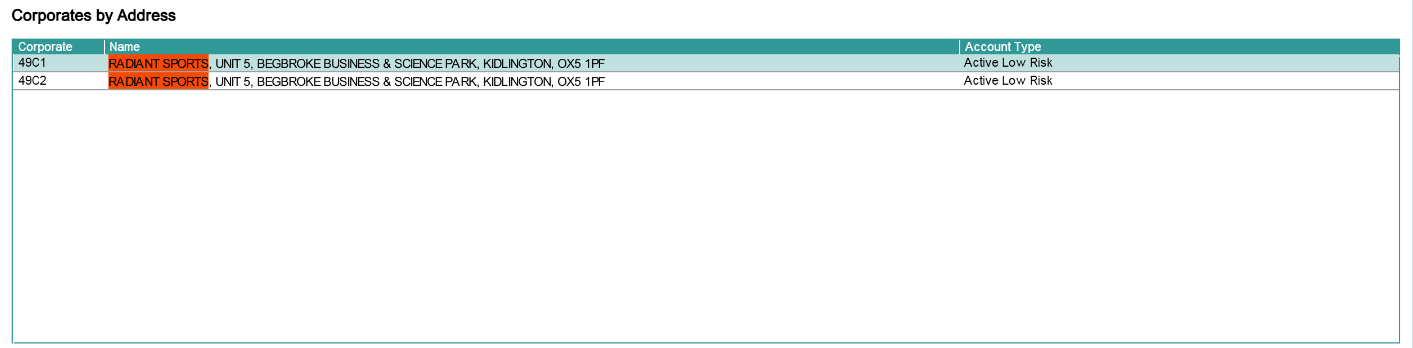
Corporate search by Name/Address
Enables search for a corporation using part of the name or address as the search criteria.
Corporate search by Name/Address Panel
Function Security:
Panel Name
search.SearchForCorporateAddressPanel
Function Name
Get address by search fields (COXRUPR)
Enforcement
No data shown
Default Role
view-customers
2.3.6 - Groups
Group search by Group Code
Enables search for a group using the group code as the search criteria.
Group search by Group Code Panel
Function Security:
Panel Name
search.SelectByCodePanel
Function Name
VIEW_GROUP_SUMMARY (COIAD1R)
Enforcement
No data shown
Default Role
view-enterprises
Group search by Description
Enables search for a group using the corporate description as the search criteria.
Group search by Description Panel
Function Security:
Panel Name
search.SelectByDescriptionPanel
Function Name
VIEW_GROUP_SUMMARY (COIAD1R)
Enforcement
No data shown
Default Role
view-enterprises
Group search by Landline number
Enables search for a group using the landline number as the search criteria.
Group search by Landline number Panel
Function Security:
Panel Name
search.LandlineSearchResultsPanel
Function Name
Get address by search fields (COXRUPR)
Enforcement
No data shown
Default Role
view-customers
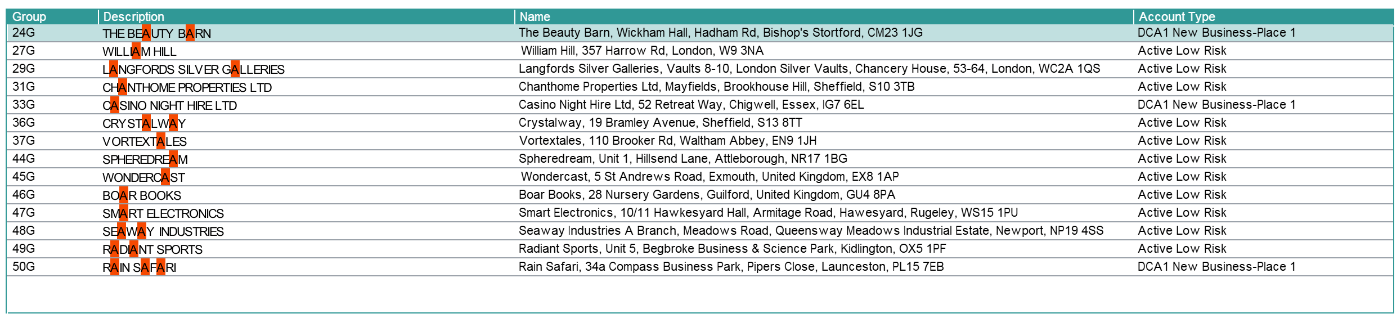
Group search by Name/Address
Enables search for a group using part of the name or address as the search criteria.
Group search by Name/Address Panel
Function Security:
Panel Name
search.SearchForGroupAddressPanel
Function Name
Get address by search fields (COXRUPR)
Enforcement
No data shown
Default Role
view-customers
2.3.7 - Order
Order search by Order Number
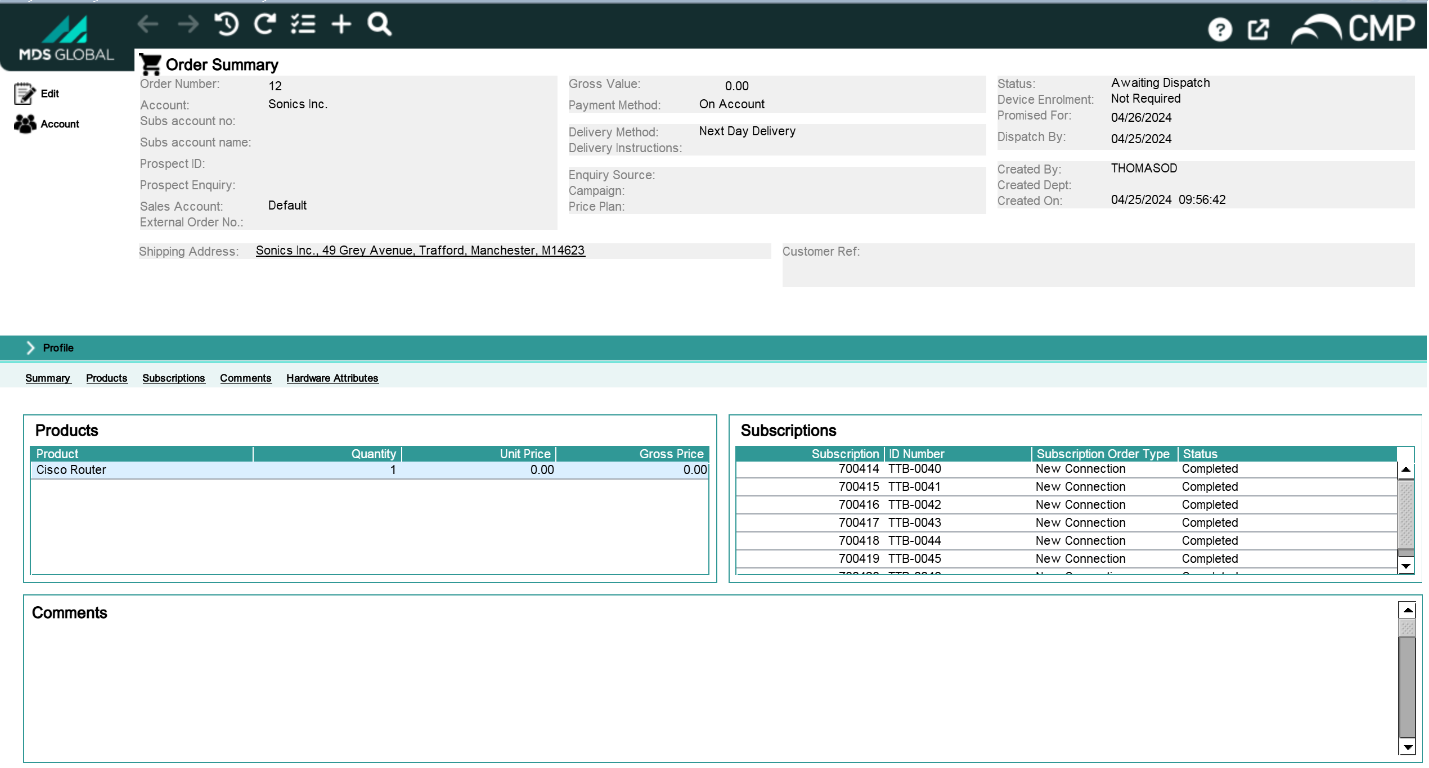
Enables search for an order using the order number as the search criteria. The result of this type of search will take the user directly to the Order Summary screen.
Order search by Order Number Panel
Function Security:
Panel Name
orderconfiguration.OrderWorkPanel
Function Name
Display Order (CSN2D1P)
Enforcement
No data shown
Default Role
view-orders
2.3.8 - Port-in Number
Port In search by Mobile/PAC
Enables search for a port-in request using either the PAC or port-in number as the search criteria.
Port In search by Mobile/PAC Panel
Function Security:
Panel Name
subscription.porting.PortSearchResults
Function Name
N/A (None defined)
Enforcement
N/A
Default Role
N/A
2.3.9 - Port-out Number
Port Out search by Mobile/PAC
Enables search for a port-out request using either the PAC or port-out number as the search criteria.
Port Out search by Mobile/PAC Panel
Function Security:
Panel Name
subscription.porting.PortSearchResults
Function Name
N/A (None defined)
Enforcement
N/A
Default Role
N/A
2.4 - Help
The online help is available to all users. There is no associated function security.
2.5 - Web Links
Web links are available in the Summary screens and can be defined at every customer level. The current level the user are at dictates which links are available.
Function Security:
Panel Name
N/A
Function Name
Display Weblinks (DISPWEBLNK)
Enforcement
No links shown
Default Role
view-weblinks
3 - New Customers
This section covers the functional security required to create a new account in CMP.
3.1 - Account Creation Wizard
The Account Creation panels can be accessed:
From the Customer Structure by clicking the Corporate icon to highlight it and then selecting the Add Acc option from the shortcut menu.
By selecting the New Customer icon from the tool bar to open the New Customer wizard and then selecting the Account option.
By selecting Add Acc on the Quick Access Panel at Corporate level.
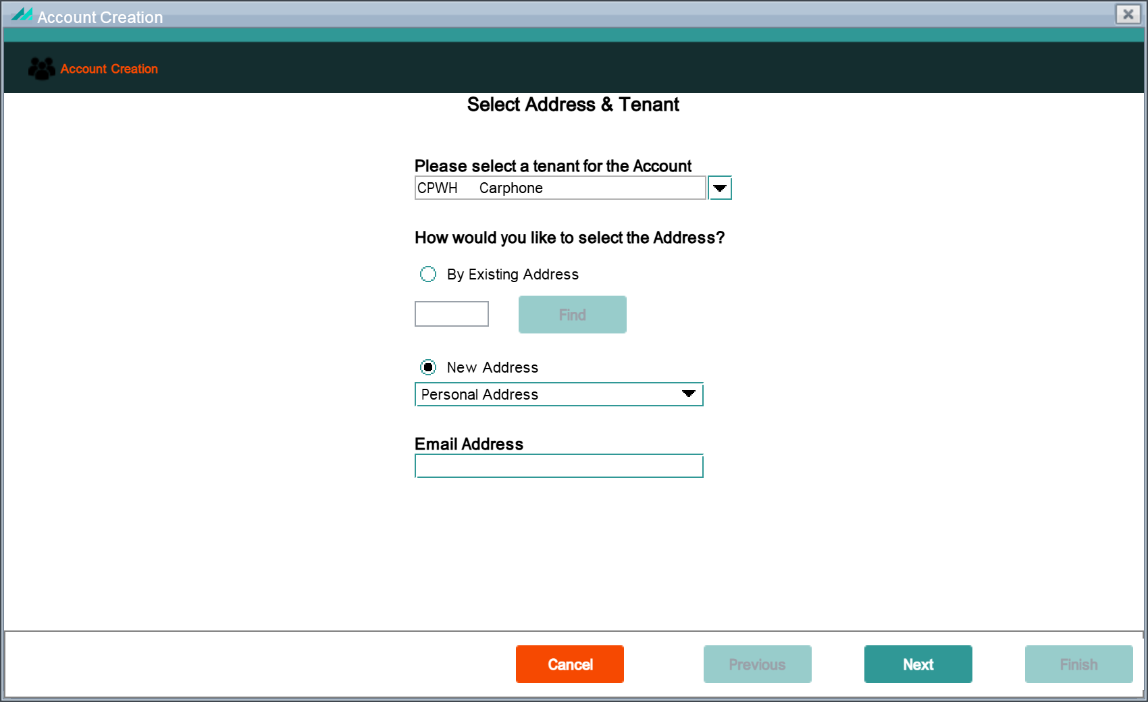
Select Address & Company
This panel is the first page displayed in the Account Creation wizard and enables the user to select the address and company to be associated with the new account.
This panel is available at Account, Corporate and Group level.
Select Address & Company Panel
Function Security:
Panel Name
wizard.account.SelectAddressAndCompanyPanel
Function Name
Enter application number (CSENPVP)
Enforcement
No panel access
Default Role
add-customers
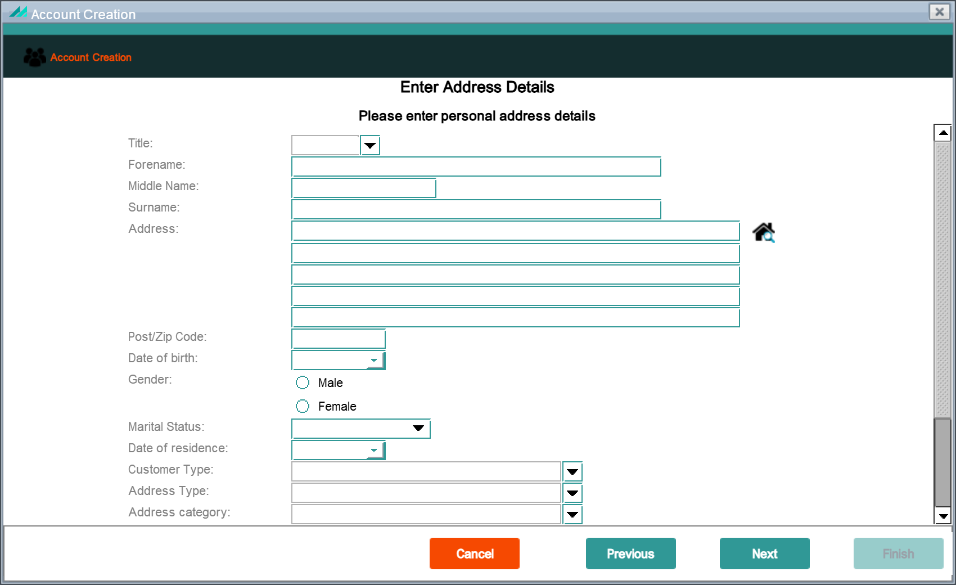
Enter Personal Address Details
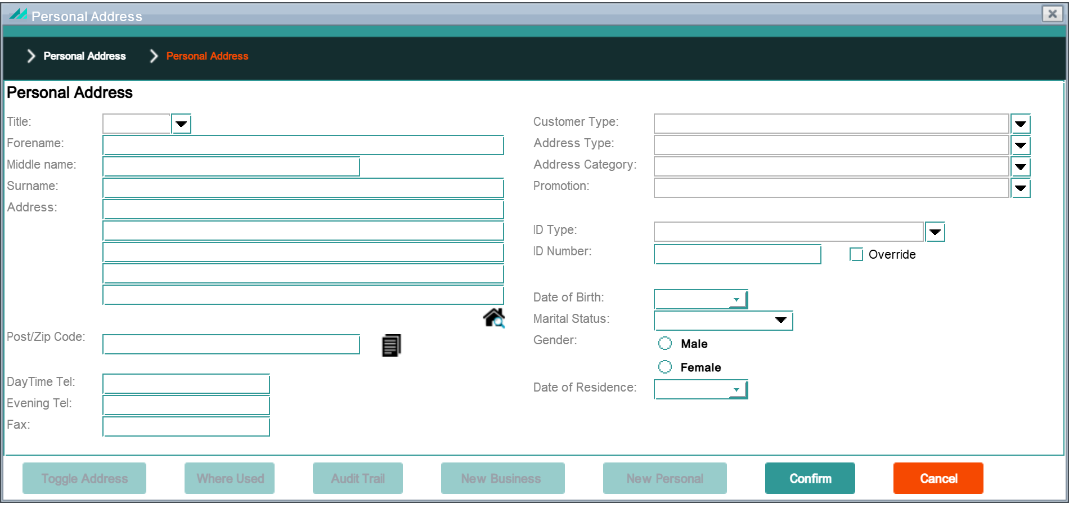
Part of the Account Creation wizard and enables new personal address details to be entered for association with the new account, provided the New Address radio button is selected and the Personal Address option on the previous panel. Available at Account, Corporate and Group level.
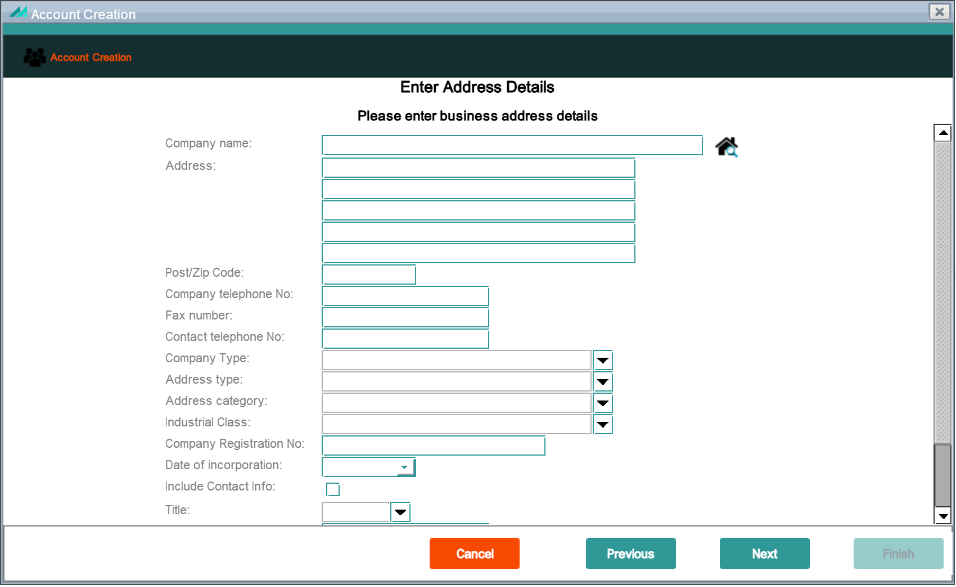
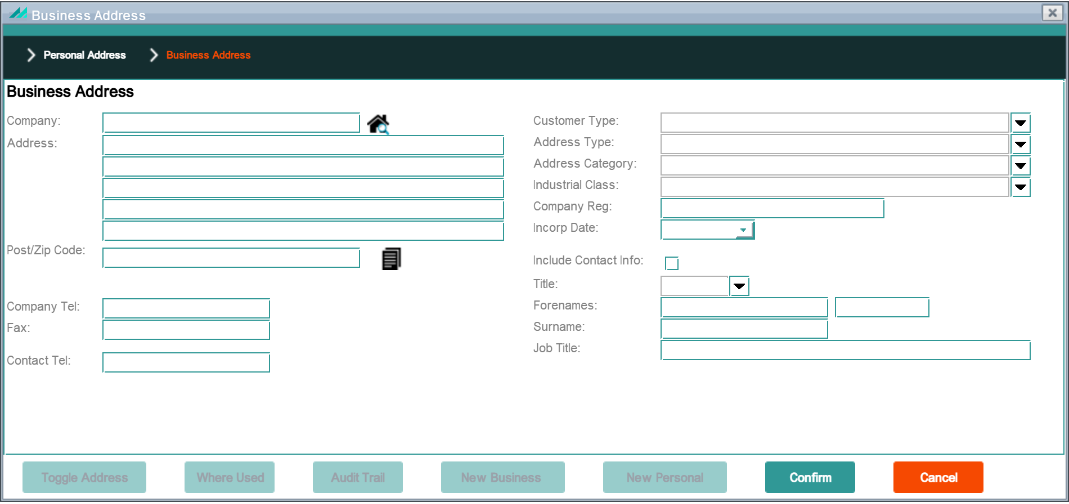
Part of the Account Creation wizard and enables the user to enter new business address details to be associated with the new account, provided the user selected the New Address radio button and the Business Address option on the previous panel. Available at Account, Corporate and Group level.
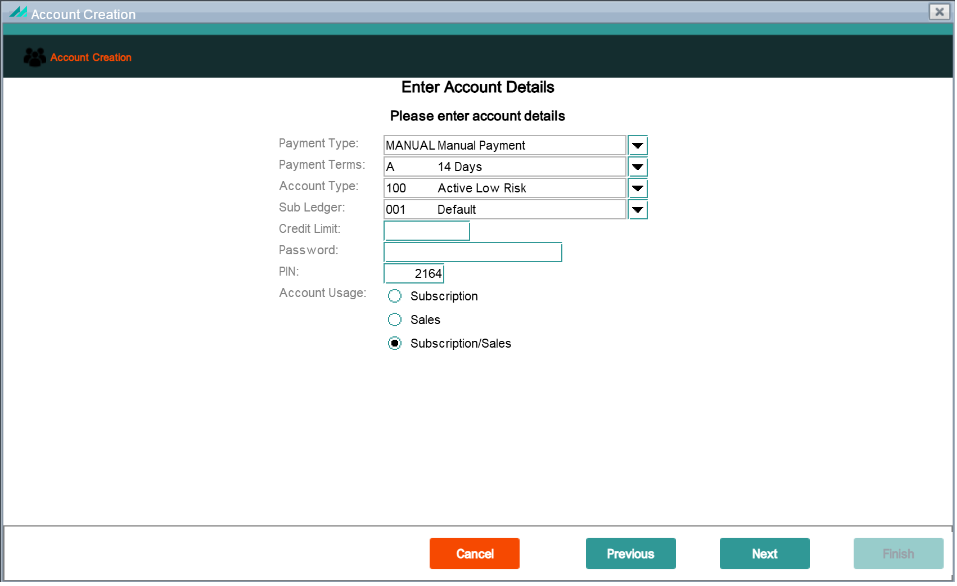
Part of the Account Creation wizard and enables the user to enter new account details.
Enter Account Details Panel
Function Security:
Panel Name
wizard.account.EnterAccountDetailsPanel
Function Name
Enter_account_detail (CSDPPVP)
Enforcement
No data shown
Default Role
add-customers
In addition to the function security described above, this popup panel also implements field security on some of the fields as listed below:
Field Security:
Field Name
Security Code
Enforcement
Default Role
Account Type
AC02
Display-only
maintain-customers
Payment Terms
IUST
Display-only
maintain-customers
Sub Ledger
IWCD
Display-only
maintain-payment-details
PIN
TSNB
Display-only
maintain-payment-details
Direct Debit Details
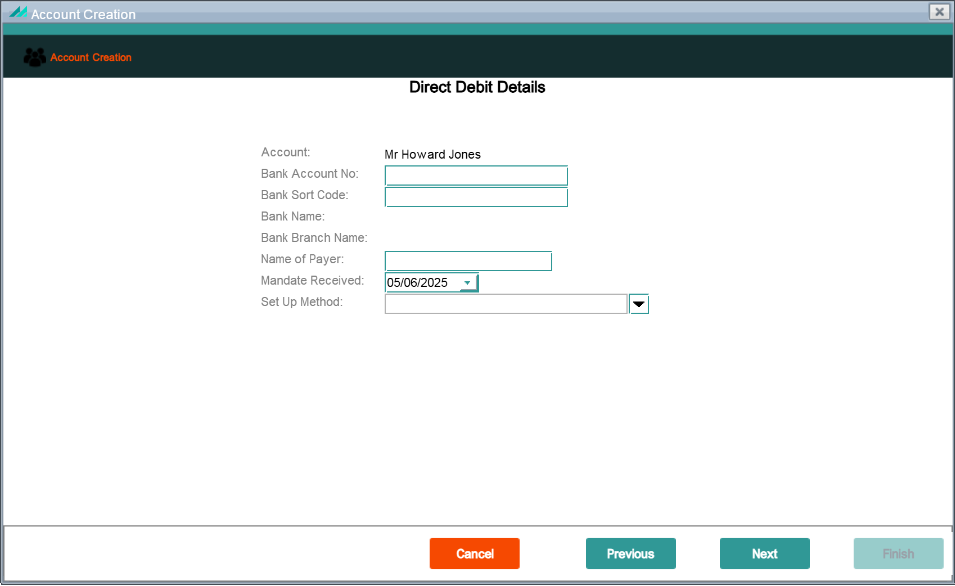
Part of the Account Creation wizard and enables new direct debit card details to be added. This panel is only displayed if the Payment Type field was set to 'Direct Debit' and the Payment Terms field was populated on the Enter Account Details panel.
Note: If a non-recurring payment type was set on the Enter Account Details panel then the Confirm Account Details screen is displayed directly.
Direct Debit Details Panel
Function Security:
Panel Name
wizard.account.DirectDebitDetailsWizardPanel
Function Name
N/A (None defined)
Enforcement
N/A
Default Role
N/A
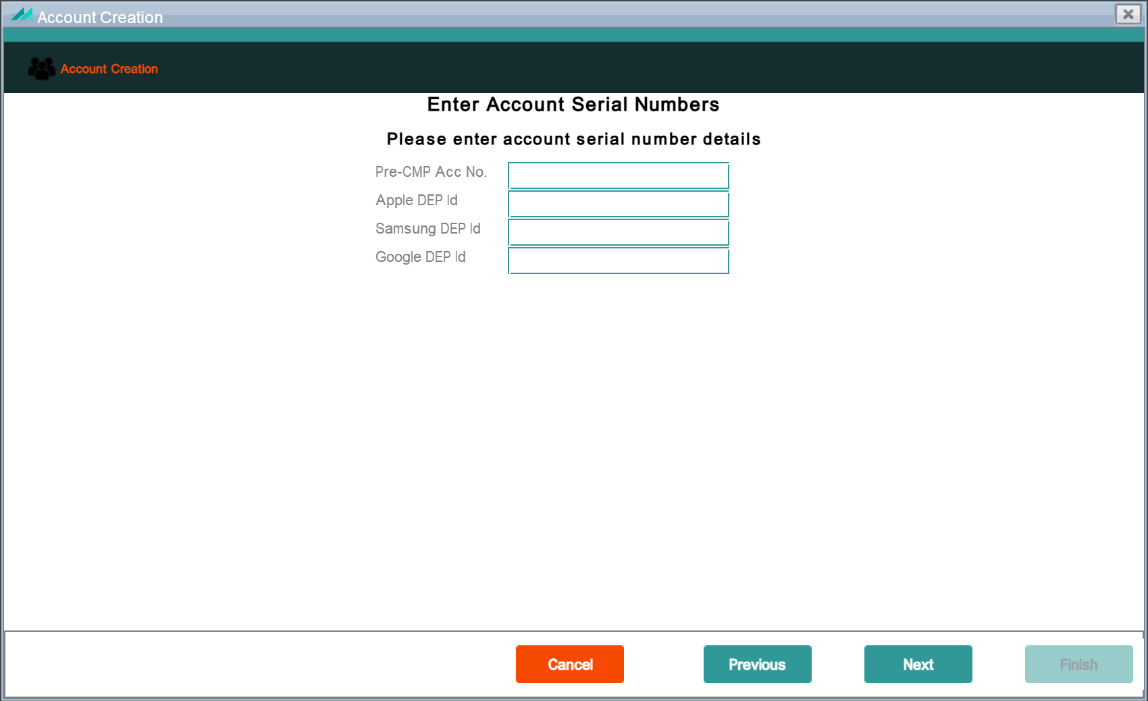
Enter Account Serial Numbers
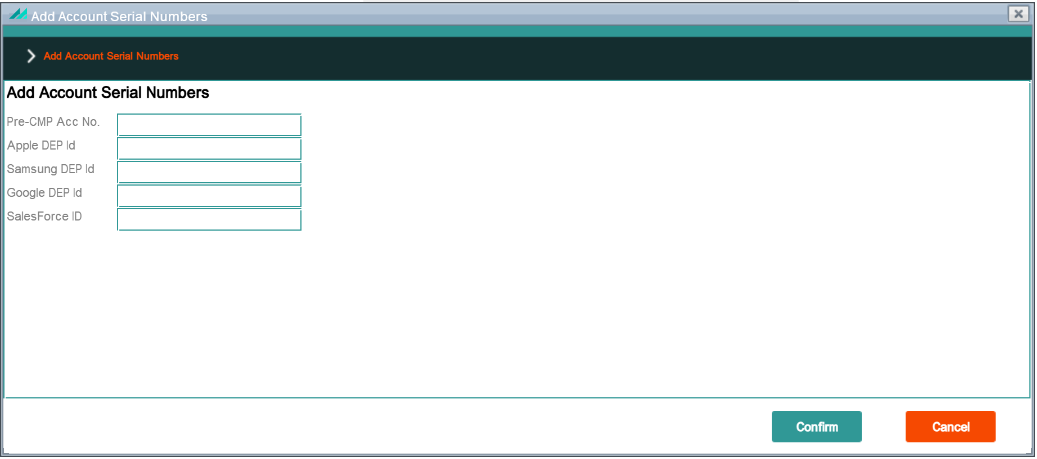
This panel is accessed as part of the Account Creation wizard and contains the details of all additional (non-managed) Serial Numbers that have been configured according to customer requirements. A maximum of nine additional numbers can be entered, if required (including PIN, PUK, etc.).
Note: This panel is not displayed if no Account Serial Numbers have been configured.
Enter Account Serial Numbers Panel
Function Security:
Panel Name
wizard.account.AddAccountSerialNumbersWizardPanel
Function Name
Add Account Serial Number (ADDACSRNO)
Enforcement
Operation not allowed
Default Role
maintain-customers
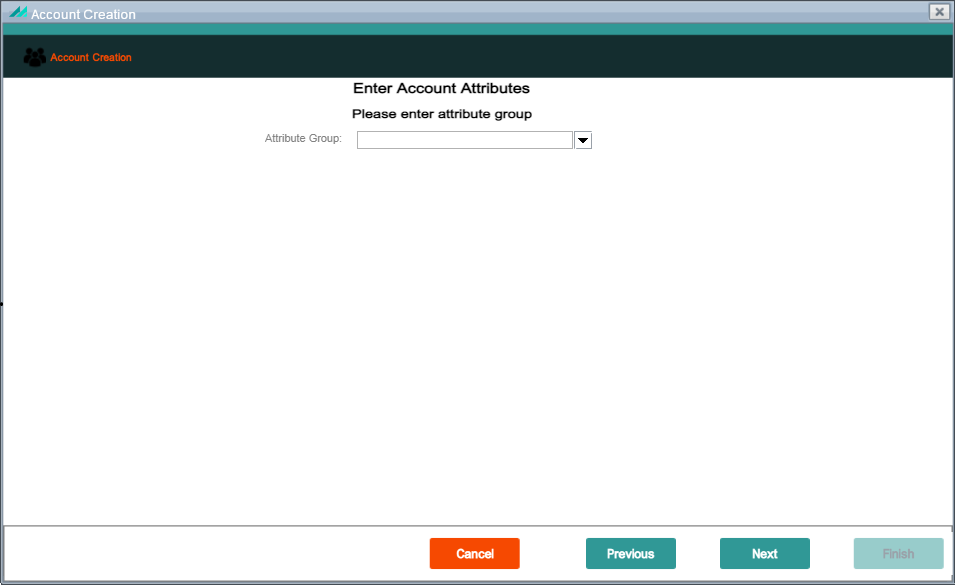
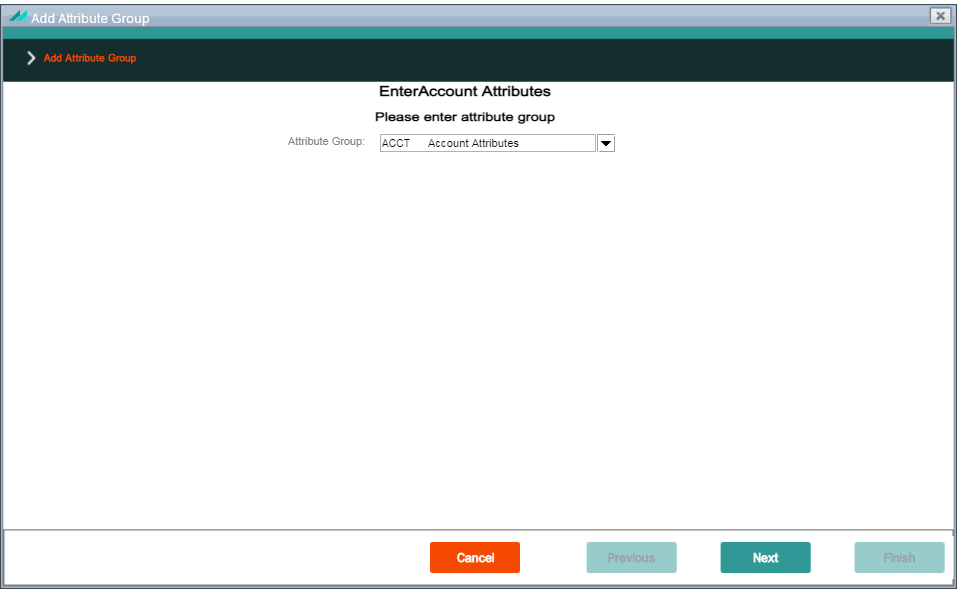
Enter Account Attributes (Attribute Group)
Panel allows an Attribute Group to be selected using the search facility. This includes any Attribute Group that has been configured at Account level in CMP Back Office, along with the description and code for each.
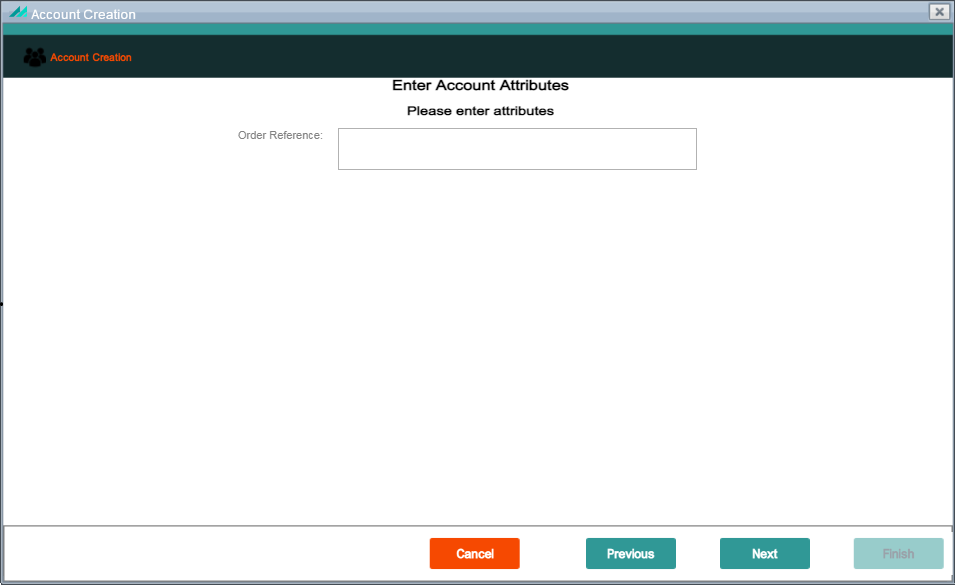
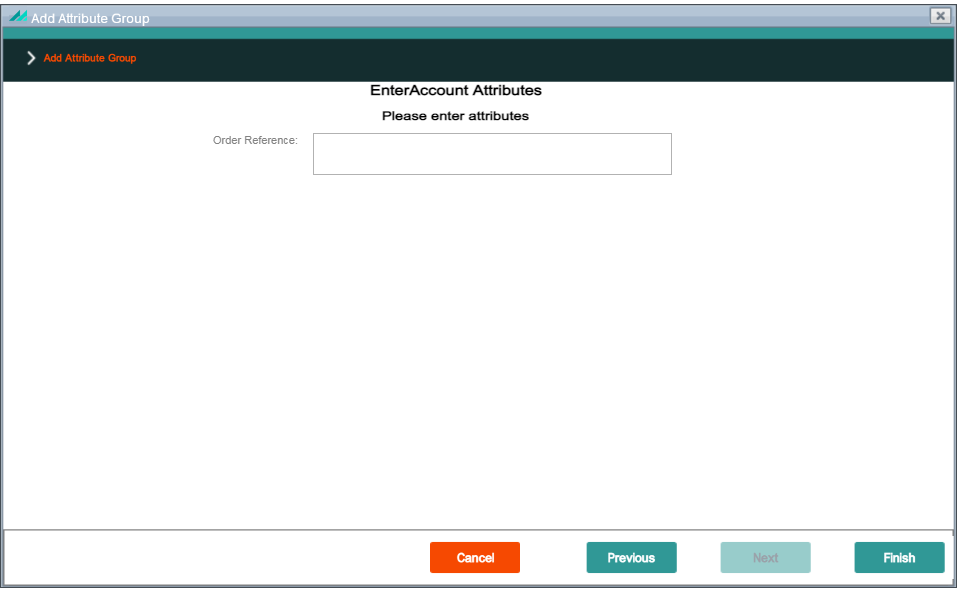
If an Attribute Group has been selected in the previous wizard panel, a list of the configured Attributes for that group is displayed in the Enter Account Attributes page, along with a text box for entering the required Attributes.
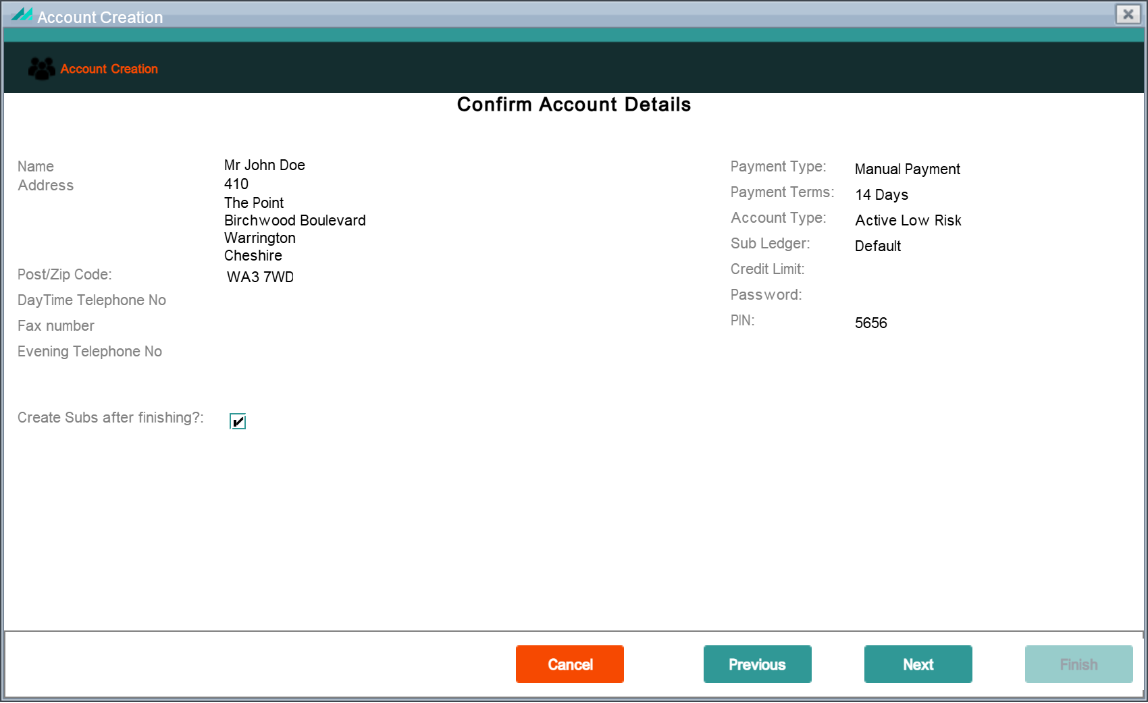
Panel is part of the Account Creation wizard and enables the user to confirm the account details.
This panel provides a summary of the account terms, including address, account and payment details.
However, only the 'Create Subs after finishing?' field can be edited if the function security is enabled.
If not, the account can be created but the create subs checkbox is disabled.
Confirm Account Details Panel
Function Security:
Panel Name
wizard.account.ConfirmDetailsPanel
Function Name
Connect or Upgrade a Subscription (CSQNPVP)
Enforcement
Operation not allowed
Default Role
add-customers
3.2 - Subscription Creation Wizard
The Subscription Creation panels can be accessed:
From the Customer Structure by clicking the Account icon to highlight it and then selecting the Add (New Subscriber) option from the shortcut menu.
Via the New Customer wizard at the end of the Account Creation process.
By selecting the Add Sub icon on the Quick Access panel at Account level.
Via the Subscription Creation/Upgrade wizard which is accessed from the Subscription Summary upper panel.
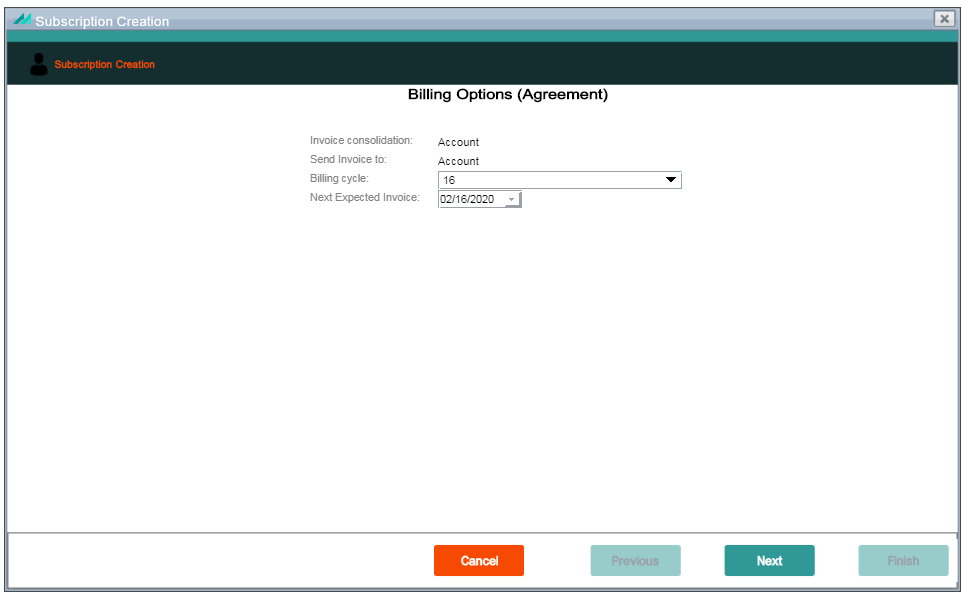
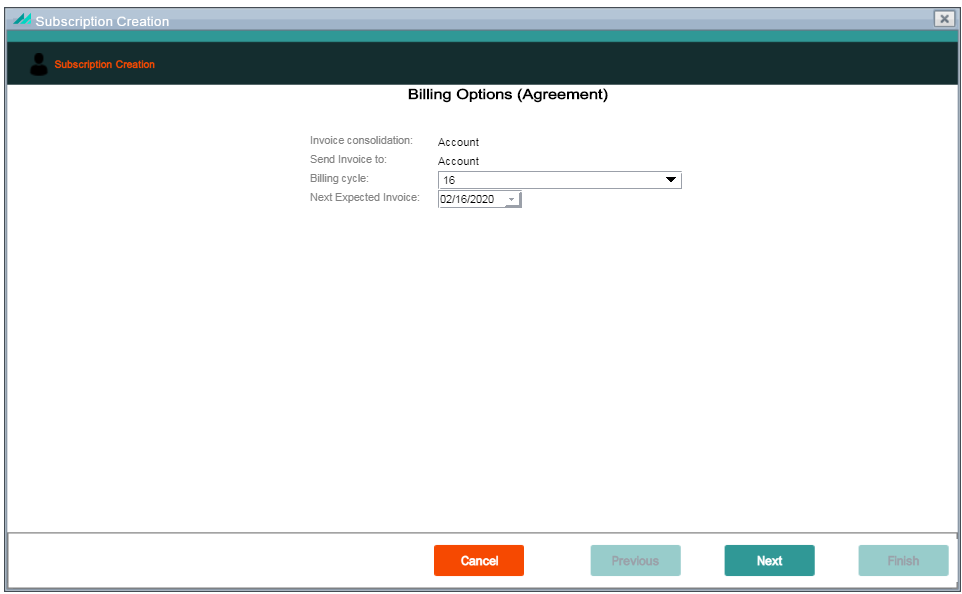
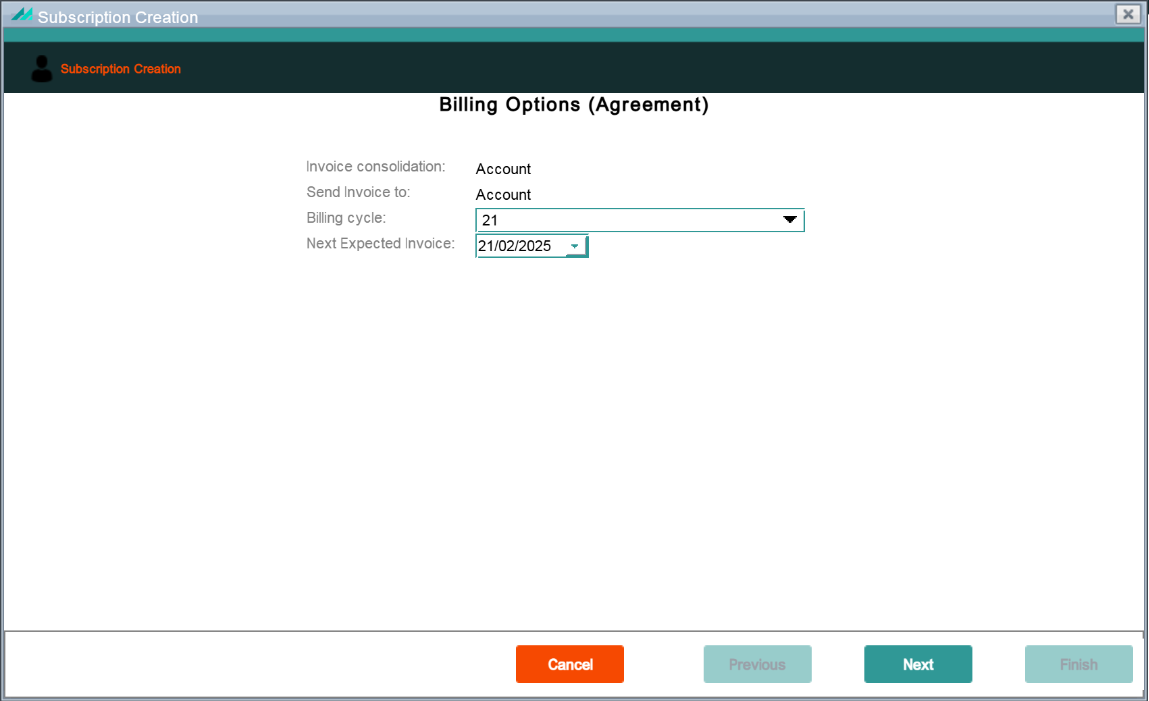
Billing Options
Once a new Account has been created, new Subscriptions or Agreements can be created.
If no Agreements currently exist for the account then the Billing Options (Agreement) panel is displayed.
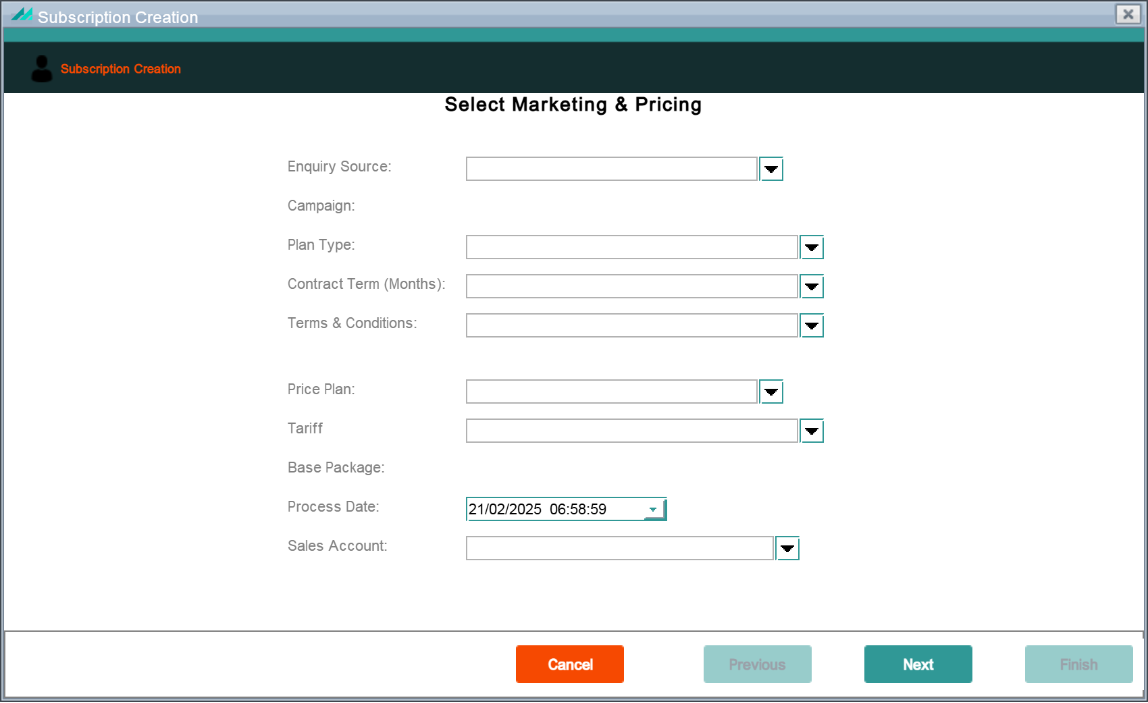
The Packages panel is displayed in the Subscription Creation wizard after the Select Marketing & Pricing panels.
Add Packages Panel
Function Security:
Panel Name
wizard.subscription.lite.AddPackageLitePanel
Function Name
Change Package (CHNGPKG)
Enforcement
Operation not allowed (read only)
Default Role
add-customers
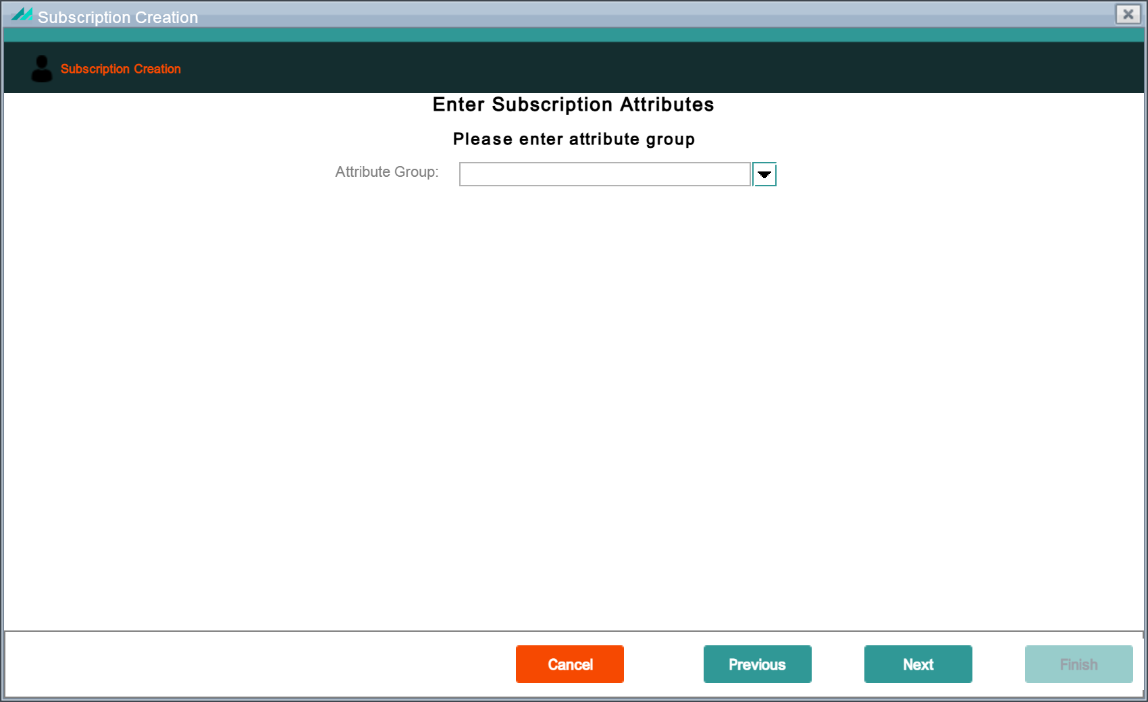
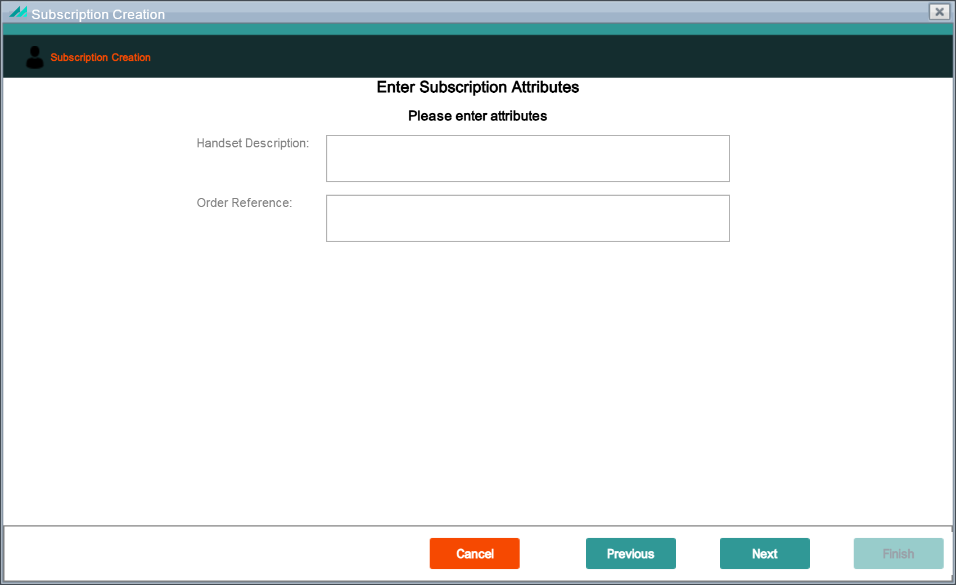
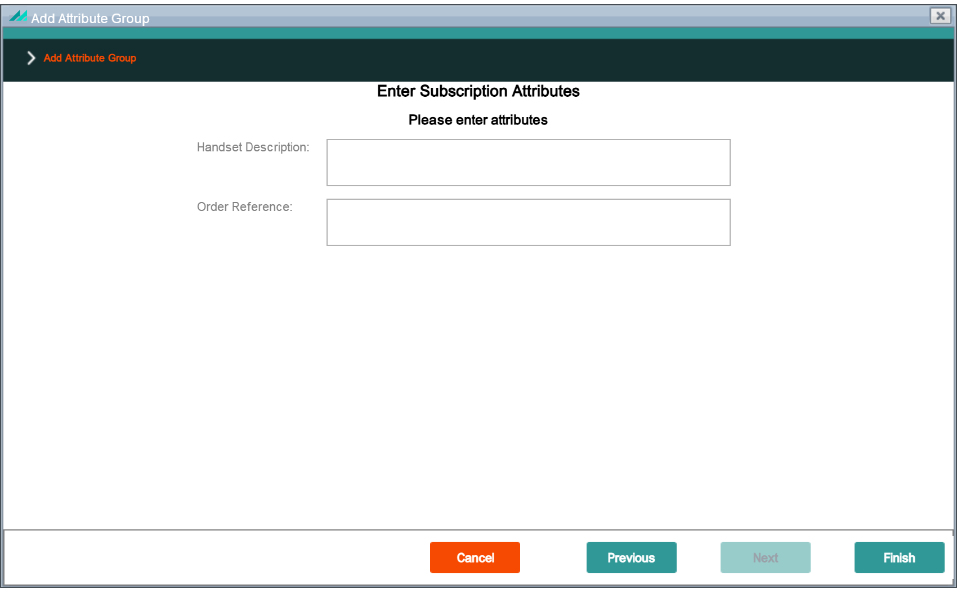
Enter Subscription Attributes (Attribute Group)
Panel allows an Attribute Group to be selected using the search facility. This includes any Attribute Group that has been configured at Subscription level in CMP Back Office, along with the description and code for each.
Enter Subscription Attributes (Attribute Group) Panel
If an Attribute Group has been selected in the previous wizard panel, a list of the configured Attributes for that group is displayed in the Enter Subscription Attributes page, along with a text box for entering the required Attributes.
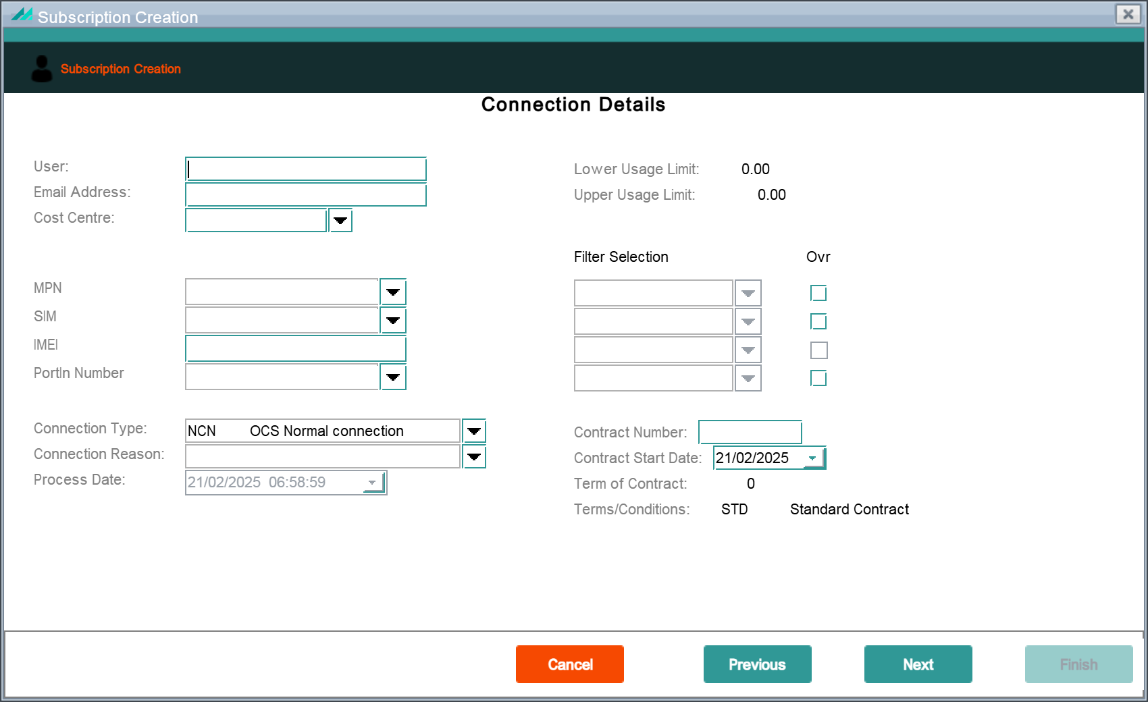
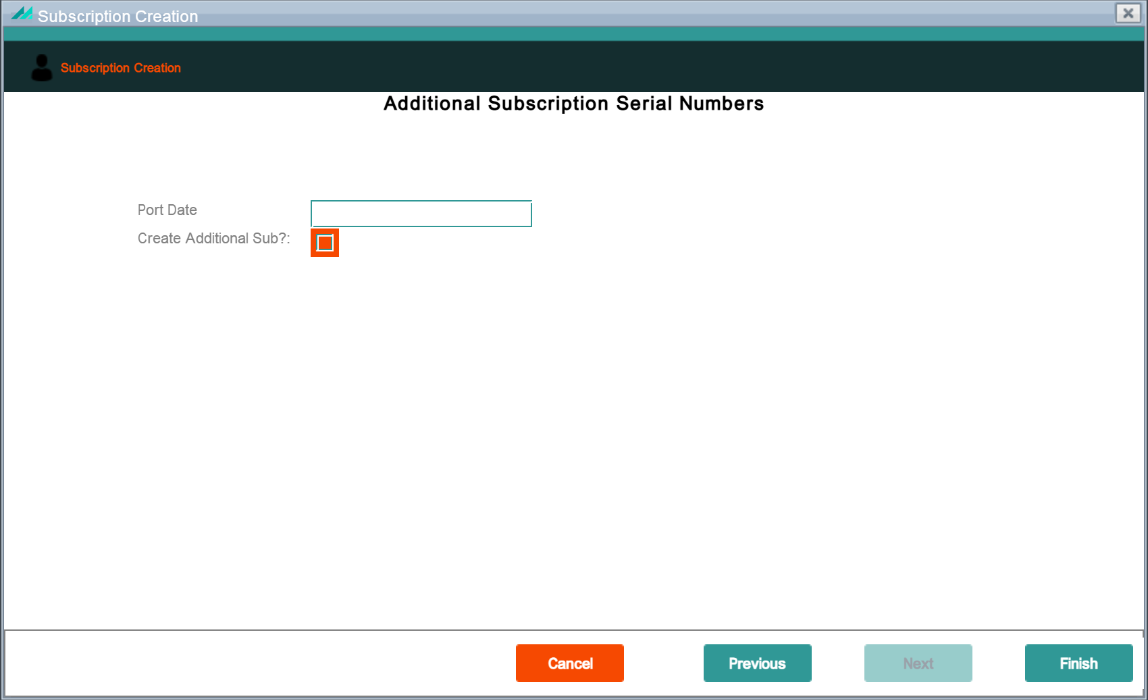
This panel is accessed via the Connection Details panel and contains the details of all Additional (non-managed) Serial Numbers that have been configured according to customer requirements. A maximum of nine additional numbers can be entered, if required (including PIN, PUK, etc.). A second Subscription can be created at this point if required. If no further subscriptions are required then the Create Additional Sub? checkbox must be de-selected. Note: This panel is not displayed if no Additional (non-managed) Serial Numbers have been configured.
Enables the user to select the address and company to be associated with the new account.
Select Address & Company Panel
Function Security:
Panel Name
wizard.account.SelectAddressAndCompanyPanel
Function Name
N/A (None defined)
Enforcement
N/A
Default Role
N/A
Enter Business Address Details
Part of the Group Creation wizard and enables the user to enter new business address details to be associated with the new account, provided the user selected the New Address radio button.
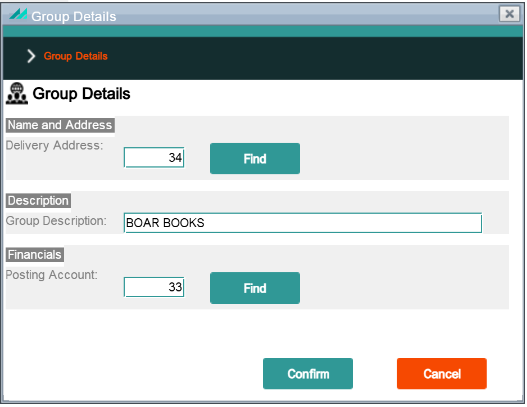
Part of the Group Creation wizard and enables the user to enter new group details.
Enter Account Details Panel
Function Security:
Panel Name
wizard.account.EnterAccountDetailsPanel
Function Name
Enter_account_detail (CSDPPVP)
Enforcement
No data shown
Default Role
add-customers
Direct Debit Details
Part of the Group Creation wizard and enables new direct debit details to be added. This panel is only displayed if the Payment Type field was set to 'Direct Debit' and the Payment Terms field was populated on the Enter Account Details panel.
Note: If a non-recurring payment type was set on the Enter Account Details panel then the Confirm Group Details screen is displayed directly.
Direct Debit Details Panel
Function Security:
Panel Name
wizard.account.DirectDebitDetailsWizardPanel
Function Name
N/A (None defined)
Enforcement
N/A
Default Role
N/A
Enter Account Serial Numbers
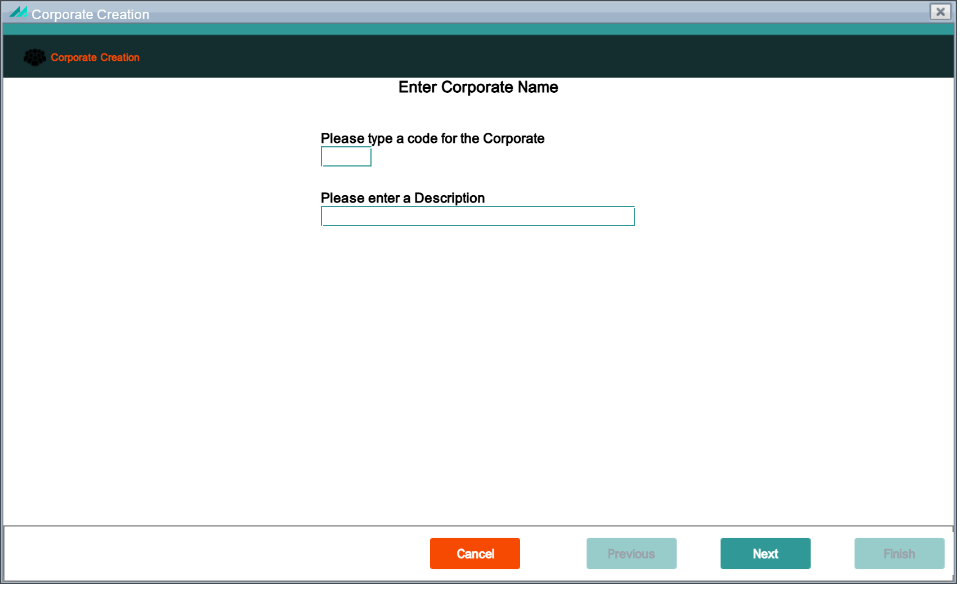
This panel is accessed as part of the Corporate Creation wizard and contains the details of all Additional (non-managed) Serial Numbers that have been configured according to customer requirements. A maximum of nine additional numbers can be entered, if required (including PIN, PUK, etc.).
Note: This panel is not displayed if no Account Serial Numbers have been configured.
Enter Account Serial Numbers Panel
Function Security:
Panel Name
wizard.account.AddAccountSerialNumbersWizardPanel
Function Name
Add Account Serial Number (ADDACSRNO)
Enforcement
Operation not allowed
Default Role
maintain-customers
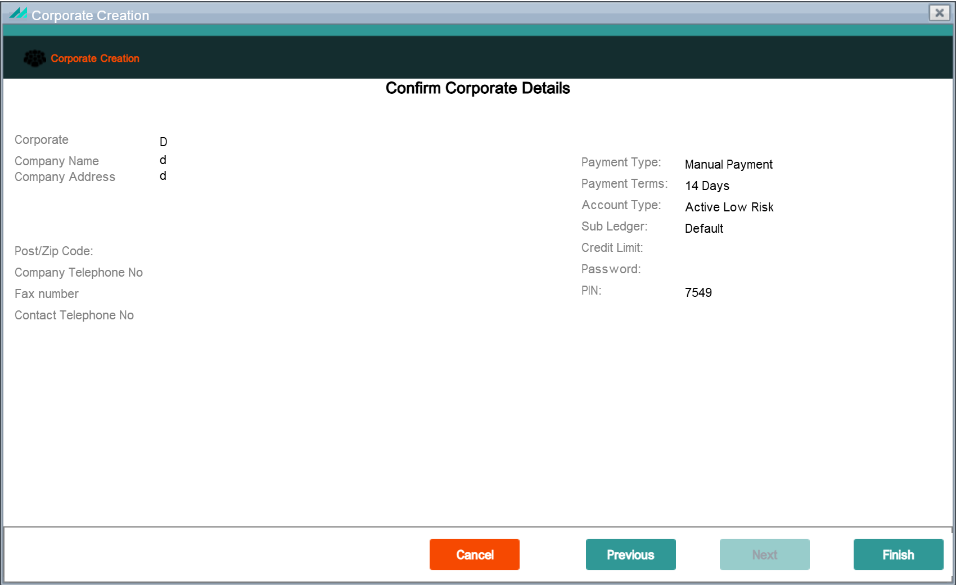
Confirm Corporate Details
Panel is part of the Group Creation wizard and enables the user to confirm the group details. This panel provides a summary of the group terms, including address, account and payment details.
Confirm Corporate Details Panel
Function Security:
Panel Name
wizard.account.ConfirmDetailsPanel
Function Name
VIEW_CORPORATE_SUMMARY (CONDD1R)
Enforcement
Operation not allowed
Default Role
view-enterprises
3.4 - Group Creation Wizard
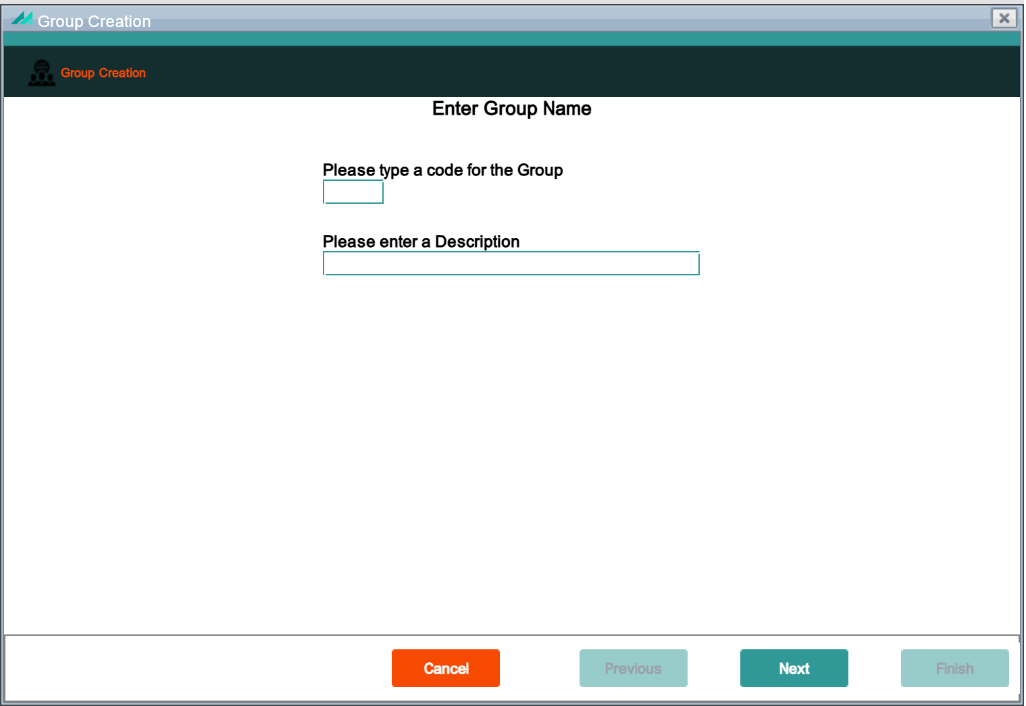
New Groups can be added using the New Customer wizard. Upon selection of the Group option, the Enter Group Name page is displayed in the New Customer wizard.
Group Creation
New Groups can be added using the New Customer wizard. Upon selection of the Group option, the Enter Group Name page is displayed in the New Customer wizard.
Relationship To Other Panels: upon completion of the Enter Group Name page, the remainder of the wizard process is the same as shown in the Create an Account section with the exception of the Confirm Group Details confirmation panel.
Enables the user to select the address and company to be associated with the new account.
Select Address & Company Panel
Function Security:
Panel Name
wizard.account.SelectAddressAndCompanyPanel
Function Name
N/A (None defined)
Enforcement
N/A
Default Role
N/A
Enter Business Address Details
Part of the Group Creation wizard and enables the user to enter new business address details to be associated with the new account, provided the user selected the New Address radio button.
Part of the Group Creation wizard and enables the user to enter new group details.
Enter Account Details Panel
Function Security:
Panel Name
wizard.account.EnterAccountDetailsPanel
Function Name
Enter_account_detail (CSDPPVP)
Enforcement
No data shown
Default Role
add-customers
Direct Debit Details
Part of the Group Creation wizard and enables new direct debit details to be added. This panel is only displayed if the Payment Type field was set to 'Direct Debit' and the Payment Terms field was populated on the Enter Account Details panel.
Note: If a non-recurring payment type was set on the Enter Account Details panel then the Confirm Group Details screen is displayed directly.
Direct Debit Details Panel
Function Security:
Panel Name
wizard.account.DirectDebitDetailsWizardPanel
Function Name
N/A (None defined)
Enforcement
N/A
Default Role
N/A
Enter Account Serial Numbers
This panel is accessed as part of the Group Creation wizard and contains the details of all Additional (non-managed) Serial Numbers that have been configured n-resizeing to customer requirements. A maximum of nine additional numbers can be entered, if required (including PIN, PUK, etc.).
Note: This panel is not displayed if no Account Serial Numbers have been configured.
Enter Account Serial Numbers Panel
Function Security:
Panel Name
wizard.account.AddAccountSerialNumbersWizardPanel
Function Name
Add Account Serial Number (ADDACSRNO)
Enforcement
Operation not allowed
Default Role
maintain-customers
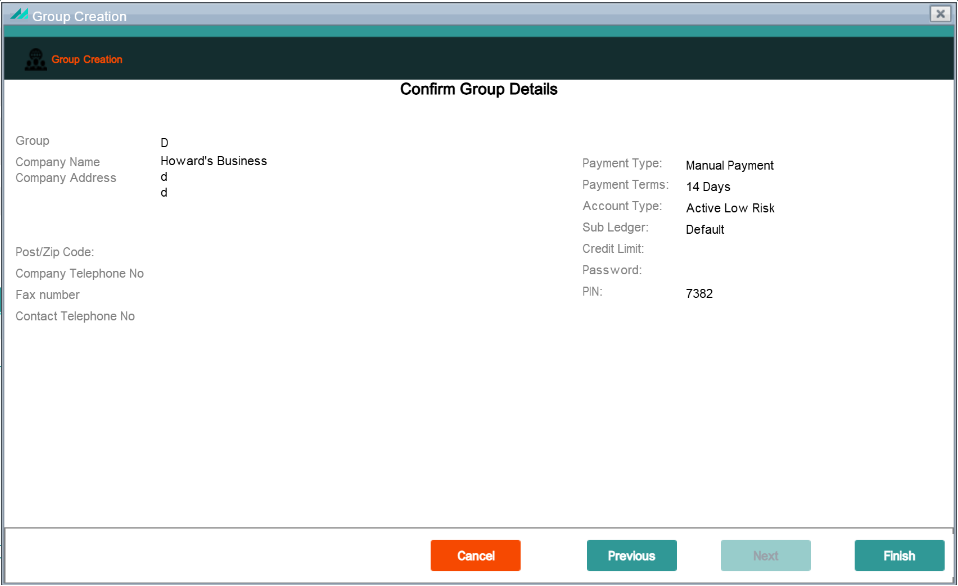
Confirm Group Details
Panel is part of the Group Creation wizard and enables the user to confirm the group details. This panel provides a summary of the group terms, including address, account and payment details.
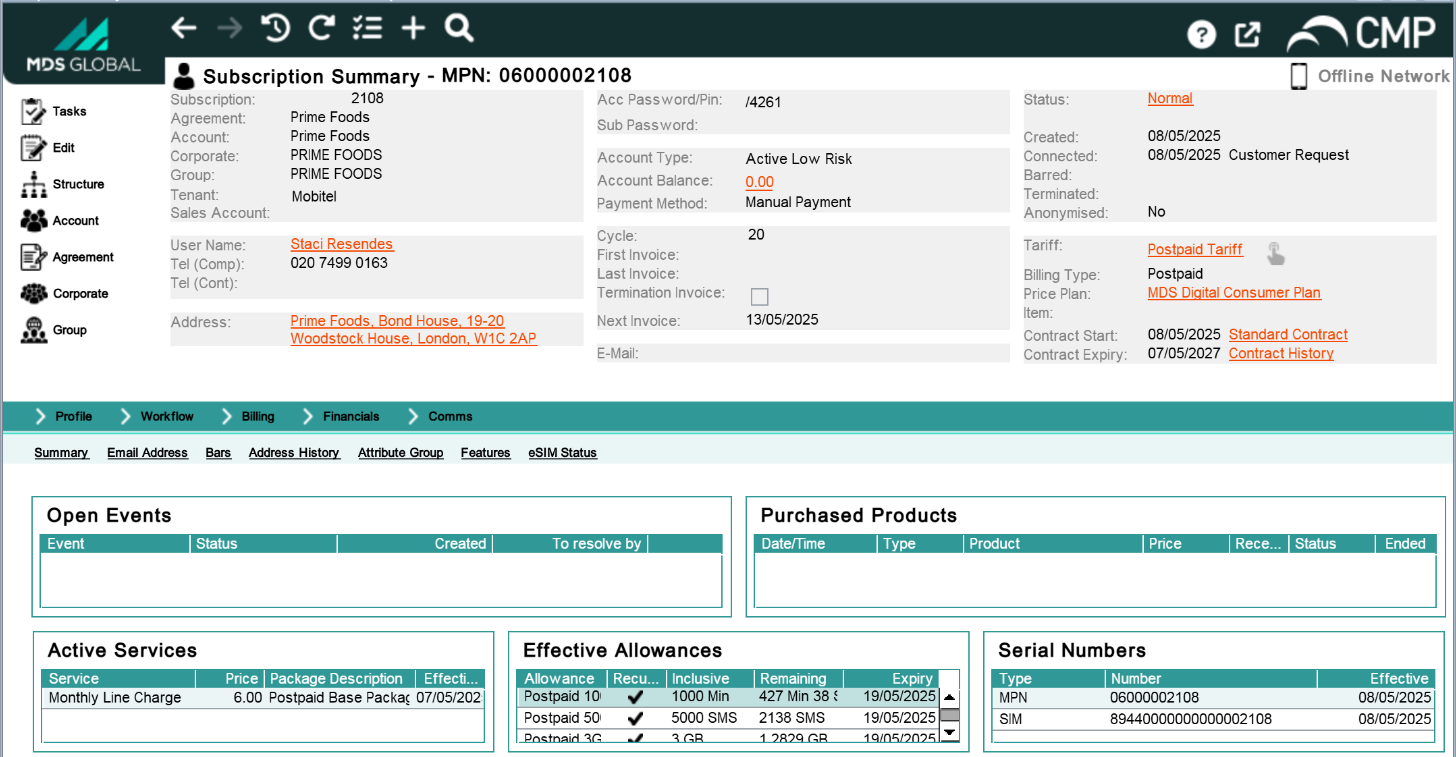
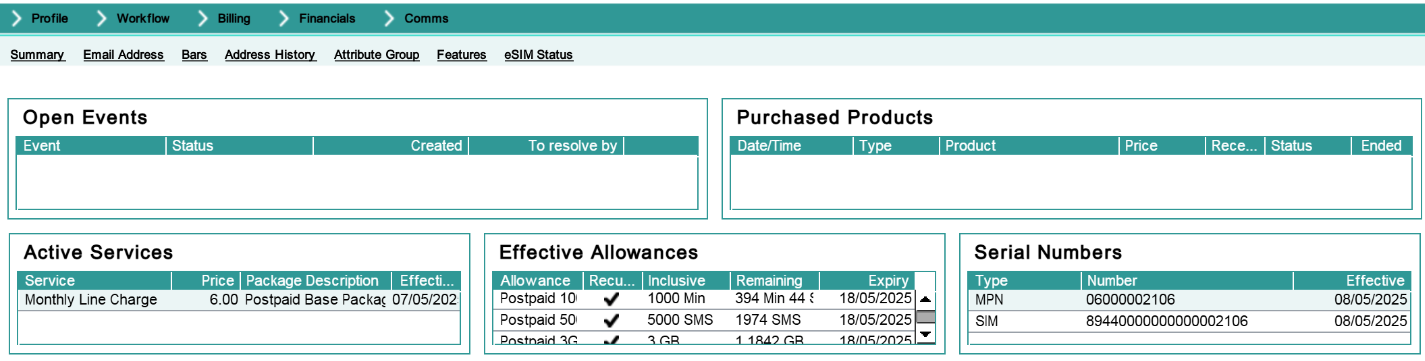
This view shows information relating to single unique usage units, known as Subscriptions (for example fixed line handset, mobile handset, Internet connection and so on). It is divided into the following sections:
Toolbar - high-level navigation, independent of view.
Quick Access panel - navigation within customer structure.
Options & Sub-options bar - controls for contents of lower panels to access further functionality relating to subscriptions.
Lower panels - depending on option bar, contains specific detail about the subscription. Initially the summary option is selected, which shows:
Open Events
Purchased Products
Active Services
Effective Allowances
Serial Numbers.
The Toolbar, Quick Access panel, Options and Sub-options are navigation tools, and the function of individual buttons here are only mentioned as they are required to document individual panels (for example, in the Relationship to other panels section).
Subscriptions are generally attached to accounts, which perform the billing function for the subscription.
4.1 - Subscription Summary Screen
The Subscription Summary screen can be accessed in two ways:
Initial access to the subscription can be achieved via the Search screen. Once the correct subscription is selected the system defaults to display the Subscription Summary screen.
Within the user interface the Subscription Summary screen can be accessed by selecting the Subscription icon from the Quick Access panel where available.
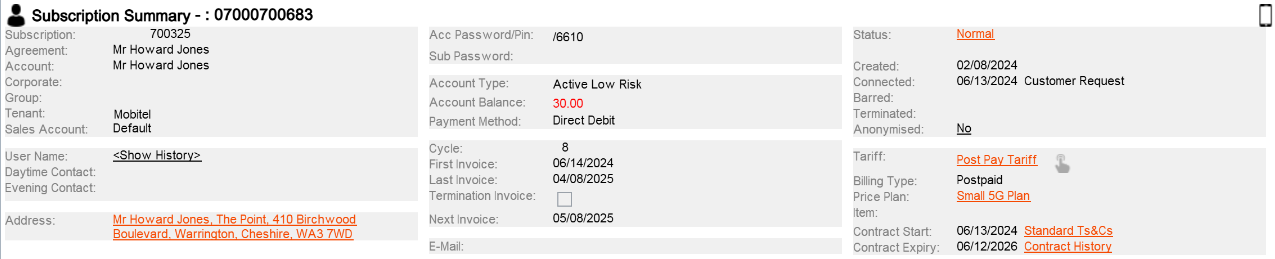
The screen contains data specifically relating to the subscription and contains subscription summary information, open workflow events, package purchases, active servcies, effective allowances and subscription serial numbers.
Subscription Summary Screen
Function Security:
Panel Name
subscriptionconfiguration.SubscriptionWorkPanel
Function Name
Display Subscription (CSWMD2P)
Enforcement
No panel access
Default Role
view-customers
Subscription Summary Upper Panel
The Subscription Summary upper panel shows subscriber specific information and provides links to the following pop-up panels:
Username - clicking on the User Name hyperlink allows the user to maintain existing addresses and add new ones.
Business/Personal Address - clicking on the Address hyperlink allows the user to maintain existing addresses and add new ones.
Subscription Management - clicking the Status hyperlink allows the user to perform a series of subscription management tasks such as Price Plan change.
Tariff History/Details - clicking on the Tariff or Price Plan hyperlinks allows the user to view the history and details of the price plan(s)/tariff(s) linked to the subscription.
Contract History - clicking on the Contract Expiry hyperlink allows the user to view the history of previous contracts for the subscription agreement.
Subscription Summary Upper Panel
Function Security:
Panel Name
subscription.SubscriptionSummaryTopPanel
Function Name
N/A (None defined)
Enforcement
N/A
Default Role
N/A
Subscription Summary Upper Panel - User Name Hyperlink
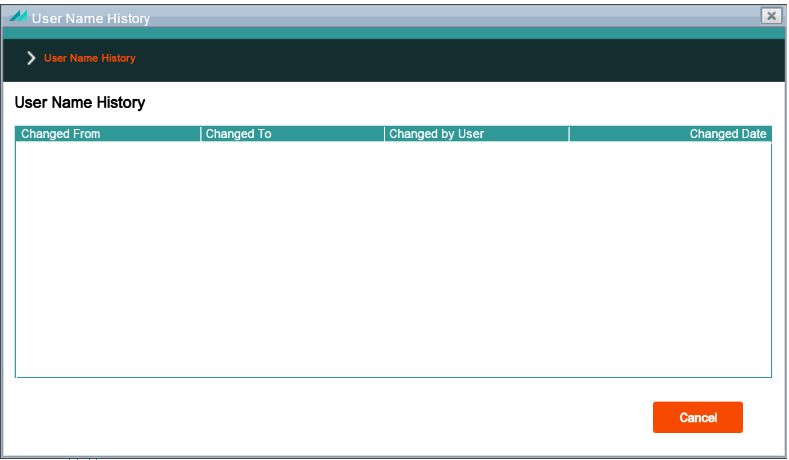
This panel displays a history of all user name changes for the associated subscription.
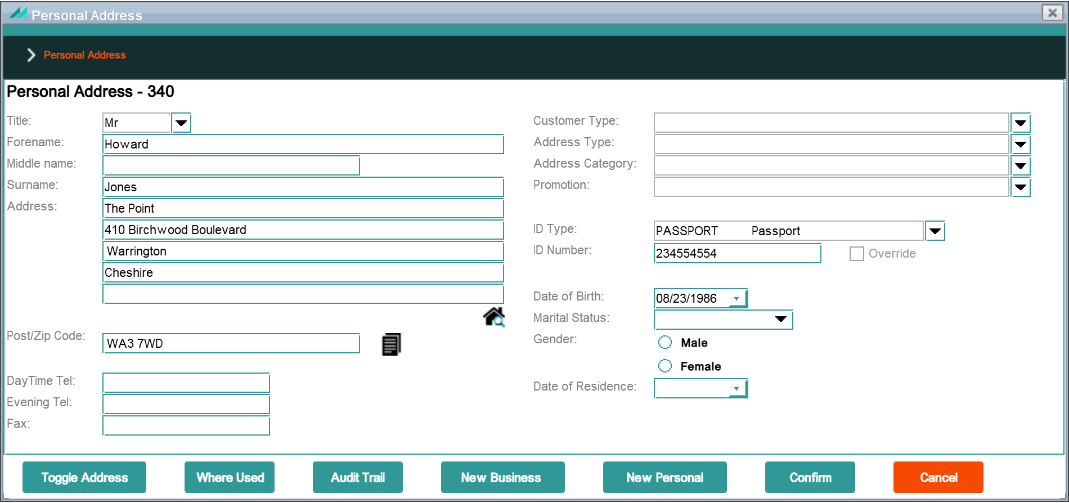
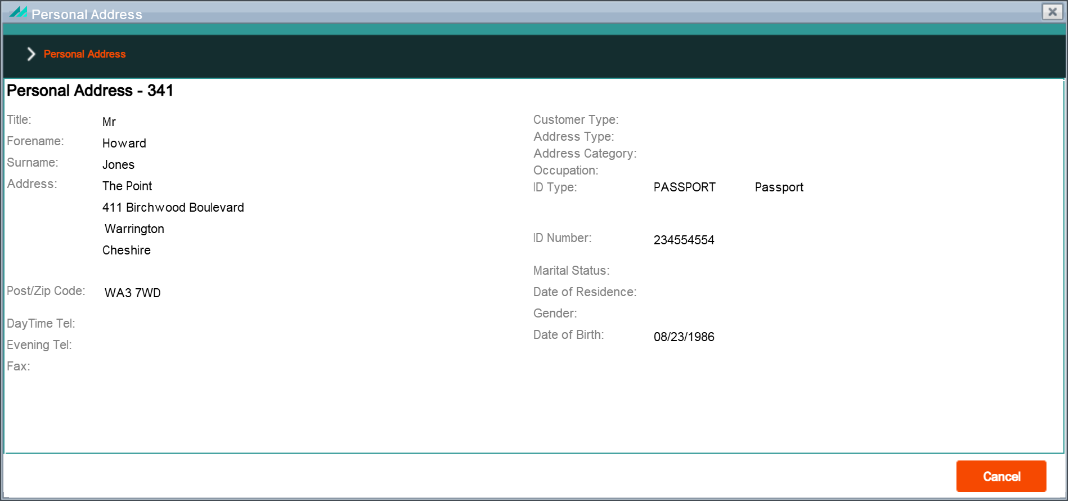
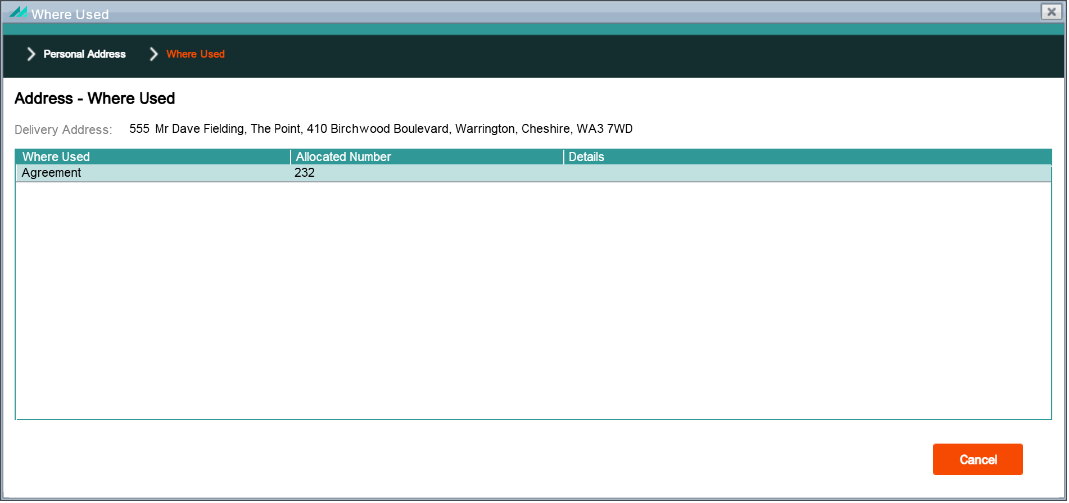
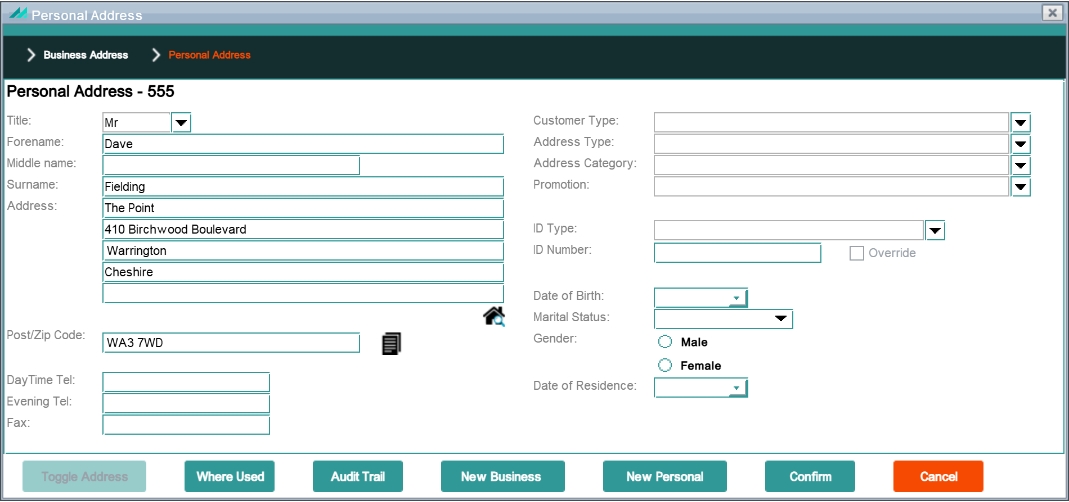
The address hyperlink allows the user to view, add or edit the personal address. Function security requirements for the panel buttons and shortcut options are defined in section 9.1 below.
Personal Address Popup Panel
Function Security:
Panel Name
address.PersonalAddressDetailsPanel
Function Name
View personal address (CSSDPVP)
Enforcement
No panel access
Default Role
view-customers
Function Name
Maintain personal address (CSQKPVP)
Enforcement
Operation not allowed
Default Role
maintain-customers
In addition to the function security described above, this popup panel also implements field security on the field listed below:
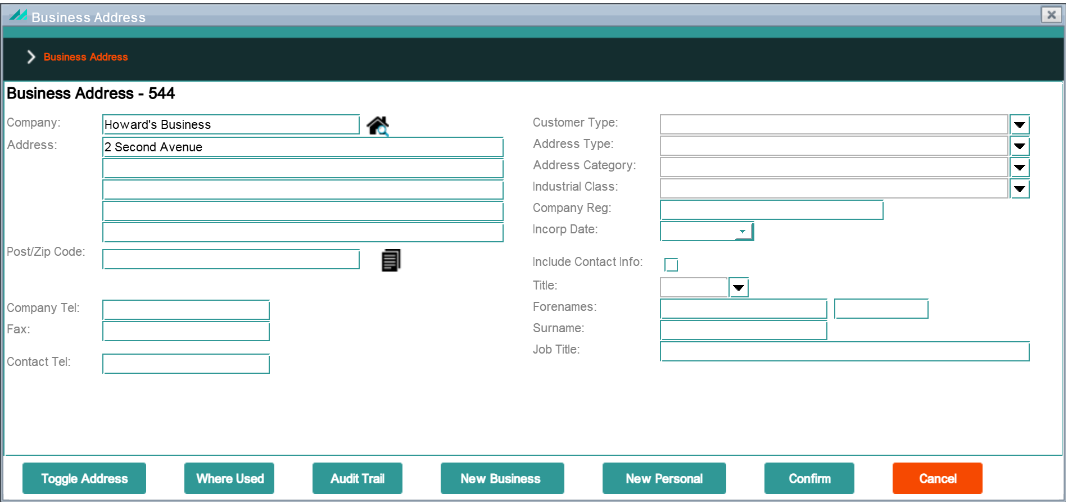
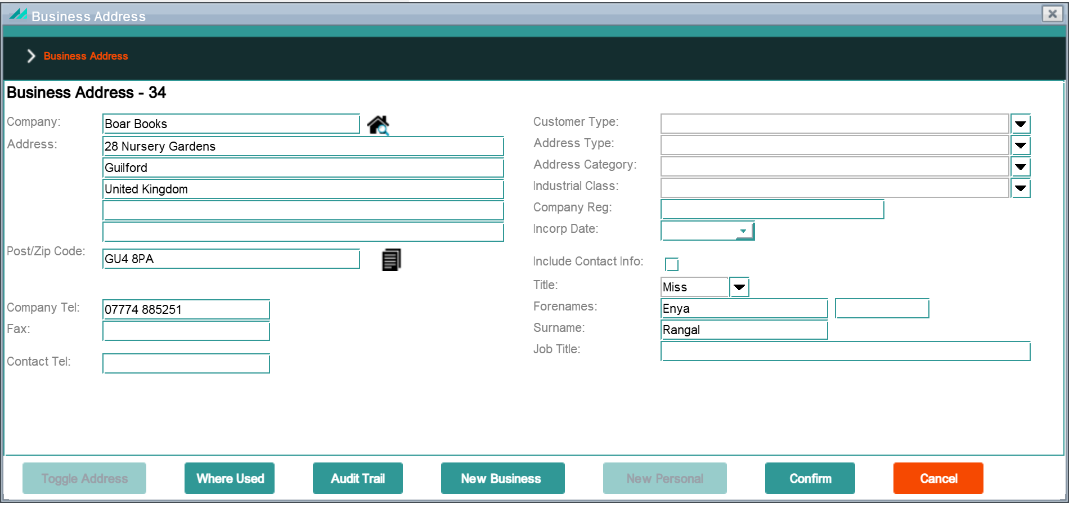
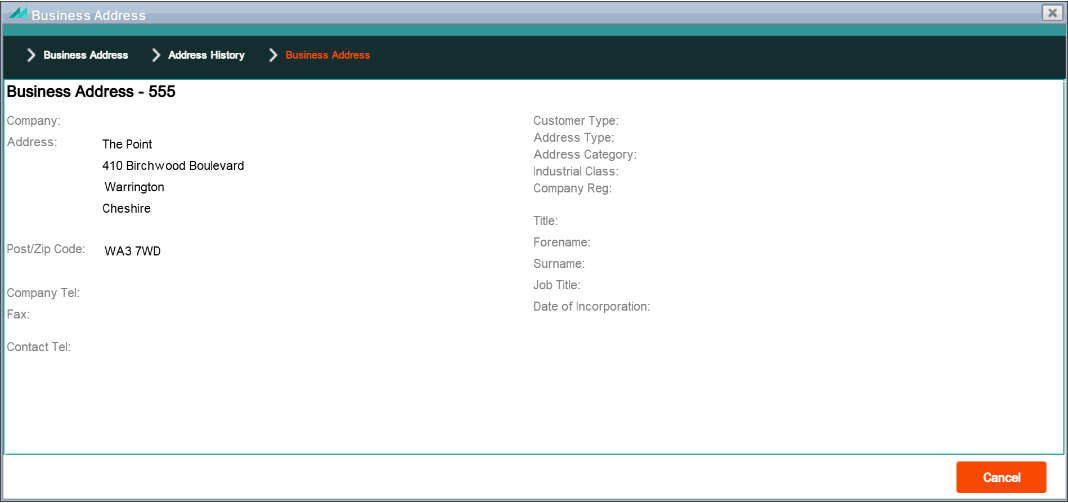
The address hyperlink allows the user to view, add or edit the business address. Function security requirements for the panel buttons and shortcut options are defined in section 9.2 below.
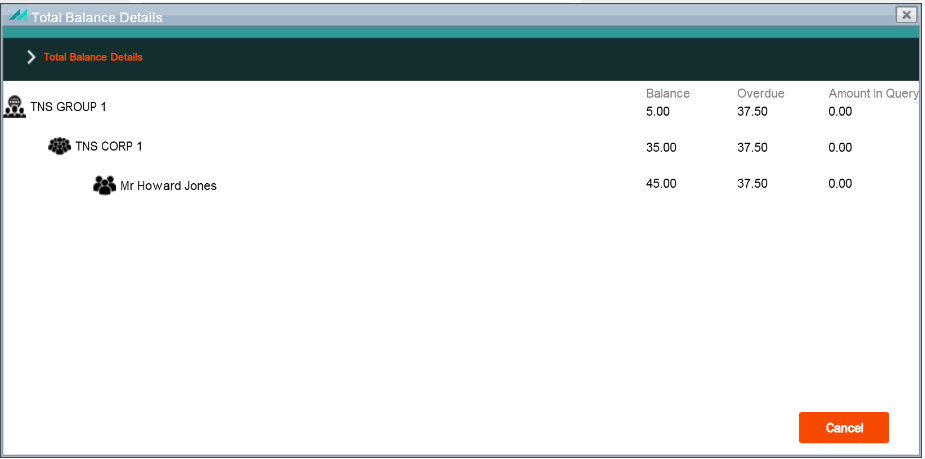
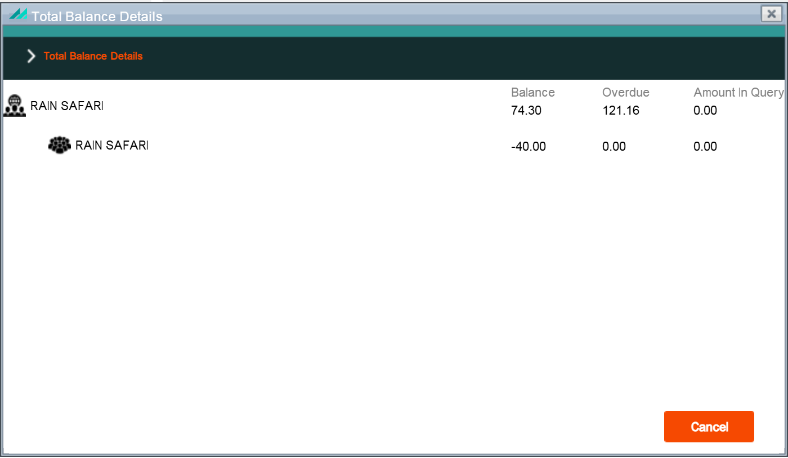
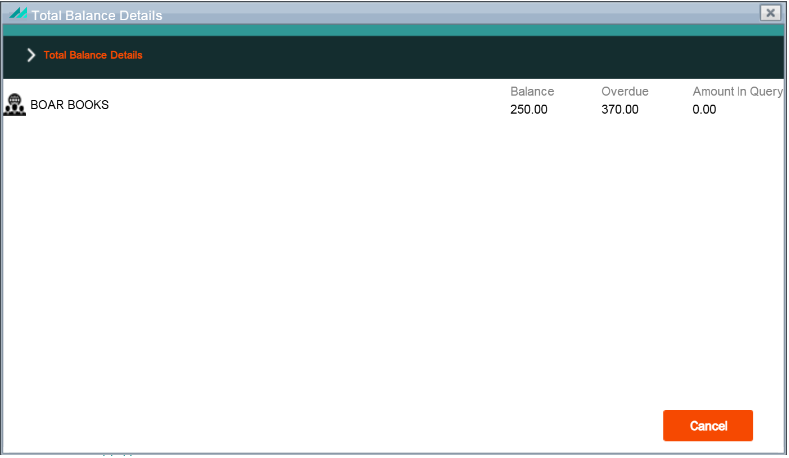
The Total Balance Details panel displays the Outstanding Balance, Amount Due and Amount in Query at Group, Corporate and Account level. It is available for subscriptions that belong to a Group or Corporate structure. This panel is read only.
Total Balance Details Popup Panel
Function Security:
Panel Name
account.balancedetails.BalanceDetailsPanel
Function Name
N/A (None defined)
Enforcement
N/A
Default Role
N/A
Subscription Summary Upper Panel - Status Hyperlink
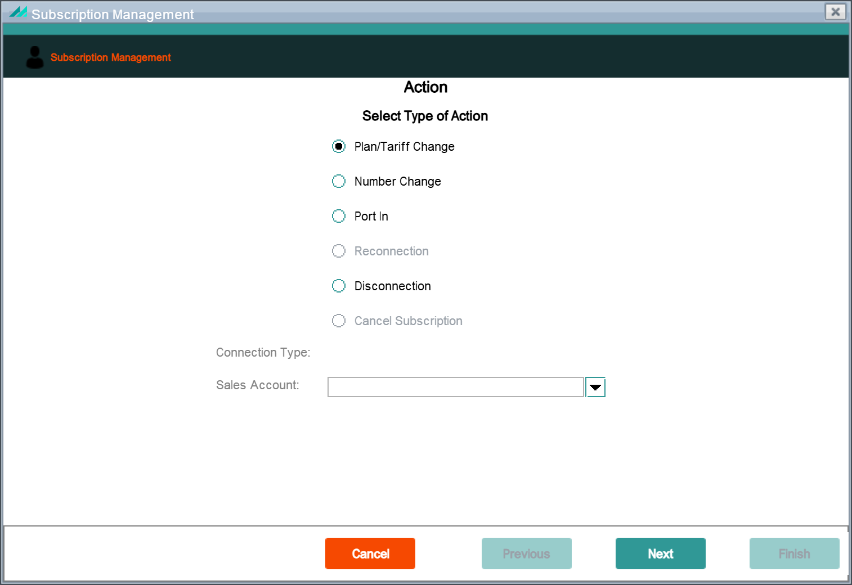
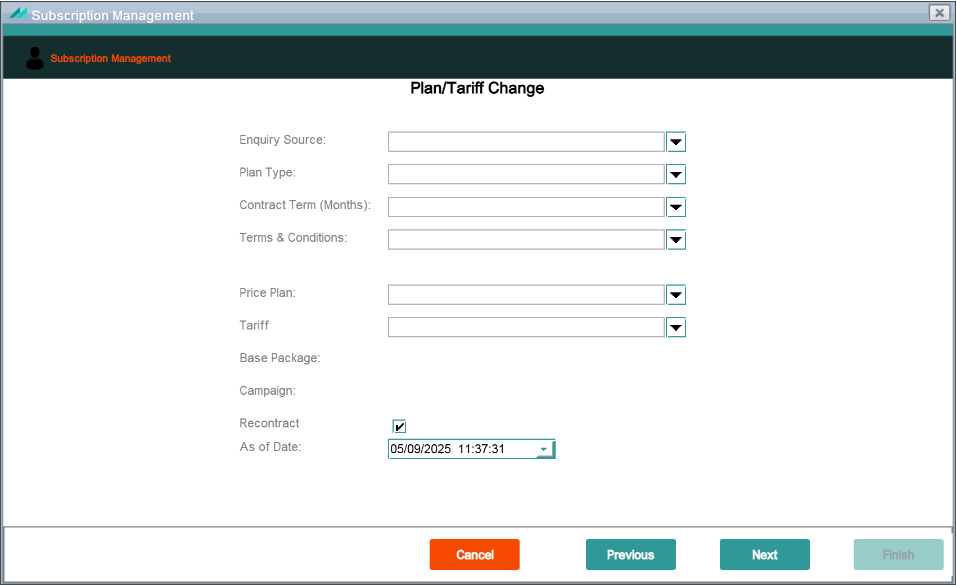
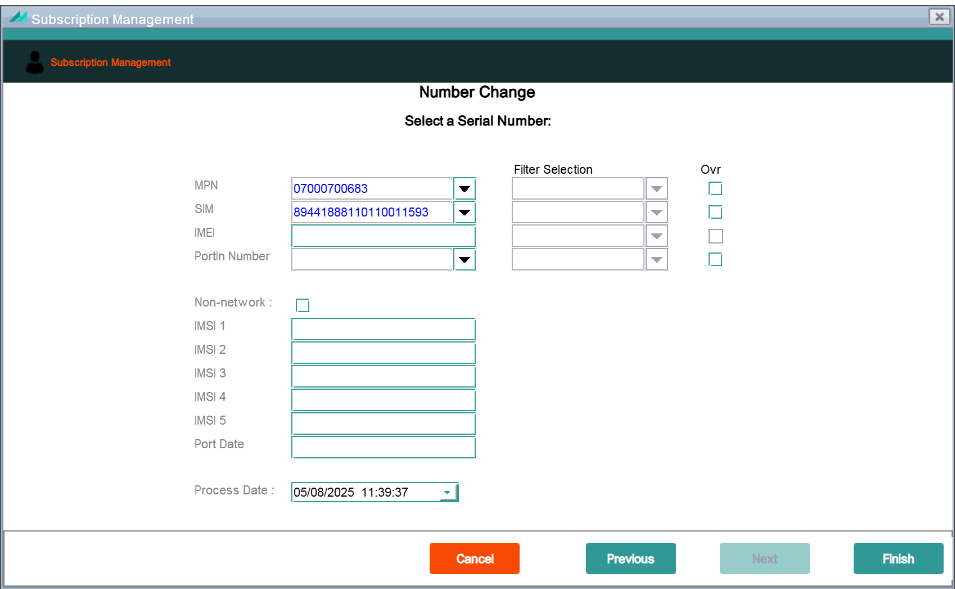
This panel can be accessed at Subscription level only by selecting the hyperlink in the Status field within the Subscription Summary upper panel. Selection of this panel begins the Subscription Creation/Upgrade wizard. From this point it is possible to access the following panels depending on the option selected:
Plan/Tariff Change
Number Change
Port In
Reconnection
Disconnection
Cancel Subscription.
The Status hyperlink is not shown without function security for all the options available.
Allows the user view the history of the tariffs associated with the subscription.
Relationship to Other Panels: it is possible to access the View Tariff Details panel from this panel by selecting View from the shortcut menu against the relevant record.
Subscription Summary Upper Panel - Price Plan Hyperlink
Allows the user view the history of the tariffs associated with the subscription.
Relationship to Other Panels: it is possible to access the View Tariff Details panel from this panel by selecting View from the shortcut menu against the relevant record.
Shows details of previous contracts for an agreement.
Subscription Contract History Popup Panel
Function Security:
Panel Name
contracthistory.SubscriptionContractHistoryPanel
Function Name
Display Subscription History (CSU8DFP)
Enforcement
No data shown
Default Role
view-customers
4.2 - Quick Access Panel
The quick access side panel options available are dependent on the level being accessed within the customer hierarchy. Accessing a subscription provides the following options:
Tasks - menu driven task lists to aid agents in perfroming common CMP tasks
Edit - enables an agent to edit the subscription summary information
Structure - shows the customer and billing structures
Account - provides access to the Account Summary screen
Agreement - provides access to the Agreement Summary screen
4.2.1 - Tasks Option
Tasks can be accessed via the Quick Access panel at Subscription level.
Tasks Wizard
Clicking the Tasks option displays a pop-up menu of available Tasks. The pop-up menus can have one or more sub menus and, at the lowest level, a Task performs a function.
Sub menus are selected by hovering. Click on the Task to be performed to select it.
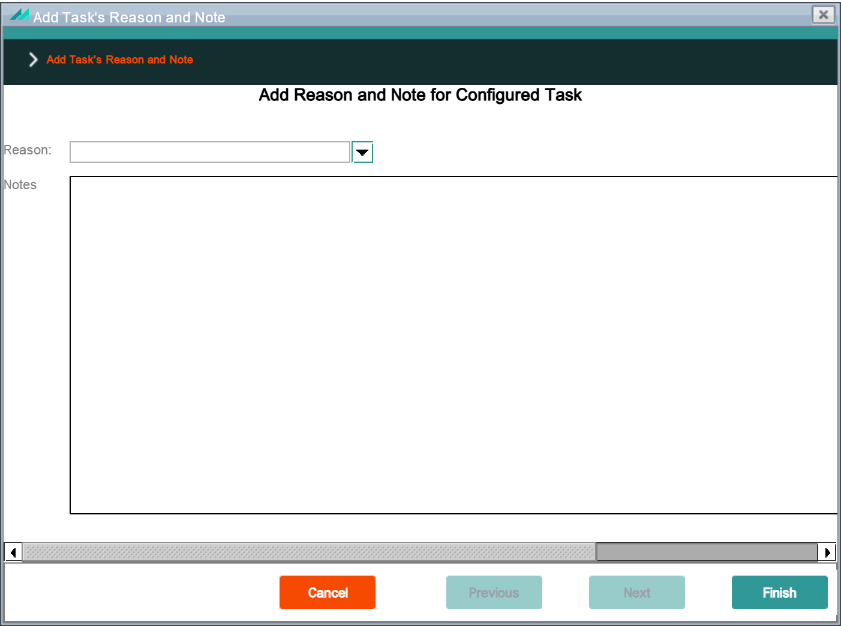
Once a Task with an action is selected, if the Task requires additional input, a wizard is displayed containing a page to input any additional information required. The reason code and any notes to be stored on the workflow event can be entered. The reason can be configured as mandatory or optional per event type and code and the notes are optional.
If the Task does not require additional input, the Add Task's Reason and Note panel is displayed.
Tasks Wizard Generic Panel
Function Security:
Panel Name
tasks.TaskGenericPanel
Function Name
N/A (None defined)
Enforcement
N/A
Default Role
N/A
Add Task's Reason and Note
Allows a note to be added to the task workflow.
Add Task's Reason and Note Panel
Function Security:
Panel Name
tasks.TaskAddNoteAndReasonCodePanel
Function Name
Record a contact for a diary event (COQRE1R)
Enforcement
No data shown
Default Role
maintain-workflow-events
4.2.2 - Edit Option
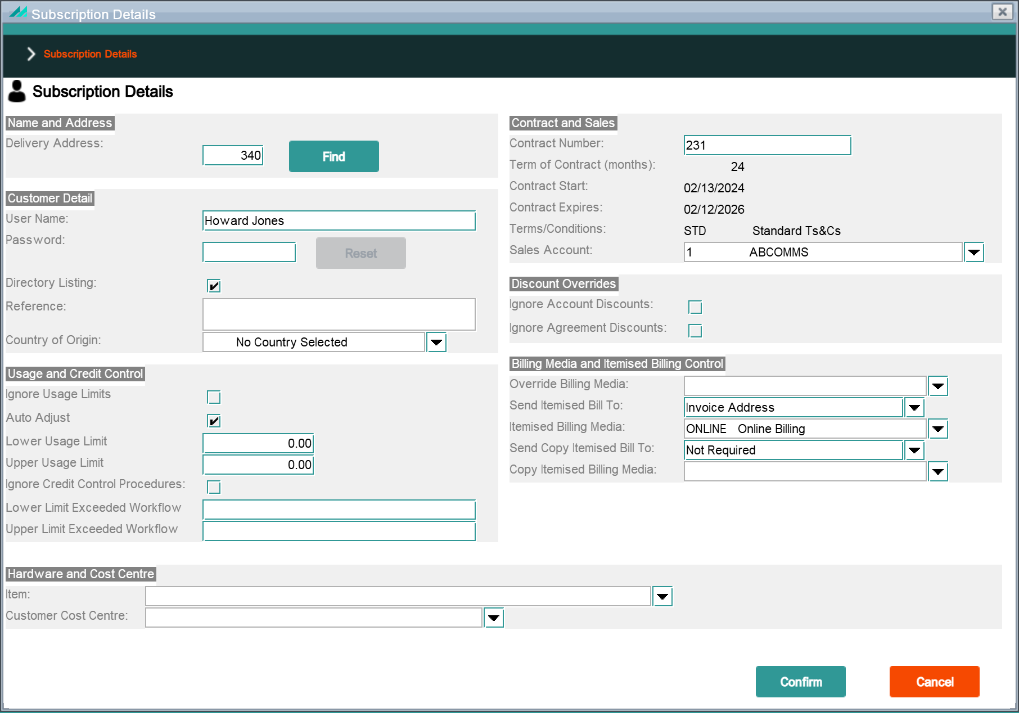
The 'Edit' option on the Quick Access panel at Subscription level provides access to the Edit Subscription popup panel.
Edit Subscription
Allows the editing of subscription information.
Edit Subscription Panel
Function Security:
Panel Name
subscription.maintain.MaintainSubscriptionPanel
Function Name
Maintain Subscriber (CONLE2R)
Enforcement
No data shown & Operation not allowed
Default Role
maintain-customers
Function Name
Maintain Cost Centers (CSCBEFP)
Enforcement
No data shown
Default Role
maintain-enterprises
Function Name
Select Active Sales (COCNSRR)
Enforcement
No data shown in 'Sales Account' dropdown
Default Role
maintain-customers
In addition to the function security described above, this popup panel also implements field security on some of the fields as listed below:
Field Security:
Field Name
Security Code
Enforcement
Default Role
Ignore Credit Control
BZST
Update operation not allowed
credit-control-management
Delivery Address
CACD
Update operation not allowed
maintain-customers
Sales Account
D3CD
Display-only
view-customers
Contract Number
HJNB
Display-only
view-customers
Ignore Usage Limits
WYST
Display-only
maintain-usage-limits
4.2.3 - Structure Option
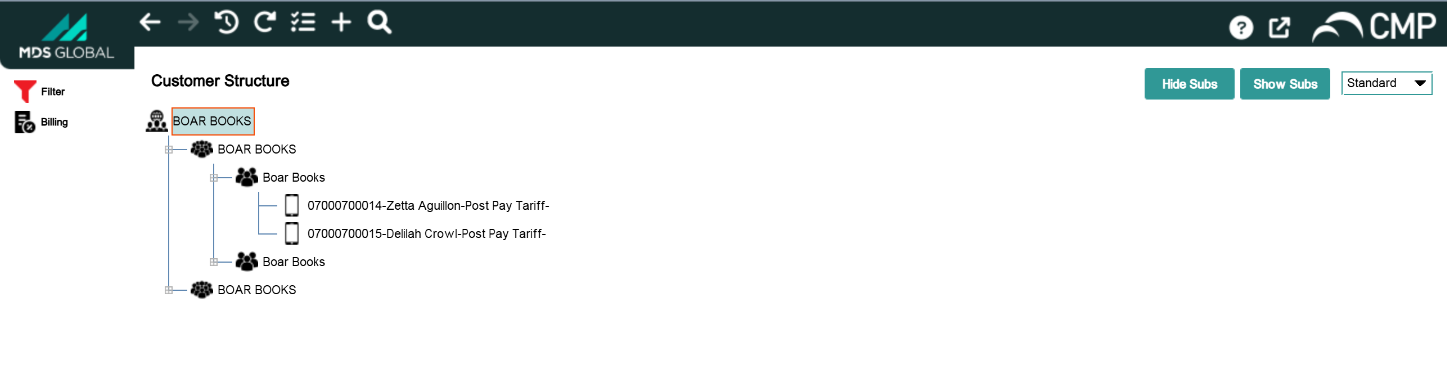
The 'Structure' option on the Quick Access panel at Subscription level shows the customer hierarchy structure associated with the Subscription. This panel is available at Group, Corporate, Account and Subscription level.
Right-clicking on a subscription in the customer structure and selecting the 'Subscription Summary' shortcut option takes the user to the Subscription Summary screen.
Subscription Summary Panel
Function Security:
Panel Name
subscriptionconfiguration.SubscriptionWorkPanel
Function Name
Display Subscription (CSWMD2P)
Enforcement
No panel access
Default Role
view-customers
Customer Structure - Cut Shortcut Option
Right-clicking on a subscription in the customer structure and selecting the 'Cut' shortcut option allows a subscription to be cut from one account hierarchy and pasted to another. There is no panel associated with this shortcut option.
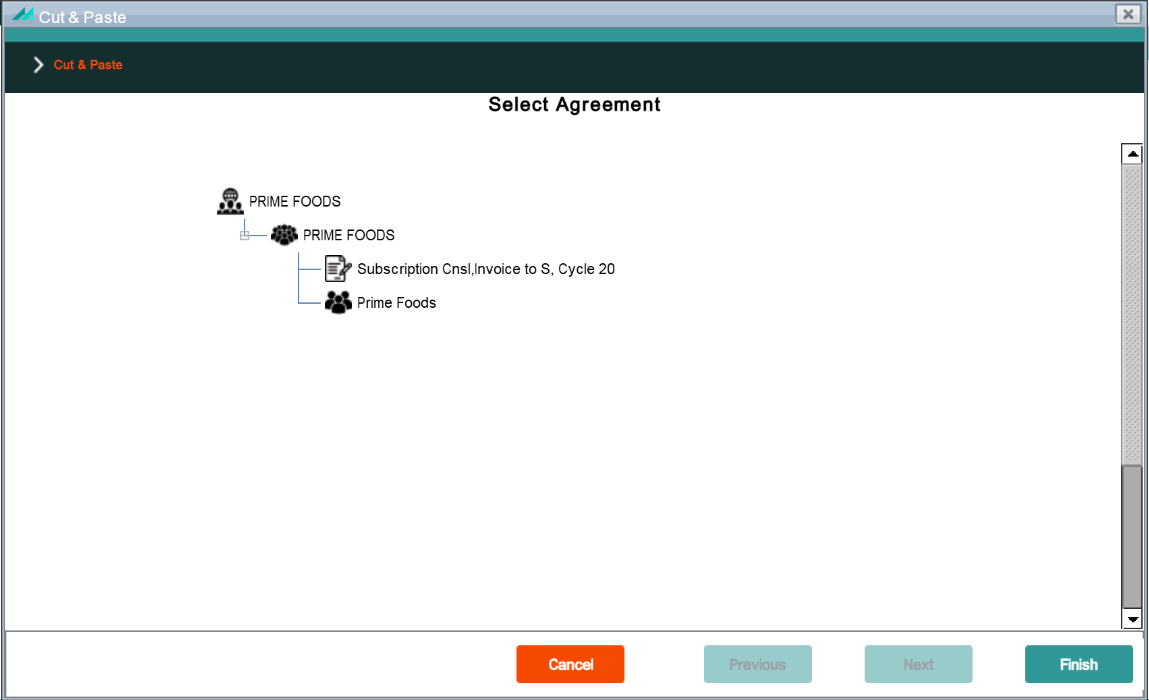
Right-clicking on a subscription in the customer structure and selecting the 'Change Agreement' shortcut option allows access to the Change Agreement popup panel.
Change Agreement Panel
Function Security:
Panel Name
structure.paste.SelectAgreementForPastePanel
Function Name
N/A (None defined)
Enforcement
N/A
Default Role
N/A
Finish Button
Changes the agreement for the subscription.
Function Security:
Panel Name
structure.paste.SelectAgreementForPastePanel
Function Name
Maintain Subscriber (CONLE2R)
Enforcement
Operation not allowed
Default Role
maintain-customers
Customer Structure - Create PAC Shortcut Option
Not supported in CMP 8. Shortcut Option still exists.
Function Security:
Panel Name
N/A
Function Name
N/A (None defined)
Enforcement
N/A
Default Role
N/A
Customer Structure - Set As Account Parent Shortcut Option
Right-clicking on a subscription in the customer structure and selecting the 'Set As Account Parent' shortcut option allows a subscription to be defined as the parent subscription. There is no panel associated with this shortcut option.
Function Security:
Panel Name
N/A
Function Name
N/A (None defined)
Enforcement
N/A
Default Role
N/A
Customer Structure - Unset As Account Parent Shortcut Option
Right-clicking on a subscription in the customer structure and selecting the 'Unset As Account Parent' shortcut option allows a subscription to be undefined as the parent subscription. There is no panel associated with this shortcut option.
Function Security:
Panel Name
N/A
Function Name
N/A (None defined)
Enforcement
N/A
Default Role
N/A
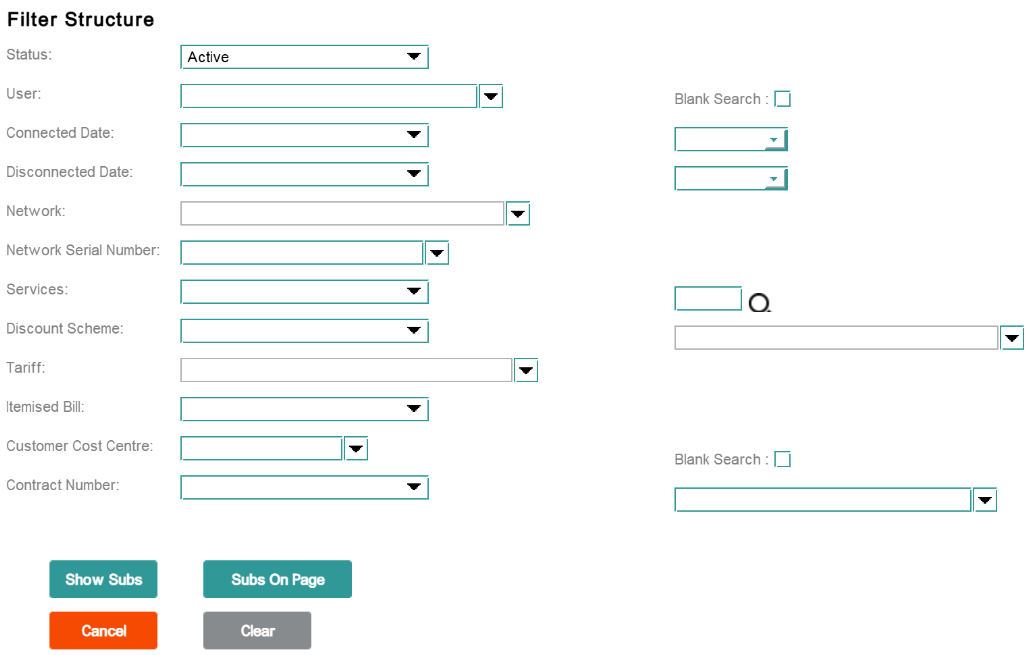
Filter Structure Panel
The 'Filter' option on the Quick Access panel at Subscription level allows the subscriptions shown in the customer structure to be filtered.
Filter Structure Panel
Function Security:
Panel Name
structure.filter.FilterTemplate
Function Name
N/A (None defined)
Enforcement
N/A
Default Role
N/A
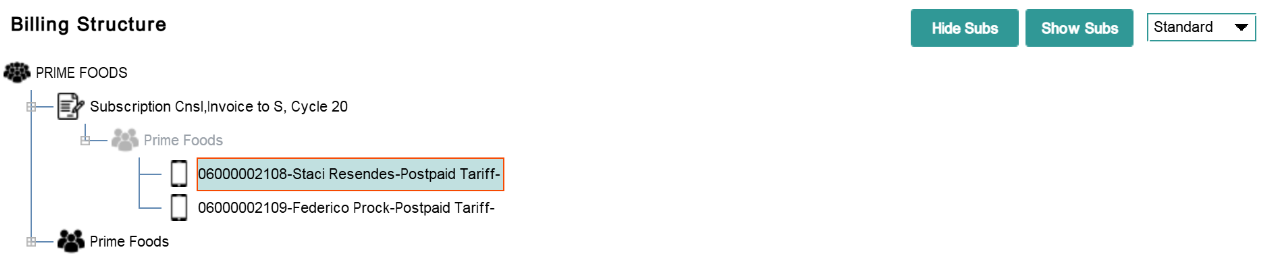
Billing Structure Panel
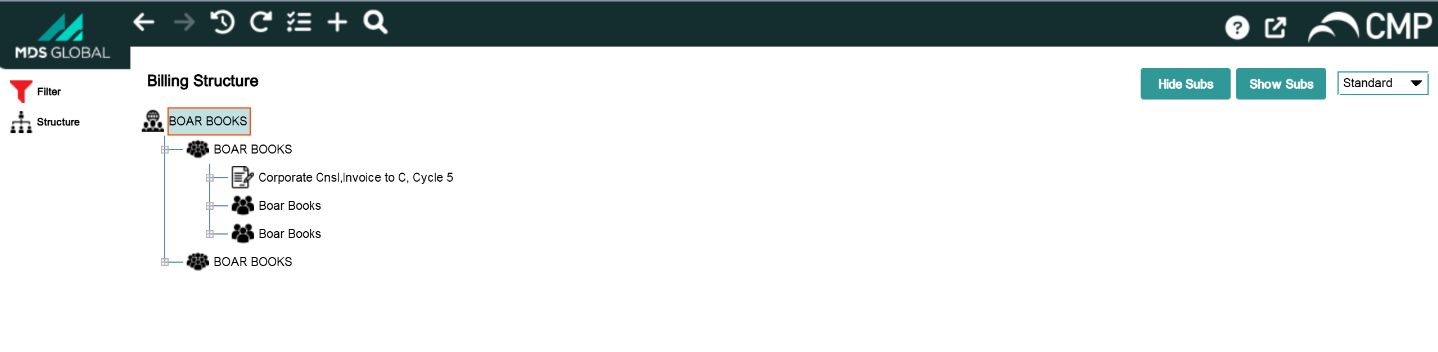
The 'Billing' option on the Quick Access panel of the customer structure panel, shows the billing structure associated with the subscription.
Right clicking on a subscription in the billing structure and selecting Subscription Summary takes the user to the Subscription Summary.
Subscription Summary Panel
Function Security:
Panel Name
subscriptionconfiguration.SubscriptionWorkPanel
Function Name
Display Subscription (CSWMD2P)
Enforcement
No panel access
Default Role
view-customers
4.2.4 - Account Option
Account Summary Screen
The 'Account' option on the Quick Access panel at Subscription level provides access to the Account Summary Screen. See section 5.1 for more detail on the Account Summary screen.
Account Summary Screen
Function Security:
Panel Name
accountconfiguration.AccountWorkPanel
Function Name
Prompt For Details (CPHLPVP)
Enforcement
No panel access
Default Role
maintain-customers
4.2.5- Agreement Option
Agreement Summary Screen
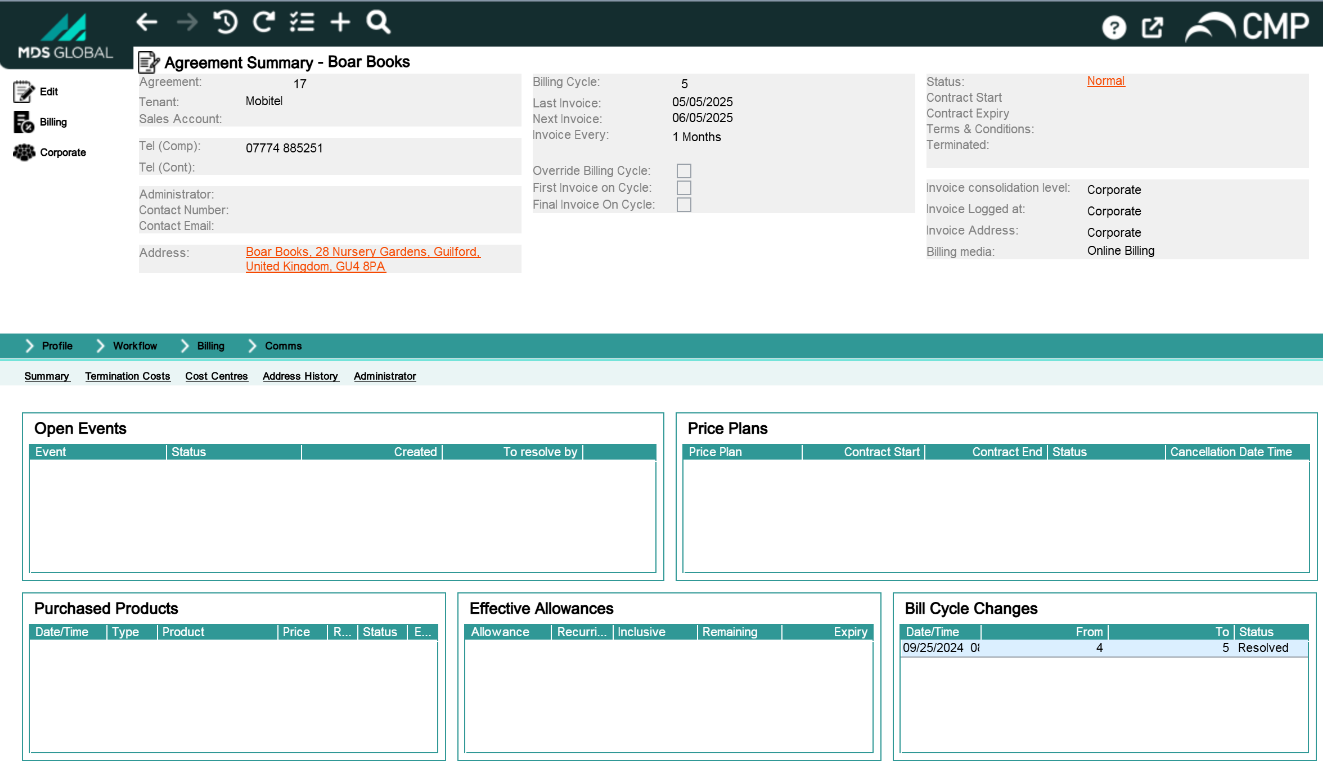
The 'Agreement' option on the Quick Access panel at Subscription level provides access to the Agreement Summary Screen. See section 8.1 for more detail on the Agreement Summary screen.
Agreement Summary Panel
Function Security:
Panel Name
agreementconfiguration.AgreementWorkPanel
Function Name
View agreement (COZOD2R)
Enforcement
No panel access
Default Role
view-agreements
4.3 - Profile Swish
4.3.1 - Summary Menu Option
Profile Summary Lower Panel
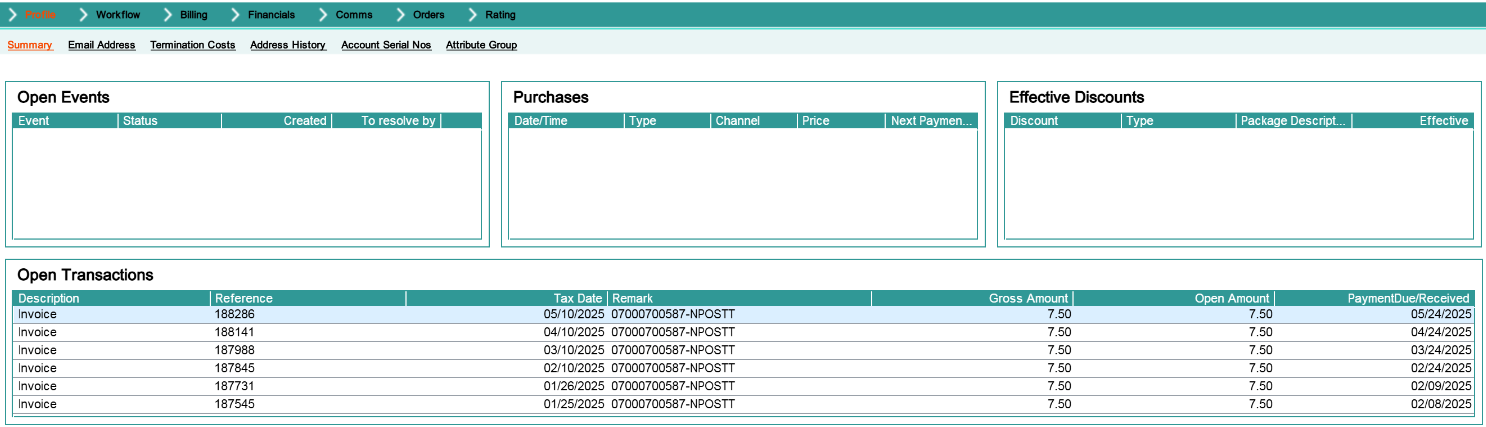
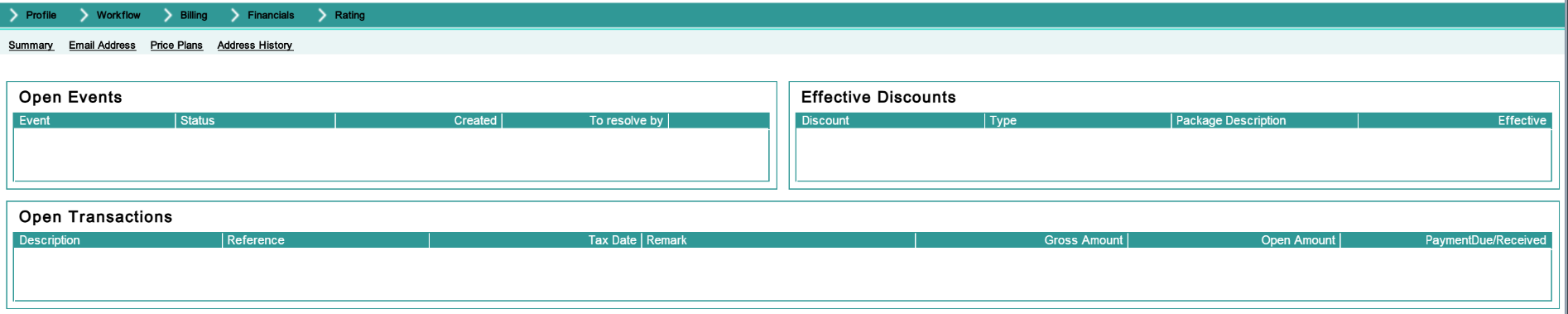
To access this lower panel, select Profile -> Summary from the sub-options bar (this is initially displayed by default). The Summary lower panel is broken down into a series of mini panels as follows:
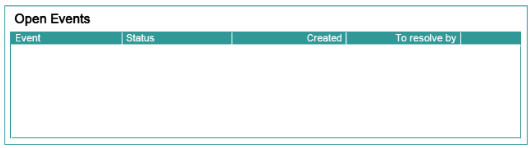
Open Events - shows all workflow for the subscription that haven't yet been resolved
It is present on Group, Corporate, Account, Agreement and Subscription views.
Open Events Mini Panel
The Open Events mini panel panel details the Subscription level workflow events that have not yet been resolved.
Workflow Events that have passed their resolution required by date are displayed using red text so that they can be easily identified and resolved.
Workflow events that are approaching their Resolution Required By Date are highlighted using orange text so that they can be easily identified and resolved.
Function Security:
Panel Name
customerdiaryevents.EventsSummaryPanel
Function Name
View Events by Subscription (COWDDFR)
Enforcement
No data shown
Default Role
view-customers
Open Events - Summary Shortcut Option
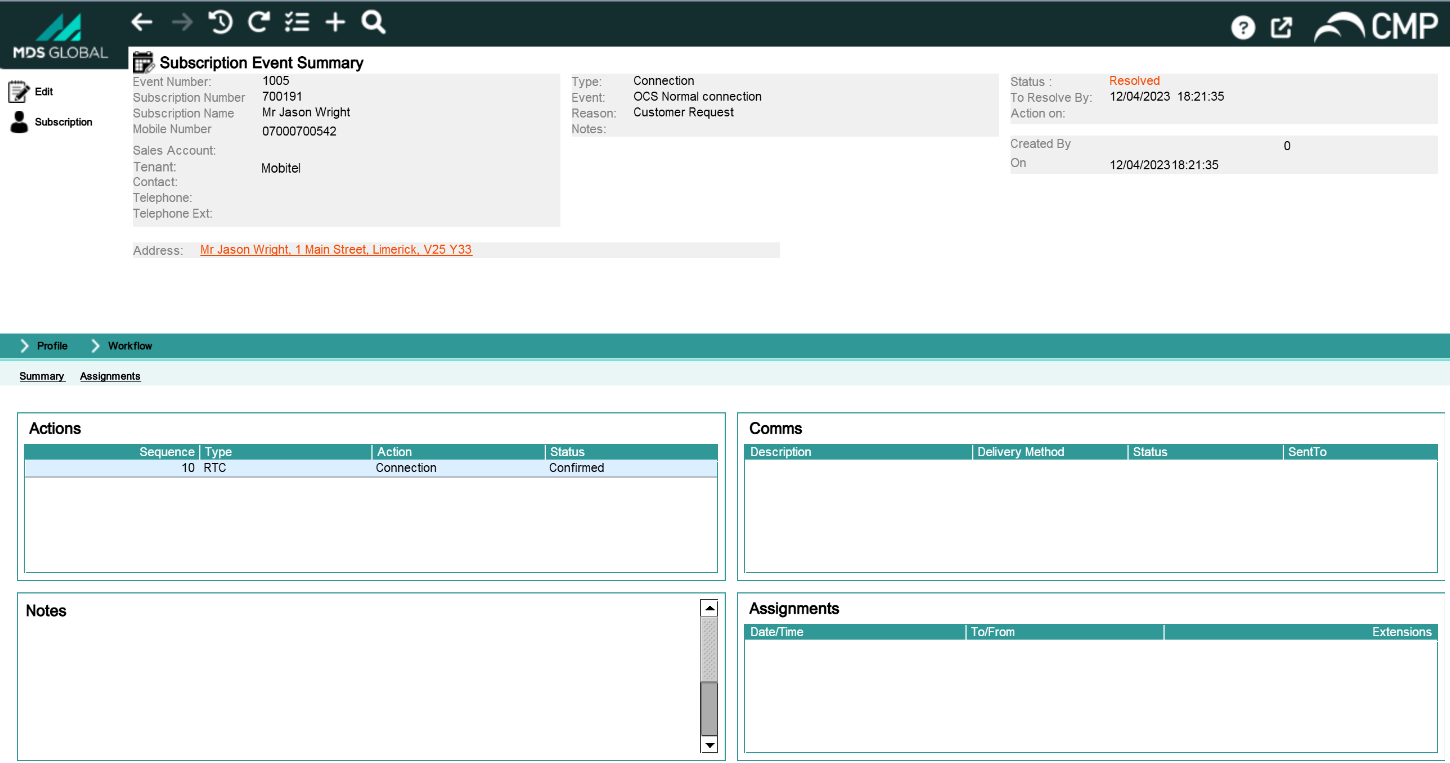
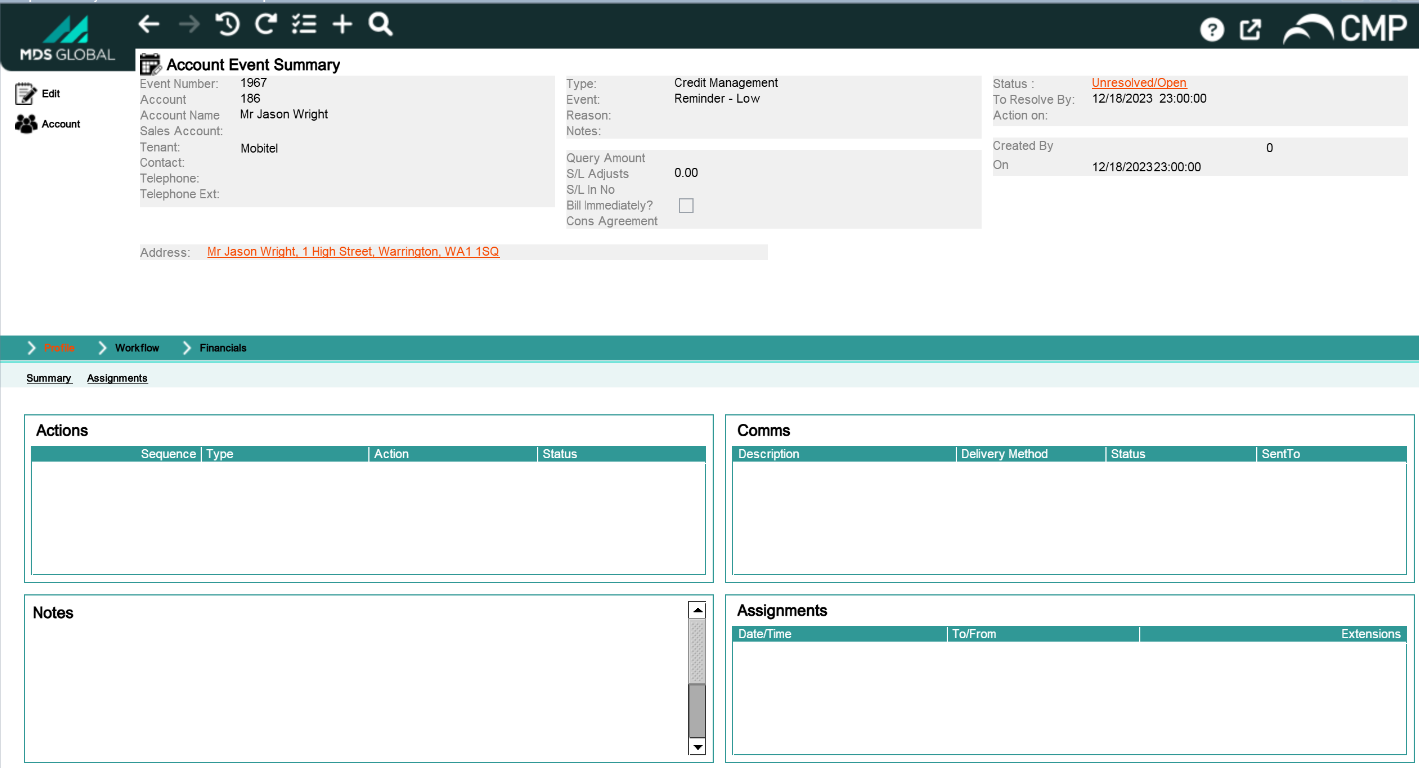
Selecting a workflow event, right-clicking and selecting the 'Summary' shortcut option provides access to the Subscription Event Summary Screen. The Event Summary Screen is further detailed in section 11.
Subscription Event Summary Screen
Function Security:
Panel Name
workflowconfiguration.DiaryEventsWorkPanel
Function Name
Request interface-level list of diary events (COWHPVR)
Enforcement
No panel access
Default Role
maintain-workflow-events
Open Events - Add Shortcut Option
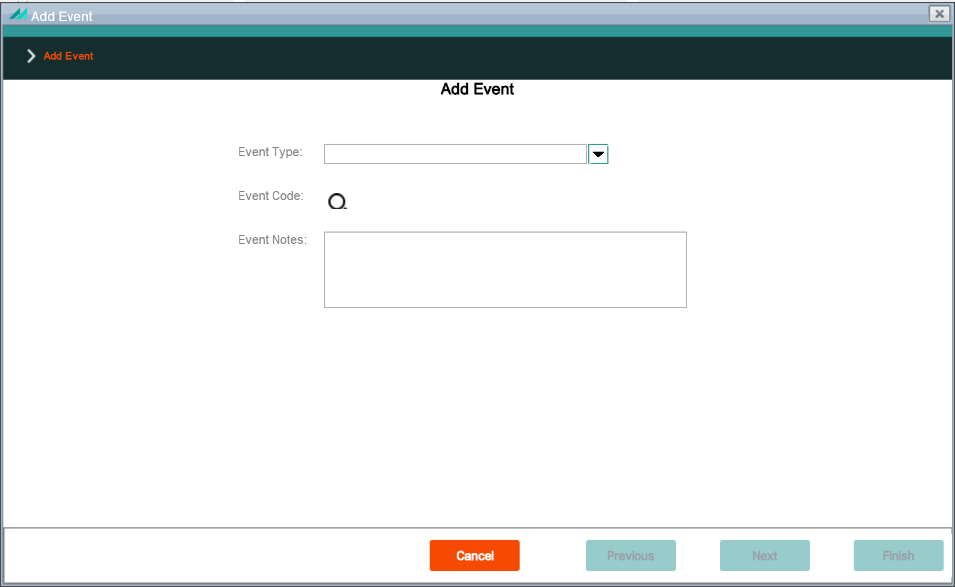
Right clicking on an open event and selecting the 'Add' shortcut option provides access to the Event Creation Wizard. The Add Event panel allows a workflow event type and code to be selected from the dropdown. No data is shown without the associated function security. In addition, the Search option is not available without associated function security.
Event Creation Panel
Function Security:
Panel Name
diaryevent.add.SelectEventToAddFormPanel
Function Name
Enter reference number for diary event (COQOPVR)
Enforcement
No panel access
Default Role
maintain-workflow-events
Function Name
Enter event type and code for diary event (CODTSRR)
Enforcement
No data shown in 'Event Type' dropdown
Default Role
raise-workflow-event
Add Event - Record Contact
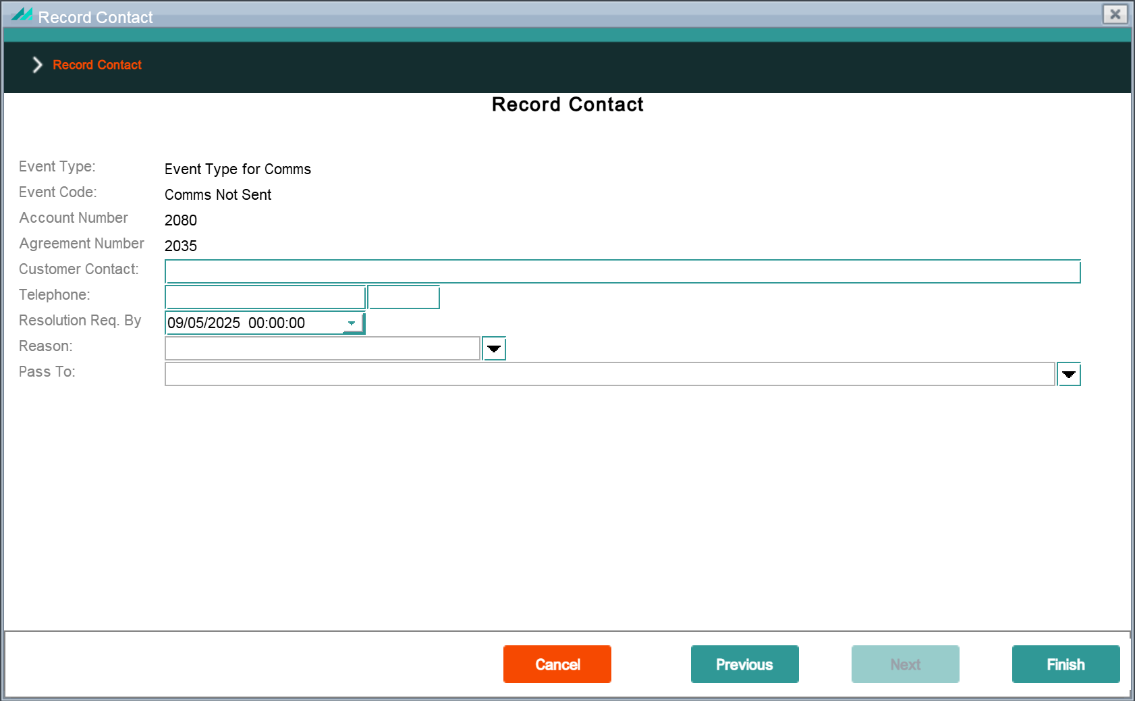
Enables contact details relating to a workflow event to be added.
Record Contact Panel
Function Security:
Panel Name
diaryevent.add.RecordContactForEventFormPanel
Function Name
Record a contact for a diary event (COQRE1R)
Enforcement
No panel access
Default Role
maintain-workflow-events
Function Name
Request interface-level list of diary events (COWHPVR)
Enforcement
Operation not allowed
Default Role
maintain-workflow-events
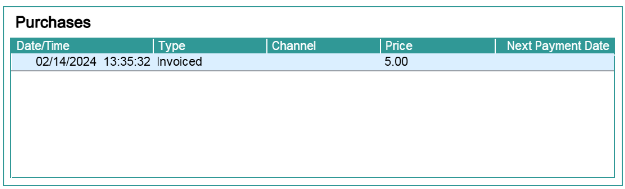
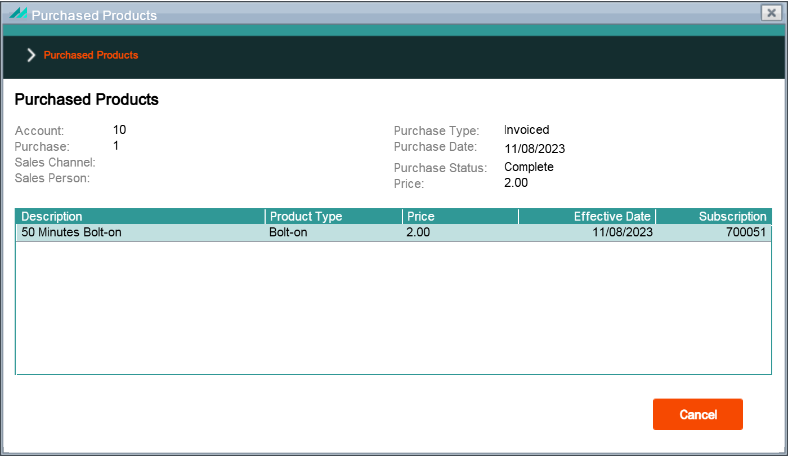
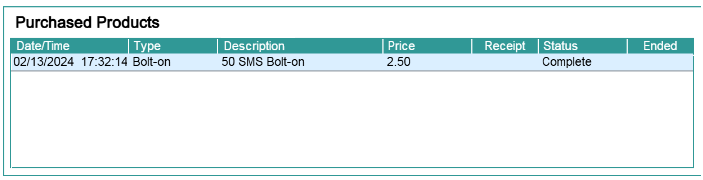
Purchased Products Mini Panel
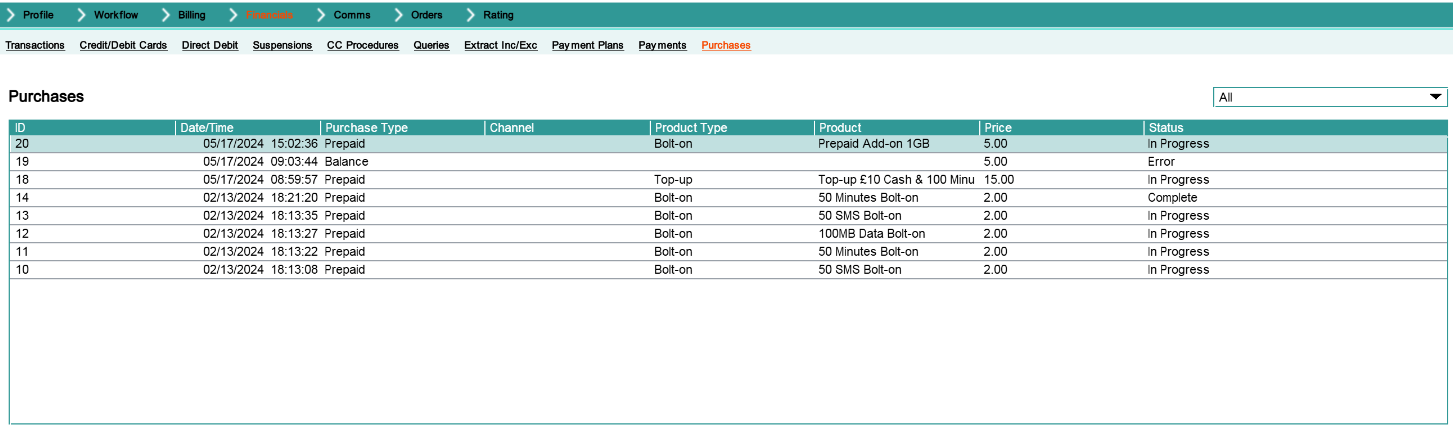
This mini panel shows all the purchases made for the subscription including what was purchased and the price. The same panel is shown from both the Subscription Summary and via the Financials -> Purchases Menu Option
Purchased Products Mini Panel
Function Security:
Panel Name
purchase.SubscriptionPurchasedProductsPanel
Function Name
View Subscription Purchases (VIEWSUBPUR)
Enforcement
No data shown
Default Role
view-customers
Purchased Products Mini Panel - End Shortcut Option
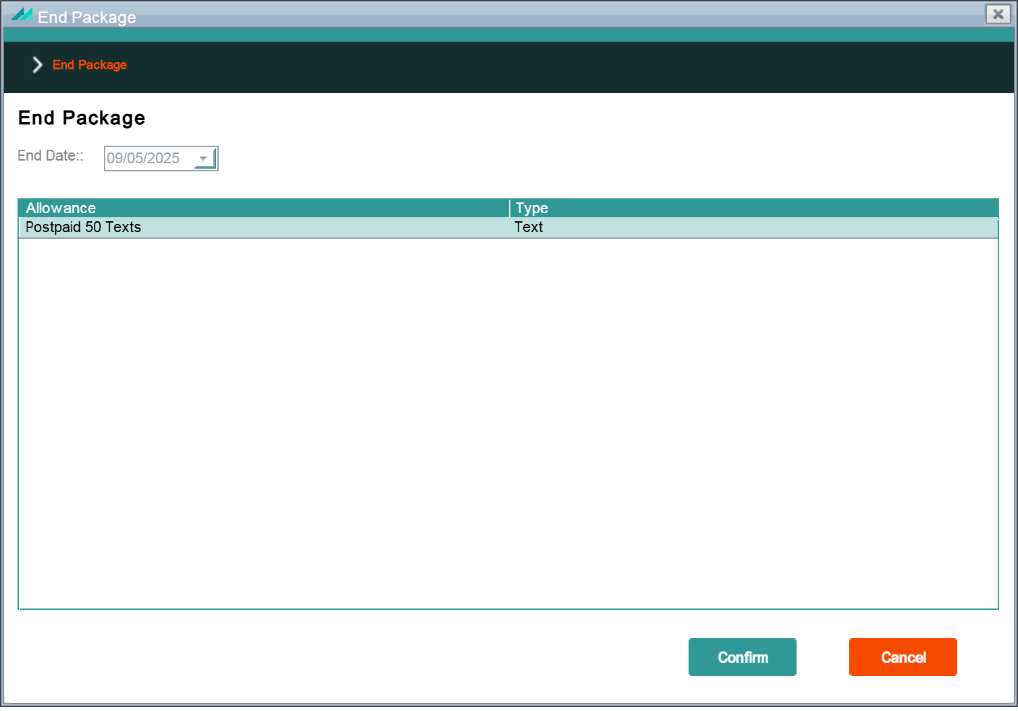
Selecting an existing purchase product, right-clicking and selecting the 'End' shortcut option allows an existing recurring package to be ended. This option is not available if the package has already been ended or is a one-time package.
End Package Popup Panel
Function Security:
Panel Name
subscription.allowance.EndAllowancePanel
Function Name
Subscription Purchases Expire Allowances (ENDPUR)
Enforcement
No data shown
Default Role
maintain-purchases
Purchased Products Mini Panel - Receipt Shortcut Option
Selecting an existing purchase product, right-clicking and selecting the 'Receipt' shortcut option allows a receipt for the purchase to be requested. There is no panel associated with this shortcut option.
Purchased Products Mini Panel - Purchase Bolt-on Shortcut Option
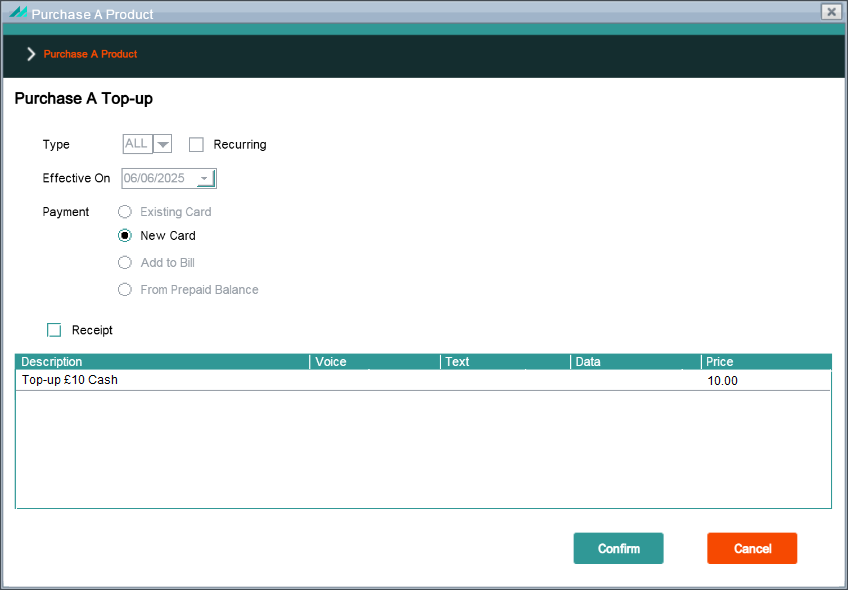
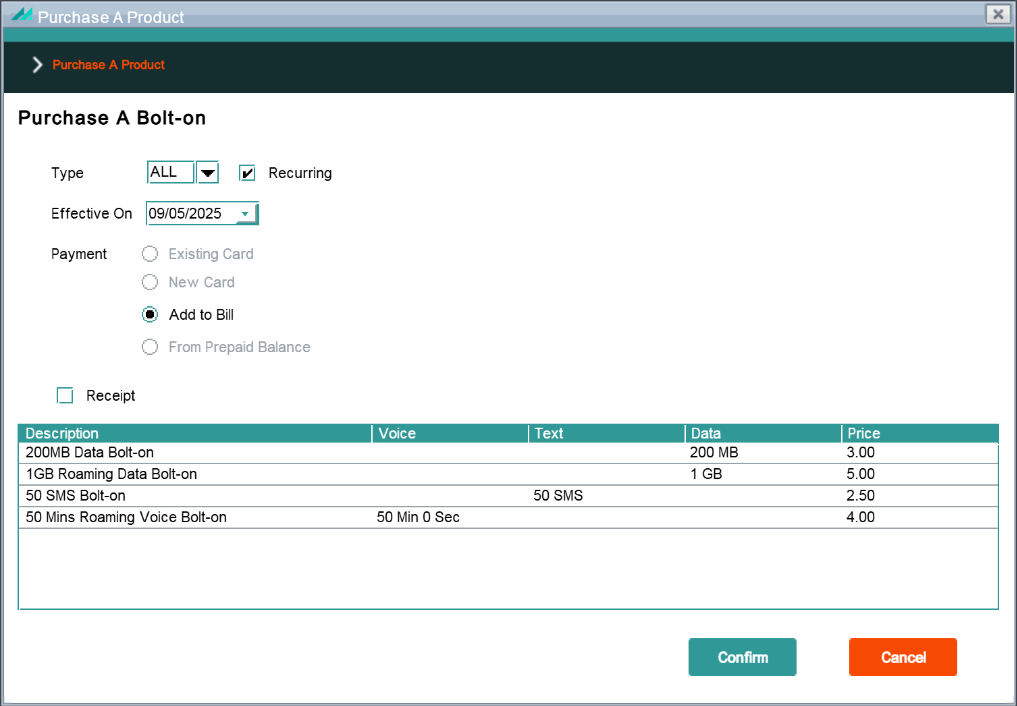
Selecting an existing purchase product, right-clicking and selecting the 'Purchase Bolt-on' shortcut option allows a recurring or non-recurring bolt-on to be purchased
Purchase a Product Popup Panel
Function Security:
Panel Name
purchaseproduct.PurchaseProductPanel
Function Name
Subscription Purchases Purchase Bolt On (PURSUBBON)
Enforcement
No data shown
Default Role
add-purchases
Active Services Mini Panel
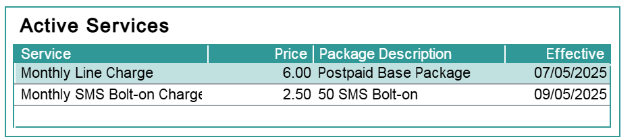
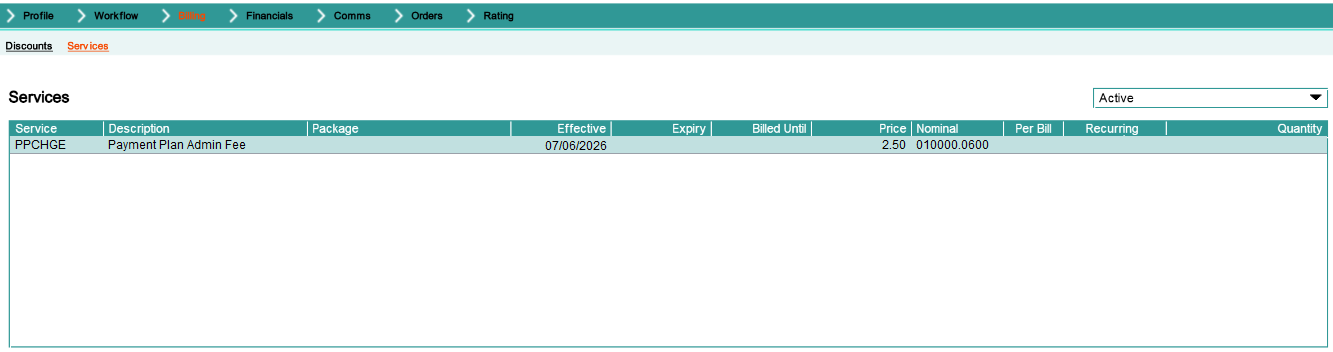
This mini panel shows all the active services for the subscription. The same panel is shown from both the Subscription Summary and via the Billing -> Services Menu Option
Active Services Mini Panel
Function Security:
Panel Name
subscription.service.ServicesSummaryPanel
Function Name
View Subscription Services (COD3DFR)
Enforcement
No data shown
Default Role
view-customers
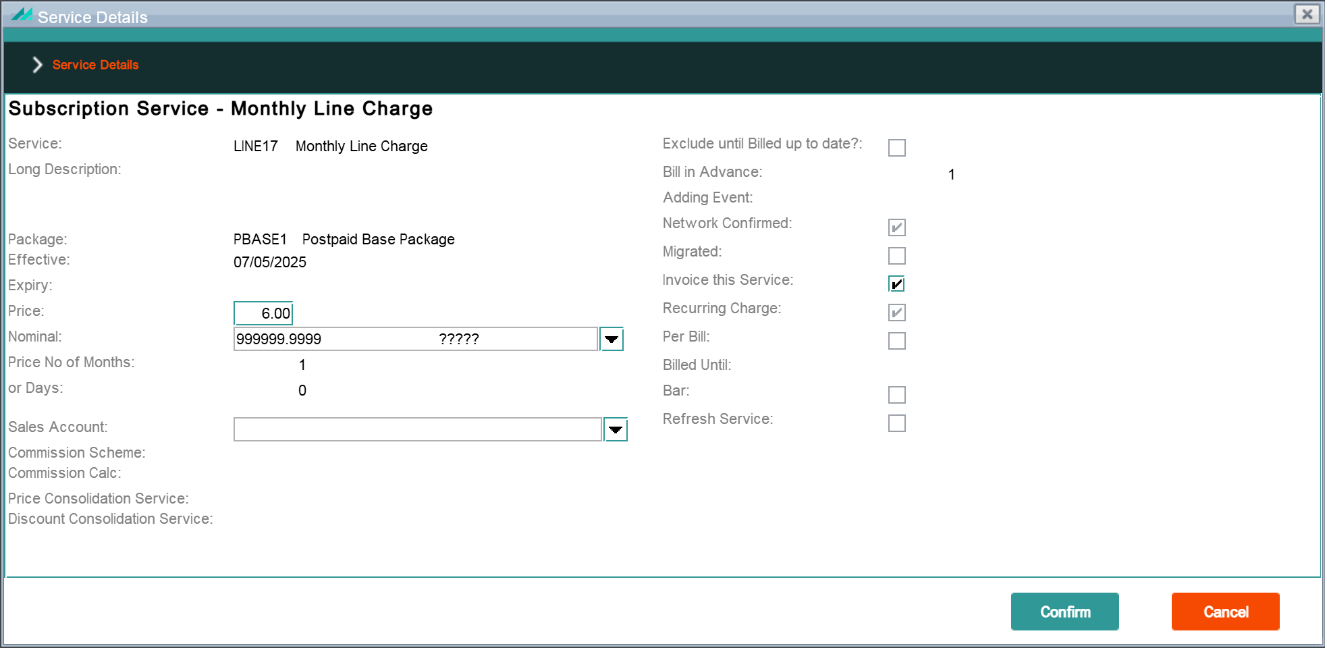
Active Services Mini Panel - Change Shortcut Option
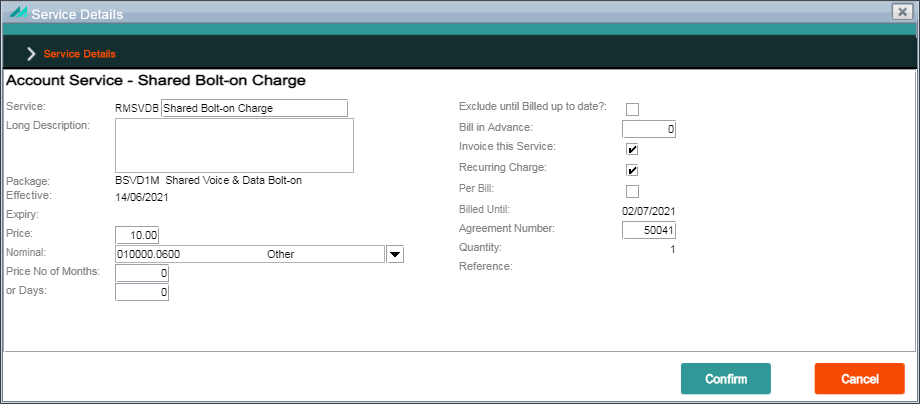
Selecting an existing active service, right-clicking and selecting the 'Change' shortcut option allows details of the subscription service to be modified. This function security only allows the subscription service to be viewed but not changed
Active Services Mini Panel - Delete Shortcut Option
Selecting an existing active service, right-clicking and selecting the 'Delete' shortcut option allows the selected subscription service to be deleted. There is no panel associated with this shortcut option.
Function Security:
Function Name
Delete Subscription Service (COD8D1R)
Enforcement
Operation not allowed
Default Role
maintain-customers
Active Services Mini Panel - Add Shortcut Option
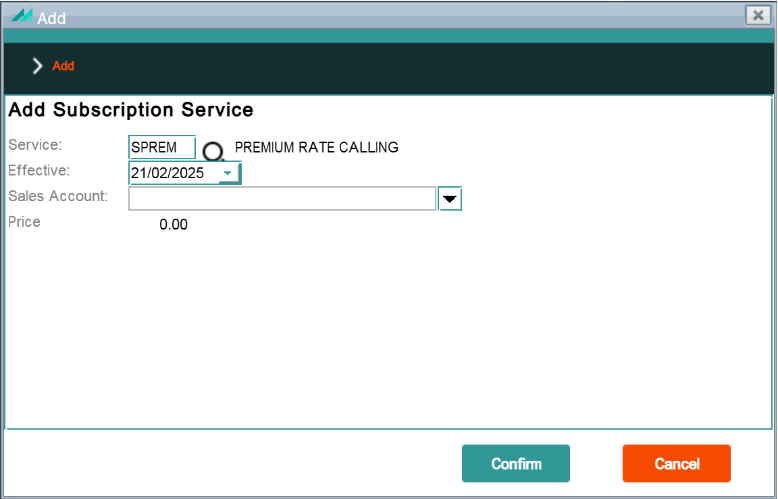
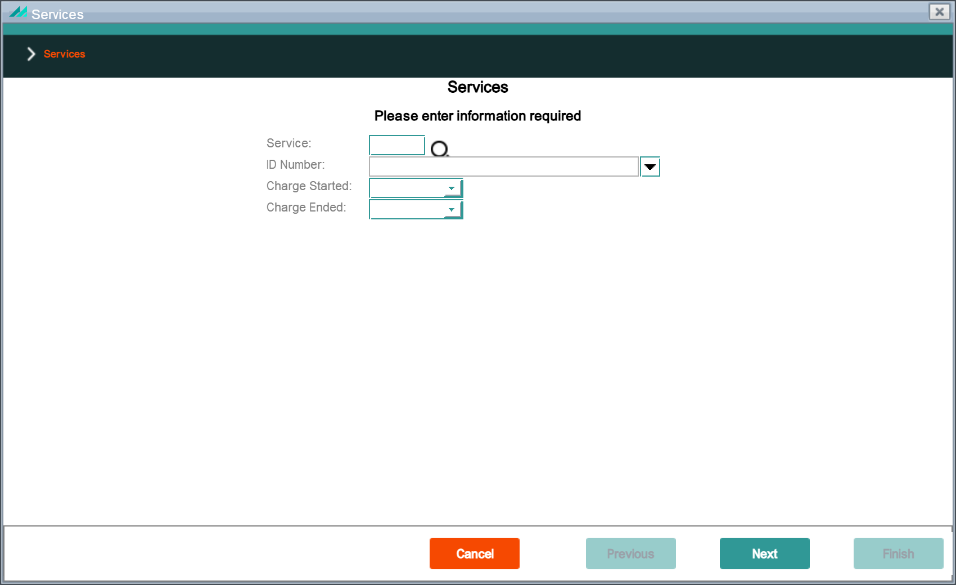
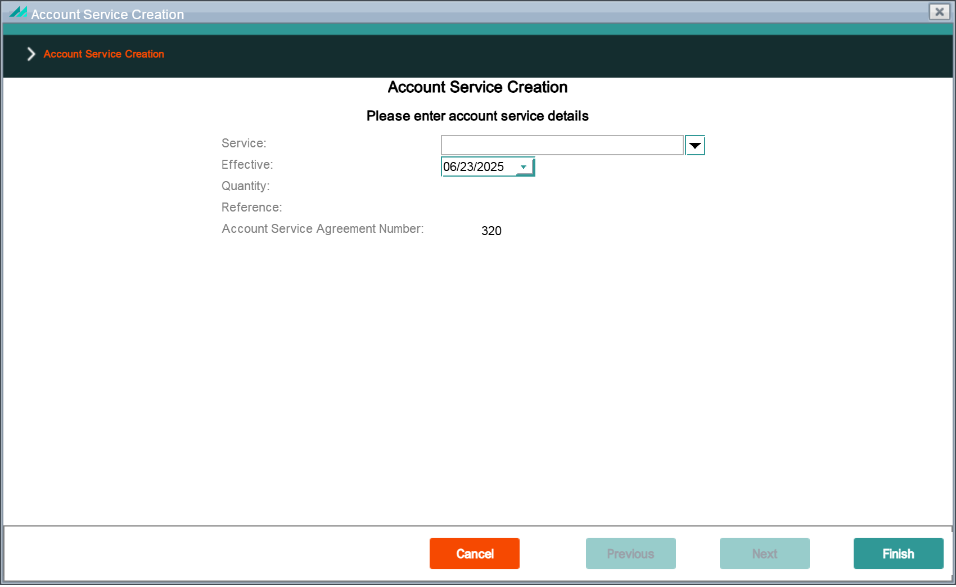
Selecting an existing active service, right-clicking and selecting the 'Add' shortcut option allows a new subscription service to be added.
Add Subscription Service Popup Panel
Function Security:
Panel Name
subscription.service.AddSubscriptionServicePanel
Function Name
Add Subscription Service (CSWCPVP)
Enforcement
Operation not allowed
Default Role
maintain-subscription-services
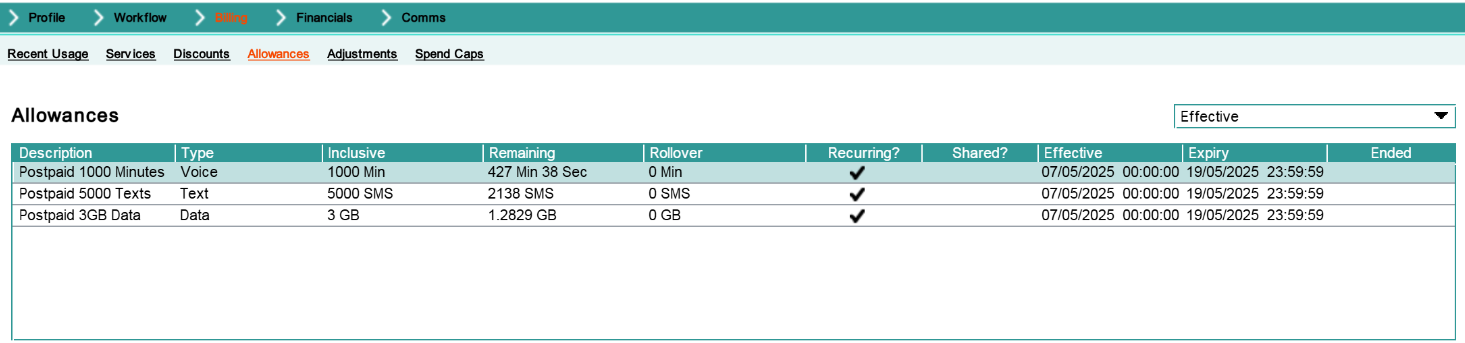
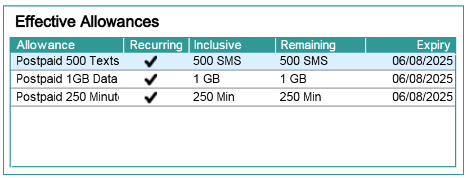
Effective Allowances Mini Panel
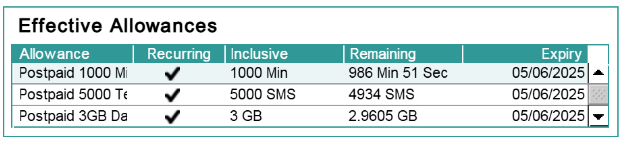
This mini panel shows all the allowances effective on the OCS. The allowances are indicated as either recurring or one-off and have an associated expiry date which is the expiry date of a one-off allowance of the expiry of the current allocation of a recurring allowance.
Effective Allowances Mini Panel
Function Security:
Panel Name
subscription.allowance.AllowanceSummaryPanel
Function Name
N/A (None defined)
Enforcement
N/A
Default Role
N/A
Effective Allowances Mini Panel - Caps Shortcut Option
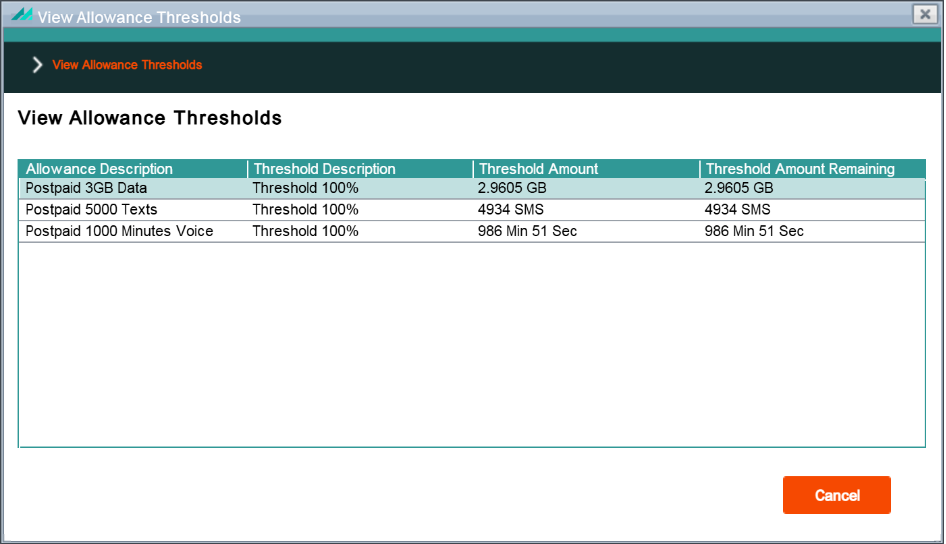
Selecting an effective allowance, right-clicking and selecting the 'Caps' shortcut option allows access to the View Allowance Caps popup panel. This 'read-only' panel shows any OCS-defined caps against the allowance.
View Allowance Caps Popup Panel
Function Security:
Panel Name
subscription.allowance.AllowanceCapsPanel
Function Name
N/A (None defined)
Enforcement
N/A
Default Role
N/A
Serial Numbers Mini Panel
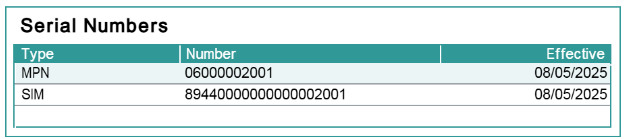
The Serial Numbers mini panel details the SIM and MIN numbers of the hardware connected to the Subscription. The panel includes a list of Serial Number Types, the actual Serial Numbers and the date on which each serial number becomes effective.
Serial Numbers Mini Panel - History Shortcut Option
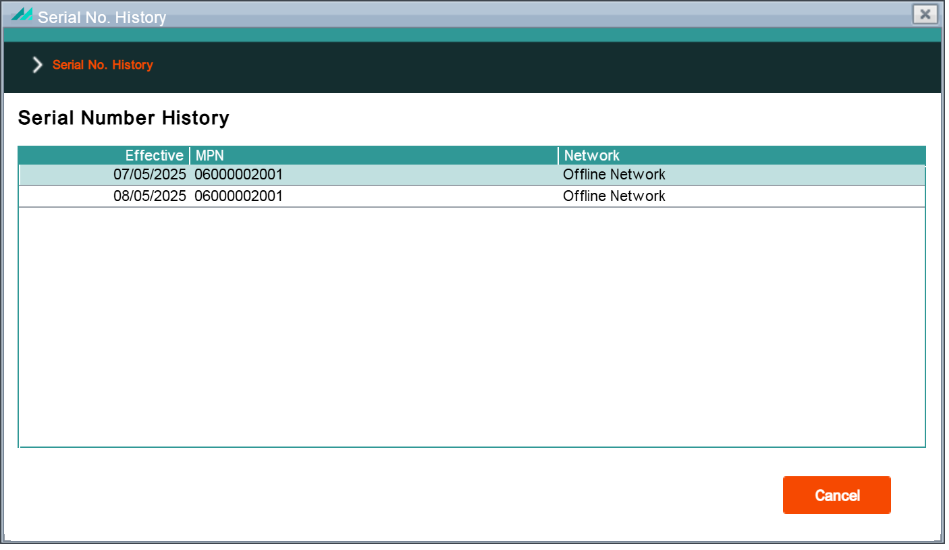
Selecting a serial number, right-clicking and selecting the 'History' shortcut option allows access to the Serial Number History popup panel. This 'read-only' panel allows the user to view the history of a specific subscription serial number.
Serial Numbers Mini Panel - SIM Profile Shortcut Option
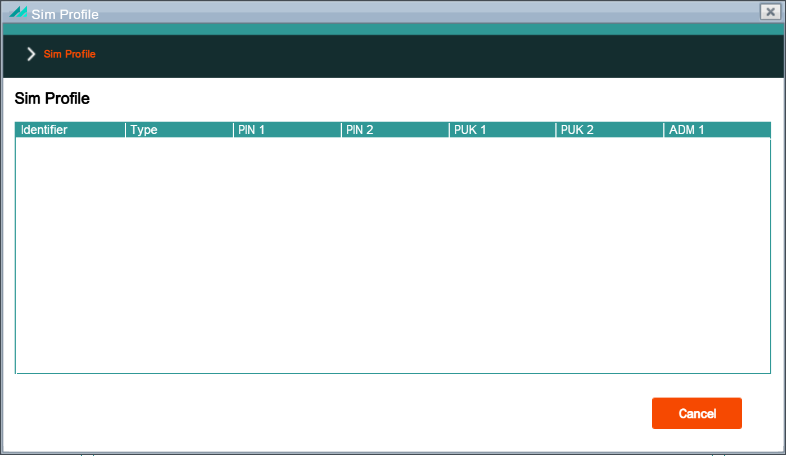
Selecting the SIM serial number, right-clicking and selecting the 'SIM Profile' shortcut option allows access to the SIM Profile popup panel. This 'read-only' panel allows the user to view the SIM profile details of the selected SIM serial number.
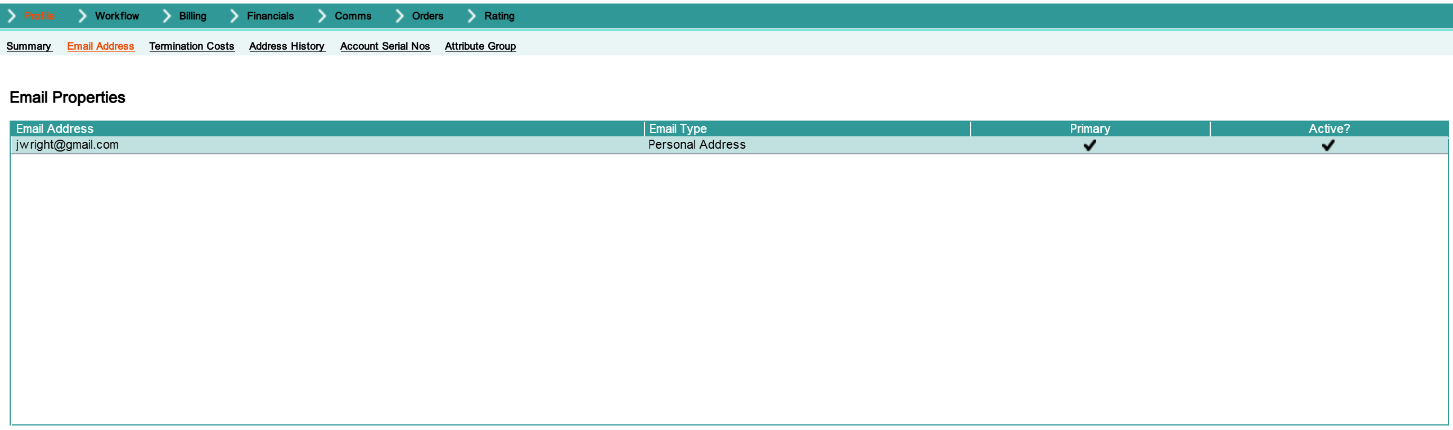
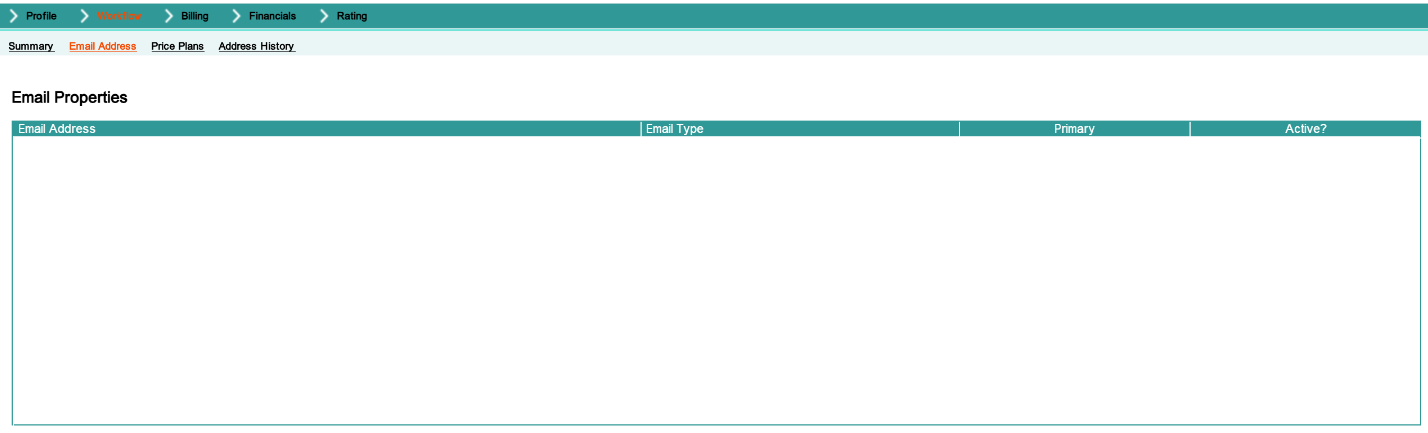
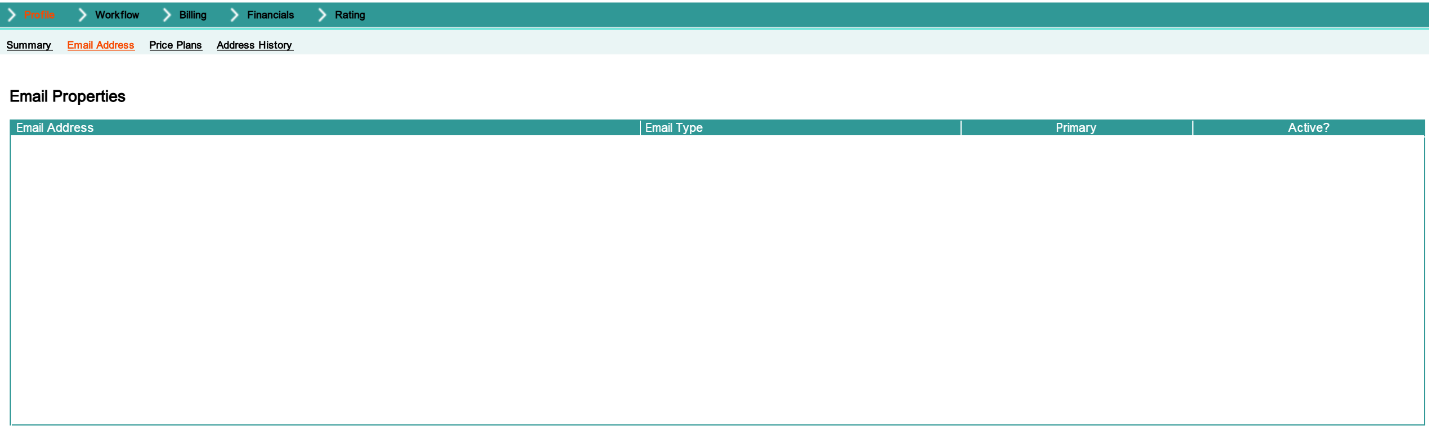
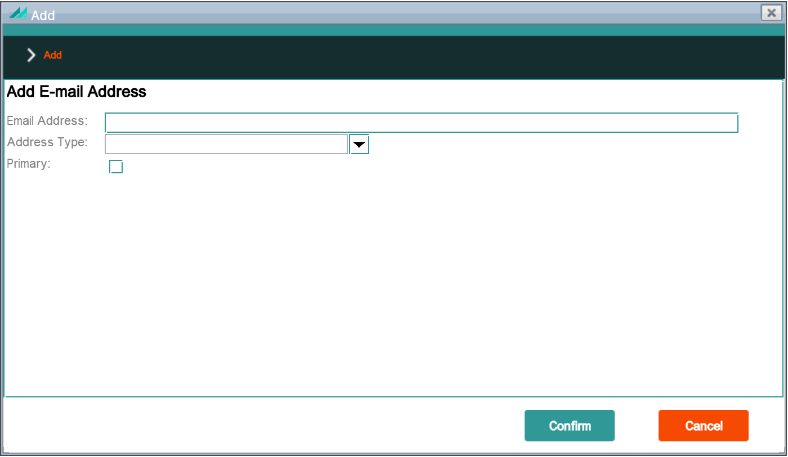
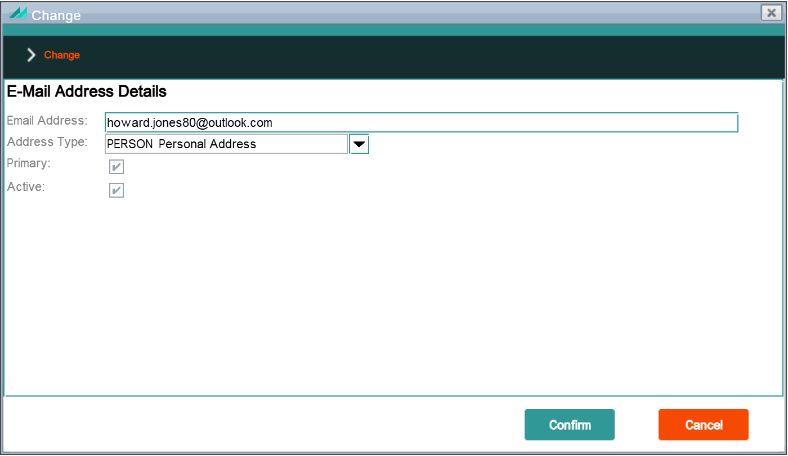
Clicking on the Profile -> Email Address sub-menu option provides access to the Email Properties lower panel that shows all the email addresses linked to the subscription including an indication of the primary address used for communications. The function security for shortcut options available from the lower panel are defines in section 10.1 below.
Email Properties Lower Panel
Function Security:
Panel Name
emailaddressmanagement.ViewAddressesPanel
Function Name
Maintain Customer Email Address (CXJ7DFP)
Enforcement
No data shown
Default Role
maintain-customers
4.3.3 - Bars Menu Option
Bars History Lower Panel
Clicking on the Profile -> Bars sub-menu option provides access to the Bars History lower panel that shows all subscription bars that are currently active. A filter allows all bars, active and previously active bars to be displayed. The information displayed in the lower panel is read only. It is not possible to add or remove a Bar within this panel.
Bars History Lower Panel
Function Security:
Panel Name
subscription.bars.ViewSubscriptionBarHistory
Function Name
N/A (None defined)
Enforcement
N/A
Default Role
N/A
4.3.4 - Address History Menu Option
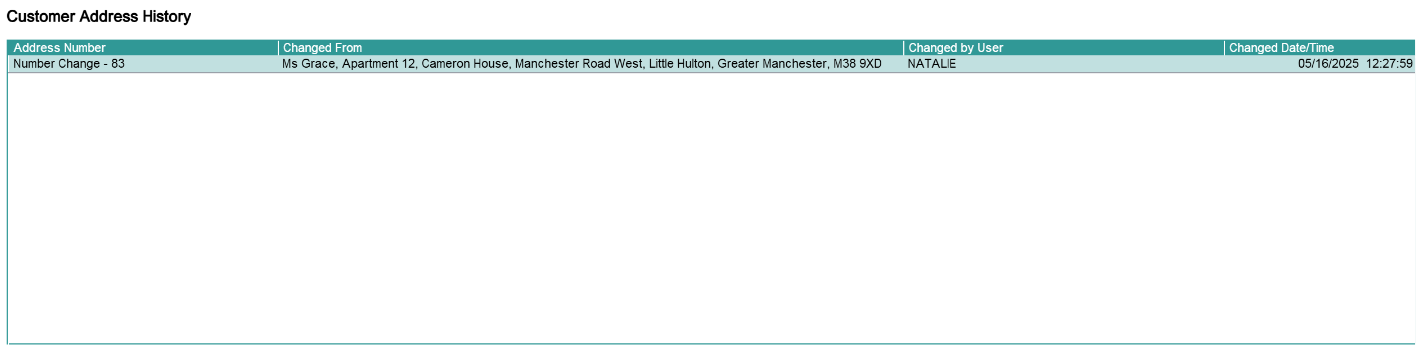
Address History Lower Panel
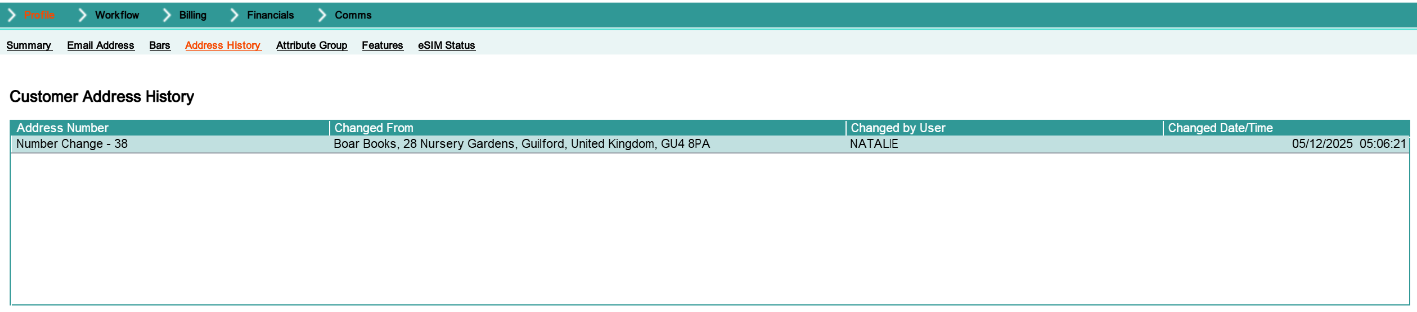
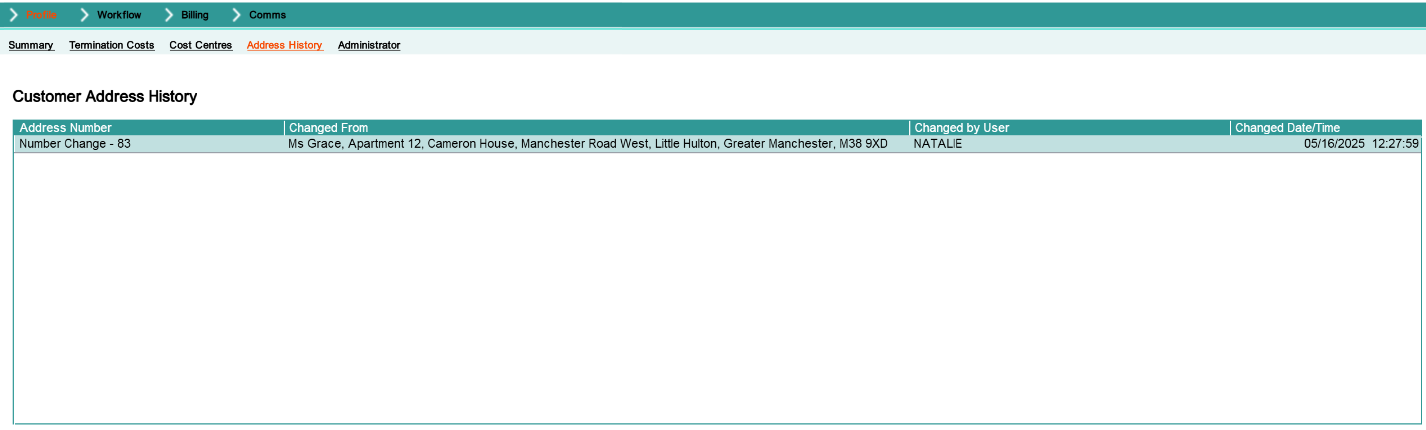
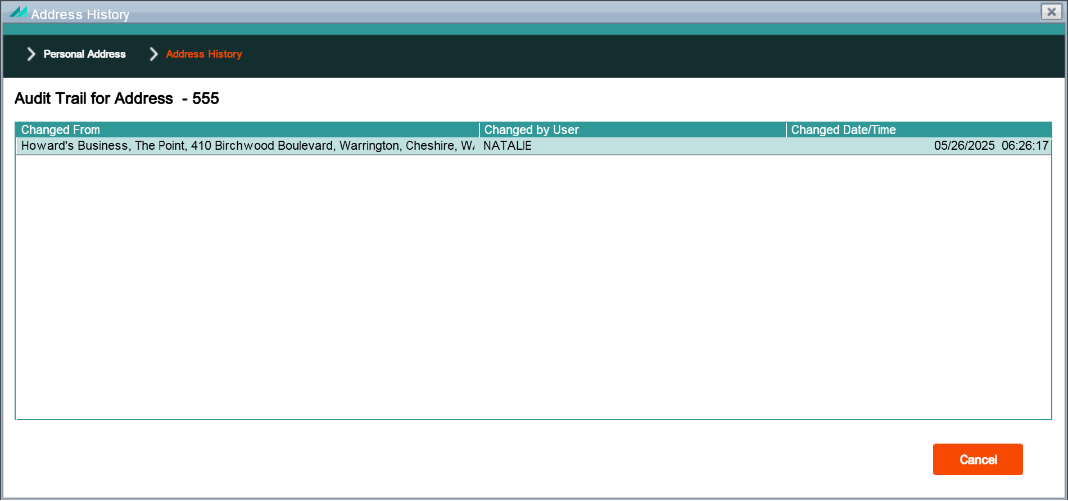
Clicking on the Profile -> Address History sub-menu option provides access to the Customer Address History lower panel that shows all addresses that have been registered against the subscription over time.
The function security for shortcut options available from the lower panel are defines in section 10.2 below.
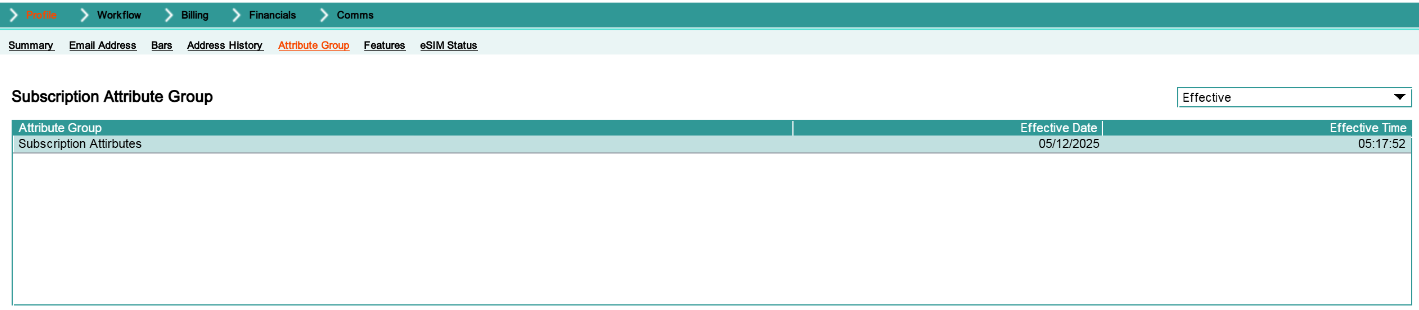
Clicking on the Profile -> Attribute Group sub-menu option provides access to the Subscription Attribute Group lower panel that displays any Subscription Attribute Group records.
Subscription Attribute Group Panel - Add Shortcut Option
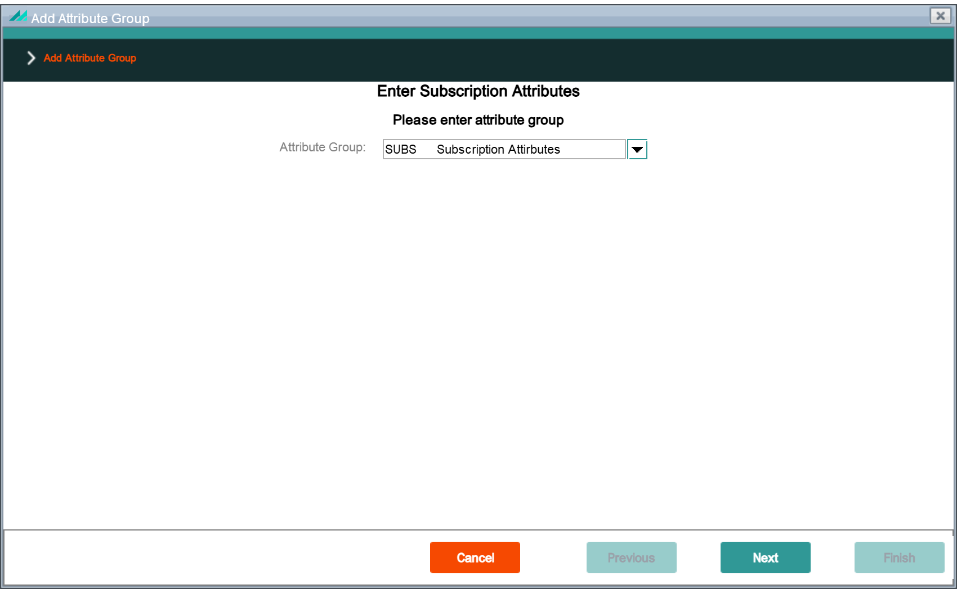
In the Enter Subscription Attribute Groups panel, the relevant Attribute Group can be selected using the Search facility. This includes any Attribute Group that has been configured at Subscription level in CMP Back Office, along with the description and code for each. Each subscription can have only a single effective Attribute Group at any one time. This ensures that the Attributes associated with the group are in line with the type of subscription that is being managed in CMP. By adding an Attribute Group, this automatically supersedes the previous group.
Add Attribute Group Panel
Function Security:
Panel Name
customer.attributegroup.AddAttributeGroupPanel
Function Name
N/A (None defined)
Enforcement
N/A
Default Role
N/A
Once the Attribute Group has been selected, a list of the configured Attributes for that group is displayed in the Enter Subscription Attributes panel, along with a text box for entering the required Attributes.
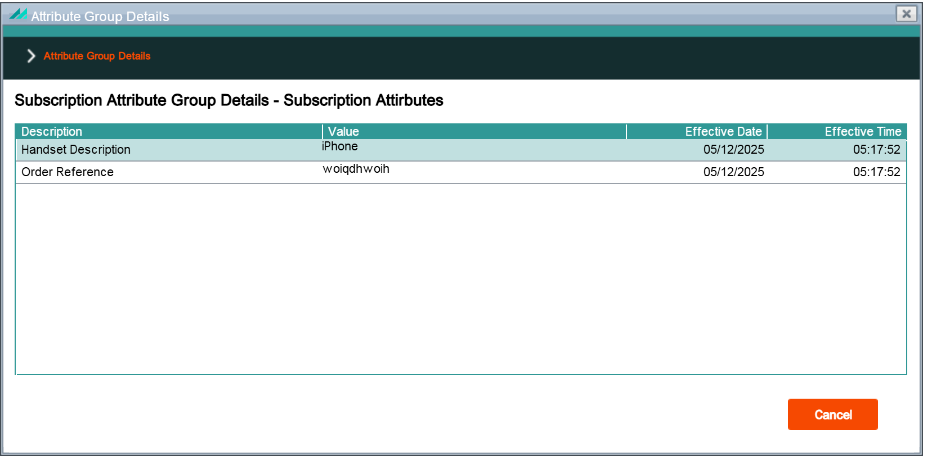
Subscription Attribute Group Panel - View Shortcut Option
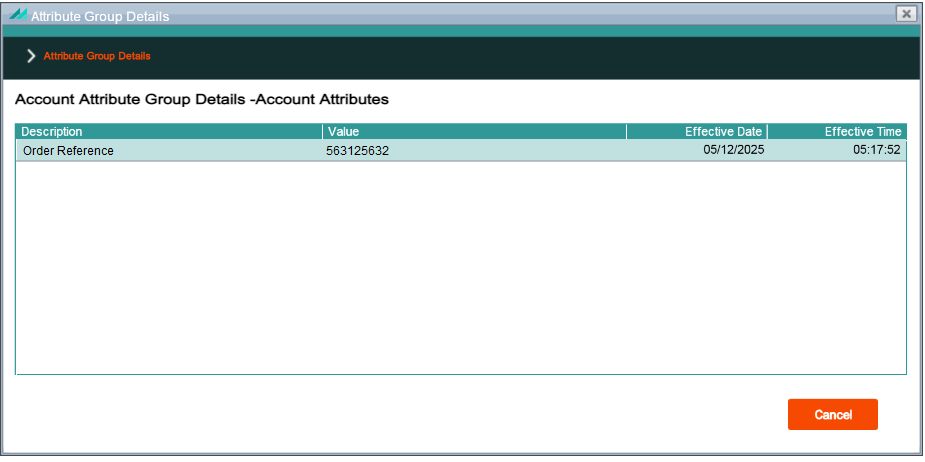
Selecting an account attribute row, right-clicking and selecting the 'View' shortcut option allows the user to view existing attributes associated with the selected attribute group.
Attribute Group Details Panel
Function Security:
Panel Name
customer.attributegroup.DetailAttributeGroupPanel
Function Name
N/A (None defined)
Enforcement
N/A
Default Role
N/A
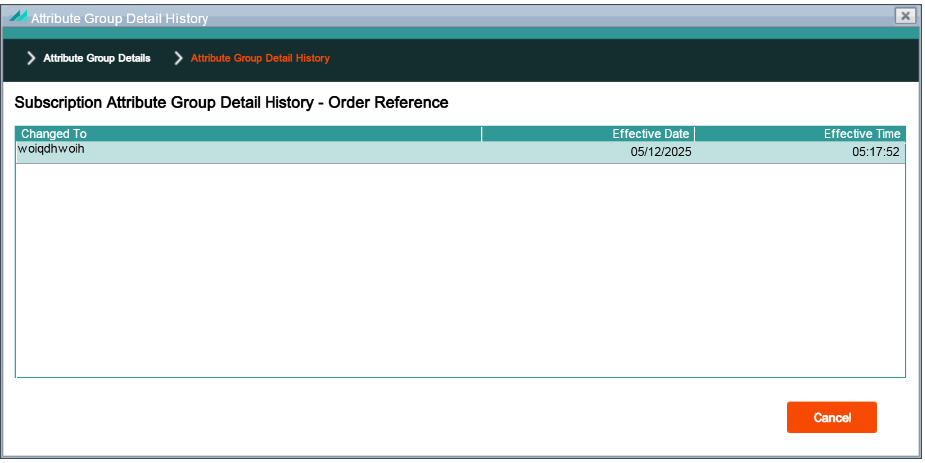
Attribute Group Details Panel - History Shortcut Option
Selecting a subscription attribute row, right-clicking and selecting the 'History' shortcut option allows the user to view the history of changes made to the selected subscription attribute.
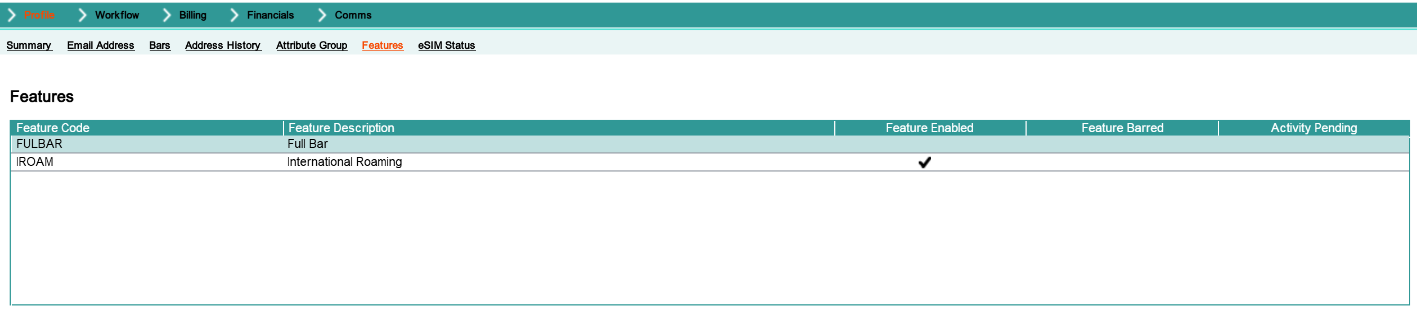
Clicking on the Profile -> Features sub-menu option provides access to the Features lower panel that displays all default features provisioned for the subscriber and their current status on the network, enabled or disabled.
Features Lower Panel
Function Security:
Panel Name
subscription.feature.SubscriptionFeaturePanel
Function Name
N/A (None defined)
Enforcement
N/A
Default Role
N/A
Features Panel - Enable Shortcut Option
Highlighting a feature in the Features lower panel and selecting the right-click 'Enable' shortcut option allows a disabled feature to be enabled on the network.
Allows a enabled feature to be disabled on the network. There is no panel associated with this shortcut option
Function Security:
Panel Name
N/A
Function Name
N/A (None defined)
Enforcement
N/A
Default Role
N/A
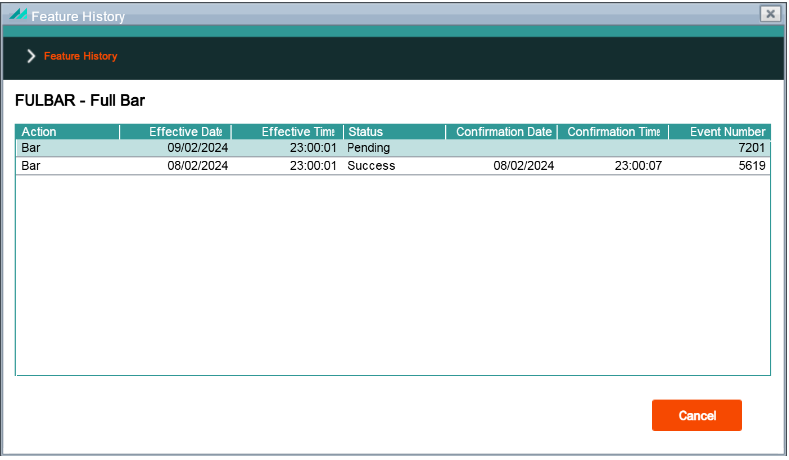
Features Panel - View History Shortcut Option
Allows the audit history of a specific feature to be viewed.
Feature History Popup Panel
Function Security:
Panel Name
subscription.feature.FeatureHistoryPopupPanel
Function Name
N/A (None defined)
Enforcement
N/A
Default Role
N/A
4.3.7 - eSIM Status Menu Option
eSIM Status History Lower Panel
Each time an eSIM profile is activated, deactivated or deleted by the end customer, CMP receives a notification from the Subscription Manager (SM-DP+) to advise of the profile status change.
These changes are stored in CMP and can be viewed through the eSIM Status lower panel, accessible through the Profile main menu option, that also shows the EID (the identifier of the eSIM) and the ICCID (the global identifier of the profile) related to the status.
eSIM Status Lower Panel
Function Security:
Panel Name
esim.ViewESIMProfileNotificationPanel
Function Name
N/A (None defined)
Enforcement
N/A
Default Role
N/A
4.4 - Workflow Swish
4.4.1 - Events Menu Option
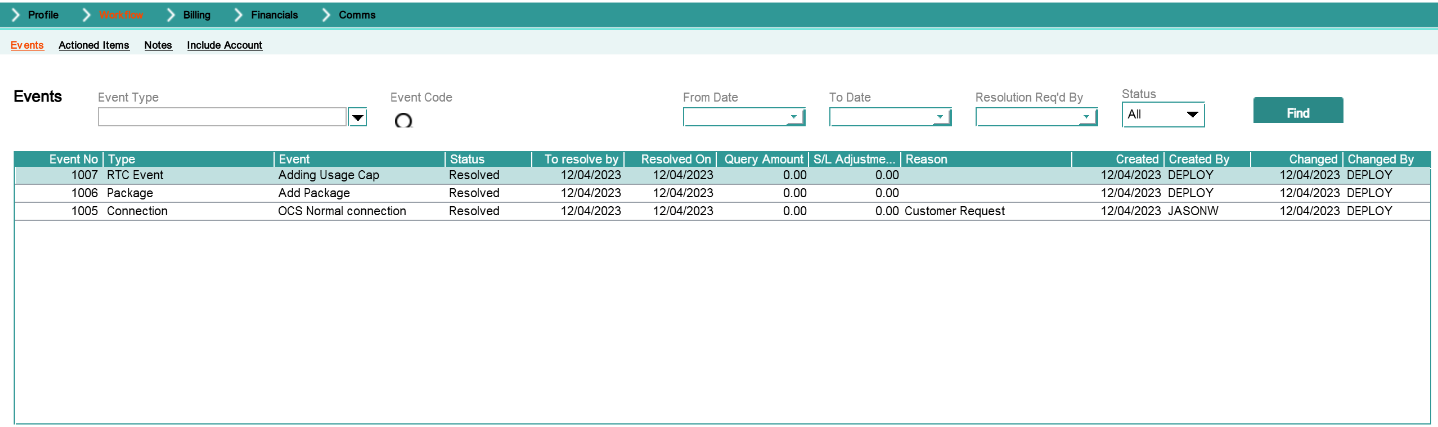
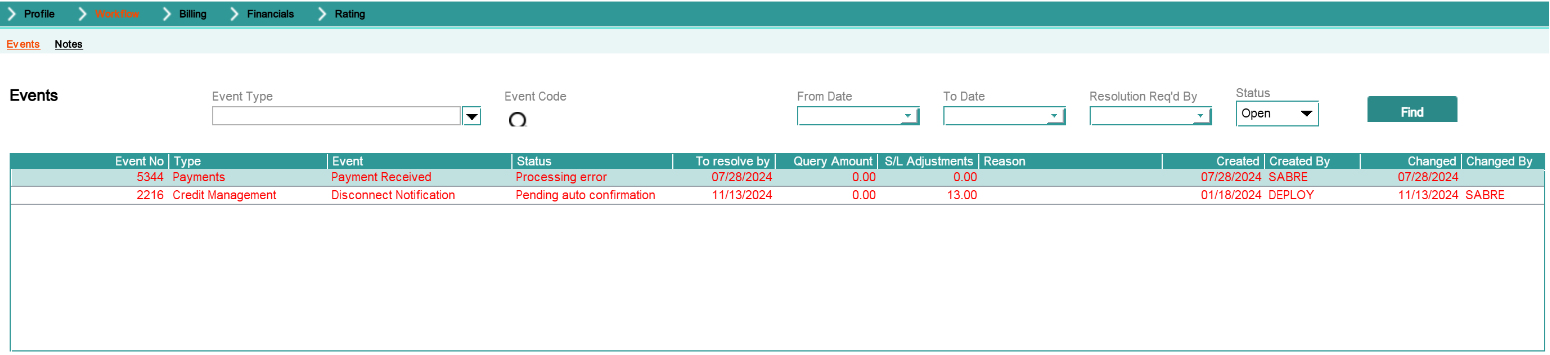
Events Lower Panel
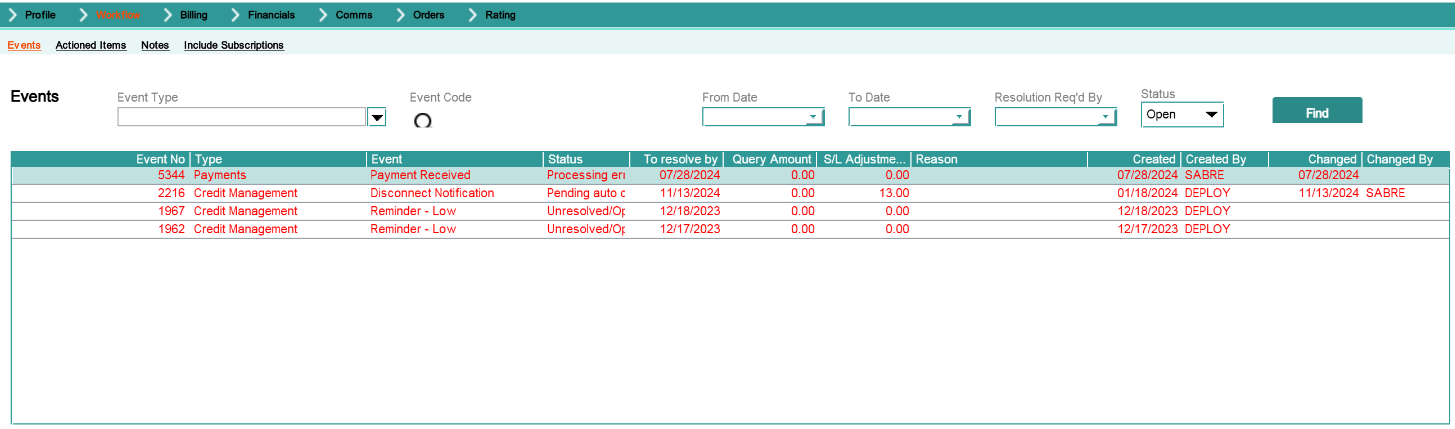
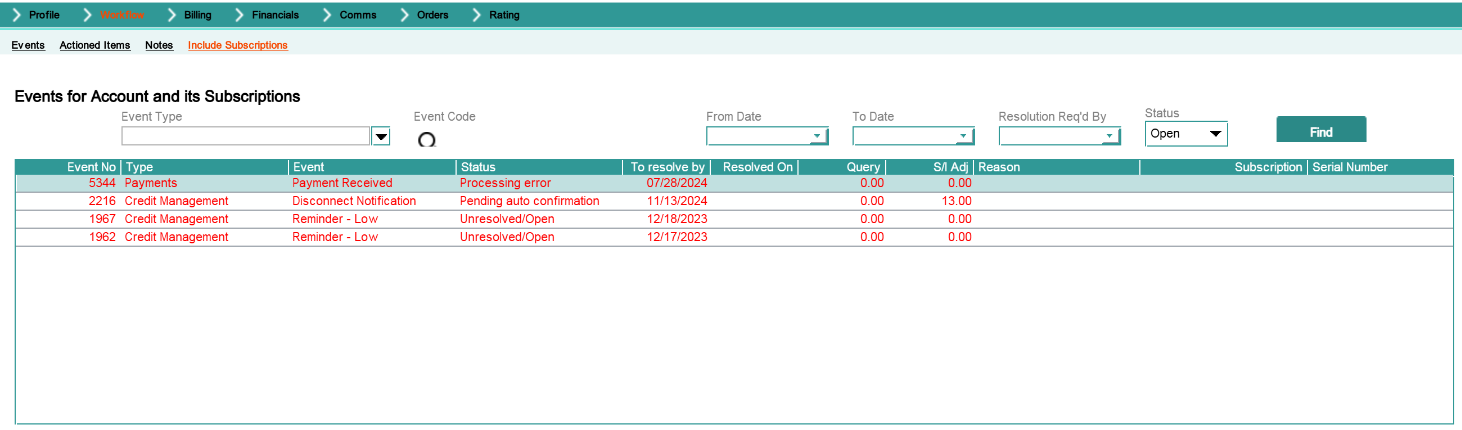
The Events panel details the workflow events that have not yet been resolved based on the hierarchy level being accessed.
Workflow Events that have passed their resolution required by date are displayed using red text so that they can be easily identified and resolved.
Workflow events that are approaching their Resolution Required By Date are highlighted using orange text so that they can be easily identified and resolved.
Events Lower Panel
Function Security:
Panel Name
customerdiaryevents.CustomerDiaryEventPanel
Function Name
View Events by Subscription (COWDDFR)
Enforcement
No data shown
Default Role
view-customers
Function Name
Prompt For Details (CPHLPVP)
Enforcement
No data shown
Default Role
maintain-customers
Events Panel - Summary Shortcut Option
Highlighting a specific event in the Events lower panel and selecting the right-click 'Summary' shortcut option provides access to the Event Summary panel based on the hierachy level from which the Workflow swish is accessed.
Subscription Event Summary Panel
Function Security:
Panel Name
workflowconfiguration.DiaryEventsWorkPanel
Function Name
Request interface-level list of diary events (COWHPVR)
Enforcement
No panel access
Default Role
maintain-workflow-events
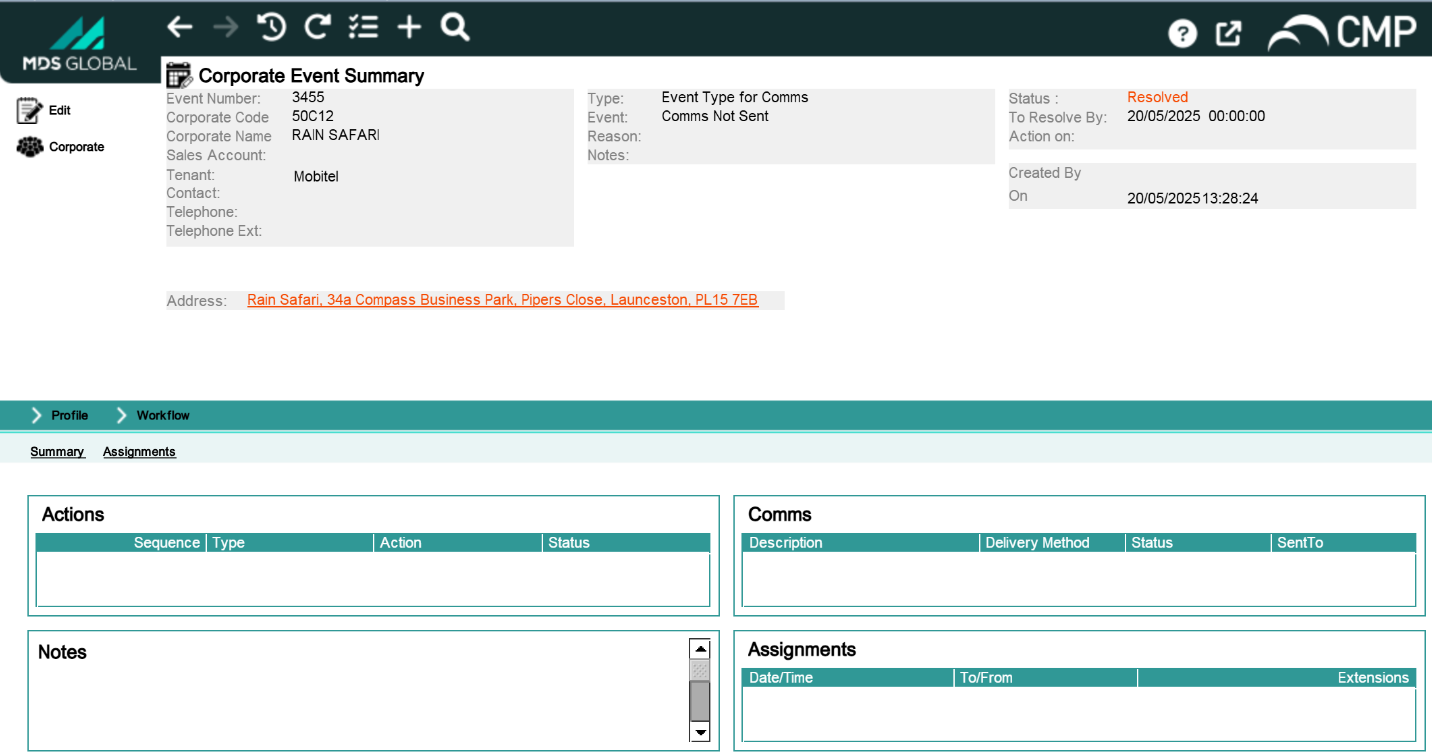
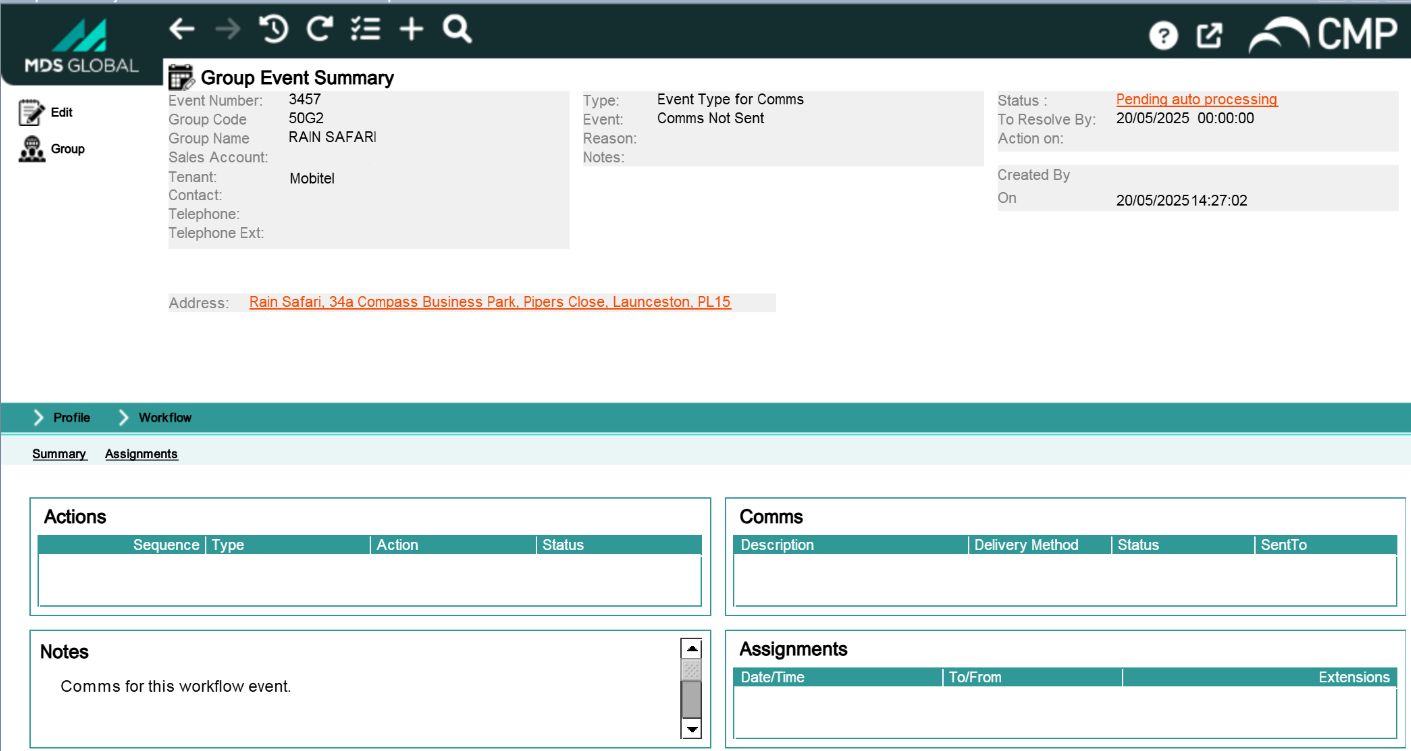
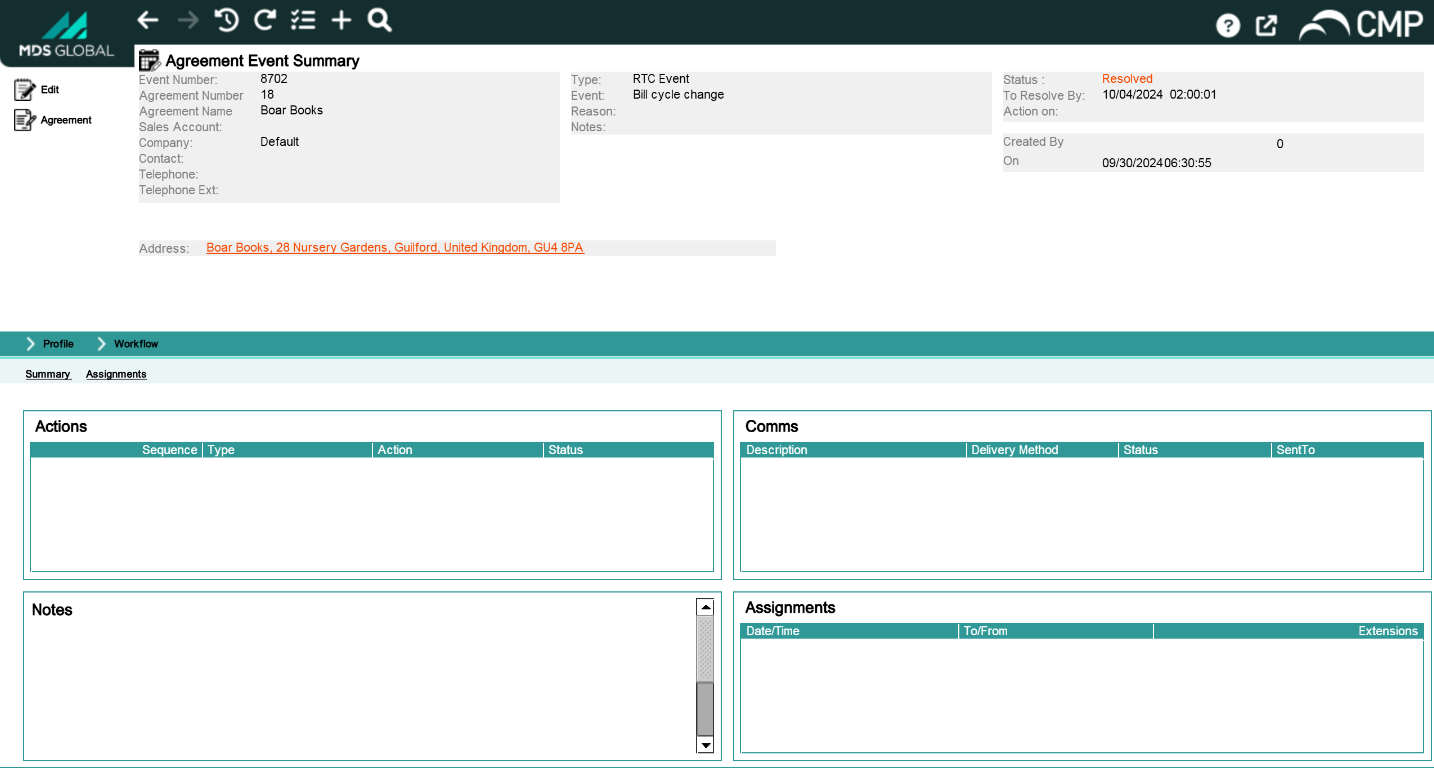
The Subscription Event Summary panel shares common layout and function security with the Event Summary panels at other levels. The generic parts of the Event Summary panels are defined in section 11 below.
Events Panel - Add Shortcut Option
Highlighting a specific event in the Events lower panel and selecting the right-click 'Add' shortcut option provides access to the event creation wizard. Workflow events can be added at all levels within the custom hierarchy from the Events lower panel or pane. Events can also be added when setting up new customers.
When the event creation wizard is accessed, the Add Event page is displayed. Details of the function security associated with the event creation wizard is described above.
4.4.2 - Actioned Items Menu Option
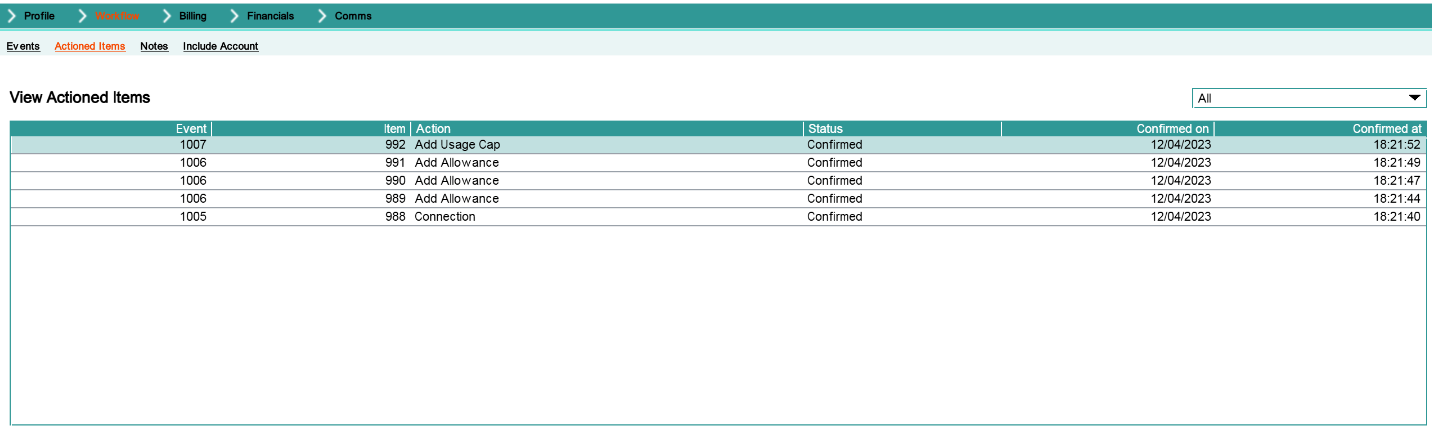
View Actioned Items Lower Panel
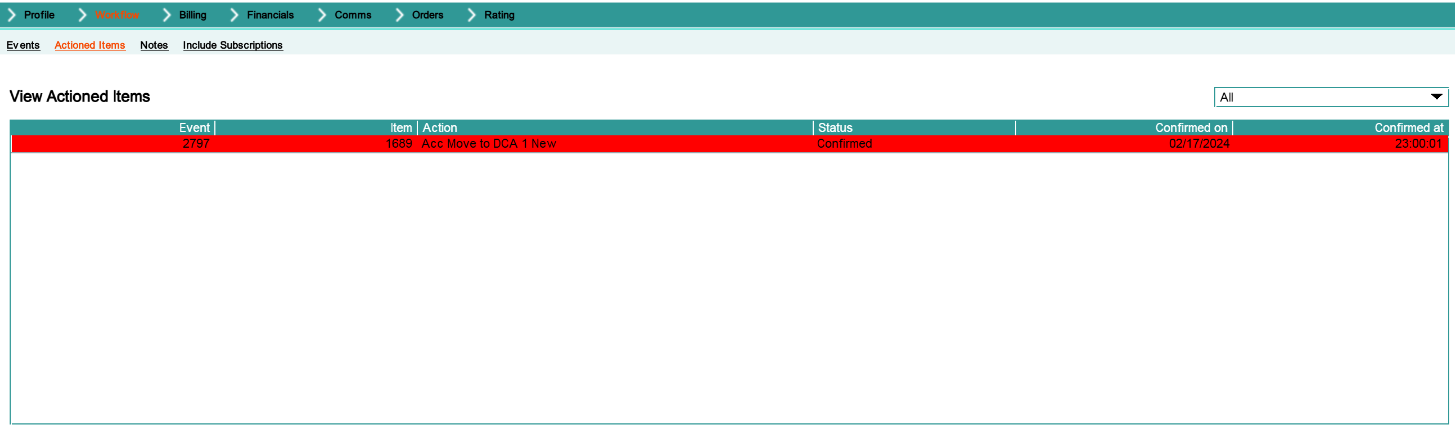
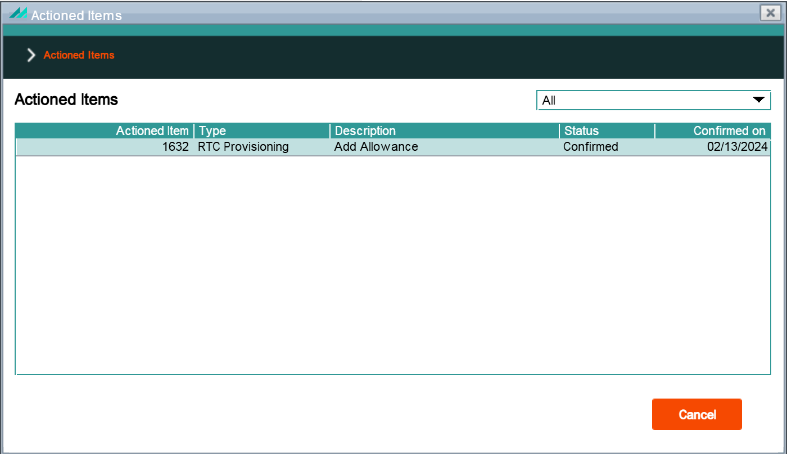
The Actioned Items lower panel provides a list of all actions linked to a workflow event with details of both network and non-network actions, indicating which have been successfully processed and which have not.
View Actioned Items Lower Panel
Function Security:
Panel Name
diaryevent.action.DspActionedItemsPanel
Function Name
N/A (None defined)
Enforcement
N/A
Default Role
N/A
Actioned Items Panel - View Event Shortcut Option
Highlighting a specific actioned item in the Actioned Items lower panel and selecting the right-click 'View Event' shortcut option provides access to the Subscription Event Summary panel.
Subscription Event Summary Panel
Function Security:
Panel Name
workflowconfiguration.DiaryEventsWorkPanel
Function Name
Request interface-level list of diary events (COWHPVR)
Enforcement
No panel access
Default Role
maintain-workflow-events
Actioned Items Panel - View Error Shortcut Option
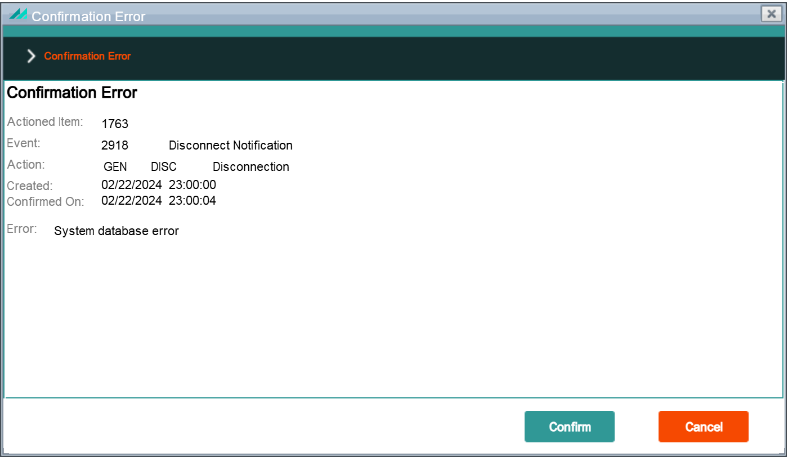
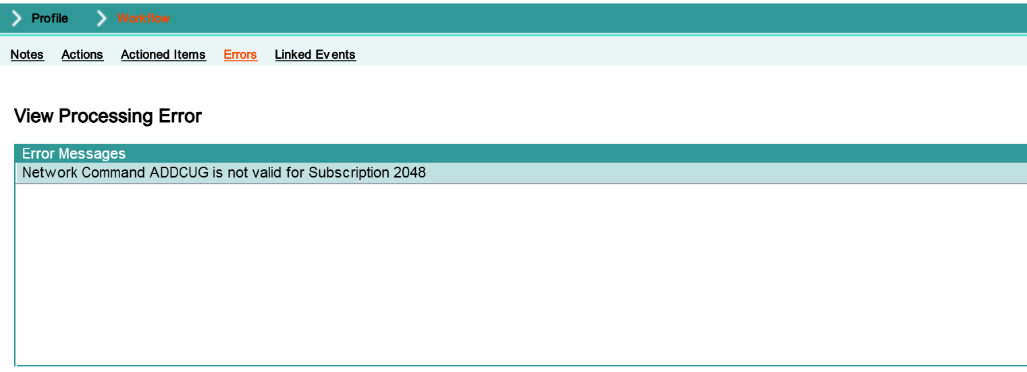
Highlighting a specific actioned item in the Actioned Items lower panel and selecting the right-click 'View Error' shortcut option allows the error details of actioned items in a status of 'Confirmation Error' to be viewed.
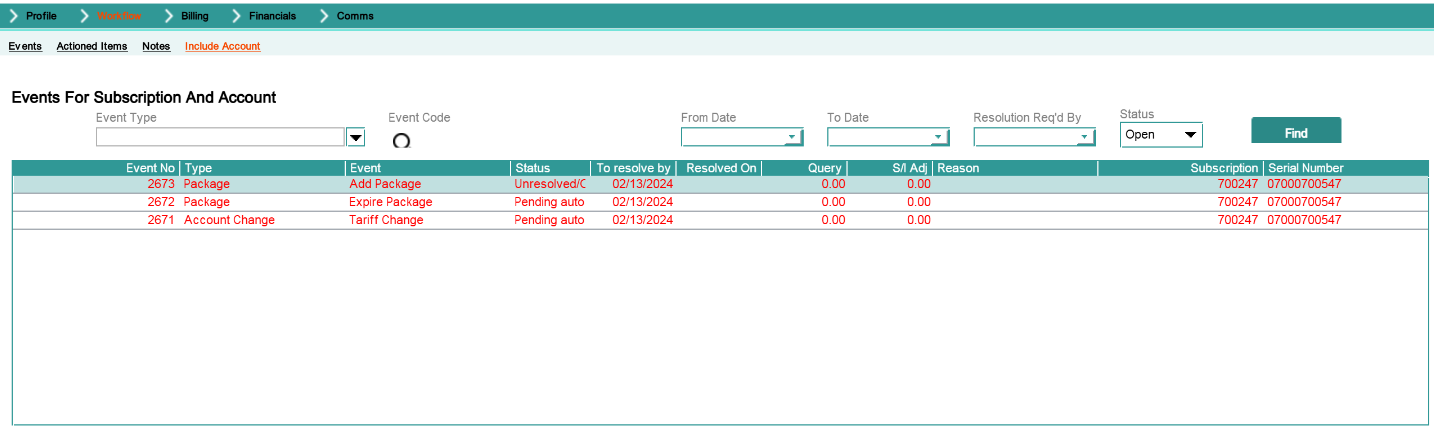
Request account and subscription level list of diary events (CSRCDFP)
Enforcement
No data shown
Default Role
view-workflow-events
Events for Subscription and Account Panel - Summary Shortcut Option
Provides access to the Subscription Event Summary panel.
Subscription Event Summary Panel
Function Security:
Panel Name
workflowconfiguration.DiaryEventsWorkPanel
Function Name
Request interface-level list of diary events (COWHPVR)
Enforcement
No panel access
Default Role
maintain-workflow-events
4.5 - Billing Swish
4.5.1 - Recent Usage Menu Option
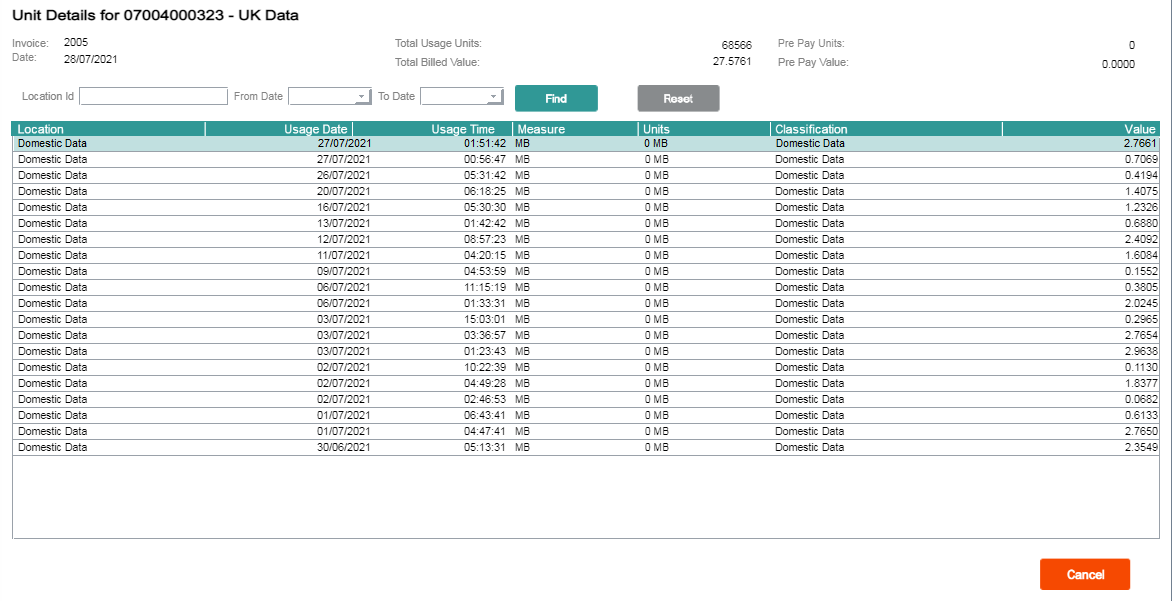
Unbilled Unit Details Popup
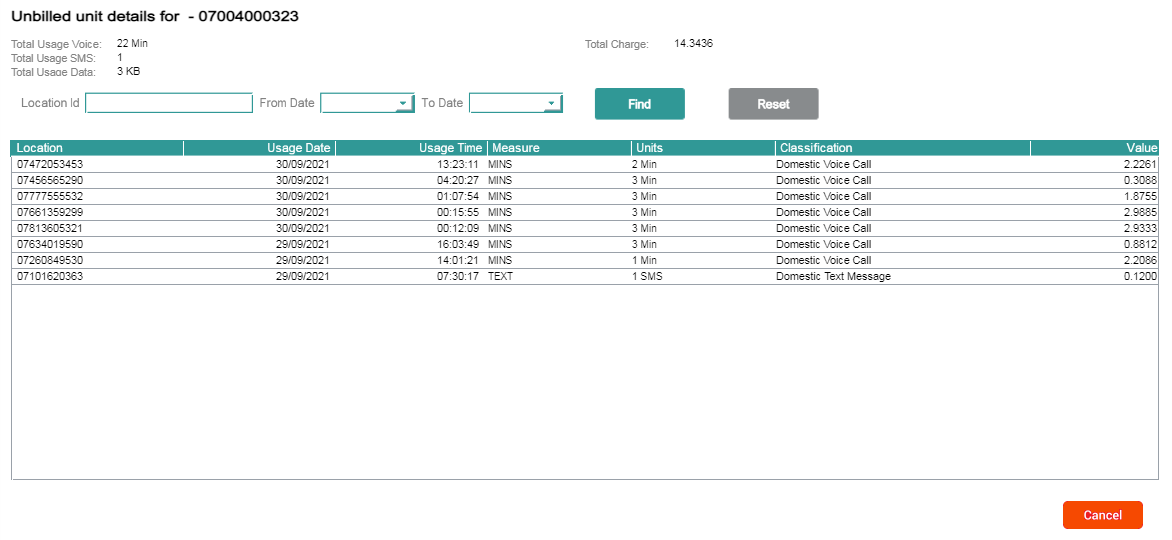
In the CMP AgentView, the Unbilled Units screen can be accessed at Subscription level via the Submenu options bar (Billing -> Recent Usage). This screen shows all the unbilled rated usage for a postpaid subscription.
Unbilled Unit Details Popup Panel
Function Security:
Panel Name
subscription.unbilledunits.UnbilledUnitsPanel
Function Name
N/A (None defined)
Enforcement
N/A
Default Role
N/A
Unbilled Unit Details Popup - View Unit Details Shortcut Option
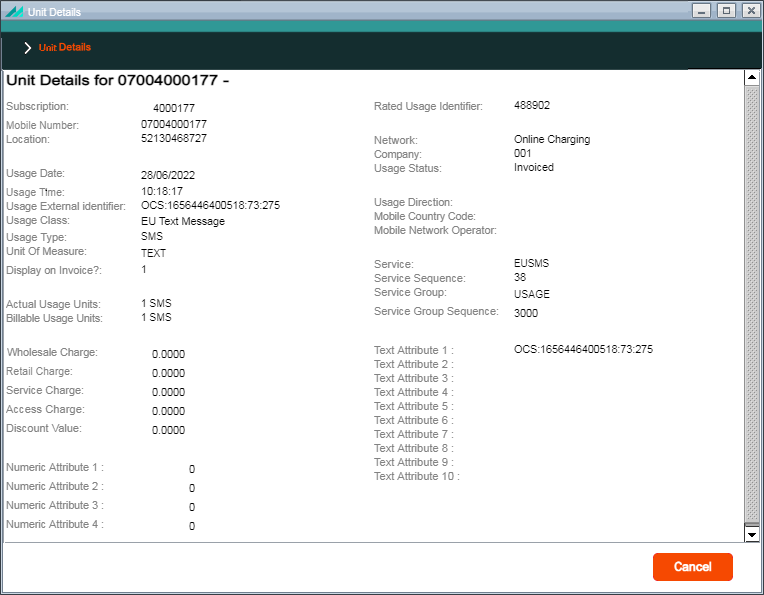
Selecting a call record, right-clicking and selecting the 'View Unit Details' shortcut option allows the details of the specific usage record selected to be viewed.
Unbilled Unit Details Popup - Unit Allowance Shortcut Option
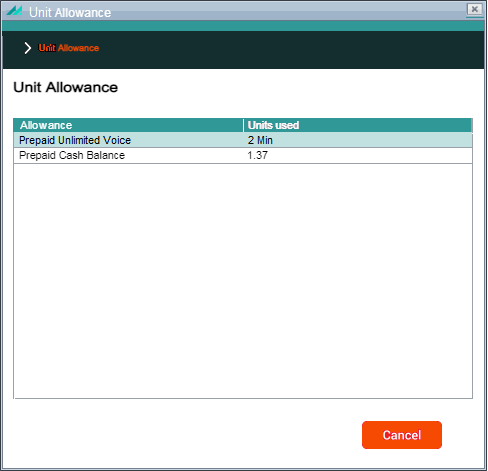
Selecting a call record, right-clicking and selecting the 'Unit Allowance' shortcut option allows the allowance that was consumed from for the usage record selected to be viewed.
Unit Allowance Popup Panel
Function Security:
Panel Name
invoice.callbasket.UsageAllowancePopupPanel
Function Name
N/A (None defined)
Enforcement
N/A
Default Role
N/A
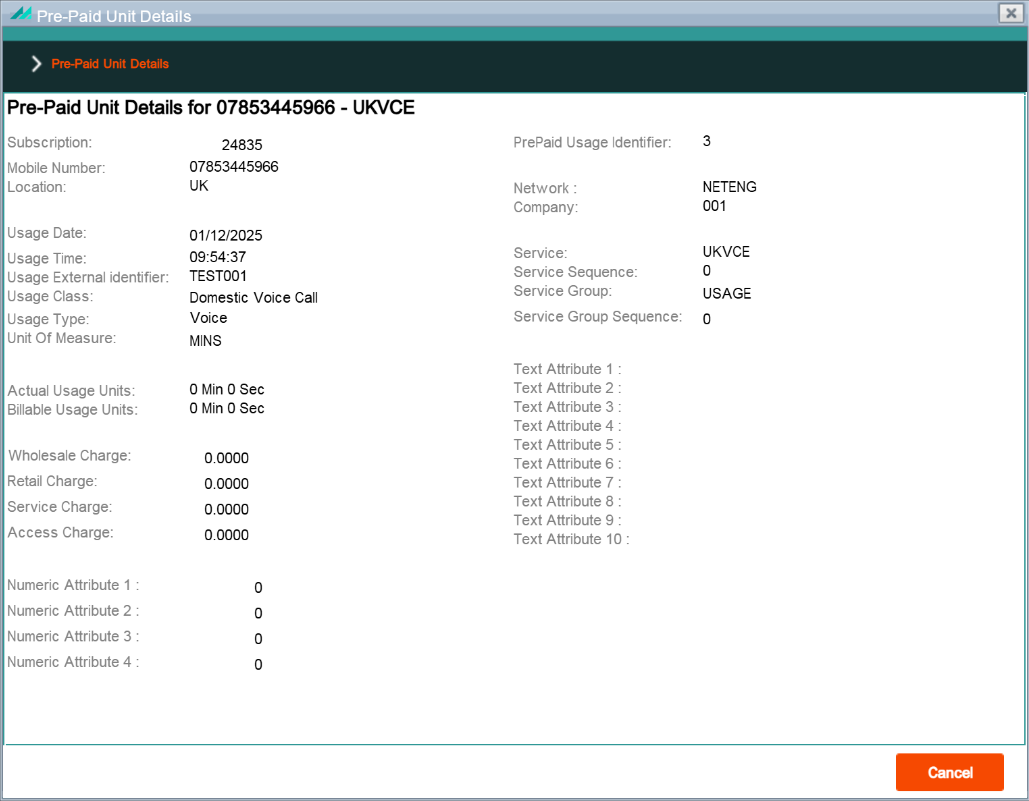
Pre-Paid unit details
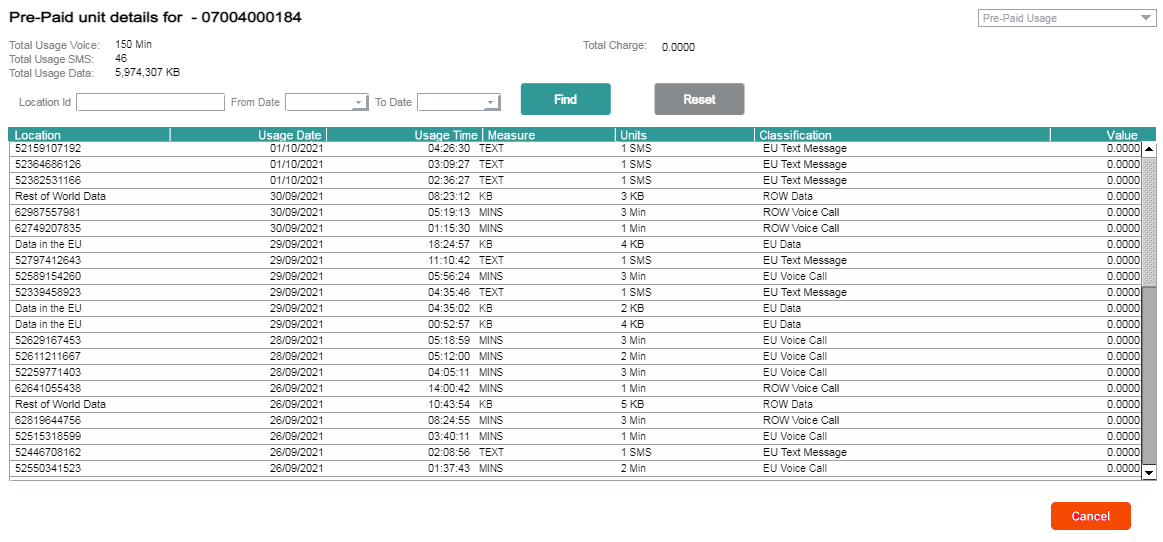
In the CMP AgentView, the Unbilled Units screen can be accessed at Subscription level via the Sub-options bar (Billing -> Recent Usage). This screen shows all the unbilled rated usage for a prepaid subscription.
Unit Details Popup Panel
Function Security:
Panel Name
subscription.unbilledunits.PrePaidUnitsPanel
Function Name
Display Pre Paid Usage Units (DSPPREPAID)
Enforcement
No data shown
Default Role
view-customers
Pre-Paid unit details - View Unit Details Shortcut Option
Selecting a call record, right-clicking and selecting the 'View Unit Details' shortcut option allows the details of the specific usage record selected to be viewed.
Pre-Paid unit details - Unit Allowance Shortcut Option
Selecting a call record, right-clicking and selecting the 'Unit Allowance' shortcut option allows the allowance that was consumed from for the usage record selected to be viewed.
Unit Allowance Popup Panel
Function Security:
Panel Name
invoice.callbasket.UsageAllowancePopupPanel
Function Name
N/A (None defined)
Enforcement
N/A
Default Role
N/A
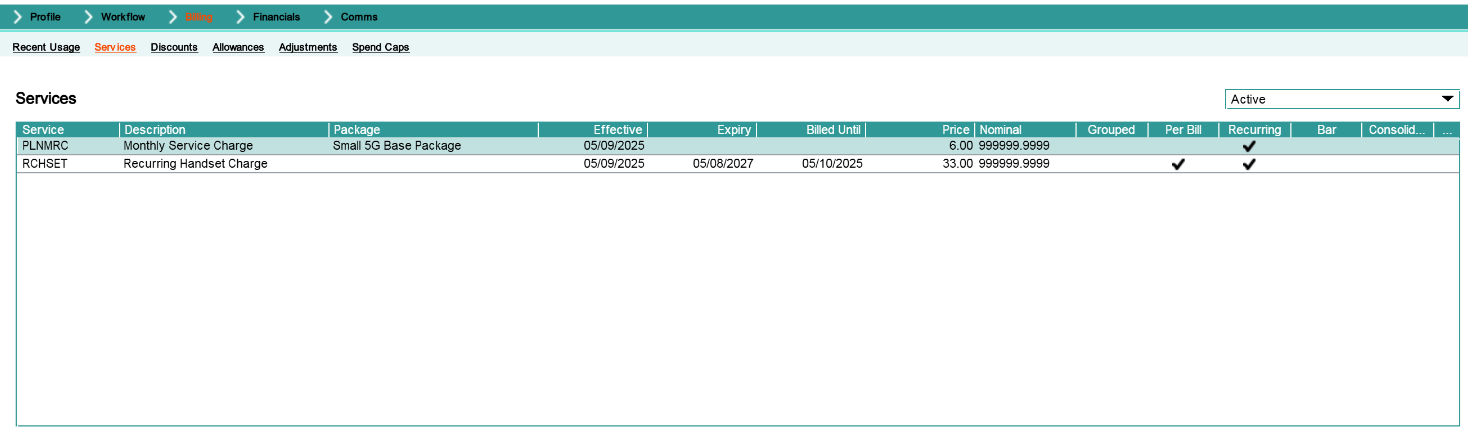
4.5.2 - Services Menu Option
Services Lower Panel
The services panel is accessed via the Subscription, Account or Agreement Summary for the appropriate record.
Services Lower Panel
Function Security:
Panel Name
subscription.service.SubscriberServicesTabPanel
Function Name
View Subscription Services (COD3DFR)
Enforcement
No data shown
Default Role
view-customers
Services Panel - Change Shortcut Option
Selecting a service record, right-clicking and selecting the 'Change' shortcut option allows the details of an existing service to be updated.
In addition to the function security described above, this popup panel also implements field security on some of the fields as listed below:
Field Security:
Field Name
Security Code
Enforcement
Default Role
Price
A5VA
Display-only
maintain-customers
Recurring Charge
B6ST
Display-only
maintain-customers
Invoice this service
CBST
Display-only
view-customers
Price No of Days
CINB
Display-only
view-customers
Price No of Months
CJNB
Display-only
view-customers
Long Description
EBTZ
Display-only
maintain-customers
Nominal Code
EFCD
Display-only
maintain-customers
Bill In Advance
FSNB
Display-only
view-customers
Service Description
SLNA
Display-only
maintain-customers
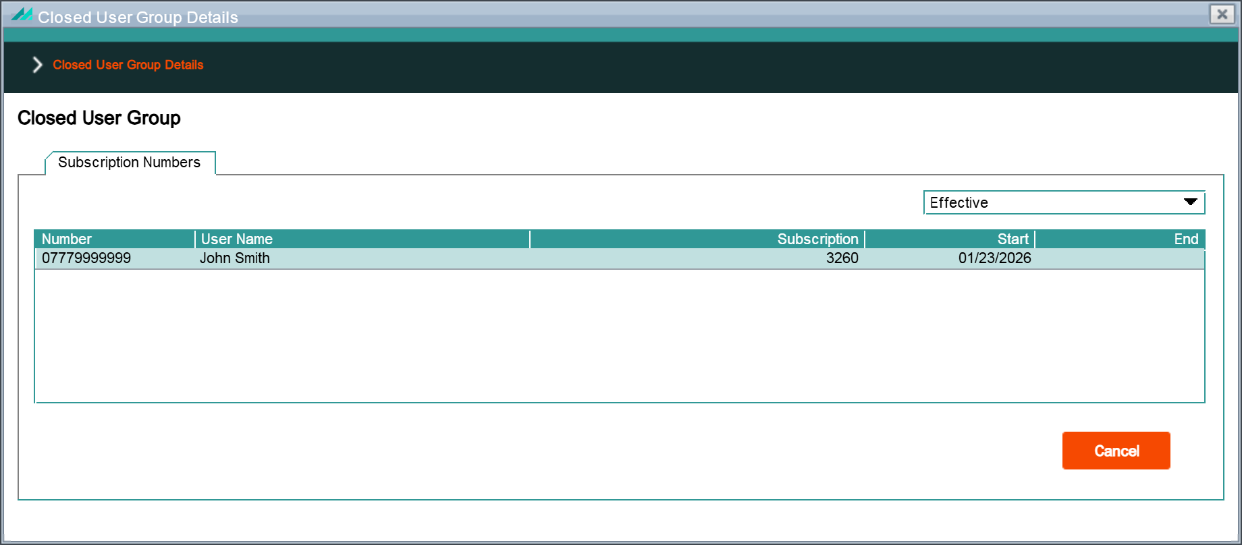
Services Panel - Closed User Group Details Shortcut Option
To view the subscriptions associated with the Closed User Group (CUG), right-click the relevant CUG from the Services lower panel, and select 'Closed User Group Details'.
Selecting a service record, right-clicking and selecting the 'Delete' shortcut option allows the selected service, that hasn't yet been billed, to be deleted. The option is not available for billed services. There is no panel associated with this shortcut option.
Function Security:
Panel Name
subscription.service.SubscriberServicesTabPanel
Function Name
Delete Subscription Service (COD8D1R)
Enforcement
Operation not allowed
Default Role
maintain-customers
Services Panel - Add Shortcut Option
Selecting a service record, right-clicking and selecting the 'Add' shortcut option allows a new service to be added to the subscription.
Add Subscription Service Popup Panel
Function Security:
Panel Name
subscription.service.AddSubscriptionServicePanel
Function Name
Add Subscription Service (CSWCPVP)
Enforcement
No panel access
Default Role
maintain-subscription-services
Function Name
Select Active Sales (COCNSRR)
Enforcement
No data shown in 'Sales Account' dropdown
Default Role
maintain-customers
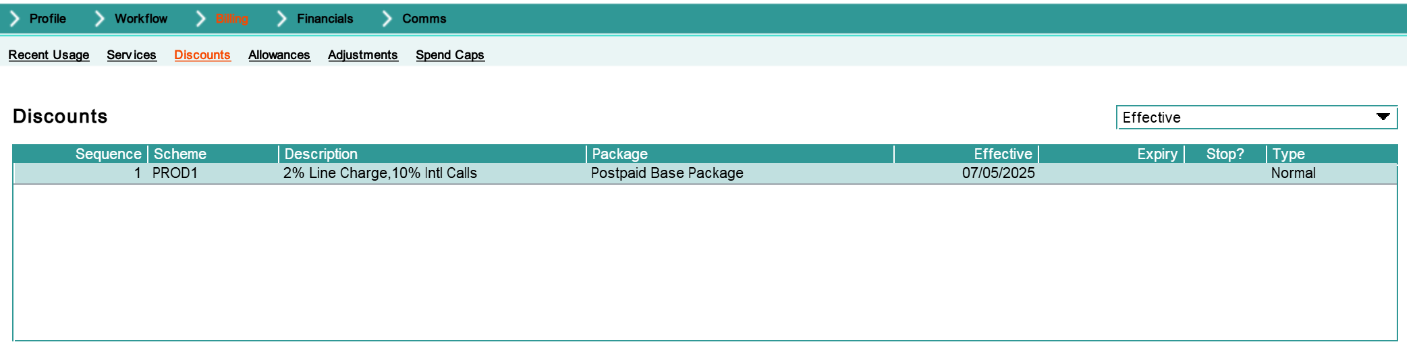
4.5.3 - Discounts Menu Option
Discounts Lower Panel
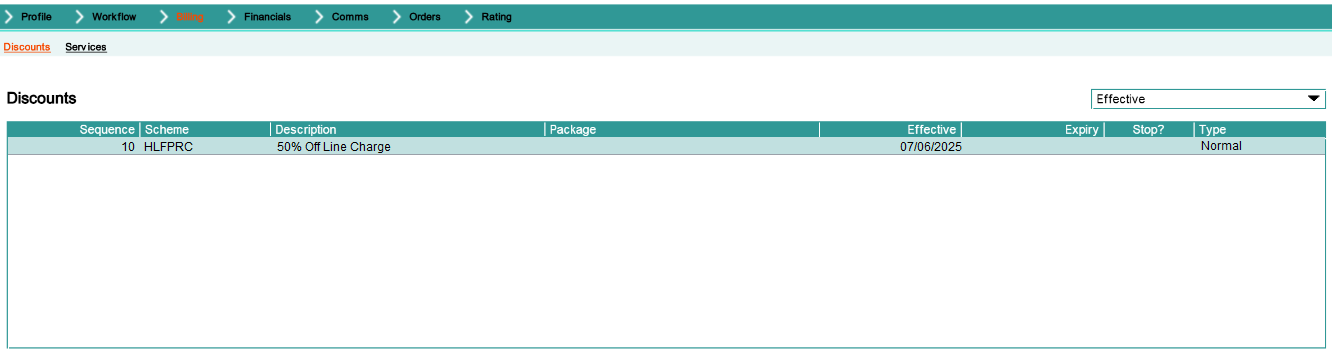
Discounts functionality can be accessed at Subscription or Account level from either the Active Discounts mini panel (Account level only) in the default Summary lower panel or the Discounts lower panel which can be accessed via the Sub-options bar (Billing > Discounts).
Discounts Lower Panel
This panel shows the list of all discounts appropriate to the subscription. The view can be filtered to show only those discounts which are currently effective.
The shortcut options available from this panel are described in section 12 below.
Function Security:
Panel Name
discounts.DiscountsBottomPanel
Function Name
Display Allocated Discount Scheme For Agreement (COX3DFR)
Enforcement
No data shown
Default Role
view-discounts
Function Name
Display Allocated Discount Scheme For Account (COX5DFR)
Enforcement
No data shown
Default Role
view-customers
Function Name
View Subscription Discounts (COSZDFR)
Enforcement
No data shown
Default Role
view-discounts
4.5.4 - Allowances Menu Option
Allowances Lower Panel
Clicking on the Billing -> Allowances sub-menu option shows all the allowances on the OCS that are currently active including instance expiry date and remaining allowance.
Selecting an allowance record, right-clicking and selecting the 'Caps' shortcut option allows the details any OCS-defined caps against the allowance to be viewed.
View Allowance Caps Panel
Function Security:
Panel Name
subscription.allowance.AllowanceCapsPanel
Function Name
N/A (None defined)
Enforcement
N/A
Default Role
N/A
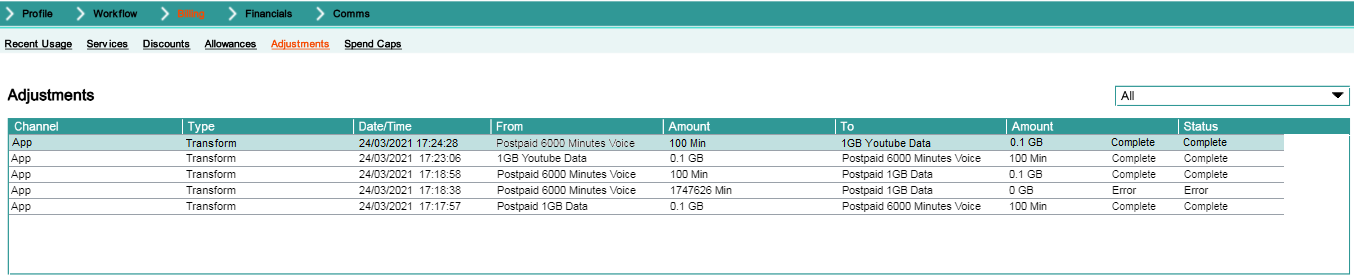
4.5.5 - Adjustments Menu Option
Adjustments Lower Panel
Clicking on the Billing -> Adjustments sub-menu option shows any allowance adjustments made against the subscription. These can be allowance adjustments as a result of an allowance transfer or transform for example.
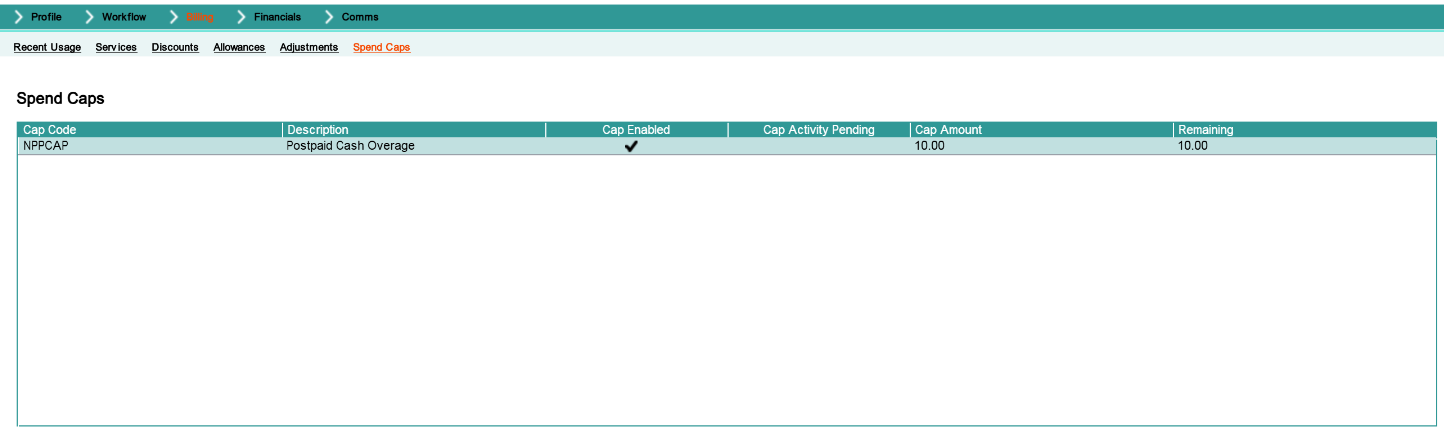
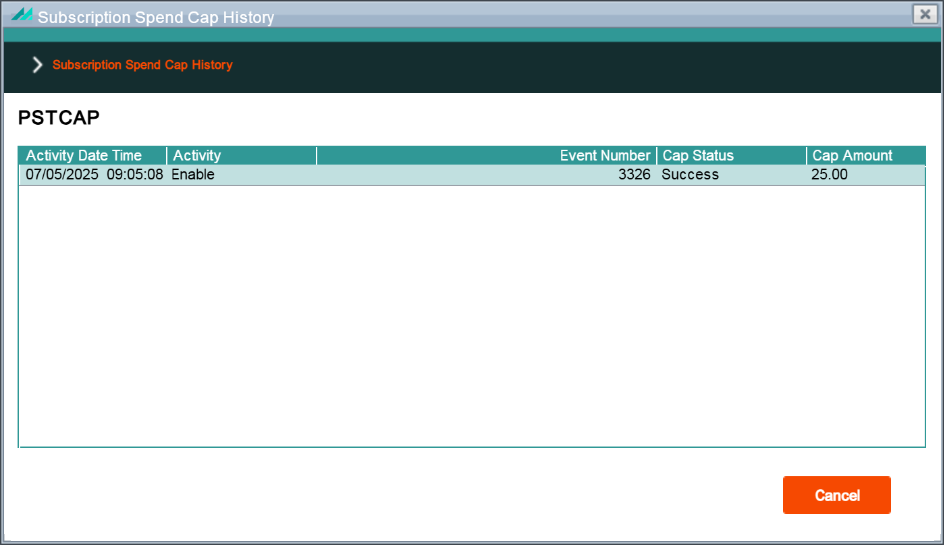
Clicking on the Billing -> Spend Caps sub-menu option allows the user to manage spend caps on the subscription. Spend caps can be added, deleted or the spend cap amount updated.
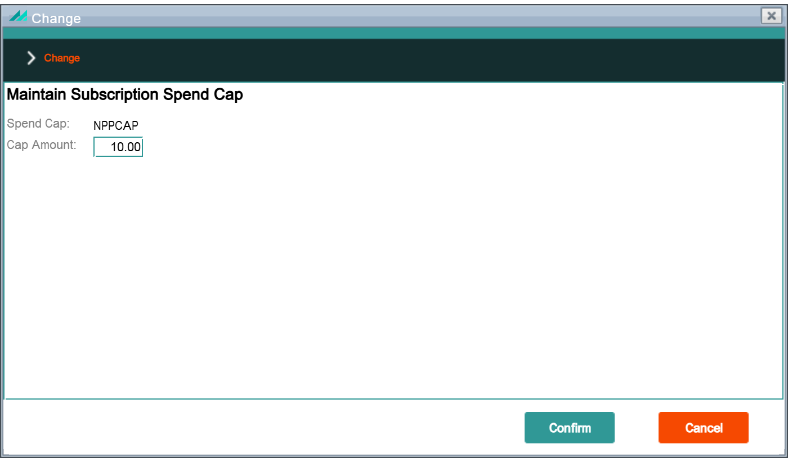
Selecting a spend cap record, right-clicking and selecting the 'Change' shortcut option allows a spend cap amount to be updated. This update takes effect immediately.
Selecting a spend cap record, right-clicking and selecting the 'Delete' shortcut option allows an existing spend cap to be deleted. There is no panel associated with this shortcut option.
Selecting a spend cap record, right-clicking and selecting the 'Add' shortcut option allows the user to add a new spend cap from those defined. The default spend cap can be overridden.
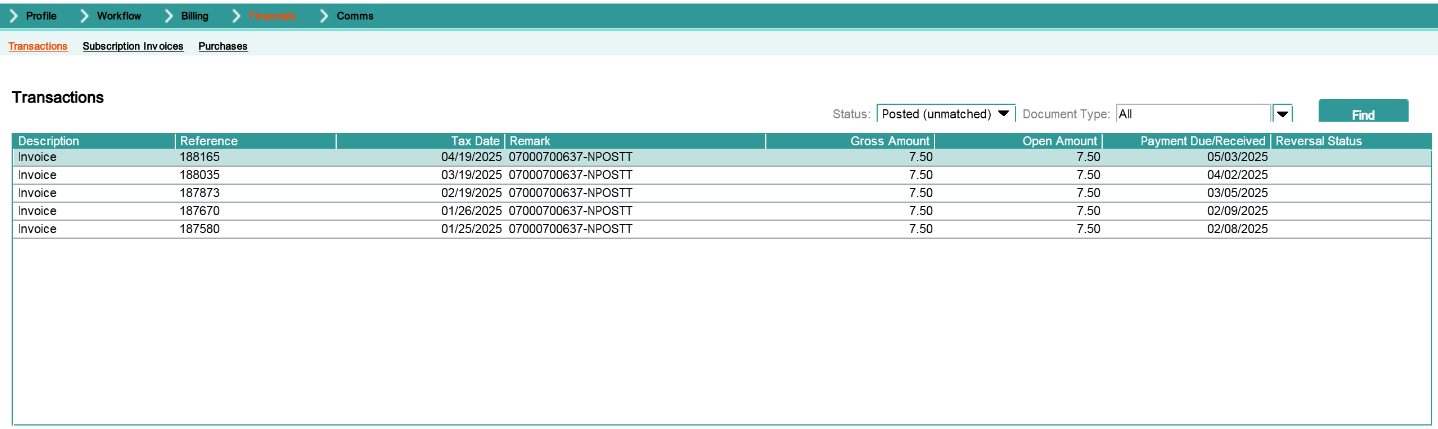
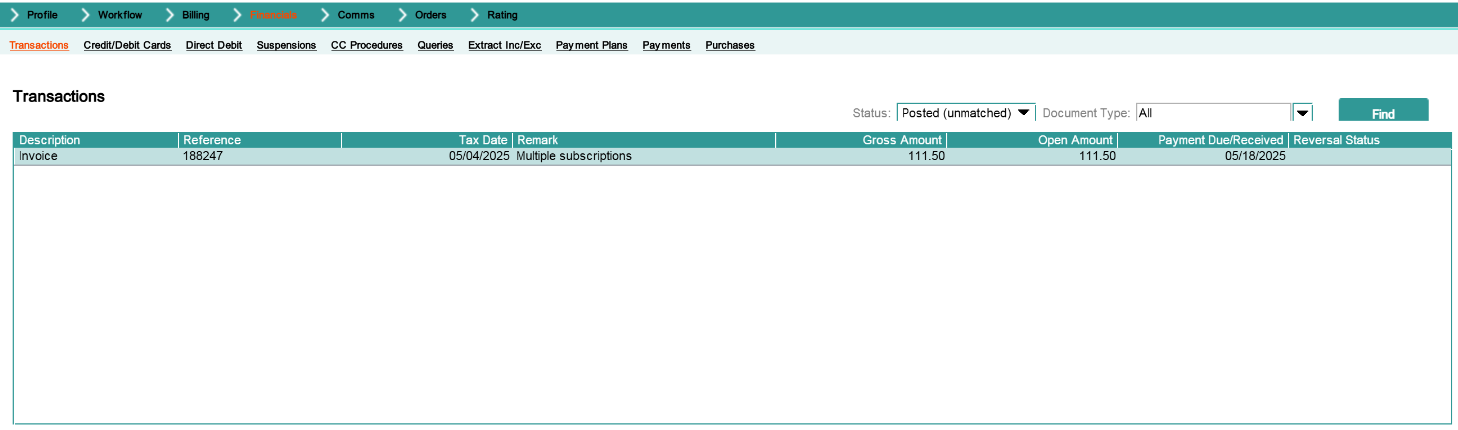
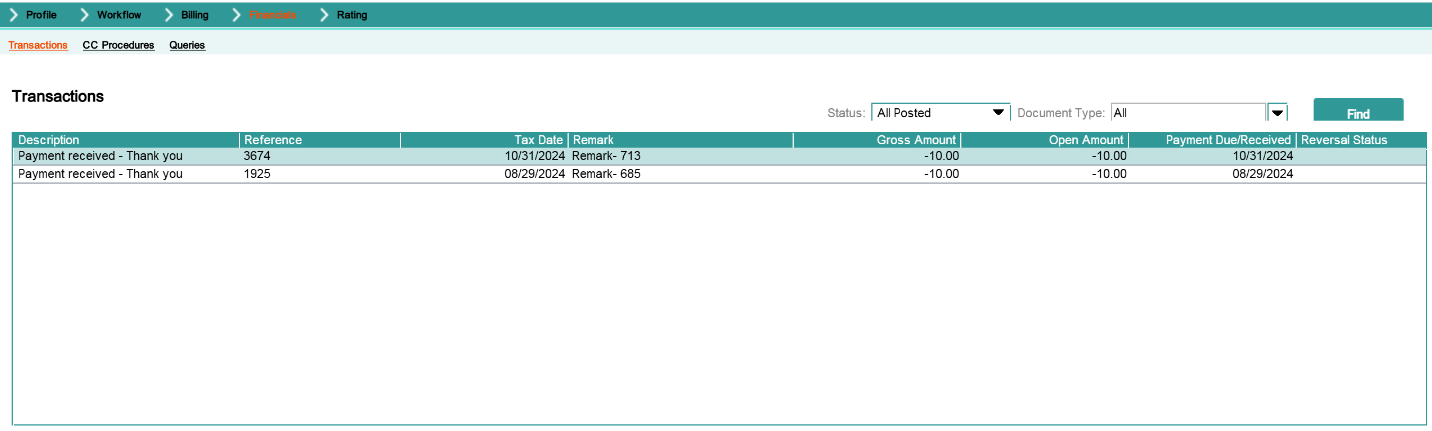
Accessing the Financials -> Transactions menu option provides access to the Transactions lower panel. From here the user can filter on posted but unmatched transactions, all posted transactions and any unposted transactions.
Right-clicking on a specific transaction allows the user to perform the following:
View invoice details
Add a query for a particular invoice
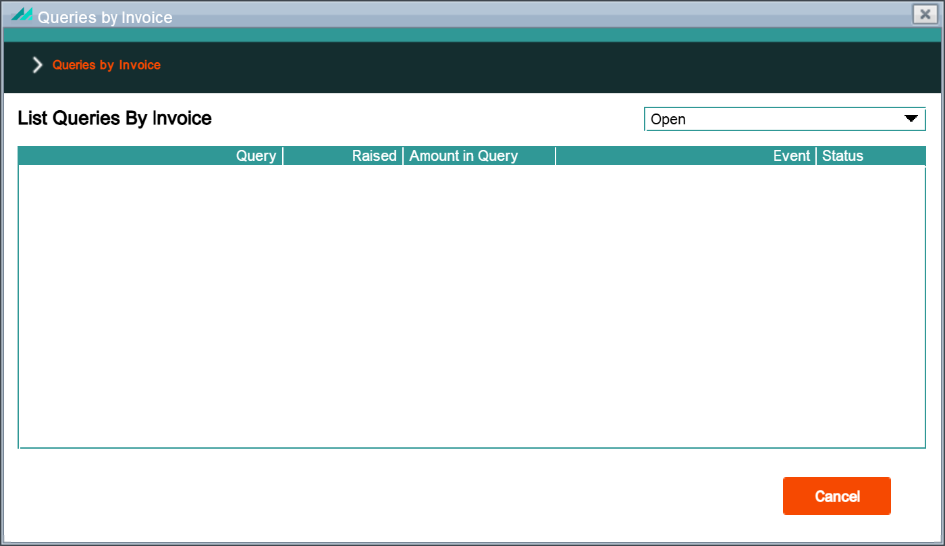
List queries against a specific invoice transaction
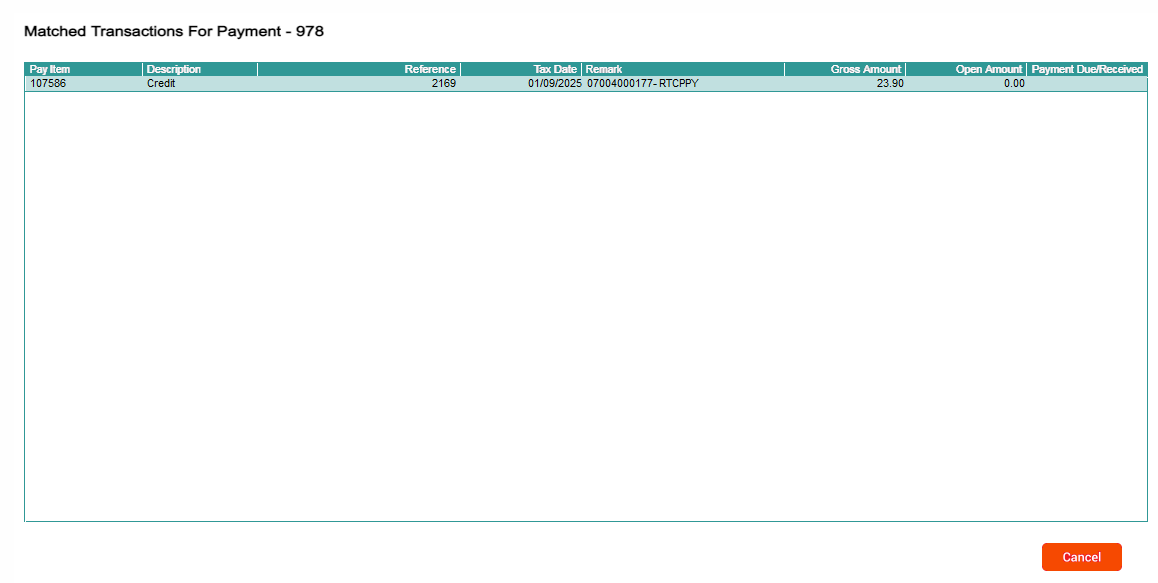
Show transactions matched by a specific payment
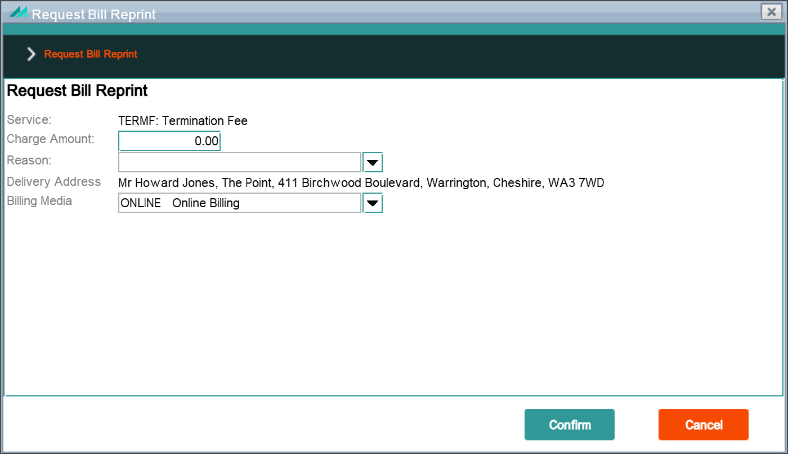
View the actual invoice sent to the end customer.
The specific options available are dependent on the transaction type. Each option is further defined in section 14 below.
Transactions Lower Panel
Function Security:
Panel Name
account.ledgers.LedgersPanel
Function Name
N/A (None defined)
Enforcement
N/A
Default Role
N/A
4.6.2 - Subscription Invoices Menu Option
Subscription Invoices Lower Panel
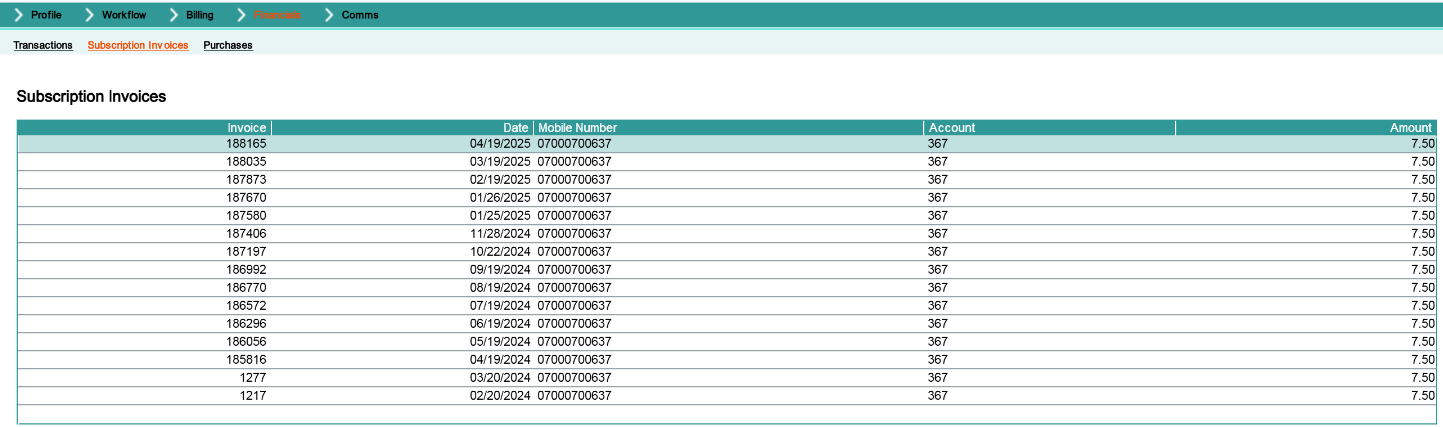
Selecting the Financials -> Subscription Invoices menu option provides access to the Subscription Invoices lower panel. This provides the same right-click options as are available from the Transactions menu option with the exception of the Matching Transactions menu option.
Subscription Invoices Lower Panel
Function Security:
Panel Name
subscription.invoices.SubscriptionInvoicesPanel
Function Name
N/A (None defined)
Enforcement
N/A
Default Role
N/A
4.6.3 - Purchases Menu Option
Purchase Lower Panel
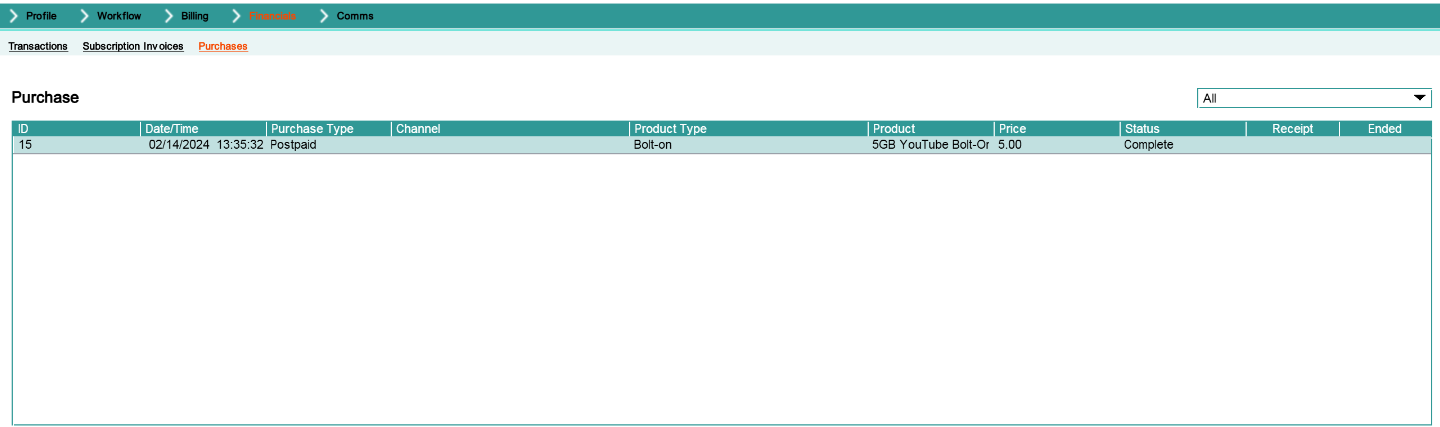
The Transactions -> Purchases menu option shows all the purchases made for the subscription including what was purchased and the price. The same panel is shown from both the Subscription Summary and via the Financials -> Purchases menu option
Purchase Lower Panel
Function Security:
Panel Name
purchase.SubscriptionPurchasePanel
Function Name
View Subscription Purchases (VIEWSUBPUR)
Enforcement
No data shown
Default Role
view-customers
Purchase Panel - End Shortcut Option
Selecting a purchase record, right-clicking and selecting the 'End' shortcut option allows an existing recurring package to be ended. This option is not available if the package has already been ended or is a one-time package.
End Package Popup Panel
Function Security:
Panel Name
subscription.allowance.EndAllowancePanel
Function Name
Subscription Purchases Expire Allowances (ENDPUR)
Enforcement
No data shown
Default Role
maintain-purchases
Purchase Panel - Receipt Shortcut Option
Selecting a purchase record, right-clicking and selecting the 'Receipt' shortcut option allows a receipt for the purchase to be requested. There is no panel associated with the shortcut option.
Selecting a purchase record, right-clicking and selecting the 'Purchase Bolt-on' shortcut option allows a recurring or non-recurring bolt-on to be purchased
Purchase a Product Popup Panel
Function Security:
Panel Name
purchaseproduct.PurchaseProductPanel
Function Name
Subscription Purchases Purchase Bolt On (PURSUBBON)
Enforcement
No data shown
Default Role
add-purchases
4.7 - Comms Swish
4.7.1 - Comms Menu Option
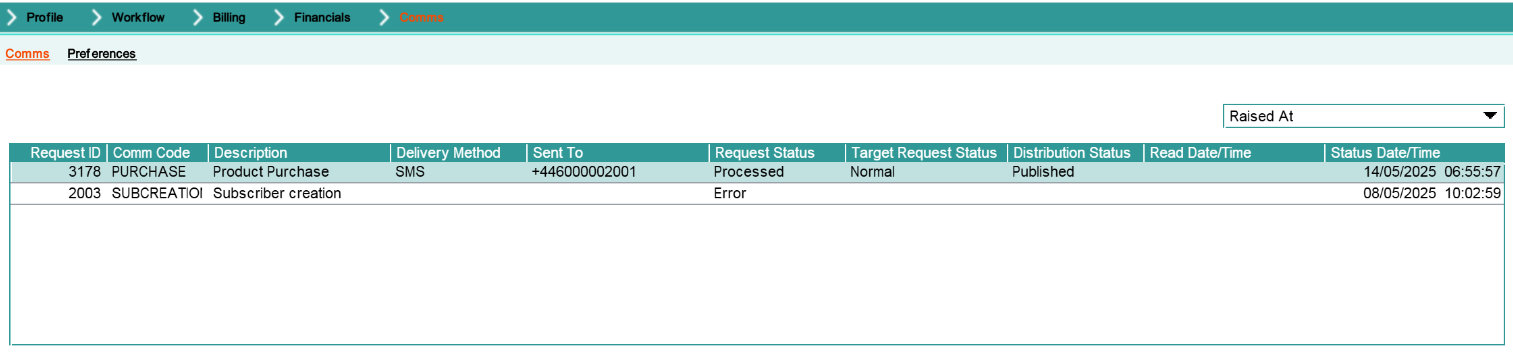
Comms Lower Panel
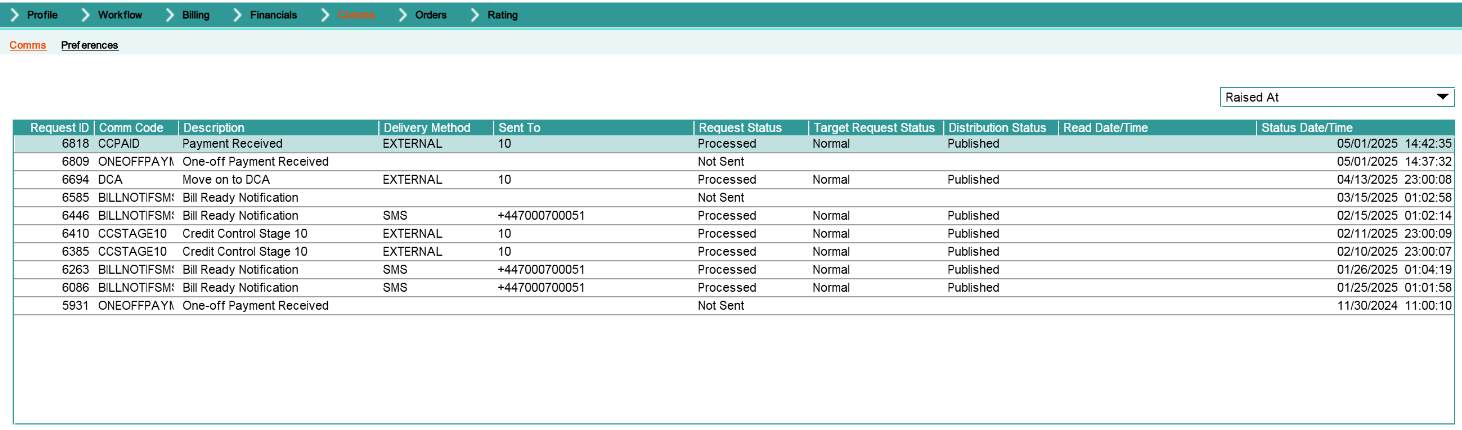
Accessing the Comms -> Comms menu option provides access to the comms lower panel which shows all comms sent to the end customer.
Comms Lower Panel
Function Security:
Panel Name
accountconfiguration.CommsAtCustomerLevelPanel
Function Name
View Comms Code (VIEWCOMM)
Enforcement
No data shown
Default Role
view-communications
Comms Panel - View Detail Shortcut Option
Right-clicking on a specific end-user communication and selecting the 'View Detail' shortcut option shows the message sent to the customer. This shortcut option is only available for online communications.
Comms Details Popup Panel
Function Security:
Panel Name
comms.ViewCommsDetailsPanel
Function Name
Comms View Detail (VIEWCOMMDT)
Enforcement
TBC
Default Role
view-communications
Comms Panel - View Document Shortcut Option
Right-clicking on a specific end-user communication and selecting the 'View Detail' shortcut option shows the message sent to the customer. This shortcut option is only available for letter and email communications. These is no panel associated with this shortcut option.
Function Security:
Panel Name
N/A
Function Name
Comms View Document (VIEWCOMMDO)
Enforcement
TBC
Default Role
view-communications
Function Name
SECURESESSION_REQUEST_CREATE (CSEQSESREQ)
Enforcement
Operation not allowed
Default Role
add-secure-session
Comms Panel - Add Comms Shortcut Option
Right-clicking on the comms lower panel and selecting the 'Add Comms' shortcut option allows the user to send a per-configured comms to the end customer.
Add Comms Popup Panel
Function Security:
Panel Name
comms.EventCorrespondenceCommsPanel
Function Name
Comms Add (ADDCOMM)
Enforcement
TBC
Default Role
add-communications
Function Name
Display Comms Codes (DCOMMSCD)
Enforcement
No data shown
Default Role
view-communications
Function Name
Display Comms Code Delivery Methods (DISCOMMSDM)
Enforcement
No data shown in 'Delivery Method' dropdown
Default Role
view-communications
Comms Panel - Not Sent Reasons Shortcut Option
Available when right-clicking on a highlighted comms with a status of 'Not Sent' and allows an agent to see the reasons a comms was not send to the end customer
Not Sent Reasons Shortcut Option Panel
Function Security:
Panel Name
comms.ViewNotSentReasonsPanel
Function Name
N/A (None defined)
Enforcement
N/A
Default Role
N/A
Comms Panel - Error Details Shortcut Option
Available when right-clicking on a highlighted comms with a status of 'Error' and allows an agent to see the details of the error for the comms.
Error Details Shortcut Option Panel
Function Security:
Panel Name
comms.ViewErrorDetailsPanel
Function Name
N/A (None defined)
Enforcement
N/A
Default Role
N/A
4.7.2 - Preferences Menu Option
Comms Preferences Lower Panel
Selecting the Preferences submenu option from the Comms menu provides access to the set of comms preferences and to the list of marketing preferences.
Right-clicking within the preferences lower panel and selecting the 'Edit Preferences' shortcut option allows the comms preference settings to be set or amended.
Edit Preferences Popup Panel
Function Security:
Panel Name
comms.MaintainCustomerCommsProfilePanel
Function Name
Comms Preferences Edit (EDTCOMMPRF)
Enforcement
N/A
Default Role
maintain-communications
Function Name
Display Comms Preference (DISCOMMSPF)
Enforcement
No data shown in 'Preferred Delivery Method' dropdown
Default Role
view-communications
Comms Preferences Panel - Opt In Shortcut Option
Right-clicking within the preferences lower panel and selecting the 'Opt In' shortcut option allows the user to opt in to a specific comms preference. There is no panel associated with this shortcut option.
Function Security:
Panel Name
N/A
Function Name
Comms Preferences Opt In (COMMPRFOI)
Enforcement
N/A
Default Role
maintain-communications
Comms Preferences Panel - Opt Out Shortcut Option
Right-clicking within the preferences lower panel and selecting the 'Opt Out' shortcut option allows you to opt out of a previously opted in comms preference. There is no panel associated with this shortcut option.
Function Security:
Panel Name
N/A
Function Name
Comms Preferences Opt Out (COMMPRFOO)
Enforcement
N/A
Default Role
maintain-communications
5 - Account View
This view shows information relating to financial accounts. It is divided into the following sections:
Toolbar - high-level navigation, independent of view
Quick Access panel - navigation within customer structure
Sub-options bar - controls for contents of lower panels to access further functionality relating to accounts.
Lower panels - depending on option bar, contains specific detail about the account. Initially the summary option is selected, which shows:
Open Events
Purchases
Effective Discounts
Open Transactions.
The Toolbar, Quick Access panel, Options and Sub-options are navigation tools, and the function of individual buttons here are only mentioned as they are required to document individual panels.
5.1 - Account Summary Screen
The Account Summary screen contains data specifically relating to the account and contains account summary information, open workflow events, package purchases, effective discounts and open sales ledger transactions.
The Account Summary screen can be accessed in two ways:
Initial access to the account can be achieved via the Search screen. Once the correct account is selected the system defaults to display the Account Summary screen.
The Account Summary screen can be accessed by selecting the Account icon from the Quick Access panel where available.
Account Summary Screen
Function Security:
Panel Name
accountconfiguration.AccountWorkPanel
Function Name
Prompt For Details (CPHLPVP)
Enforcement
No panel access
Default Role
N/A
Account Summary Upper Panel
The Account Summary upper panel provides details specifically relating to the account, account type and balance, and provides links to the following pop-up panels:
Business/Personal Address - clicking on the Address hyperlink allows the user to maintain existing addresses and add new ones
Account Type - Clicking the hyperlink on the Account Type field shows the history of all the changes in the account type for the account
Balance - Clicking the hyperlink on the Balance field shows the Total Balance Details panel displaying the Outstanding Balance, Amount Due and Amount in Query
Payment Type - Clicking the hyperlink on the Payment Type field allows the user to change the existing payment type
Contract History - Click the hyperlink enables bond details to be viewed, including the total value of the bonds set up against an account.
The address hyperlink allows the user to view, add or edit the personal address. Function security requirements for the panel buttons and shortcut options are defined in section 9.1 below.
Personal Address Popup Panel
Function Security:
Panel Name
address.PersonalAddressDetailsPanel
Function Name
View personal address (CSSDPVP)
Enforcement
No panel access
Default Role
view-customers
Function Name
Maintain personal address (CSQKPVP)
Enforcement
Operation not allowed
Default Role
maintain-customers
In addition to the function security described above, this popup panel also implements field security on the field listed below:
The address hyperlink allows the user to view, add or edit the business address. Function security requirements for the panel buttons and shortcut options are defined in section 9.2 below.
Business Address Panel
Function Security:
Panel Name
address.BusinessAddressDetailsPanel
Function Name
View company address (CSSEPVP)
Enforcement
No panel access
Default Role
view-enterprises
Function Name
Maintain company address (CSQLPVP)
Enforcement
Operation not allowed
Default Role
maintain-enterprises
Account Summary Upper Panel - Account Type Hyperlink
Clicking the hyperlink on the Account Type field shows the history of all the changes in the account type for the account.
Movement History Panel
Function Security:
Panel Name
account.accounttype.AccountTypeMovementHistory
Function Name
N/A (None defined)
Enforcement
N/A
Default Role
N/A
Account Summary Upper Panel - Balance Hyperlink
Clicking the hyperlink on the Balance field shows the Total Balance Details panel displaying the Outstanding Balance, Amount Due and Amount in Query at Group, Corporate and Account level. It is available for accounts that belong to a Group or Corporate structure. This panel is read only.
Allows the user to change the existing payment type to a credit or debit card by entering card details.
CC/DC Details Popup Panel
Function Security:
Panel Name
account.paymentcarddetails.bal.BALDecisionPanel
Function Name
N/A (None defined)
Enforcement
N/A
Default Role
N/A
CC/DC Details Panel - Select Existing Card
Selecting 'Enter New Card Details' on the CC/DC Details panel redirects the user to the payment entry screen. Choosing the 'Select Existing Card' option allows the user to select a card from a list of existing cards registered against the account.
Account Summary Upper Panel - Bond Amount Hyperlink
Click the 'Bond Amount' hyperlink to display the Bonds for Account lower panel enables bond details to be viewed, including the total value of the bonds set up against an account.
Account Bond Information Panel
Function Security:
Panel Name
account.bond.AccountBondPopupPanel
Function Name
Display Bond (CPNODFP)
Enforcement
No data shown
Default Role
view-customers
Account Bond Information Panel - Redeem Bond Shortcut Option
Right-clicking on a specific bond line in the Account Bond Information panel allows a bond to be redeemed either partially or in full.
Redeem Bond Popup Panel
Function Security:
Panel Name
account.bond.RedeemBondPopupPanel
Function Name
Refund Accound Bond (COS6E1R)
Enforcement
Operation not allowed
Default Role
maintain-bonds
5.2 - Quick Access Panel
The quick access side panel options available are dependent on the level being accessed within the customer hierarchy. Accessing an account provides the following options:
Edit - enables an agent to edit the account summary information
Structure - shows the customer and billing structures
Add Sub - enables a subscription to be added to the account.
5.2.1 - Edit Option
The 'Edit' option on the Quick Access panel at Account level provides access to the Edit Account popup panel.
Edit Account Popup Panel
Function Security:
Panel Name
account.maintain.MaintainAccountExtensionPanel
Function Name
Prompt for Details (CPHLPVP)
Enforcement
No panel access
Default Role
maintain-customers
In addition to the function security described above, this popup panel also implements field security on some of the fields as listed below:
Field Security:
Field Name
Security Code
Enforcement
Default Role
Account Type
AC02
Display-only
maintain-customers
Account Service Agreement
B6NB
Update operation not allowed
view-agreements
Ignore Credit Control
BZST
Display-only
credit-control-management
Delivery Address
CACD
Update operation not allowed
maintain-customers
Consolidate Non-subscription Invoice
EWST
Display-only
view-payments
CC Delivery Address
V0NB
Update operation not allowed
maintain-payment-details
Invoice Format
VEST
Update operation not allowed
maintain-payment-details
Ignore Usage Limits
WYST
Display-only
maintain-usage-limits
Edit Account - Payment Details
Allows for maintaining of the payment details.
Function Security:
Panel Name
account.maintain.MaintainAccountExtensionPanel
Function Name
Maintain Account Payment Details (COJOE2R)
Enforcement
No panel access
Default Role
maintain-customers
Edit Account - Bill Media
Allows for maintaining of the Billing Media.
Function Security:
Panel Name
account.maintain.MaintainAccountExtensionPanel
Function Name
Select Billing Media (CSJ7SRP)
Enforcement
No data shown
Default Role
maintain-agreements
5.2.2 - Structure Option
The 'Structure' option on the Quick Access panel at Account level provides access to the hierarchy structure associated with the account. From here the customer structure can be filtered and also the billing structure can be viewed. Available at Group, Corporate, Account and Subscription level.
Right clicking on an account in the customer structure and selecting 'Account Summary' takes the user to the Account Summary.
Account Summary Panel
Function Security:
Panel Name
accountconfiguration.AccountWorkPanel
Function Name
Prompt For Details (CPHLPVP)
Enforcement
No panel access
Default Role
maintain-customers
Customer Structure - Cut Shortcut Option
Right clicking on an account in the customer structure and selecting 'Cut' allows an account to be cut from one hierarchy and pasted to another. There is no panel associated with this shortcut option.
Function Security:
Panel Name
N/A
Function Name
N/A (None defined)
Enforcement
N/A
Default Role
N/A
Customer Structure - Add (New Subscriber) Shortcut Option
Right clicking on an account in the customer structure and selecting 'Add (New Subscriber)' allows a new subscription to be added to an account through the subscription creation wizard.
Right clicking on an account in the customer structure and selecting 'Paste' allows a previously cut account or subscription to be pasted to the selected account. There is no panel associated with this shortcut option.
Function Security:
Panel Name
N/A
Function Name
N/A (None defined)
Enforcement
N/A
Default Role
N/A
Customer Structure - Create PAC Shortcut Option
Not supported in CMP 8. Shortcut option still exists.
Customer Structure Panel - Add (to new Corporate) Shortcut Option
Right clicking on an account in the customer structure and selecting 'Add (to new Corporate)' allows an account to be added under a new corporate. The option invokes the Corporate creation wizard.
Right clicking on an account in the customer structure and selecting 'Account Summary' takes the user to the Account Summary screen.
Account Summary Panel
Function Security:
Panel Name
accountconfiguration.AccountWorkPanel
Function Name
Prompt For Details (CPHLPVP)
Enforcement
No panel access
Default Role
maintain-customers
5.2.3 - Add Sub Option
Subscription Creation Wizard
The 'Add Sub' option on the Quick Access panel at Account level allows a new subscription to be added to an account through the subscription creation wizard.
The remaining screens are defined by the subscription Creation Wizard defined in section 3.2.
5.3 - Profile Swish
5.3.1 - Summary Menu Option
Profile Summary Lower Panel
To access this lower panel, select Profile -> Summary from the sub-options bar (this is initially displayed by default). The Summary lower panel is broken down into a series of mini panels as follows:
Open Events - shows all workflow for the account that haven't yet been resolved
Purchases - shows all the purchases made by subscriptions under the account
Open Transactions - Shows the open financial transactions associated with the account.
Profile Summary Lower Panel
Open Events Mini Panel
The Open Events Summary mini panel details the Account level workflow events that have not yet been resolved.
Workflow Events that have passed their resolution required by date are displayed using red text so that they can be easily identified and resolved.
Workflow events that are approaching their Resolution Required By Date are highlighted using orange text so that they can be easily identified and resolved.
Open Events Summary Mini Panel
Function Security:
Panel Name
customerdiaryevents.EventsSummaryPanel
Function Name
View Events by Account (COWCDFR)
Enforcement
No data shown
Default Role
view-workflow-events
Open Events - Summary Shortcut Option
Selecting a workflow event, right-clicking and selecting the 'Summary' shortcut option provides access to the Account Event Summary screen. The Event Summary screen is further detailed in section 11.
Account Event Summary Screen
Function Security:
Panel Name
workflowconfiguration.DiaryEventsWorkPanel
Function Name
Request interface-level list of diary events (COWHPVR)
Enforcement
No panel access
Default Role
maintain-workflow-events
Open Events - Add Shortcut Option
Right clicking on an open event and selecting the 'Add' shortcut option provides access to the Event Creation Wizard. The Add Event panel allows a workflow event type and code to be selected from the dropdown. No data is shown without the associated function security. In addition, the Search option is not available without associated function security.
Event Creation Popup Panel
Function Security:
Panel Name
diaryevent.add.SelectEventToAddFormPanel
Function Name
Enter reference number for diary event (COQOPVR)
Enforcement
No panel access
Default Role
maintain-workflow-events
Function Name
Enter event type and code for diary event (CODTSRR)
Enforcement
No data shown in 'Event Type' dropdown
Default Role
raise-workflow-event
Add Event - Record Contact
Enables contact details relating to a workflow event to be added.
Record Contact Popup Panel
Function Security:
Panel Name
diaryevent.add.RecordContactForEventFormPanel
Function Name
Record a contact for a diary event (COQRE1R)
Enforcement
No panel access
Default Role
maintain-workflow-events
Function Name
Request interface-level list of diary events (COWHPVR)
Enforcement
Operation not allowed
Default Role
maintain-workflow-events
Purchases Summary Mini Panel
The purchases panel is available from the Account Summary panel and also from the Financials swish (Financials->Purchases). It shows all the purchases made by subscriptions under the account.
Right clicking on a specific purchase line and selecting the View Purchase Details shortcut option shows the details of the purchase including what subscriber bought what product.
Purchased Products Popup Panel
Function Security:
Panel Name
purchase.PurchaseSummaryDetailPopupPanel
Function Name
Display Comms Profile (DISCOMMSPR)
Enforcement
No subscription data shown
Default Role
view-communications
Purchases Summary - Change Card Shortcut Option
If an active recurring purchase has been made using a credit card, then, if the recurring purchase has not expired, right clicking on the corresponding purchase record in the Purchases mini panel on the Account Summary screen allows the card associated with the purchase to be changed to another card registered against the account.
Change Card Popup Panel
Function Security:
Panel Name
purchase.ChangeCardPopupPanel
Function Name
N/A (None defined)
Enforcement
N/A
Default Role
N/A
Effective Discounts Mini Panel
This mini panel includes a list of effective discounts for the account, their discount types and the dates on which the discounts become effective. The shortcut options available from this mini panel are described in section 12 below.
Effective Discounts Mini Panel
Function Security:
Panel Name
discounts.DiscountsSummaryPanel
Function Name
Display Allocated Discount Scheme For Account (COX5DFR)
Enforcement
No data shown
Default Role
view-customers
Open Transactions Summary Mini Panel
Provides access to the Open Transactions lower mini panel. This is the same panel and has the same options as is available through the Financial -> Transaction options.
Open Transactions Summary Panel
Function Security:
Panel Name
account.ledgers.LedgersSummaryPanel
Function Name
N/A (None defined)
Enforcement
N/A
Default Role
N/A
5.3.2 - Email Address Menu Option
Email Properties Lower Panel
Accessing the Profile -> Email Address menu option provides access to the Email Properties lower panel which shows all the email addresses linked to the account including an indication of the primary address used for communications. The function security for shortcut options available from the lower panel are defines in section 10.1 below.
Email Properties Lower Panel
Function Security:
Panel Name
emailaddressmanagement.ViewAddressesPanel
Function Name
Maintain Customer Email Address (CXJ7DFP)
Enforcement
No data shown
Default Role
maintain-customers
5.3.3 - Termination Costs Menu Option
Termination Costs Popup Panel
Accessing the Profile -> Termination Costs menu option provides a wizard to guide the user through a termination cost calculation at account level.
The initial screen of the wizard shows any previous termination cost calculation performed for the account.
The next screen in the termination cost wizard shows a breakdown of termination costs per subscription. The calculation is performed offline if the number of subscriptions under the account exceeds a system configured number.
Clicking on the Profile -> Address History sub-menu option provides access to the Customer Address History lower panel that shows all addresses that have been registered against the account over time. The function security for shortcut options available from the lower panel are defines in section 10.2 below.
Accessing the Profile -> Account Serial menu option provides access to the account serial numbers lower panel. Account serial numbers can be viewed, edited and added via this panel.
Account Serial Numbers Panel - Edit Shortcut Option
Right-clicking within the Account Serial Numbers lower panel and selecting the 'Edit' shortcut option allows existing account serial numbers to be edited.
Account Serial Numbers Panel - History Shortcut Option
Right-clicking within the Account Serial Numbers lower panel and selecting the 'History' shortcut option allows the account serial number history to be viewed.
The Account Attributes panel allows Account Attribute Groups and associated Attribute Values to be added and updated. The history of any changes can also be viewed.
Account Attribute Group Panel - Add Shortcut Option
Right-clicking within the Account Attribute Group lower panel and selecting to 'Add' a new Attribute Group displays the Enter Account Attribute Group panel within the Add Attribute Group wizard:
Add Attribute Group Panel
In the Enter Attribute Group panel, the relevant Attribute Group can be selected from the dropdown. This includes any Attribute Group that has been actively configured at Account level in CMP Back Office, along with the description and code for each. Each account can have only a single effective Attribute Group at any one time. This ensures that the Attributes associated with the Group are in line with the type of account that is being managed in CMP. By adding an Attribute Group, this automatically supersedes the previous Group. Once the Attribute Group has been selected, a list of the configured Attributes for that Group is displayed in the Enter Account Attributes panel, along with a text box for entering the required Attributes.
Function Security:
Panel Name
customer.attributegroup.AddAttributeGroupPanel
Function Name
Add Attribute Detail (ADDATRDT)
Enforcement
Operation not allowed
Default Role
add-customers
Once the Attribute Group has been selected, a list of the configured Attributes for that Group is displayed in the Enter Account Attributes panel, along with a text box for entering the required Attributes.
Account Attribute Group Panel - Change Shortcut Option
Selecting an account attribute row, right-clicking and selecting the 'Change' shortcut option allows the user to edit the attribute value of an existing account attribute.
Account Attribute Group Panel - View Shortcut Option
The view shortcut option allows the user to view the details of an existing account attribute.
Attribute Group Details Panel
Function Security:
Panel Name
customer.attributegroup.DetailAttributeGroupPanel
Function Name
N/A (None defined)
Enforcement
N/A
Default Role
N/A
5.4 - Workflow Swish
5.4.1 - Events Menu Option
Events Lower Panel
The Events panel details the workflow events that have not yet been resolved based on the hierarchy level being accessed.
Workflow Events that have passed their resolution required by date are displayed using red text so that they can be easily identified and resolved.
Workflow events that are approaching their Resolution Required By Date are highlighted using orange text so that they can be easily identified and resolved.
Events Lower Panel
Function Security:
Panel Name
customerdiaryevents.CustomerDiaryEventPanel
Function Name
View Events by Account (COWCDFR)
Enforcement
No data shown
Default Role
view-workflow-events
Function Name
Prompt For Details (CPHLPVP)
Enforcement
No data shown
Default Role
maintain-customers
Events Panel - Summary Shortcut Option
Highlighting a specific event in the Events lower panel and selecting the right-click 'Summary' shortcut option provides access to the Event Summary panel based on the hierachy level from which the Workflow swish is accessed.
Account Event Summary Panel
Function Security:
Panel Name
workflowconfiguration.DiaryEventsWorkPanel
Function Name
Request interface-level list of diary events (COWHPVR)
Enforcement
No panel access
Default Role
maintain-workflow-events
The Account Event Summary panel shares common layout and function security with the Event Summary panels at other levels. The generic parts of the Event Summary panels are defined in section 11 below.
In addition to the swish options and menu options defined in section 11, the Account Event Summary panel also provides a Financials swish that provides access to Sales Ledger Adjustments raised against the workflow.
Financials Swish
Financials Swish - Adjustments Menu Option
Sales Ledger Adjustments (SLAs) are processed whenever a debit or credit needs to be applied against an account, and are created via workflow events logged at Account level only.
New sales ledger adjustments can be added through the Sales Ledger Adjustments wizard, accessed by right-clicking within the Sales Ledger Adjustments lower panel and selecting the 'Add' shortcut option.
Highlighting an existing SLA on the Sales Ledger Adjustments lower panel and right-clicking shows the 'Change/Group' shortcut option that allows details of the SLA to be changed.
Highlighting an existing SLA on the Sales Ledger Adjustments lower panel, right-clicking and selecting the 'Delete' shortcut option allows the selected SLA to be deleted. There is no panel associated with this shortcut option.
Function Security:
Panel Name
N/A
Function Name
N/A (None defined)
Enforcement
N/A
Default Role
N/A
Events Panel - Add Shortcut Option
Highlighting a specific event in the Events lower panel and selecting the right-click 'Add' shortcut option provides access to the event creation wizard. Workflow events can be added at all levels within the custom hierarchy from the Events lower panel or pane. Events can also be added when setting up new customers.
When the event creation wizard is accessed, the Add Event page is displayed. Details of the function security associated with the event creation wizard is described above.
5.4.2 - Actioned Items Menu Option
Actioned Items Lower Panel
The Actioned Items lower panel provides a list of all actions linked to a workflow event with details of both network and non-network actions, indicating which have been successfully processed and which have not.
Actioned Items Lower Panel
Function Security:
Panel Name
diaryevent.action.DspActionedItemsPanel
Function Name
N/A (None defined)
Enforcement
N/A
Default Role
N/A
Actioned Items Panel - View Event Shortcut Option
Highlighting a specific actioned item in the Actioned Items lower panel and selecting the right-click 'View Event' shortcut option provides access to the Account Event Summary panel.
Account Event Summary Panel
Function Security:
Panel Name
workflowconfiguration.DiaryEventsWorkPanel
Function Name
Request interface-level list of diary events (COWHPVR)
Enforcement
No panel access
Default Role
maintain-workflow-events
Actioned Items Panel - View Error Shortcut Option
Highlighting a specific actioned item in the Actioned Items lower panel and selecting the right-click 'View Error' shortcut option allows the error details of actioned items in a status of 'Confirmation Error' to be viewed.
Events for Account and its Subscriptions Lower Panel
Provides access to the Events for Account and Its Subscriptions lower panel.
Events for Account and its Subscriptions Lower Panel
Function Security:
Panel Name
customerdiaryevents.SubscriptionOnAccountForEvent
Function Name
Request account and subscription level list of diary events (CSRCDFP)
Enforcement
No data shown
Default Role
view-workflow-events
Events for Account and its Subscriptions Panel - Summary Shortcut Option
Provides access to the Account Event Summary panel.
Account Event Summary Panel
Function Security:
Panel Name
workflowconfiguration.DiaryEventsWorkPanel
Function Name
Request interface-level list of diary events (COWHPVR)
Enforcement
No panel access
Default Role
maintain-workflow-events
5.5 - Billing Swish
5.5.1 - Discounts Menu Option
Discounts Lower Panel
Discounts functionality can be accessed at Subscription, Account, Corporate or Group level from either the Effective Discounts mini panel (Account, corporate and Group levels only) in the default Summary lower panel or the Discounts lower panel which can be accessed via the Sub-options bar (Billing > Discounts).
Discounts Lower Panel
This panel shows the list of all discounts appropriate to the account. The view can be filtered to show only those discounts which are currently effective.
The shortcut options available from this panel are described in section 12 below.
Function Security:
Panel Name
discounts.DiscountsBottomPanel
Function Name
Display Allocated Discount Scheme For Account (COX5DFR)
Enforcement
No data shown
Default Role
view-customers
5.5.2 - Services Menu Option
Services Lower Panel
The Services menu option (Billing -> Services) provides access to the Services lower panel. The Services panel is accessed via the Subscription, Account or Agreement Summary for the appropriate record.
Services Lower Panel
Function Security:
Panel Name
account.service.AccountServicesPanel
Function Name
View Account Services (VIEWACCSVC)
Enforcement
No data shown
Default Role
view-customers
Services Panel - Change Shortcut Option
Highlighting a specific service record in the Services lower panel and selecting the right-click 'Change' shortcut option allows the details of an existing service to be updated.
Service Details Popup Panel
Function Security:
Panel Name
account.service.MaintainAccountServicePanel
Function Name
Maintain Account Service (MNTACCSVC)
Enforcement
Data is read-only
Default Role
maintain-customers
Function Name
Select Nominal Code (CSBGDFP)
Enforcement
No data shown in 'Nominal' dropdown
Default Role
maintain-workflow-events
In addition to the function security described above, this popup panel also implements field security on some of the fields as listed below:
Field Security:
Field Name
Security Code
Enforcement
Default Role
Price
A5VA
Display-only
maintain-customers
Recurring Charge
B6ST
Display-only
maintain-customers
Invoice this service
CBST
Display-only
view-customers
Price No of Days
CINB
Display-only
view-customers
Price No of Months
CJNB
Display-only
view-customers
Long Description
EBTZ
Display-only
maintain-customers
Nominal Code
EFCD
Display-only
maintain-customers
Bill In Advance
FSNB
Display-only
view-customers
Service Description
SLNA
Display-only
maintain-customers
Services Panel - Delete Shortcut Option
Highlighting a specific service record in the Services lower panel and selecting the right-click 'Delete' shortcut option allows the selected service, that hasn't yet been billed, to be deleted. There is no panel associated with this shortcut option.
Function Security:
Function Name
Delete Account Service (DELACCSVC)
Enforcement
Operation not allowed
Default Role
maintain-customers
Function Name
Delete Subscription Service (COD8D1R)
Enforcement
Operation not allowed
Default Role
maintain-customers
Services Panel - Add Shortcut Option
Highlighting a specific service record in the Services lower panel and selecting the right-click 'Add' shortcut option allows a new account service to be added.
Account Service Creation Panel
Function Security:
Panel Name
account.service.AddAccountServicePanel
Function Name
N/A (None defined)
Enforcement
N/A
Default Role
N/A
Function Name
Select Service Code (CSATSRP)
Enforcement
No data shown in 'Service' dropdown
Default Role
maintain-customers
Account Service Creation Panel - Finish Button
Allows the selected account service to be added to the account
Function Security:
Panel Name
account.service.AddAccountServicePanel
Function Name
Add Account Service (ADDACCSVC)
Enforcement
Operation not allowed
Default Role
maintain-customers
5.6 - Financials Swish
5.6.1 - Transactions Menu Option
Transactions Lower Panel
The Transactions menu option (Billing -> Transactions) provides access to the Transactions lower panel. Section 14 provides more information on the Transactions panel.
Transactions Lower Panel
Function Security:
Panel Name
account.ledgers.LedgersPanel
Function Name
N/A (None defined)
Enforcement
N/A
Default Role
N/A
5.6.2 - Credit/Debit Cards Menu Option
Credit/Debit Cards Lower Panel
The Credit/Debit Cards menu option (Billing -> Credit/Debit Cards) provides access to the Credit/Debit Cards lower panel that displays details of the credit and debit cards associated with an account.
This shortcut option allows the user to register new credit card details.
Function Security:
Panel Name
Redirect Payment Panel - Implementation Specific
Function Name
N/A (None defined)
Enforcement
N/A
Default Role
N/A
CC/DC Details Panel - CC Details Shortcut Option
Highlighting a specific payment card in the card details lower panel and selecting the right-click 'CC Details' shortcut option allows the user to view the details of the stored credit/debit card. Note that the Network Serial Number field is not displayed when selecting 'CC Details' for an active card.
CC/DC Details Panel - Amendment History Shortcut Option
Highlighting a specific payment card in the card details lower panel and selecting the right-click 'Amendment History' shortcut option allows the user to view the history of changes for a selected credit or debit card.
The Direct Debit menu option (Billing -> Direct Debit) provides access to the Direct Debit lower panel that shows all direct debit mandates made and their current status.
Direct Debit Lower Panel
Function Security:
Panel Name
account.directdebit.DirectDebitPanel
Function Name
N/A (None defined)
Enforcement
N/A
Default Role
N/A
Direct Debit Panel - DD Details Shortcut Option
Highlighting a specific Direct Debit (DD) mandate record in the DD Details lower panel and selecting the right-click 'DD Details' shortcut option enables the user to view and amend DD components and any cancellation details.
Highlighting a specific Direct Debit (DD) mandate record in the DD Details lower panel and selecting the right-click 'DD Details' shortcut option allows the user to delete an existing direct debit mandate. The mandate must not be active to be deleted. There is no panel associated with this shortcut option.
Function Security:
Panel Name
N/A
Function Name
Delete Direct Debit (DELETEDD)
Enforcement
Operation not allowed
Default Role
maintain-direct-debit-details
Direct Debit Panel - Amendment History Shortcut Option
Highlighting a specific Direct Debit (DD) mandate record in the DD Details lower panel and selecting the right-click 'Amendment History' shortcut option shows the history of all the changes made to the direct debit details stored against the account.
The Suspensions menu option (Billing -> Suspensions) provides access to the Auto-payment Suspensions lower panel.
Suspensions Lower Panel
Function Security:
Panel Name
account.suspensions.DisplaySuspensionsPanel
Function Name
Display Audit File Type (CPNFDFP)
Enforcement
No data shown
Default Role
view-payments
5.6.5 - CC Procedures Menu Option
CC Procedures Lower Panel
This panel can be accessed either at Account, Corporate or Group level via the Sub-options bar (Financials -> CC Procedures) or from the Credit Status hyperlink in the top right corner of the Account Summary upper panel.
Highlighting a specific credit control stage in the CC Procedures lower panel and selecting the right-click 'Add' shortcut option allows the user to manually add a credit control procedure stage to the account.
Add CC Proc Popup Panel
Function Security:
Panel Name
account.ccprocedures.AddCCProcedurePanel
Function Name
Delay CC Procedure (COYYE1R)
Enforcement
No panel access
Default Role
credit-control-management
Function Name
Add Account To Procedure (COLPDFR)
Enforcement
No panel access
Default Role
credit-control-management
CC Procedures Panel - Change Shortcut Option
Highlighting a specific credit control stage in the CC Procedures lower panel and selecting the right-click 'Change' shortcut option allows the user to amend a credit control procedure stage for the account.
CC Proc Detail Popup Panel
Function Security:
Panel Name
account.ccprocedures.CCProcedureDetailsPanel
Function Name
N/A (None defined)
Enforcement
N/A
Default Role
N/A
5.6.6 - Queries Menu Option
List Queries By Account Lower Panel
The Queries menu option (Financials -> Queries) provides access to the List Queries By Account lower panel that shows all the outstanding invoice queries that have been raised and their current status. The list can be filtered by open queries only or all queries raised.
List Queries By Account Lower Panel
Function Security:
Panel Name
account.queryamount.DisplayQueriesPanel
Function Name
Display Query Amounts (CSLDDFP)
Enforcement
No data shown
Default Role
view-customers
Queries Panel - Event Summary Shortcut Option
Highlighting a specific invoice query line in the List Queries By Account lower panel and selecting the right-click 'Event Summary' shortcut option shows details of the event linked to the invoice queries.
Event Summary Panel
Function Security:
Panel Name
workflowconfiguration.DiaryEventsWorkPanel
Function Name
Request interface-level list of diary events (COWHPVR)
The Extract Inc/Exc menu option (Billing -> Extract Inc/Exc) provides access to the Credit Reference Extract Inclusion/Exclusion lower panel that shows the history of the times this account has been extracted for credit reference purposes.
Right-clicking in the Credit Reference Extract Inclusion/Exclusion lower panel allows an account to be included or excluded from a Credit Reference Agency extract.
Add Extract Include/Exclude Popup Panel
Function Security:
Panel Name
account.crextract.CRExtractIncludeExcludeAddPanel
Function Name
Add CR Extract Include/Exclude (ADDCREXT)
Enforcement
Operation not allowed
Default Role
view-credit-control-history
Extract Inc/Exc Panel - Edit Shortcut Option
Highlighting a specific extract record in the Credit Reference Extract Inclusion/Exclusion lower panel and selecting the right-click 'Edit' shortcut option allows an existing account Credit Reference Agency inclusion or exclusion from an extract to be edited.
The Payment Plans menu option (Billing -> Payment Plans) provides access to the Payment Plans lower panel that enables the user to add a payment plan to the account, approve or cancel a plan, or view plan details.
Payment Plans Lower Panel
Function Security:
Panel Name
account.paymentplan.PaymentPlansBottomPanel
Function Name
N/A (None defined)
Enforcement
N/A
Default Role
N/A
Payment Plans Panel - View Plan Details Shortcut Option
Right-clicking on a highlighted payment plan row in the Payment Plans lower panel allows the details of the payment plan to be viewed.
Payment Plan Details Popup Panel
Function Security:
Panel Name
account.paymentplan.PaymentPlanDetailsPopupPanel
Function Name
N/A (None defined)
Enforcement
N/A
Default Role
N/A
Payment Plans Panel - Cancel Shortcut Option
Highlighting a specific unapproved or approved payment plan record in the Payment Plans lower panel and selecting the right-click 'Cancel' shortcut option allows the user to cancel a payment plan. There is no panel associated with this shortcut option.
Function Security:
Panel Name
N/A
Function Name
Cancel Payment Plan (CANCPPLAN)
Enforcement
TBC
Default Role
maintain-customers
Payment Plans Panel - Approve Shortcut Option
Highlighting a specific unapproved payment plan record in the Payment Plans lower panel and selecting the right-click 'Approve' shortcut option allows the user to approve an unapproved payment plan. There is no panel associated with this shortcut option.
Function Security:
Panel Name
N/A
Function Name
Approve Payment Plan (APPRVPPLAN)
Enforcement
TBC
Default Role
maintain-customers
Payment Plans Panel - Add Shortcut Option
Right-clicking in the Payment Plans lower panel allows a payment plan to be defined for an account if one doesn't exist alreadyand the account has an overdue balance.
Add Payment Plan Popup Panel
Function Security:
Panel Name
account.paymentplan.AddPaymentPlanPopupPanel
Function Name
Add Payment Plan (ADDPPLAN)
Enforcement
TBC
Default Role
maintain-customers
5.6.9 - Payments Menu Option
Payments Lower Panel
The Payments menu option (Billing -> Payments) provides access to the Payments lower panel that enables the user to view the details of a payment raised on an account. The payment does not have to be a successful one. Details of failed, cancelled, rejected and those in other states can also be viewed.
Payments Lower Panel
Function Security:
Panel Name
account.payementshistory.PaymentsHistoryPanel
Function Name
View Account Payments (VIEWACCPAY)
Enforcement
No panel access
Default Role
view-payments
Payments Panel - View Details Shortcut Option
Highlighting a specific payment record in the Payments lower panel and selecting the right-click 'View Details' shortcut option allows the user to view the details of a highlighted payment or refund transaction.
In addition to the function security described above, this popup panel also implements field security on some of the fields as listed below:
Field Security:
Field Name
Security Code
Enforcement
Default Role
Bank Account Identifier
JFCB
Masked value
view-direct-debit-details
Bank Identifier
JFTN
Masked value
view-direct-debit-details
Payments Panel - View Receipt Shortcut Option
Highlighting a specific payment record in the Payments lower panel and selecting the right-click 'View Receipt' shortcut option allows the user to view the details of the receipt that was generated for the payment.
Function Security:
Panel Name
N/A
Function Name
View Account Payment Receipt (VIEWRCEIPT)
Enforcement
No data shown
Default Role
view-payments
Function Name
SECURESESSION_REQUEST_CREATE (CSEQSESREQ)
Enforcement
No data shown
Default Role
add-secure-session
Payments Panel - Cancel Refund Shortcut Option
Highlighting a specific payment record in the Payments lower panel and selecting the right-click 'Cancel Refund' shortcut option allows the user to cancel a refund that hasn't yet been processed. There is no panel associated with this shortcut option.
Function Security:
Panel Name
N/A
Function Name
CANCREFUND
Enforcement
Operation not allowed
Default Role
maintain-refunds
Payments Panel - Add Payment Shortcut Option
Highlighting a specific payment record in the Payments lower panel and selecting the right-click 'Add Payment' shortcut option allows an online card payment to be taken. The user is redirected to the integrated payment vendor to enter card details and make the payment.
Selecting the right-click 'Add Refund' shortcut option enables the user to add a refund against a transaction on an account. Payment Type is direct debit.
Selecting the right-click 'Add Refund' shortcut option enables the user to add a refund against a transaction on an account. Payment Type is manual or card.
Add Refund Panel
Function Security:
Panel Name
account.payementshistory.AddRefundPopupPanel
Function Name
Add Account Refund (ADDREFUND)
Enforcement
Operation not allowed
Default Role
add-refunds
Payments Panel - Reverse Payment Shortcut Option
Highlighting a specific payment record in the Payments lower panel and selecting the right-click 'Reverse Payment' shortcut option enables an existing successful payment to be reversed. The payment is marked as 'Failed' with an associated comment to indicate the payment was manually reversed. There is no panel associated with this shortcut option.
Function Security:
Panel Name
N/A
Function Name
Reverse Payment (REVERSEPAY)
Enforcement
Operation not allowed
Default Role
reverse-payments
5.6.10 - Purchases Menu Option
Purchases Lower Panel
The purchases panel is available from the Account Summary panel and also from the Financials swish (Financials->Purchases). It shows all the purchases made by subscriptions under the account.
Shows the details of the purchase including what subscriber bought what product.
Purchased Products Popup Panel
Function Security:
Panel Name
purchase.PurchaseSummaryDetailPopupPanel
Function Name
N/A (None defined)
Enforcement
N/A
Default Role
N/A
5.7 - Comms Swish
5.7.1 - Comms Menu Option
Comms Lower Panel
Provides access to the Comms lower panel.
Comms Lower Panel
Function Security:
Panel Name
accountconfiguration.CommsAtCustomerLevelPanel
Function Name
View Comms Code (VIEWCOMM)
Enforcement
No data shown
Default Role
view-communications
Comms Panel - View Detail Shortcut Option
Available for SMS and PUSH notifications and shows the message sent to the account.
Comms Details Popup Panel
Function Security:
Panel Name
comms.ViewCommsDetailsPanel
Function Name
Comms View Detail (VIEWCOMMDT)
Enforcement
Operation not allowed
Default Role
view-communications
Comms Panel - View Document Shortcut Option
Available for Email and letter communications and shows the email/letter sent to the account in a separate browser tab.
Function Security:
Panel Name
N/A
Function Name
Comms View Document (VIEWCOMMDO)
Enforcement
Operation not allowed
Default Role
view-communications
Function Name
SECURESESSION_REQUEST_CREATE (CSEQSESREQ)
Enforcement
Operation not allowed
Default Role
add-secure-session
Comms Panel - Add Comms Shortcut Option
Allows the agent to manually generate a comms to the end customer.
Add Comms Popup Panel
Function Security:
Panel Name
comms.EventCorrespondenceCommsPanel
Function Name
Comms Add (ADDCOMM)
Enforcement
Operation not allowed
Default Role
add-communications
Function Name
Display Comms Codes (DCOMMSCD)
Enforcement
No data shown
Default Role
view-communications
Function Name
Display Comms Code Delivery Methods (DISCOMMSDM)
Enforcement
No data shown in 'Delivery Method' dropdown
Default Role
view-communications
Comms Panel - Not Sent Reasons Shortcut Option
Available when right-clicking on a highlighted comms with a status of 'Not Sent' and allows an agent to see the reasons a comms was not send to the end customer
Not Sent Reasons Shortcut Option Panel
Function Security:
Panel Name
comms.ViewNotSentReasonsPanel
Function Name
N/A (None defined)
Enforcement
N/A
Default Role
N/A
Comms Panel - Error Details Shortcut Option
Available when right-clicking on a highlighted comms with a status of 'Error' and allows an agent to see the details of the error for the comms.
Error Details Shortcut Option Panel
Function Security:
Panel Name
comms.ViewErrorDetailsPanel
Function Name
N/A (None defined)
Enforcement
N/A
Default Role
N/A
5.7.2 - Preferences Menu Option
Preferences Lower Panel
Provides access to the Comms Preferences lower panel. The panel is split into two parts: the upper part provides access to the set of comms preferences and the lower part provides access to the list of marketing preferences.
Allows the comms preference settings to be set or amended.
Maintain Comms Preferences Panel
Function Security:
Panel Name
comms.MaintainCustomerCommsProfilePanel
Function Name
Comms Preferences Edit (EDTCOMMPRF)
Enforcement
Operation not allowed
Default Role
maintain-communications
Function Name
Display Comms Preference (DISCOMMSPF)
Enforcement
No data shown in 'Delivery Methods' dropdown
Default Role
view-communications
Preferences Panel - Opt in Shortcut Option
Allows the user to opt in to a specific comms preference. There is no panel associated with this shortcut option.
Function Security:
Panel Name
N/A
Function Name
Comms Preferences Opt In (COMMPRFOI)
Enforcement
Operation not allowed
Default Role
maintain-communications
Preferences Panel - Opt out Shortcut Option
Allows the user to opt out of a previously opted in comms preference. There is no panel associated with this shortcut option.
Function Security:
Panel Name
N/A
Function Name
Comms Preferences Opt Out (COMMPRFOO)
Enforcement
Operation not allowed
Default Role
maintain-communications
5.8 - Orders Swish
5.8.1 - Order History Menu Option
Order History Lower Panel
The Order History lower panel can be accessed from the Sub-options bar (Order -> Order History) in the Account or Subscription Summary screens.
Order History Lower Panel
This panel displays a detailed history of orders placed against the account. It also provides the option to add a new order.
Function Security:
Panel Name
account.orders.AccountOrdersHistoryBottomPanel
Function Name
Orders by Account (CSAWDFP)
Enforcement
No data shown
Default Role
view-customer-orders
Order History Panel - Add Order Shortcut Option
Accessed from the Order History lower panel at Account level. It enables a new order to be added.
Add Order Popup Panel
Function Security:
Panel Name
order.maintain.AddOrderPanel
Function Name
Order Entry (CSMZE1P)
Enforcement
No panel access
Default Role
add-orders
Function Name
Select Active Sales (COCNSRR)
Enforcement
No data shown in 'Sales Account' dropdown
Default Role
maintain-customers
Order History Panel - Order Summary Shortcut Option
Accessed from the Order History lower panel at Account level. It enables the details of an existing order to be displayed. See Section 13 for more information on the Order Summary panel.
Order Summary Panel
Function Security:
Panel Name
orderconfiguration.OrderWorkPanel
Function Name
Display Order (CSN2D1P)
Enforcement
No panel access
Default Role
view-orders
5.8.2 - Order Items Menu Option
Order Items Lower Panel
Allows all items that have been ordered on an account (Account level) to be viewed in the same place by accessing the Order Items lower panel via the Sub-options bar.
Order Items Lower Panel
Function Security:
Panel Name
account.orders.DisplayOrderItemsBottomPanel
Function Name
N/A (None defined)
Enforcement
N/A
Default Role
N/A
5.8.3 - Check Stock Menu Option
Check Stock Lower Panel
Stock availability can be checked before an order is raised or when adding a new product. The Check Stock lower panel is available at Account level via the Sub-options bar (Orders -> Check Stock).
The list of closed user groups associated with the account can be viewed. The Hiearchy Closed User Groups lower panel can be accessed from the Sub-options bar (Rating -> Closed User Groups) in the Account Summary screens.
Hierarchy Closed User Groups Lower Panel
Function Security:
Panel Name
closedusergroups.ClosedUserGroupsBottomPanel
Function Name
N/A (None defined)
Enforcement
N/A
Default Role
N/A
Hierarchy Closed User Groups Panel - Closed User Group Shortcut Option
To view the subscriptions associated with the Closed User Group (CUG), right-click the relevant CUG from the Hierarchy Closed User Groups lower panel, and select 'View'.
Sub-options bar - controls for contents of lower panels to access further functionality relating to corporates.
Lower panels - depending on option bar, contains specific detail about the corporate. Initially the summary option is selected, which shows:
Open Events
Effective Discounts
Open Transactions.
The Toolbar, Quick Access panel, Options and Sub-options are navigation tools, and the function of individual buttons here are only mentioned as they are required to document individual panels.
6.1 - Corporate Summary Screen
The Corporate Summary screen contains data specifically relating to the corporate and contains corporate summary information, open workflow events, effective discounts and open sales ledger transactions.
The Corporate Summary screen can be accessed in two ways:
Initial access to the corporate can be achieved via the Search screen. Once the correct corporate is selected the system defaults to display the Corporate Summary screen.
The Corporate Summary screen can be accessed by selecting the Corporate icon from the Quick Access panel where available.
Corporate Summary Screen
Function Security:
Panel Name
corporateconfiguration.CorporateWorkPanel
Function Name
VIEW_CORPORATE_SUMMARY (CONDD1R)
Enforcement
No panel access
Default Role
view-enterprises
Function Name
View Events by Corporate (COWKDFR)
Enforcement
No data shown
Default Role
view-enterprises
Function Name
Display Allocated Discount Scheme For Agreement (COX3DFR)
Enforcement
No data shown
Default Role
view-discounts
Corporate Summary Upper Panel
The Corporate Summary upper panel provides details specifically relating to the corporate and provides links to the following pop-up panels:
Business/Personal Address - clicking on the Address hyperlink allows the user to maintain existing addresses and add new ones
Balance - Clicking the hyperlink on the Balance field shows the Total Balance Details panel displaying the Outstanding Balance, Amount Due and Amount in Query
The address hyperlink allows the user to view, add or edit the business address. Function security requirements for the panel buttons and shortcut options are defined in section 9.2 below.
Business Address Panel
Function Security:
Panel Name
address.BusinessAddressDetailsPanel
Function Name
View company address (CSSEPVP)
Enforcement
No panel access
Default Role
view-enterprises
Function Name
Maintain company address (CSQLPVP)
Enforcement
Operation not allowed
Default Role
maintain-enterprises
Corporate Summary Upper Panel - Balance Hyperlink
Clicking the hyperlink on the Balance field shows the Total Balance Details panel displaying the Outstanding Balance, Amount Due and Amount in Query at Group, Corporate and Account level. This panel is read only.
Total Balance Details Popup Panel
Function Security:
Panel Name
account.balancedetails.BalanceDetailsPanel
Function Name
N/A (None defined)
Enforcement
N/A
Default Role
N/A
6.2 - Quick Access Panel
The quick access side panel options available are dependent on the level being accessed within the customer hierarchy. Accessing a corporate provides the following options:
Edit - enables an agent to edit the corporate summary information
Structure - shows the customer and billing structures
Account - enables access to the Posting Account Summary screen.
Group - If the corporate is part of a group then this option enables access to the Group Summary screen.
Add Acc - enables an account to be added to the corporate.
6.2.1 - Edit Option
The 'Edit' option on the Quick Access panel at Corporate level provides access to the Corporate Details popup panel.
Corporate Details Popup Panel
Function Security:
Panel Name
corporate.maintain.MaintainCorporatePanel
Function Name
Maintain Corporate Header (COM8E1R)
Enforcement
Operation not allowed
Default Role
maintain-enterprises
6.2.2 - Structure Option
The 'Structure' option on the Quick Access panel at Corporate level provides access to the hierarchy structure associated with the corporate. From here the customer structure can be filtered and also the billing structure can be viewed. Available at Group, Corporate, Account and Subscription level.
Right clicking on a corporate in the customer structure and selecting 'Corporate Summary' takes the user to the Corporate Summary screen.
Corporate Summary Screen
Function Security:
Panel Name
corporateconfiguration.CorporateWorkPanel
Function Name
VIEW_CORPORATE_SUMMARY (CONDD1R)
Enforcement
No panel access
Default Role
view-enterprises
Function Name
Display Allocated Discount Scheme For Agreement (COX3DFR)
Enforcement
No data shown
Default Role
view-discounts
Function Name
View Events by Corporate (COWKDFR)
Enforcement
No data shown
Default Role
view-enterprises
Customer Structure - Cut Shortcut Option
Right clicking on a corporate in the customer structure and selecting 'Cut' allows a corporate to be cut from one hierarchy and pasted to another. There is no panel associated with this shortcut option.
Function Security:
Panel Name
N/A
Function Name
N/A (None defined)
Enforcement
N/A
Default Role
N/A
Customer Structure - Add Account Shortcut Option
Right clicking on a corporate in the customer structure and selecting 'Add Account' allows a new account to be added to a corporate through the account creation wizard.
Select Address & Company Panel
Function Security:
Panel Name
wizard.account.SelectAddressAndCompanyPanel
Function Name
Enter application number (CSENPVP)
Enforcement
No panel access
Default Role
add-customers
Customer Structure - Paste Shortcut Option
Right clicking on a corporate in the customer structure and selecting 'Paste' allows a previously cut corporate to be pasted to the selected group. There is no panel associated with this shortcut option.
Function Security:
Panel Name
N/A
Function Name
N/A (None defined)
Enforcement
N/A
Default Role
N/A
Customer Structure - Filter Option
The 'Filter' option, available on the left of the customer structure panel, allows the subscriptions shown in the customer structure to be filtered.
Filter Structure panel Panel
Function Security:
Panel Name
structure.filter.FilterTemplate
Function Name
N/A (None defined)
Enforcement
N/A
Default Role
N/A
Billing Structure
The 'Billing' option, available on the Quick Access panel of the customer structure, shows the billing structure associated with the account.
Billing Structure Panel
Function Security:
Panel Name
structure.billing.BillingViewStructurePanel
Function Name
N/A (None defined)
Enforcement
N/A
Default Role
N/A
Billing Structure - Add Agreement Shortcut Option
This panel is accessible from the Billing Structure view through the right-click 'Add Agreement' shortcut option by highlighting the account.
Right clicking on an account in the customer structure and selecting 'Account Summary' takes the user to the Account Summary screen.
Account Summary Panel
Function Security:
Panel Name
accountconfiguration.AccountWorkPanel
Function Name
Prompt For Details (CPHLPVP)
Enforcement
No panel access
Default Role
maintain-customers
6.2.3 - Account Option
Account Summary Screen
The 'Account' option on the Quick Access panel at Corporate level provides access to the Account Summary Screen. See section 5.1 for more detail on the Account Summary screen.
Account Summary Screen
Function Security:
Panel Name
accountconfiguration.AccountWorkPanel
Function Name
Prompt For Details (CPHLPVP)
Enforcement
No panel access
Default Role
maintain-customers
The remaining screens are defined by the Account Creation Wizard defined in section 3.1.
6.2.4 - Group Option
Group Summary Screen
The 'Group' option on the Quick Access panel at Corporate level provides access to the Group Summary Screen. See section 7.1 for more detail on the Group Summary screen.
Group Summary Screen
Function Security:
Panel Name
groupconfiguration.GroupWorkPanel
Function Name
VIEW_GROUP_SUMMARY (COIAD1R)
Enforcement
No panel access
Default Role
view-enterprises
6.2.5 - Add Acc Option
Account Creation Wizard
The 'Add Acc' option on the Quick Access panel at Corporate level allows a new account to be added to a corporate through the account creation wizard.
Select Address & Company Panel
Function Security:
Panel Name
wizard.account.SelectAddressAndCompanyPanel
Function Name
Enter application number (CSENPVP)
Enforcement
No panel access
Default Role
add-customers
The remaining screens are defined by the Account Creation Wizard defined in section 3.1.
6.3 - Profile Swish
6.3.1 - Summary Menu Option
Profile Summary Lower Panel
To access this lower panel, select Profile -> Summary from the sub-options bar (this is initially displayed by default). The Summary lower panel is broken down into a series of mini panels as follows:
Open Events - shows all workflow for the corporate that haven't yet been resolved
Open Transactions - Shows the open financial transactions associated with the corporate.
Profile Summary Lower Panel
Open Events Mini Panel
The Open Events Summary mini panel details the corporate level workflow events that have not yet been resolved.
Workflow Events that have passed their resolution required by date are displayed using red text so that they can be easily identified and resolved.
Workflow events that are approaching their Resolution Required By Date are highlighted using orange text so that they can be easily identified and resolved.
Open Events Summary Mini Panel
Function Security:
Panel Name
customerdiaryevents.EventsSummaryPanel
Function Name
View Events by Corporate (COWKDFR)
Enforcement
No data shown
Default Role
view-enterprises
Open Events - Summary Shortcut Option
Selecting a workflow event, right-clicking and selecting the 'Summary' shortcut option provides access to the Corporate Event Summary screen. The Event Summary screen is further detailed in section 11.
Corporate Event Summary Screen
Function Security:
Panel Name
workflowconfiguration.DiaryEventsWorkPanel
Function Name
Request interface-level list of diary events (COWHPVR)
Enforcement
No panel access
Default Role
maintain-workflow-events
Open Events - Add Shortcut Option
Right clicking on an open event and selecting the 'Add' shortcut option provides access to the Event Creation Wizard. The Add Event panel allows a workflow event type and code to be selected from the dropdown. No data is shown without the associated function security. In addition, the Search option is not available without associated function security.
Event Creation Popup Panel
Function Security:
Panel Name
diaryevent.add.SelectEventToAddFormPanel
Function Name
Enter reference number for diary event (COQOPVR)
Enforcement
No panel access
Default Role
maintain-workflow-events
Function Name
Enter event type and code for diary event (CODTSRR)
Enforcement
No data shown in 'Event Type' dropdown
Default Role
raise-workflow-event
Add Event - Record Contact
Enables contact details relating to a workflow event to be added.
Record Contact Popup Panel
Function Security:
Panel Name
diaryevent.add.RecordContactForEventFormPanel
Function Name
Record a contact for a diary event (COQRE1R)
Enforcement
No panel access
Default Role
maintain-workflow-events
Function Name
Request interface-level list of diary events (COWHPVR)
Enforcement
Operation not allowed
Default Role
maintain-workflow-events
Effective Discounts Mini Panel
This mini panel includes a list of effective discounts for the corporate, their discount types and the dates on which the discounts become effective. The shortcut options available from this mini panel are described in section 12 below.
Effective Discounts Mini Panel
Function Security:
Panel Name
discounts.DiscountsSummaryPanel
Function Name
Display Allocated Discount Scheme For Agreement (COX3DFR)
Enforcement
No data shown
Default Role
view-discounts
Open Transactions Mini Panel
Details all invoices raised and payments received, including the invoice balance and transaction dates.
Open Transactions Mini Panel
Function Security:
Panel Name
account.ledgers.LedgersSummaryPanel
Function Name
N/A (None defined)
Enforcement
N/A
Default Role
N/A
6.3.2 - Email Address Menu Option
Email Properties Lower Panel
Accessing the Profile -> Email Address menu option provides access to the Email Properties lower panel which shows all the email addresses linked to the corporate including an indication of the primary address used for communications. The function security for shortcut options available from the lower panel are defines in section 10.1 below.
Clicking on the Profile -> Address History sub-menu option provides access to the Customer Address History lower panel that shows all addresses that have been registered against the corporate over time. The function security for shortcut options available from the lower panel are defines in section 10.2 below.
The Events panel details the workflow events that have not yet been resolved based on the hierarchy level being accessed.
Workflow Events that have passed their resolution required by date are displayed using red text so that they can be easily identified and resolved.
Workflow events that are approaching their Resolution Required By Date are highlighted using orange text so that they can be easily identified and resolved.
Events Lower Panel
Function Security:
Panel Name
customerdiaryevents.CustomerDiaryEventPanel
Function Name
View Events by Corporate (COWKDFR)
Enforcement
No data shown
Default Role
view-enterprises
Function Name
Prompt For Details (CPHLPVP)
Enforcement
No data shown
Default Role
maintain-customers
Events Panel - Summary Shortcut Option
Highlighting a specific event in the Events lower panel and selecting the right-click 'Summary' shortcut option provides access to the Event Summary panel based on the hierachy level from which the Workflow swish is accessed.
Corporate Event Summary Panel
Function Security:
Panel Name
workflowconfiguration.DiaryEventsWorkPanel
Function Name
Request interface-level list of diary events (COWHPVR)
Enforcement
No panel access
Default Role
maintain-workflow-events
The Corporate Event Summary panel shares common layout and function security with the Event Summary panels at other levels. The generic parts of the Event Summary panels are defined in section 11 below.
Events Panel - Add Shortcut Option
Highlighting a specific event in the Events lower panel and selecting the right-click 'Add' shortcut option provides access to the event creation wizard. Workflow events can be added at all levels within the custom hierarchy from the Events lower panel or pane. Events can also be added when setting up new customers.
When the event creation wizard is accessed, the Add Event page is displayed. Details of the function security associated with the event creation wizard is described above.
6.4.2 - Notes Menu Option
Notes Lower Panel
Provides access to the Notes lower panel where a note can be edited.
Notes Lower Panel
Function Security:
Panel Name
diaryevent.notes.DisplayNotesForRelevantLevel
Function Name
Display all DiaryEvent Notes (CREFDFP)
Enforcement
No data shown
Default Role
view-workflow-events
6.5 - Billing Swish
6.5.1 - Discounts Menu Option
Discounts Lower Panel
Discounts functionality can be accessed at Subscription, Account, Corporate or Group level from either the Effective Discounts mini panel (Account, corporate and Group levels only) in the default Summary lower panel or the Discounts lower panel which can be accessed via the Sub-options bar (Billing > Discounts).
Discounts Lower Panel
This panel shows the list of all discounts appropriate to the subscription or account. The view can be filtered to show only those discounts which are currently effective.
The shortcut options available from this panel are described in section 12 below.
Function Security:
Panel Name
discounts.DiscountsBottomPanel
Function Name
Display Allocated Discount Scheme For Agreement (COX3DFR)
Enforcement
No data shown
Default Role
view-discounts
6.6 - Financials Swish
6.6.1 - Transactions Menu Option
Transactions Lower Panel
The Transactions menu option (Billing -> Transactions) provides access to the Transactions lower panel. Section 14 provides more information on the Transactions panel.
Transactions Lower Panel
Function Security:
Panel Name
account.ledgers.LedgersPanel
Function Name
N/A (None defined)
Enforcement
N/A
Default Role
N/A
6.6.2 - CC Procedures Menu Option
CC Procedures Lower Panel
This panel can be accessed either at Account, Corporate or Group level via the Sub-options bar (Financials -> CC Procedures) or from the Credit Status hyperlink in the top right corner of the Corporate Summary upper panel.
Highlighting a specific credit control stage in the CC Procedures lower panel and selecting the right-click 'Add' shortcut option allows the user to manually add a credit control procedure stage to the corporate.
Add CC Proc Popup Panel
Function Security:
Panel Name
account.ccprocedures.AddCCProcedurePanel
Function Name
Delay CC Procedure (COYYE1R)
Enforcement
No panel access
Default Role
credit-control-management
Function Name
Add Account To Procedure (COLPDFR)
Enforcement
No panel access
Default Role
credit-control-management
CC Procedures Panel - Change Shortcut Option
Highlighting a specific credit control stage in the CC Procedures lower panel and selecting the right-click 'Change' shortcut option allows the user to amend a credit control procedure stage for the corporate.
CC Proc Detail Popup Panel
Function Security:
Panel Name
account.ccprocedures.CCProcedureDetailsPanel
Function Name
N/A (None defined)
Enforcement
N/A
Default Role
N/A
6.6.3 - Queries Menu Option
List Queries By Account Lower Panel
The Queries menu option (Billing -> Queries) provides access to the List Queries By Account lower panel that shows all the outstanding invoice queries that have been raised and their current status. The list can be filtered by open queries only or all queries raised.
List Queries By Account Lower Panel
Function Security:
Panel Name
account.queryamount.DisplayQueriesPanel
Function Name
Display Query Amounts (CSLDDFP)
Enforcement
No data shown
Default Role
view-customers
Queries Panel - Event Summary Shortcut Option
Highlighting a specific invoice query line in the List Queries By Account lower panel and selecting the right-click 'Event Summary' shortcut option shows details of the event linked to the invoice queries.
Event Summary Panel
Function Security:
Panel Name
workflowconfiguration.DiaryEventsWorkPanel
Function Name
Request interface-level list of diary events (COWHPVR)
Enforcement
No panel access
Default Role
maintain-workflow-events
6.7 - Rating Swish
6.7.1 - Closed User Groups Menu Option
Hierarchy Closed User Groups Lower Panel
The list of closed user groups associated with the corporate can be viewed. The Hiearchy Closed User Groups lower panel can be accessed from the Sub-options bar (Rating -> Closed User Groups) in the Corporate Summary screens.
Hierarchy Closed User Groups Lower Panel
Function Security:
Panel Name
closedusergroups.ClosedUserGroupsBottomPanel
Function Name
N/A (None defined)
Enforcement
N/A
Default Role
N/A
Hierarchy Closed User Groups Panel - Closed User Group Shortcut Option
To view the subscriptions associated with the Closed User Group (CUG), right-click the relevant CUG from the Hierarchy Closed User Groups lower panel, and select 'View'.
This view shows information relating to the Group. It is divided into the following sections:
Toolbar - high-level navigation, independent of view
Quick Access panel - navigation within customer structure
Group Summary upper panel - non-editable group details
Sub-options bar - controls for contents of lower panels to access further functionality relating to the group.
Lower panels - depending on option bar, contains specific detail about the group. Initially the summary option is selected, which shows:
Open Events
Effective Discounts
Open Transactions.
The Toolbar, Quick Access panel, Options and Sub-options are navigation tools, and the function of individual buttons here are only mentioned as they are required to document individual panels.
7.1 - Group Summary Screen
The Group Summary screen contains data specifically relating to the group and contains group summary information, open workflow events, effective discounts and open sales ledger transactions.
The Group Summary screen can be accessed in two ways:
Initial access to the group can be achieved via the Search screen. Once the correct group is selected the system defaults to display the Group Summary screen.
The Group Summary screen can be accessed by selecting the Group icon from the Quick Access panel where available.
Group Summary Screen
Function Security:
Panel Name
groupconfiguration.GroupWorkPanel
Function Name
VIEW_GROUP_SUMMARY (COIAD1R)
Enforcement
No panel access
Default Role
view-enterprises
Function Name
View Events by Group (COWJDFR)
Enforcement
No data shown
Default Role
view-enterprises
Function Name
Display Allocated Discount Scheme For Account (COX5DFR)
Enforcement
No data shown
Default Role
view-discounts
Group Summary Upper Panel
The Group Summary upper panel provides details specifically relating to the group and provides links to the following pop-up panels:
Business/Personal Address - clicking on the Address hyperlink allows the user to maintain existing addresses and add new ones
Balance - Clicking the hyperlink on the Balance field shows the Total Balance Details panel displaying the Outstanding Balance, Amount Due and Amount in Query
Group Summary Upper Panel
Function Security:
Panel Name
corporate.GroupHeaderPanel
Function Name
N/A (None defined)
Enforcement
N/A
Default Role
N/A
Group Summary Upper Panel - Address Hyperlink (Business Address Popup)
The address hyperlink allows the user to view, add or edit the business address. Function security requirements for the panel buttons and shortcut options are defined in section 9.2 below.
Business Address Panel
Function Security:
Panel Name
address.BusinessAddressDetailsPanel
Function Name
View company address (CSSEPVP)
Enforcement
No panel access
Default Role
view-enterprises
Function Name
Maintain company address (CSQLPVP)
Enforcement
Operation not allowed
Default Role
maintain-enterprises
Group Summary Upper Panel - Balance Hyperlink
Clicking the hyperlink on the Balance field shows the Total Balance Details panel displaying the Outstanding Balance, Amount Due and Amount in Query at Group, Corporate and Account level. This panel is read only.
Total Balance Details Popup Panel
Function Security:
Panel Name
account.balancedetails.BalanceDetailsPanel
Function Name
N/A (None defined)
Enforcement
N/A
Default Role
N/A
7.2 - Quick Access Panel
The quick access side panel options available are dependent on the level being accessed within the customer hierarchy. Accessing a group provides the following options:
Edit - enables an agent to edit the group summary information
Structure - shows the customer and billing structures
Account - enables access to the Posting Account Summary screen.
Add Corp - enables a corporate to be added to the group.
7.2.1 - Edit Option
The 'Edit' option on the Quick Access panel at Group level provides access to the Group Details popup panel.
Group Details Popup Panel
Function Security:
Panel Name
group.maintain.MaintainGroupPanel
Function Name
Maintain Group Account (COFVE1R)
Enforcement
Operation not allowed
Default Role
maintain-enterprises
7.2.2 - Structure Option
The 'Structure' option on the Quick Access panel at Group level provides access to the hierarchy structure associated with the group. From here the customer structure can be filtered and also the billing structure can be viewed. Available at Group, Corporate, Account and Subscription level.
Customer Structure Panel
Function Security:
Panel Name
structure.normal.NormalViewStructurePanel
Function Name
N/A (None defined)
Enforcement
N/A
Default Role
N/A
Customer Structure - Group Summary Shortcut Option
Right clicking on a group in the customer structure and selecting 'Group Summary' takes the user to the Group Summary screen.
Group Summary Screen
Function Security:
Panel Name
groupconfiguration.GroupWorkPanel
Function Name
VIEW_GROUP_SUMMARY (COIAD1R)
Enforcement
No panel access
Default Role
view-enterprises
Function Name
View Events by Group (COWJDFR)
Enforcement
No data shown
Default Role
view-enterprises
Function Name
Display Allocated Discount Scheme For Account (COX5DFR)
Enforcement
No data shown
Default Role
view-discounts
Customer Structure - Delete Shortcut Option
Right clicking on a group in the customer structure and selecting 'Delete' allows a group to be deleted. There is no panel associated with ths shortcut option.
Function Security:
Panel Name
N/A
Function Name
Enter application number (CSENPVP)
Enforcement
No panel access
Default Role
add-customers
Customer Structure - Add New Corporate Shortcut Option
Right clicking on a group in the customer structure and selecting 'Add New Corporate' allows a new corporate to be added to a group through the corporate creation wizard.
Right clicking on a group in the customer structure and selecting 'Paste' allows a previously cut corporate to be pasted to the selected group. There is no panel associated with this shortcut option.
Function Security:
Panel Name
N/A
Function Name
N/A (None defined)
Enforcement
N/A
Default Role
N/A
Customer Structure - Filter Option
The 'Filter' option, available on the left of the customer structure panel, allows the subscriptions shown in the customer structure to be filtered.
Filter Structure panel Panel
Function Security:
Panel Name
structure.filter.FilterTemplate
Function Name
N/A (None defined)
Enforcement
N/A
Default Role
N/A
Billing Structure
The 'Billing' option, available on the Quick Access panel of the customer structure, shows the billing structure associated with the group.
Billing Structure Panel
Function Security:
Panel Name
structure.billing.BillingViewStructurePanel
Function Name
N/A (None defined)
Enforcement
N/A
Default Role
N/A
Billing Structure - Add Agreement Shortcut Option
This panel is accessible from the Billing Structure view through the right-click 'Add Agreement' shortcut option by highlighting the group.
Right clicking on a group in the customer structure and selecting 'Group Summary' takes the user to the Group Summary screen.
Group Summary Panel
Function Security:
Panel Name
groupconfiguration.GroupWorkPanel
Function Name
VIEW_GROUP_SUMMARY (COIAD1R)
Enforcement
No panel access
Default Role
view-enterprises
Function Name
View Events by Group (COWJDFR)
Enforcement
No data shown
Default Role
view-enterprises
Function Name
Display Allocated Discount Scheme For Account (COX5DFR)
Enforcement
No data shown
Default Role
view-discounts
7.2.3 - Account Option
Account Summary Screen
The 'Account' option on the Quick Access panel at Group level provides access to the Account Summary Screen. See section 5.1 for more detail on the Account Summary screen.
Account Summary Screen
Function Security:
Panel Name
accountconfiguration.AccountWorkPanel
Function Name
Prompt For Details (CPHLPVP)
Enforcement
No panel access
Default Role
maintain-customers
The remaining screens are defined by the Account Creation Wizard defined in section 3.1.
7.2.4 - Add Corp Option
Corporate Creation Wizard
The 'Add Corp' option on the Quick Access panel at Group level allows a new corporate to be added to a group through the corporate creation wizard.
The remaining screens are detailed by the Group Creation Wizard defined in section 3.4.
7.3 - Profile Swish
7.3.1 - Summary Menu Option
Profile Summary Lower Panel
To access this lower panel, select Profile -> Summary from the sub-options bar (this is initially displayed by default). The Summary lower panel is broken down into a series of mini panels as follows:
Open Events - shows all workflow for the group that haven't yet been resolved
Open Transactions - Shows the open financial transactions associated with the group.
Profile Summary Lower Panel
Open Events Mini Panel
The Open Events Summary mini panel details the group level workflow events that have not yet been resolved.
Workflow Events that have passed their resolution required by date are displayed using red text so that they can be easily identified and resolved.
Workflow events that are approaching their Resolution Required By Date are highlighted using orange text so that they can be easily identified and resolved.
Open Events Summary Mini Panel
Function Security:
Panel Name
customerdiaryevents.EventsSummaryPanel
Function Name
View Events by Group (COWJDFR)
Enforcement
No data shown
Default Role
view-enterprises
Open Events - Summary Shortcut Option
Selecting a workflow event, right-clicking and selecting the 'Summary' shortcut option provides access to the Group Event Summary screen. The Event Summary screen is further detailed in section 11.
Group Event Summary Screen
Function Security:
Panel Name
workflowconfiguration.DiaryEventsWorkPanel
Function Name
Request interface-level list of diary events (COWHPVR)
Enforcement
No panel access
Default Role
maintain-workflow-events
Open Events - Add Shortcut Option
Right clicking on an open event and selecting the 'Add' shortcut option provides access to the Event Creation Wizard. The Add Event panel allows a workflow event type and code to be selected from the dropdown. No data is shown without the associated function security. In addition, the Search option is not available without associated function security.
Event Creation Popup Panel
Function Security:
Panel Name
diaryevent.add.SelectEventToAddFormPanel
Function Name
Enter reference number for diary event (COQOPVR)
Enforcement
No panel access
Default Role
maintain-workflow-events
Function Name
Enter event type and code for diary event (CODTSRR)
Enforcement
No data shown in 'Event Type' dropdown
Default Role
raise-workflow-event
Add Event - Record Contact
Enables contact details relating to a workflow event to be added.
Record Contact Popup Panel
Function Security:
Panel Name
diaryevent.add.RecordContactForEventFormPanel
Function Name
Record a contact for a diary event (COQRE1R)
Enforcement
No panel access
Default Role
maintain-workflow-events
Function Name
Request interface-level list of diary events (COWHPVR)
Enforcement
Operation not allowed
Default Role
maintain-workflow-events
Effective Discounts Mini Panel
This mini panel includes a list of effective discounts for the group, their discount types and the dates on which the discounts become effective. The shortcut options available from this mini panel are described in section 12 below.
Effective Discounts Mini Panel
Function Security:
Panel Name
discounts.DiscountsSummaryPanel
Function Name
Display Allocated Discount Scheme For Account (COX5DFR)
Enforcement
No data shown
Default Role
view-customers
Open Transactions Mini Panel
Details all invoices raised and payments received, including the invoice balance and transaction dates.
Open Transactions Mini Panel
Function Security:
Panel Name
account.ledgers.LedgersSummaryPanel
Function Name
N/A (None defined)
Enforcement
N/A
Default Role
N/A
7.3.2 - Email Address Menu Option
Email Properties Lower Panel
Accessing the Profile -> Email Address menu option provides access to the Email Properties lower panel which shows all the email addresses linked to the group including an indication of the primary address used for communications. The function security for shortcut options available from the lower panel are defines in section 10.1 below.
Clicking on the Profile -> Address History sub-menu option provides access to the Customer Address History lower panel that shows all addresses that have been registered against the group over time. The function security for shortcut options available from the lower panel are defines in section 10.2 below.
The Events panel details the workflow events that have not yet been resolved based on the hierarchy level being accessed.
Workflow Events that have passed their resolution required by date are displayed using red text so that they can be easily identified and resolved.
Workflow events that are approaching their Resolution Required By Date are highlighted using orange text so that they can be easily identified and resolved.
Events Lower Panel
Function Security:
Panel Name
customerdiaryevents.CustomerDiaryEventPanel
Function Name
View Events by Group (COWJDFR)
Enforcement
No data shown
Default Role
view-enterprises
Function Name
Prompt For Details (CPHLPVP)
Enforcement
No data shown
Default Role
maintain-customers
Events Panel - Summary Shortcut Option
Highlighting a specific event in the Events lower panel and selecting the right-click 'Summary' shortcut option provides access to the Event Summary panel based on the hierachy level from which the Workflow swish is accessed.
Group Event Summary Panel
Function Security:
Panel Name
workflowconfiguration.DiaryEventsWorkPanel
Function Name
Request interface-level list of diary events (COWHPVR)
Enforcement
No panel access
Default Role
maintain-workflow-events
The Group Event Summary panel shares common layout and function security with the Event Summary panels at other levels. The generic parts of the Event Summary panels are defined in section 11 below.
Events Panel - Add Shortcut Option
Highlighting a specific event in the Events lower panel and selecting the right-click 'Add' shortcut option provides access to the event creation wizard. Workflow events can be added at all levels within the custom hierarchy from the Events lower panel or pane. Events can also be added when setting up new customers.
When the event creation wizard is accessed, the Add Event page is displayed. Details of the function security associated with the event creation wizard is described above.
7.4.2 - Notes Menu Option
Notes Lower Panel
Provides access to the Notes lower panel where a note can be edited.
Notes Lower Panel
Function Security:
Panel Name
diaryevent.notes.DisplayNotesForRelevantLevel
Function Name
Display all DiaryEvent Notes (CREFDFP)
Enforcement
No data shown
Default Role
view-workflow-events
7.5 - Billing Swish
7.5.1 - Discounts Menu Option
Discounts Lower Panel
Discounts functionality can be accessed at Subscription, Account, Corporate or Group level from either the Effective Discounts mini panel (Account, corporate and Group levels only) in the default Summary lower panel or the Discounts lower panel which can be accessed via the Sub-options bar (Billing > Discounts).
Discounts Lower Panel
This panel shows the list of all discounts appropriate to the subscription or account. The view can be filtered to show only those discounts which are currently effective.
The shortcut options available from this panel are described in section 12 below.
Function Security:
Panel Name
discounts.DiscountsBottomPanel
Function Name
Display Allocated Discount Scheme For Account (COX5DFR)
Enforcement
No data shown
Default Role
view-customers
7.6 - Financials Swish
7.6.1 - Transactions Menu Option
Transactions Lower Panel
The Transactions menu option (Billing -> Transactions) provides access to the Transactions lower panel. Section 14 provides more information on the Transactions panel.
Transactions Lower Panel
Function Security:
Panel Name
account.ledgers.LedgersPanel
Function Name
N/A (None defined)
Enforcement
N/A
Default Role
N/A
7.6.2 - CC Procedures Menu Option
CC Procedures Lower Panel
This panel can be accessed either at Account, Corporate or Group level via the Sub-options bar (Financials -> CC Procedures) or from the Credit Status hyperlink in the top right corner of the Group Summary upper panel.
Highlighting a specific credit control stage in the CC Procedures lower panel and selecting the right-click 'Add' shortcut option allows the user to manually add a credit control procedure stage to the group.
Add CC Proc Popup Panel
Function Security:
Panel Name
account.ccprocedures.AddCCProcedurePanel
Function Name
Delay CC Procedure (COYYE1R)
Enforcement
No panel access
Default Role
credit-control-management
Function Name
Add Account To Procedure (COLPDFR)
Enforcement
No panel access
Default Role
credit-control-management
CC Procedures Panel - Change Shortcut Option
Highlighting a specific credit control stage in the CC Procedures lower panel and selecting the right-click 'Change' shortcut option allows the user to amend a credit control procedure stage for the group.
CC Proc Detail Popup Panel
Function Security:
Panel Name
account.ccprocedures.CCProcedureDetailsPanel
Function Name
N/A (None defined)
Enforcement
N/A
Default Role
N/A
7.6.3 - Queries Menu Option
List Queries By Account Lower Panel
The Queries menu option (Billing -> Queries) provides access to the List Queries By Account lower panel that shows all the outstanding invoice queries that have been raised and their current status. The list can be filtered by open queries only or all queries raised.
List Queries By Account Lower Panel
Function Security:
Panel Name
account.queryamount.DisplayQueriesPanel
Function Name
Display Query Amounts (CSLDDFP)
Enforcement
No data shown
Default Role
view-customers
Queries Panel - Event Summary Shortcut Option
Highlighting a specific invoice query line in the List Queries By Account lower panel and selecting the right-click 'Event Summary' shortcut option shows details of the event linked to the invoice queries.
Event Summary Panel
Function Security:
Panel Name
workflowconfiguration.DiaryEventsWorkPanel
Function Name
Request interface-level list of diary events (COWHPVR)
Enforcement
No panel access
Default Role
maintain-workflow-events
7.7 - Rating Swish
7.7.1 - Closed User Groups Menu Option
Hierarchy Closed User Groups Lower Panel
The list of closed user groups associated with the group can be viewed. The Hiearchy Closed User Groups lower panel can be accessed from the Sub-options bar (Rating -> Closed User Groups) in the Group Summary screens.
Hierarchy Closed User Groups Lower Panel
Function Security:
Panel Name
closedusergroups.ClosedUserGroupsBottomPanel
Function Name
N/A (None defined)
Enforcement
N/A
Default Role
N/A
Hierarchy Closed User Groups Panel - Closed User Group Shortcut Option
To view the subscriptions associated with the Closed User Group (CUG), right-click the relevant CUG from the Hierarchy Closed User Groups lower panel, and select 'View'.
This view shows information relating to the billing agreement for the account. It is divided into the following sections:
Toolbar - high-level navigation, independent of view
Quick Access panel - navigation within customer structure
Agreement Summary upper panel - Agreement details that can be edited through the Quick Access Edit option
Sub-options bar - controls for contents of lower panels to access further functionality relating to the agreement
Lower panels - depending on option bar, contains specific detail about the account. Initially the summary option is selected, which shows:
Open Events
Agreement Price Plans
Purchased Products
Effective Allowances
Bill Cycle Changes
The Toolbar, Quick Access panel, Options and Sub-options are navigation tools, and the function of individual buttons here are only mentioned as they are required to document individual panels.
8.1 - Agreement Summary Screen
The Agreement Summary screen can be accessed in two ways:
Initial access to the agreement can be achieved via the Search screen. Once the correct agreement is selected the system defaults to display the Agreement Summary screen.
Within the user interface the Agreement Summary screen can be accessed by selecting the Agreement icon from the Quick Access panel where available.
The screen contains data specifically relating to the agreement and contains agreement summary information, open workflow events, agreement price plans, shared package purchases, effective shared allowances and bill cycle changes.
Agreement Summary Screen
Function Security:
Panel Name
agreementconfiguration.AgreementWorkPanel
Function Name
View agreement (COZOD2R)
Enforcement
No panel access
Default Role
view-agreements
Agreement Summary Upper Panel
The Agreement Summary upper panel provides details specifically relating to the agreement and provides links to the following pop-up panels:
Business/Personal Address - clicking on the Address hyperlink allows the user to maintain existing addresses and add new ones
Status - Clicking the hyperlink on the Account Type field shows the history of all the changes in the account type for the account
Terms & Conditions - Clicking the hyperlink on the Balance field shows the Total Balance Details panel displaying the Outstanding Balance, Amount Due and Amount in Query
The address hyperlink allows the user to view, add or edit the personal address. Function security requirements for the panel buttons and shortcut options are defined in section 9.1 below.
Personal Address Popup Panel
Function Security:
Panel Name
address.PersonalAddressDetailsPanel
Function Name
View personal address (CSSDPVP)
Enforcement
No panel access
Default Role
view-customers
Function Name
Maintain personal address (CSQKPVP)
Enforcement
Operation not allowed
Default Role
maintain-customers
In addition to the function security described above, this popup panel also implements field security on the field listed below:
The address hyperlink allows the user to view, add or edit the business address. Function security requirements for the panel buttons and shortcut options are defined in section 9.2 below.
Business Address Panel
Function Security:
Panel Name
address.BusinessAddressDetailsPanel
Function Name
View company address (CSSEPVP)
Enforcement
No panel access
Default Role
view-enterprises
Function Name
Maintain company address (CSQLPVP)
Enforcement
Operation not allowed
Default Role
maintain-enterprises
Agreement Summary Upper Panel - Status Hyperlink
Allows a Termination Reason to be entered for the termination
Terminate Panel
Function Security:
Panel Name
agreement.maintain.AgreementTerminationPopUpPanel
Function Name
View Agreement (COZOD2R)
Enforcement
Operation not allowed
Default Role
view-agreements
Function Name
Terminate Agreement (COUGPVR)
Enforcement
Operation not allowed
Default Role
maintain-agreements
Terminate Panel - Search Reason code
Allows to search for a reason code to be used for the termination.
Search Reason code Panel
Function Security:
Panel Name
common.smartcomponent.SearchComponentPopup
Function Name
Select resolution reason for diary_event (COWMDFR)
The quick access side panel options available are dependent on the level being accessed within the customer hierarchy. Accessing an agreement provides the following options:
Edit - enables an agent to edit the account summary information
Billing - shows the customer and billing structures
Account - provides access to the Account Summary screen.
8.2.1 - Edit Option
The 'Edit' option on the Quick Access panel at Agreement level provides access to the Agreement Details popup panel. The extent of the attributes that can be edited is driven by specific function security as described below.
Agreement Details Panel
Function Security:
Panel Name
agreement.maintain.MaintainAgreementPanel
Function Name
Maintain An Agreement (COSAE2R)
Enforcement
Operation not allowed
Default Role
maintain-agreements
Function Name
Select Billing Cycle (CSO5SRP)
Enforcement
Bill Cycle is read only
Default Role
maintain-agreements
Function Name
Select Billing Media (CSJ7SRP)
Enforcement
No data shown in 'Billing Media' dropdown
Default Role
maintain-agreements
Function Name
Select Active Sales (COCNSRR)
Enforcement
No data shown in 'Sales Account' dropdown
Default Role
maintain-customers
In addition to the function security described above, this popup panel also implements field security on some of the fields as listed below:
Field Security:
Field Name
Security Code
Enforcement
Default Role
Delivery Address
CACD
Update operation not allowed
maintain-customers
Sales Account
D3CD
Display-only
view-customers
First invoice on cycle date
SJST
Display-only
view-agreements
Final invoice on cycle date
SKST
Display-only
view-agreements
8.2.2 - Billing Option
The 'Billing' option on the Quick Access panel at Agreement level provides access to the billing hierarchy structure associated with the agreement.
Right clicking on an agreement in the billing structure and selecting Agreement Summary takes the user to the Agreement Summary panel.
Agreement Summary Panel
Function Security:
Panel Name
agreementconfiguration.AgreementWorkPanel
Function Name
View agreement (COZOD2R)
Enforcement
No panel access
Default Role
view-agreements
8.2.3 - Account Option
The 'Account' option on the Quick Access panel at Subscription level provides access to the Account Summary Screen. See section 5.1 for more detail on the Account Summary screen.
Account Summary Panel
Function Security:
Panel Name
accountconfiguration.AccountWorkPanel
Function Name
Prompt For Details (CPHLPVP)
Enforcement
No panel access
Default Role
maintain-customers
8.3 - Profile Swish
8.3.1 - Summary Menu Option
Profile Summary Lower Panel
To access this lower panel, select Profile -> Summary from the sub-options bar (this is initially displayed by default). The Summary lower panel is broken down into a series of mini panels as follows:
Open Events - shows all workflow for the agreement that haven't yet been resolved
Price Plans - shows all agreement Price Plan changes
Purchased Products - shows any shared packages that have been purchased at agreement level
Bill Cycle Changes - Shows any bill cycle changes that have been effected and any that are pending.
Profile Summary Lower Panel
Open Events Mini Panel
The Open Events mini panel details the Agreement level workflow events that have not yet been resolved.
Workflow Events that have passed their resolution required by date are displayed using red text so that they can be easily identified and resolved.
Workflow events that are approaching their Resolution Required By Date are highlighted using orange text so that they can be easily identified and resolved.
From this panel the user can access the following from the shortcut options:
Selecting a workflow event, right-clicking and selecting the 'Summary' shortcut option provides access to the Agreement Event Summary screen. The Event Summary sreen is further detailed in section 11.
Agreement Event Summary Screen
Function Security:
Panel Name
workflowconfiguration.DiaryEventsWorkPanel
Function Name
Request interface-level list of diary events (COWHPVR)
Enforcement
No panel access
Default Role
maintain-workflow-events
Open Events - Add Shortcut Option
Right clicking on an open event and selecting the 'Add' shortcut option provides access to the Event Creation Wizard. The Add Event panel allows a workflow event type and code to be selected from the dropdown. No data is shown without the associated function security. In addition, the Search option is not available without associated function security.
Add Event Popup Panel
Function Security:
Panel Name
diaryevent.add.SelectEventToAddFormPanel
Function Name
Enter reference number for diary event (COQOPVR)
Enforcement
No panel access
Default Role
maintain-workflow-events
Function Name
Enter event type and code for diary event (CODTSRR)
Enforcement
No data shown in 'Event Type' dropdown
Default Role
raise-workflow-event
Add Event - Record Contact
Enables contact details relating to a workflow event to be added.
Record Contact Panel
Function Security:
Panel Name
diaryevent.add.RecordContactForEventFormPanel
Function Name
Record a contact for a diary event (COQRE1R)
Enforcement
No panel access
Default Role
maintain-workflow-events
Function Name
Request interface-level list of diary events (COWHPVR)
Enforcement
Operation not allowed
Default Role
maintain-workflow-events
Price Plans Mini Panel
Includes a list of agreement price plans including any effective agreement price plan, and the dates on which the future dated price plans become effective.
Shows a breakdown of termination costs per subscription. Will perform the calculation offline if the number of subscriptions under the agreement exceeds a system configured number.
Allows an existing Cost Centre to be deleted. This shortcut option has no associated panel.
Function Security:
Panel Name
N/A
Function Name
Maintain Cost Centers (CSCBEFP)
Enforcement
Operation not allowed
Default Role
maintain-enterprises
8.3.4 - Address History Menu Option
Customer Address History Lower Panel
Provides access to the Address History lower panel that shows all address changes for the agreement. These can be both personal address changes as well as business address changes.
Selecting a personal address record, right-clicking and selecting the 'View Address' shortcut option shows the address details for the specific history record.
Selecting a business address record, right-clicking and selecting the 'View Address' shortcut option shows the address details for the specific audit trail record.
Customer Address History Lower Panel - Audit Trail Shortcut Option
Selecting an address record, right-clicking and selecting the 'Audit Trail' shortcut option shows the audit trail of changes for a particular address record.
Audit Trail For Address Panel
Function Security:
Panel Name
address.audithistory.ViewAddressAuditHistory
Function Name
N/A (None defined)
Enforcement
N/A
Default Role
N/A
8.3.5 - Administrator Menu Option
Agreement Administrator Lower Panel
Displays the administrator associated with the agreement. A filter on the lower panel allows all configured administrators or just the currently active one to be displayed.
Right-click option available from the Agreement Administrator lower panel to add an administrator. The Add Administrator popup panel allows the administrator details to be added.
Search button available from the Add Administrator lower panel. The Search Administrator popup panel allows the user to search for existing administrators.
Right-click option available from the Agreement Administrator lower panel to change the administrator details. The Change Agreement Administrator Details popup panel allows the contact details and preferred delivery method to be changed along with the active flag.
The Events panel details the workflow events that have not yet been resolved based on the hierarchy level being accessed.
Workflow Events that have passed their resolution required by date are displayed using red text so that they can be easily identified and resolved.
Workflow events that are approaching their Resolution Required By Date are highlighted using orange text so that they can be easily identified and resolved.
Events Lower Panel
Function Security:
Panel Name
customerdiaryevents.CustomerDiaryEventPanel
Function Name
View Events by Agreement (COWIDFR)
Enforcement
No data shown
Default Role
view-workflow-events
Function Name
Prompt For Details (CPHLPVP)
Enforcement
No data shown
Default Role
maintain-customers
Events Panel - Summary Shortcut Option
Highlighting a specific event in the Events lower panel and selecting the right-click 'Summary' shortcut option provides access to the Event Summary panel based on the hierachy level from which the Workflow swish is accessed.
Agreement Event Summary Panel
Function Security:
Panel Name
workflowconfiguration.DiaryEventsWorkPanel
Function Name
Request interface-level list of diary events (COWHPVR)
Enforcement
No panel access
Default Role
maintain-workflow-events
The Agreement Event Summary panel shares common layout and function security with the Event Summary panels at other levels. The generic parts of the Event Summary panels are defined in section 11 below.
Events Panel - Add Shortcut Option
Highlighting a specific event in the Events lower panel and selecting the right-click 'Add' shortcut option provides access to the event creation wizard. Workflow events can be added at all levels within the custom hierarchy from the Events lower panel or pane. Events can also be added when setting up new customers.
When the event creation wizard is accessed, the Add Event page is displayed. Details of the function security associated with the event creation wizard is described above.
8.5 - Billing Swish
8.5.1 - Shared Groups Menu Option
Shared Groups Lower Panel
Shared packages are configured with an account service to allow the shared service to be billed. This account service can be one-off or recurring depending on the type of shared package purchased. Shared groups can now be viewed at agreement level through the Shared Groups bottom panel accessible from the Billing swish. From here the user can see active account services and, using the filter, can also view the details of any expired service.
Shared Groups Lower Panel - Update Shared Limits Shortcut Option
Shared packages are configured with an account service to allow the shared service to be billed. This account service can be one-off or recurring depending on the type of shared package purchased. Shared groups can be viewed at agreement level through the Shared Groups bottom panel accessible from the Billing swish. From here the user can see active account services and, using the filter, can also view the details of any expired service.
Update Shared Limits Percentage Popup Panel
Function Security:
Panel Name
agreement.services.MaintainSharedGroupLimitPanel
Function Name
N/A (None defined)
Enforcement
N/A
Default Role
N/A
8.5.2 - Allowances Menu Option
Allowances Lower Panel
Shows the allowances associated with any shared package purchase. Allowances can be filtered between Effective and All.
The address hyperlink allows the user to view, add or edit the personal address.
Personal Address Popup Panel
Function Security:
Panel Name
address.PersonalAddressDetailsPanel
Function Name
View personal address (CSSDPVP)
Enforcement
No panel access
Default Role
view-customers
Function Name
Maintain personal address (CSQKPVP)
Enforcement
Operation not allowed
Default Role
maintain-customers
In addition to the function security described above, this popup panel also implements field security on the field listed below:
Field Security:
Field Name
Security Code
Enforcement
Default Role
Override
OIDN
Display-only
maintain-customers
Personal Address Popup Panel - Toggle Address Button
The 'Toggle Address' button on the address panel allows the user to switch from the personal address to the business address.
Business Address Panel
Function Security:
Panel Name
address.BusinessAddressDetailsPanel
Function Name
Create Business Address (CRBUSADDR)
Enforcement
No panel access
Default Role
add-customers
Personal Address Popup Panel - Where Used Button
The 'Where Used' button on the address panel allows the user to view where a personal or business address has been used in CMP.
Personal Address - Where Used Panel
Function Security:
Panel Name
address.DeliveryAddressWhereUsed
Function Name
Where Delivery Address used (COYVPVR)
Enforcement
No data shown
Default Role
view-customers
Personal Address Popup Panel - Audit Trail Button
The 'Audit Train' button shows the audit trail of changes for a particluar address record.
Audit Trail For Address Panel
Function Security:
Panel Name
address.audithistory.ViewAddressAuditHistory
Function Name
N/A (None defined)
Enforcement
N/A
Default Role
N/A
Audit Trail For Address Panel - View Address Shortcut Option
Selecting an address record, right-clicking and selecting the 'View Address' shortcut option shows the personal address details for the specific audit trail record.
The address hyperlink allows the user to view, add or edit the business address.
Business Address Panel
Function Security:
Panel Name
address.BusinessAddressDetailsPanel
Function Name
View company address (CSSEPVP)
Enforcement
No panel access
Default Role
view-enterprises
Function Name
Maintain company address (CSQLPVP)
Enforcement
Operation not allowed
Default Role
maintain-enterprises
Business Address Popup Panel - Toggle Address Button
The 'Toggle Address' button on the address panel allows the user to switch from the business address to the personal address.
Toggle Address button Panel
Function Security:
Panel Name
address.PersonalAddressDetailsPanel
Function Name
Create Personal Address (CRPERADDR)
Enforcement
No panel access
Default Role
add-customers
Business Address Popup Panel - Where Used Button
The 'Where Used' button on the address panel allows the user to view where a personal or business address has been used in CMP.
Business Address - Where Used Panel
Function Security:
Panel Name
address.DeliveryAddressWhereUsed
Function Name
Where Delivery Address used (COYVPVR)
Enforcement
No data shown
Default Role
view-customers
Business Address Popup Panel - Audit Trail Button
The 'Audit Trail' button shows the audit trail of changes for a particluar address record.
Audit Trail For Address Panel
Function Security:
Panel Name
address.audithistory.ViewAddressAuditHistory
Function Name
N/A (None defined)
Enforcement
N/A
Default Role
N/A
Audit Trail For Address Panel - View Address Shortcut Option
Selecting an address record, right-clicking and selecting the 'View Address' shortcut option shows business address details for the specific audit trail record.
Business Address Popup Panel - New Business button
The 'New Business' button allows a new business address to be defined.
Business Address Panel
Function Security:
Panel Name
address.BusinessAddressDetailsPanel
Function Name
Create Business Address (CRBUSADDR)
Enforcement
Operation not allowed
Default Role
add-customers
Function Name
Maintain Account Payment Details (COJOE2R)
Enforcement
Operation not allowed
Default Role
maintain-customers
Business Address Popup Panel - New Personal button
The 'New Personal' button allows a new personal address to be defined.
Personal Address Panel
Function Security:
Panel Name
address.PersonalAddressDetailsPanel
Function Name
Create Personal Address (CRPERADDR)
Enforcement
Operation not allowed
Default Role
add-customers
10 - Profile Swish
10.1 - Email Address Menu Option
Email Properties Lower Panel
Email addresses can be added, deleted, changed and made into a Primary Address.
Depending on the security permission of the user, these functions are available from the shortcut menu in the lower panel. Panel is accessible at Subscription, Account, Corporate and Group level
Email Properties Lower Panel
Function Security:
Panel Name
emailaddressmanagement.ViewAddressesPanel
Function Name
Maintain Customer Email Address (CXJ7DFP)
Enforcement
No data shown
Default Role
maintain-customers
Email Properties Panel - Add Shortcut Option
Allows a user to add an email address.
Add E-mail Address Popup Panel
Function Security:
Panel Name
emailaddressmanagement.AddEmailAddressPanel
Function Name
Add Customer Email Address (EAADD)
Enforcement
Operation not allowed
Default Role
maintain-customers
If this is the first email address that is added to the subscription, account, corporate or group, then the following additional function security is required:
Function Security:
Function Name
Change Primary Customer Email Address (EACHP)
Enforcement
Operation not allowed
Default Role
maintain-customers
Email Properties Panel - Change Shortcut Option
Allows a user to change an email address.
E-mail Address Details Popup Panel
Function Security:
Panel Name
emailaddressmanagement.MaintainEmailAddressPanel
Function Name
Change Customer Email Address (EACHG)
Enforcement
Operation not allowed
Default Role
maintain-customers
Email Properties Panel - Make Primary Shortcut Option
Allows a user to make an email address the primary address. There is no panel associated with this shortcut option.
Function Security:
Panel Name
emailaddressmanagement.ViewAddressesPanel
Function Name
Change Primary Customer Email Address (EACHP)
Enforcement
Operation not allowed
Default Role
maintain-customers
Email Properties Panel - Delete menu option
Right click menu option that allows the selected email address to be deleted. There is no panel associated with this shortcut option.
Function Security:
Panel Name
emailaddressmanagement.ViewAddressesPanel
Function Name
Delete Customer Email Address (EADEL)
Enforcement
Operation not allowed
Default Role
maintain-customers
10.2 - Address History Menu Option
Customer Address History Lower Panel
The Address Audit History panel provides a list of previous addresses linked to the customer in the lower panel. Available at Subscription, Account, Agreement, Corporate and Group levels.
Shows the audit trail of changes for a particluar personal address record.
Address History Popup Panel
Function Security:
Panel Name
address.audithistory.ViewAddressAuditHistory
Function Name
N/A (None defined)
Enforcement
N/A
Default Role
N/A
11 - Workflow Event Summary
The Workflow Event Summary panel is accessible using the Summary shortcut option of a workflow event raised at Subscription, Account, Agreement, Corporate or Group level.
The information displayed in the upper panel is dependent on the specific level the workflow event is raised at and described in the corresponding sections of this document.
11.1 - Event Summary Upper Panel
The content of the Workflow Event Summary upper panel is available at Subscription, Account, Agreement, Corporate and Group level and shows event specific information and provides links to the following pop-up panels:
Address - clicking on the Address hyperlink allows the user to change the address linked to the hierarchical entity.
Status - clicking on the Status hyperlink allows the user to change the status of the workflow event.
Example Event Summary Upper Panel
In addition, the Account Event Summary upper panel provides an additional hyperlink off the Query Amount is the workflow event has a query amount associated with it. Clicking on the Query Amount hyperlink allows the user to change the query amount associated with the workflow event.
Account Event Summary Upper Panel
Function Security:
Panel Name
diaryeventsummary.EventSummaryTopPanel
Function Name
Request interface-level list of diary events (COWHPVR)
Enforcement
No panel access
Default Role
maintain-workflow-events
Event Summary Upper Panel - Address Hyperlink
Clicking on the address hyperlink allows the user to change the address associated with the hierarchical entity. Existing addresses can be searched or a new business and personal address can be created. The hyperlink is not available for a processed event.
Change Address Panel
Function Security:
Panel Name
diaryevent.options.DiaryEventChangeAddressPanel
Function Name
Change Address (COIBE1R)
Enforcement
No panel access
Default Role
maintain-customers
Change Address Panel - Address Search
Allows the user to search for an alternative delivery address.
Address Search Panel
Function Security:
Panel Name
address.DeliveryAddressSearchPopupPanel
Function Name
Get address by search fields (COXRUPR)
Enforcement
Operation not allowed
Default Role
view-customers
Event Summary Upper Panel - Status Hyperlink
The Event Process wizard can be accessed via the event Status hyperlink (for example, Unresolved/Open) in the top right corner of the Event Summary upper panel. Upon accessing the wizard, the Progress Event page is displayed.
The query can be amended from the Maintain Invoice Query pop up panel which can be accessed via the hyperlink in the Query Amount field within the Summary upper panel of the Workflow Event that was automatically created to record the invoice query.
Maintain Invoice Query Popup Panel
Function Security:
Panel Name
account.queryamount.MaintainQueryPanel
Function Name
Enter event type and code for diary event (CODTSRR)
Allows an updated query amount to be saved. Function security controls whether the changes can be saved or not.
Function Security:
Panel Name
account.queryamount.MaintainQueryPanel
Function Name
Query Amount Change (CSPOE1P)
Enforcement
Operation not allowed
Default Role
view-agreements
11.2 - Edit Option
Record Contact popup
Clicking on the Edit option in the left hand portion of the Event Summary panel brings up the Record Contact popup panel that enables details relating to a workflow event to be amended.
Record Contact Popup Panel
Function Security:
Panel Name
diaryevent.maintain.MaintainDiaryEventPanel
Function Name
Maintain a diary event (COXBD1R)
Enforcement
Data is read-only
Default Role
maintain-workflow-events
Confirm Button
Confirms the changes made on the Record Contact popup panel. Function security controls whether the changes can be saved or not.
Function Security:
Panel Name
diaryevent.maintain.MaintainDiaryEventPanel
Function Name
Request interface-level list of diary events (COWHPVR)
Enforcement
Operation not allowed
Default Role
maintain-workflow-events
11.3 - Profile Swish
Workflow Event Summary Profile Swish
11.3.1 - Summary Menu Option
Clicking on the Profile menu option within the Event Summary panel displays the Profile Summary lower panel that provides 4 mini panels:
Actions Mini Panel that shows action items associated with the workflow event
Comms Mini Panel shows the list of comms that have been, or will be raised as part of the processing the event
Notes Mini Panel shows any notes that have been added to the workflow event
Assignments Mini Panel shows the history of who the workflow has been assigned to throughout its lifetime.
Actions Mini Panel
Actions can be added and maintained from either the Actions panel in the default Summary lower panel or the Record Actions lower panel, which can be accessed via the Sub-options bar (Workflow -> Actions) in the Event Summary screen.
Actions Mini Panel
Function Security:
Panel Name
diaryeventsummary.EventsActionsSummaryPanel
Function Name
Record Actions (COEJEFR)
Enforcement
No data shown
Default Role
raise-workflow-event
Actions Mini Panel - Add Shortcut Option
Opting to add a new action displays the Add New Action panel
New Action For Event Panel
Function Security:
Panel Name
diaryevent.action.RequestNewActionForEvent
Function Name
Add Action (COEPPVR)
Enforcement
Operation not allowed
Default Role
maintain-workflow-events
Actions Mini Panel - Change Shortcut Option (Subscription Service)
If a record is selected from the Record Actions lower panel or Actions pane with an action type of 'SUBS', the Subscription Service Action pop-up panel is displayed
Actions Mini Panel - Actioned Items Shortcut Option
The Actioned Items lower panel provides a list of all actions linked to a workflow event with details of both network and non-network actions, indicating which have been successfully processed and which have not.
Display Processing Errors associated with a Diary Event (COOMUPR)
Enforcement
No data shown
Default Role
view-workflow-events
Actions Mini Panel - Delete Shortcut Option (Subscription Service)
Right click menu option that allows you to delete a workflow action of type Subscription Service. There is no panel associated with this shortcut option.
Function Security:
Panel Name
N/A
Function Name
Delete SS Action (COF8E1R)
Enforcement
Operation not allowed
Default Role
maintain-workflow-events
Actions Mini Panel - Delete Shortcut Option (Account Movement)
Right click menu option that allows you to delete a workflow action of type Account Movement. There is no panel associated with this shortcut option.
Function Security:
Panel Name
N/A
Function Name
Delete Account Mv Act (COF0D1R)
Enforcement
Operation not allowed
Default Role
maintain-workflow-events
Actions Mini Panel - Delete Shortcut Option (Network Action)
Right click menu option that allows you to delete a workflow action of type Network Action. There is no panel associated with this shortcut option.
Function Security:
Panel Name
N/A
Function Name
Delete Network Actn (COFRD1R)
Enforcement
Operation not allowed
Default Role
maintain-workflow-events
Comms Mini Panel
Shows all the communications that have been sent relating to the selected workflow event
Allows the specific email or letter that was sent to the customer to be viewed. The PDF document is available is a separate browser window.
Function Security:
Panel Name
N/A
Function Name
SECURESESSION_REQUEST_CREATE (CSEQSESREQ)
Enforcement
Operation not allowed
Default Role
add-secure-session
Comms Mini Panel - Cancel Shortcut Option
Allows an comms to be cancelled when the corresponding workflow event is in an 'awaiting resolution' state. There is no panel associated with this shortcut option.
Function Security:
Panel Name
N/A
Function Name
0 (0)
Enforcement
0
Default Role
0
Notes Mini Panel
When a record is accessed at any level, the associated summary includes notes that can be viewed from either the Notes panel in the Summary lower panel or the Notes lower panel which can be accessed via the Sub-options bar (Workflow -> Notes).
Notes Mini Panel
Function Security:
Panel Name
diaryeventsummary.EventsNotesSummaryPanel
Function Name
Display all DiaryEvent Notes (CREFDFP)
Enforcement
No data shown
Default Role
view-workflow-events
Notes Mini Panel - Edit Shortcut Option
Allows the content of the record note to be updated.
When a workflow event is created it can be dealt with directly by the person who raised it. The event can be passed to another colleague or department whose job it is to handle particular requests. The event may then be passed on to further staff if necessary.
Assignments Mini Panel
Function Security:
Panel Name
diaryeventsummary.PassToHistorySummaryPanel
Function Name
Disp Passed to Hist (COOBDFR)
Enforcement
No data shown
Default Role
view-workflow-events
Assignments Mini Panel - Pass Event Shortcut Option
Allows a workflow event to be assigned to another user
Pass Event Popup Panel
Function Security:
Panel Name
diaryevent.maintain.PassDiaryEventPanel
Function Name
Maintain a diary event (COXBD1R)
Enforcement
No data shown
Default Role
maintain-workflow-events
11.3.2 - Assignments Menu Option
Assignment History for Event
Shows the history of who the workflow has been assigned to throughout its lifetime
When a record is accessed at any level, the associated summary includes notes that can be viewed from either the Notes panel in the Summary lower panel or the Notes lower panel which can be accessed via the Sub-options bar (Workflow -> Notes).
Notes Panel
Function Security:
Panel Name
diaryevent.notes.NotesTogglePanel
Function Name
Display all DiaryEvent Notes (CREFDFP)
Enforcement
No data shown
Default Role
view-workflow-events
Notes Panel - Edit Shortcut Option
Allows the content of the record note to be updated.
Provides access to the Record Actions lower panel where actions can be added and maintained. The available shortcut options are the same as those for the Actions mini panel (Profile->Summary).
Record Actions Panel
Function Security:
Panel Name
diaryevent.options.DiaryEventListOfActionsPanel
Function Name
Record Actions (COEJEFR)
Enforcement
No data shown
Default Role
raise-workflow-event
11.4.3 - Actioned Items Menu Option
Provides access to the Actioned Items lower panel.
See Actions options.
Display Processing Errors associated with a Diary Event (COOMUPR)
Enforcement
No data shown
Default Role
view-workflow-events
11.4.4 - Errors Menu Option
Processing errors can be viewed in the View Processing Error lower panel which can be accessed via the Sub-options bar (Workflow -> Errors) in the Event Summary screen.
Display Processing Errors associated with a Diary Event (COOMUPR)
Enforcement
No data shown
Default Role
view-workflow-events
11.4.5 - Linked Events Menu Option
Shows the Initiating and Linked Events in the chain, including the current event’s place in the chain, event numbers, event description, status and resolution information for previous events.
Linked Events Panel
Function Security:
Panel Name
diaryevent.links.LinkedDiaryEventPanel
Function Name
Display Linked Events (DSPLNKEVNT)
Enforcement
No data shown
Default Role
view-workflow-events
12 - Billing
12.1 - Discounts Menu Option
The Discounts lower panel is accessible from the Billing->Discounts menu option and is available at Subscription, Account, Corporate and Group levels. The Discounts lower panel shows the list of all discounts appropriate to the subscription, account or agreement. The view can be filtered to show only those discounts which are currently effective.
Discounts Panel
Function Security:
Panel Name
discounts.DiscountsBottomPanel
Function Name
Dependent on hierarchy level of access
Enforcement
No data shown
Default Role
N/A
Discounts Panel - Change Shortcut Option
Selecting a discount record, right-clicking and selecting the 'Change' shortcut option allows the selected discount to be changed.
Selecting a discount record, right-clicking and selecting the 'Delete' shortcut option allows the selected discount to be deleted. There is no panel associated with this shortcut option.
Function Security:
Panel Name
N/A
Function Name
Delete Allocated Discount Scheme Favourite Number (CSHNEFP)
Enforcement
Operation not allowed
Default Role
maintain-discounts
Function Name
Delete Discount (COS1D1R)
Enforcement
Operation not allowed
Default Role
maintain-discounts
Discounts Panel - Services Shortcut Option
Selecting a discount record, right-clicking and selecting the 'Services' shortcut option displays a Services pop-up panel which displays details of each discountable service within the discount scheme.
Usage Class Groups Popup Panel - Change Shortcut Option
Right-clicking on a specific usage class group row and selecting 'Change' allows the percentage or fixed amount discount to be changed for that specific record.
Right-clicking within the Discounts panel and selecting the 'Add' shortcut option allows a new discount to be added to the subscription.
Add Discount Popup Panel
Function Security:
Panel Name
discounts.AddAllocatedDiscountSchemePanel
Function Name
Create Allocated Discount Scheme (CSPQPVP)
Enforcement
Operation not allowed
Default Role
maintain-discounts
13 - Order Summary
Order Summary Panel
13.1 - Order Summary Upper Panel
The information displayed in the Order Summary upper panel is read only. These fields can be updated using the Edit Order pop-up panel.
Order Summary Upper Panel
Function Security:
Panel Name
order.OrderHeaderPanel
Function Name
N/A (None defined)
Enforcement
N/A
Default Role
N/A
Shipping Address hyperlink (Business Address)
The address hyperlink allows you to view, add or edit the business address
Shipping Address hyperlink Panel
Function Security:
Panel Name
address.BusinessAddressDetailsPanel
Function Name
View company address (CSSEPVP)
Enforcement
No panel access
Default Role
view-enterprises
Function Name
Maintain company address (CSQLPVP)
Enforcement
Operation not allowed
Default Role
maintain-enterprises
Shipping Address hyperlink (Personal Address)
The address hyperlink allows you to view, add or edit the personal address
Shipping Address hyperlink Panel
Function Security:
Panel Name
address.PersonalAddressDetailsPanel
Function Name
View personal address (CSSDPVP)
Enforcement
No panel access
Default Role
view-customers
Function Name
Maintain personal address (CSQKPVP)
Enforcement
Operation not allowed
Default Role
maintain-customers
Status hyperlink (New)
An order is generated from the Order Completion wizard, which can be accessed via the New (order status) hyperlink in the top right corner of the Order Summary upper panel.
Order Completion Wizard
For a new order the following radio buttons are available to progress the order:
Generate Order - Allows the user to generate the order. Once generated the order moves to a status of Awaiting Generation where it will be picked up by the Order Request job and sent to the warehouse.
Cancel Order - Allows the user to cancel an existing new order
Function Security:
Panel Name
wizard.subscription.salesorder.NextStage
Function Name
Next Order Stage (CSNIXFP)
Enforcement
No panel access
Default Role
add-orders
Status hyperlink (Awaiting Dispatch)
The 'Awaiting Dispatch' status hyperlink allows an order in this state to be cancelled.
Status hyperlink (Awaiting Dispatch) Panel
Function Security:
Panel Name
wizard.subscription.salesorder.NextStage
Function Name
Cancel_Sales_Order_Awaiting_Dispatch (CANCELSOD)
Enforcement
No hyperlink available
Default Role
cancel-orders
13.2 - Edit Option
The Edit option enables the fields in the Order Summary upper panel to be updated.
Order Details Popup Panel
Function Security:
Panel Name
order.maintain.MaintainOrderPanel
Function Name
Order Entry (CSMZE1P)
Enforcement
No data shown
Default Role
add-orders
13.3 - Profile Swish
13.3.1 - Summary Menu Option
Order Summary - Profile Summary
Products Mini Panel
Products functionality is available from the Order Summary screen, either from the Active Orders pane in the Order Summary default lower panel or from the Products lower panel which can be accessed via the Sub-options bar (Profile -> Products).
Products Mini Panel
Function Security:
Panel Name
order.products.OrderProductsSummaryPanel
Function Name
Order Line Entry (CSMTEFP)
Enforcement
No data shown
Default Role
maintain-orders
The shortcut options available from Products mini panel are the same as those available from the Products lower panel.
Subscriptions Mini Panel
A Subscription level order is created if a chosen product item requires a new subscription to complete the order.
The shortcut options available from Subscriptions mini panel are the same as those available from the Subscriptions lower panel.
Comments Mini Panel
Shows any comments that have been added as part of the order process.
Comments Mini Panel
Function Security:
Panel Name
order.comments.OrderCommentsSummaryPanel
Function Name
N/A (None defined)
Enforcement
N/A
Default Role
N/A
13.3.2 - Products Menu Option
Products functionality is available from the Order Summary screen, either from the Active Orders pane in the Order Summary default lower panel or from the Products lower panel which can be accessed via the Sub-options bar (Profile -> Products).
Products Panel
Function Security:
Panel Name
order.products.OrderProductsBottomPanel
Function Name
Order Line Entry (CSMTEFP)
Enforcement
No panel access
Default Role
maintain-orders
Products Panel - Change Shortcut Option
Allows the user to change the details of a specific product item. For a new order this includes both the quantity and activation type. After the order is generated only the activation type can be changed.
Change Product Popup Panel
Function Security:
Panel Name
order.products.MaintainOrderProductsPanel
Function Name
N/A (None defined)
Enforcement
N/A
Default Role
N/A
Products Panel - Delete Shortcut Option
Right click menu option that allows the selected product to be deleted from the order. There is no panel associated with this shortcut option.
Function Security:
Function Name
N/A (None defined)
Enforcement
N/A
Default Role
N/A
Products Panel - Product Items Shortcut Option
This panel allows the user to choose new product items by selecting the appropriate checkboxes positioned to the left of the Item fields.
Change Product Items Popup Panel
Function Security:
Panel Name
order.products.MaintainOrderProductItemsPanel
Function Name
Item Line Entry (CSMKEFP)
Enforcement
No data shown
Default Role
view-customer-orders
Products Panel - Add Shortcut Option
Opting to add a new product from the Products lower panel displays the Add Product popup panel.
Add Product Popup Panel
Function Security:
Panel Name
wizard.orderline.AddProductPanel
Function Name
N/A (None defined)
Enforcement
N/A
Default Role
N/A
Add Product Popup Panel - Finish button
Adds the product to the order. Function security controls whether the product can be added to the order or not. There is no panel associated with this action.
Function Security:
Panel Name
wizard.orderline.AddProductPanel
Function Name
Item Line Entry (CSMKEFP)
Enforcement
Operation not allowed
Default Role
view-customer-orders
13.3.3 - Subscriptions Menu Option
A Subscription level order is created if a chosen product item requires a new subscription to complete the order.
Right clicking on a specific hardware attribute row and selecting Hardware Details provides the Edit Hardware Attributes popup where the attribute value can be edited.
Invoice Details screen can be accessed from either the Transactions mini panel or Transactions lower panel at Account, Corporate and Group level, or the Subscription Invoices lower panel at Subscription level. Also accessible from Financials->Transactions lower panel.
Invoice Details Panel
Function Security:
Panel Name
invoice.InvoiceDetailsPanel
Function Name
View Invoice Detail (COJPDFR)
Enforcement
No panel access
Default Role
view-customers
Function Name
View Inv Detail Line (COHCD1R)
Enforcement
No data shown
Default Role
view-customers
Invoice Details Panel - Tax hyperlink
The Invoice Details panel provides a hyperlink on the tax field that shows the breakdown of tax used on the invoice.
Right clicking on an invoice line shows the billed unit information. The upper section of the Unit Details screen shows information related to all the grouped charges.
Invoice Line Details Popup Panel
Function Security:
Panel Name
invoice.InvoiceLineDetails
Function Name
N/A (None defined)
Enforcement
N/A
Default Role
N/A
Invoice Details Panel - View Units Shortcut Option
Right clicking on a usage invoice line shows all usage records within the selected invoice summary line.
Unit Details Panel
Function Security:
Panel Name
invoice.units.FullUnitDetails
Function Name
View Call Details (COJYDFR)
Enforcement
No panel access
Default Role
view-customers
Unit Details Panel - View Unit Details Shortcut Option
Right clicking on a usage record shows detailed information for the specific usage record selected.
Unit Details Panel - Unit Allowance Shortcut Option
Right clicking on a usage record shows details of the allowance(s) from which the usage was deducted.
Unit Allowance Popup Panel
Function Security:
Panel Name
invoice.callbasket.UsageAllowancePopupPanel
Function Name
N/A
Enforcement
None Defined
Default Role
N/A
Transactions Panel - Reverse Full Invoice Shortcut Option
Allows the whole invoice to be reversed. A sales ledger adjustment is generated for each line item on the invoice. There is no panel associated with this shortcut option.
Allows specific invoice lines to be reversed. A sales ledger adjustment is generated for each line item on the invoice that is reversed.
Adjust Invoice Lines Popup Panel
Function Security:
Panel Name
events.adjustusinginvoice.AdjustmentInvoiceLines
Function Name
View Inv Detail Line (COHCD1R)
Enforcement
No data shown
Default Role
view-customers
Transactions Panel - Copy Full Invoice Shortcut Option
Right-clicking on a fully reversed invoice on the transaction lower panel displays the Copy Invoice To Account popup. From here an account number can be added to which the invoice is copied on confirming.
An invoice query (or part of an invoice) can be made at Group, Corporate, Account or Subscription level.
The Add Invoice Query pop-up panel can be accessed by selecting the Add Invoice Query option from the Transactions lower panel or the Subscription Invoices lower panel (at Subscription level only).
This panel enables the type of query and the amount being queried to be recorded.
Add Invoice Query Popup Panel
Function Security:
Panel Name
account.queryamount.MaintainQueryPanel
Function Name
Enter event type and code for diary event (CODTSRR)
Enforcement
No panel access
Default Role
raise-workflow-event
Add Invoice Query Popup Panel - Confirm Button
Enables the type of query and the amount being queried to be recorded. On confirm, a workflow event is created that is associated with the invoice query amount. The Event Summary screen is displayed that enables notes to be added to the workflow event created for the amount in query. There is no panel associated with this action.
Function Security:
Panel Name
account.queryamount.MaintainQueryPanel
Function Name
Maintain Query (CSKJE1P)
Enforcement
Operation not allowed
Default Role
maintain-customers
Function Name
Request interface-level list of diary events (COWHPVR)
Enforcement
Operation not allowed
Default Role
maintain-workflow-events
Once the amount in query has been confirmed, the Event Summary screen is displayed.
Function Security:
Panel Name
workflowconfiguration.DiaryEventsWorkPanel
Function Name
Request interface-level list of diary events (COWHPVR)
Enforcement
No panel access
Default Role
maintain-workflow-events
Transactions Panel - List Queries by Invoice Shortcut Option
Any queries linked to an invoice (or part of an invoice) can be displayed in the List Queries by Invoice pop-up panel by selecting the List Queries by Invoice option from the Transactions lower panel or the Subscription Invoices lower panel (at Subscription level only).
This option is unavailable for invoices not yet received by the customer (with a status of Unposted) because these invoices cannot be queried.
Invoice Details screen can be accessed from either the Transactions pane or Transactions lower panel at Account, Corporate and Group level, or the Subscription Invoices lower panel at Subscription level. Also accessible from Financials->Transactions lower panel.
Available from invoice transactions and provides a view of the PDF invoice in a separate browser window.
Function Security:
Panel Name
N/A
Function Name
SECURESESSION_REQUEST (SEQSESREQ)
Enforcement
No document access
Default Role
N/A
Transactions Panel - Write Off Shortcut Option
Highlighting a specific invoice record in the Transactions lower panel and selecting the right-click 'Write Off' shortcut option allows the user to write off an invoice. There is no panel associated with this shortcut option.
Function Security:
Panel Name
N/A
Function Name
Write Off Invoice (WRITOFFINV)
Enforcement
Operation not allowed
Default Role
add-adjustment
Transactions Panel - Bill Reprint Shortcut Option
Highlighting a specific invoice record in the Transactions lower panel and selecting the right-click 'Bill Reprint' shortcut option allows the user to reprint the invoice.
Request Bill Reprint Popup Panel
Function Security:
Panel Name
account.ledgers.BillReprintRequestPopupPanel
Function Name
Bill Reprint - REPRTBILL
Enforcement
N/A
Default Role
send-communications
15 - Pre-configured Profiles and Roles
This section details the AgentView user profile and associated roles that are pre-configured in CMP as part of the default installation configuration.
15.1 - AgentView User Profile/Role Mapping
AgentView users are assigned a pre-defined User Profile when created through the Administration Console or via WSO2.
Each User Profile has a number of associated roles that are grouped into functional areas (Rule Groups).
Each Role Group has a number of lower-level roles that map to one or more functional security codes.
The roles associated with a specific function are defined against each of the panels described in the sections above (Default Role).